
Model Dimension
Overview
The Model Fact page is used to add or edit a fact inside a data mart model. Use it to assign the fact to a model, define its technical and friendly names, describe it, maintain its measures, and connect it to model dimensions.
Function
Model selects the data mart model that owns the fact. When the page is opened from a model's Facts branch, the model is preselected for new facts.
Name is the required technical fact name. Friendly name provides the business-facing name. Description documents the purpose of the fact.
The first editable grid defines the fact measures. Each measure row contains a Name, Friendly name, and Description.
The second editable grid connects the fact to model dimensions. Each relationship row selects a Dimension and can define a relationship Name, Friendly name, and Description. When a dimension row is added and a dimension is selected, AnalyticsCreator can fill the row name from the selected dimension when the row name is still blank.
Save validates the required model and name, stores the fact, refreshes the navigation tree, and reloads the page. Cancel closes the page without continuing the current edit.
Access
Open this page when you need to add a new model fact or edit an existing one. Existing facts can be opened from the Facts branch under a model in the navigation tree. New facts can be created from the same Facts branch.
How to access
Navigation tree
Models -> [model] -> Facts -> Add fact, or Models -> [model] -> Facts -> [fact] -> Edit fact.
Toolbar
Data mart -> Models, then use the model's Facts branch in the navigation tree.
Diagram
The Model Fact page is not opened directly from the diagram. Use the Models navigation tree.
Screen overview
The Model Fact page contains the model and fact fields, the measures grid, the dimensions grid, and the page action buttons. The table below follows the numbered markers in the screenshot.
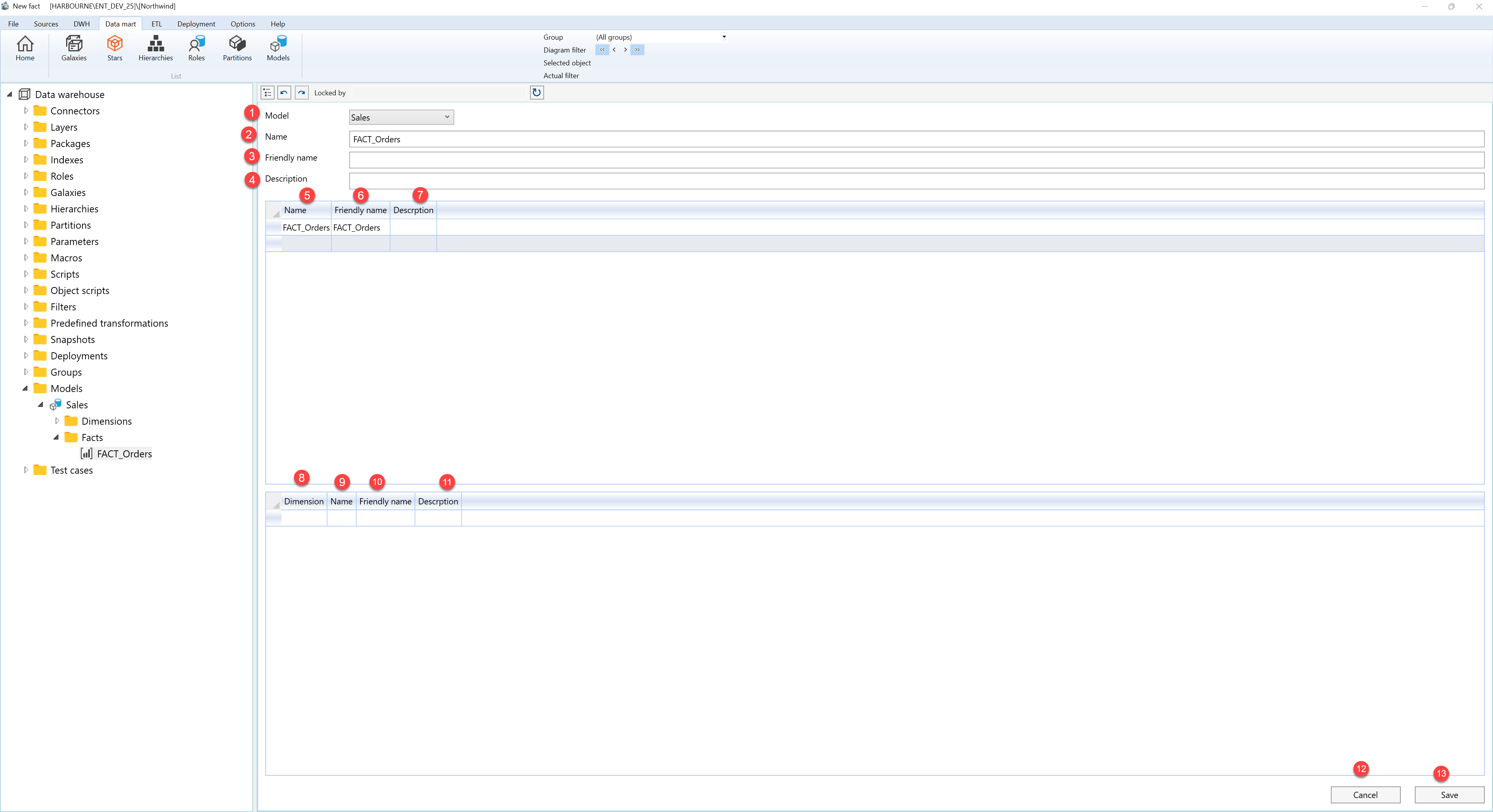
| ID | Property | Description |
|---|---|---|
| 1 | Model | Required model that owns the fact. It is preselected when the page is opened from a model's Facts branch. |
| 2 | Name | Required technical fact name. |
| 3 | Friendly name | Business-facing name for the fact. |
| 4 | Description | Optional description for the fact. |
| 5 | Name | Measure name in the measures grid. |
| 6 | Friendly name | Business-facing measure name in the measures grid. |
| 7 | Description | Measure description column in the measures grid. |
| 8 | Dimension | Model dimension selected for the fact relationship. |
| 9 | Name | Dimension relationship name. A blank row name can be filled from the selected dimension. |
| 10 | Friendly name | Business-facing relationship name in the dimensions grid. |
| 11 | Description | Dimension relationship description column in the dimensions grid. |
| 12 | Cancel | Closes the page without continuing the current edit. |
| 13 | Save | Validates the required model and name, stores the fact, refreshes the navigation tree, and reloads the page. |
