Search
Overview
Search helps users find and focus objects that are already shown on the dataflow diagram canvas. It is useful when a model contains many sources, tables, transformations, packages, and relationships and the user needs to jump directly to a known object.
Function
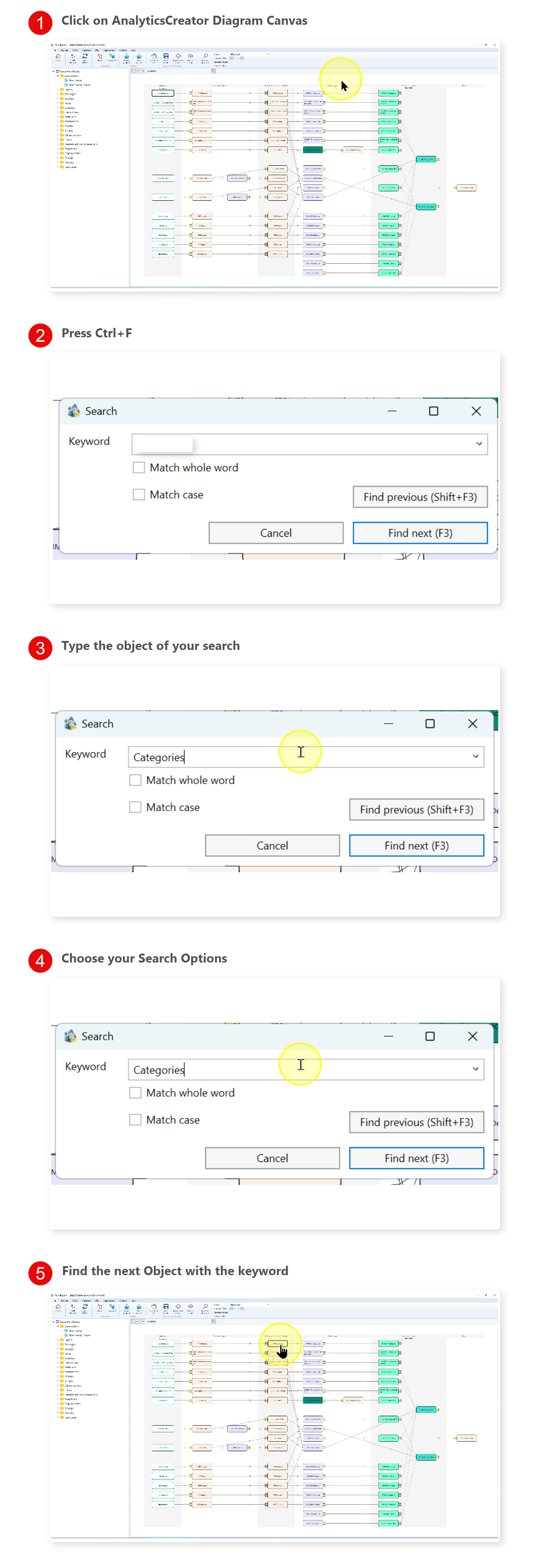
The Find on diagram command opens the Search dialog for the active dataflow diagram. Users enter a keyword, choose whether the match must use the whole word or match case, and move through results with Find next (F3) or Find previous (Shift+F3).
Search compares the keyword with visible diagram object names and friendly names. When a match is found, the diagram scrolls to that object and highlights its label. Repeating the search moves to the next or previous matching object. If no match is found, AnalyticsCreator shows a message that the keyword was not found.
Search works together with diagram navigation and filters. Navigation-tree commands can locate an object on the diagram, while diagram filter commands narrow the canvas first and then Search helps jump within the visible result set.
Access
Search is available from the File toolbar while the dataflow diagram is open. It can also be started from the keyboard, and object-focused navigation can be started from source, table, or transformation nodes in the navigation tree.
How to access
Navigation tree
Source, table, or transformation context menu -> Locate in diagram
Toolbar
File -> Find on diagram
Diagram
Press Ctrl+F, F3, or Shift+F3 while the diagram is active.
Visual element
Search dialog and highlighted diagram label
Screen overview