
Export
Overview
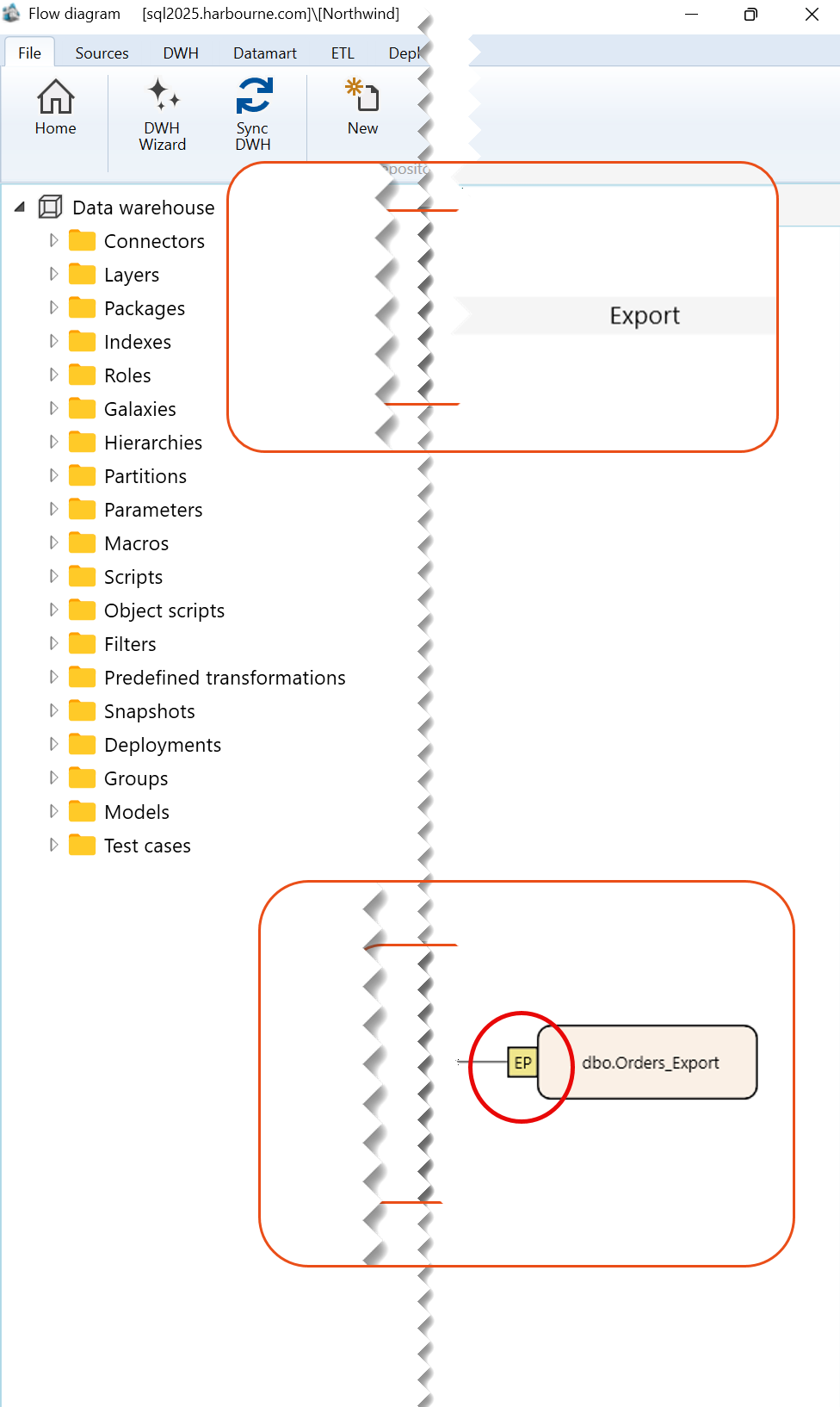
Export, shown by the EP marker, represents a controlled flow from an eligible AnalyticsCreator object to an external target object. It shows where prepared data leaves the analytical model and which target receives it.
Function
An export flow connects a predecessor object, such as STAR.DIM_Orders, to a target object, such as dbo.Orders_Export. Creation and target management use two different rectangular objects and must be documented separately
The EP marker identifies the export relationship between the predecessor and target objects. Use the predecessor rectangle to create the export and the target rectangle to manage the existing export target. The EP marker is not the owner of either complete object menu.
Access
Exports can be created from an eligible predecessor object on the dataflow diagram. Existing export definitions can also be maintained from package navigation entries and export-related pages or lists.
How to access
Navigation tree
Packages -> Export
Toolbar
ETL -> Packages
Create on diagram
Right-click an eligible predecessor, such as a dimension, and select Add -> Export.
Manage target
Right-click the export target rectangle in the Export band.
Screen overview
Context menu used to create an export
Right-click the predecessor dimension, such as STAR.DIM_Orders, and select Add -> Export.
| ID | Command | Description |
|---|---|---|
| 1 | Locate in tree | Locates the selected dimension in the Data warehouse tree. |
| 2 | Set filter | Sets the selected dimension as the current filter for the dataflow diagram. |
| 3 | Add to filter | Adds the selected dimension to the current diagram filter. |
| 4 | Refresh | Refreshes the selected dimension in the dataflow diagram. |
| 5 | Add | Opens the submenu containing the available options for adding a related object. |
| 6 | Delete | Deletes the selected dimension. |
| 7 | References | Opens the submenu containing reference-related options for the selected dimension. |
| 8 | Locks | Opens the submenu containing lock-related options for the selected dimension. |
| 9 | Object groups | Opens options for managing the object groups associated with the selected dimension. |
| 10 | Import/Export object definition | Opens the submenu for exporting the selected dimension definition. |
| 11 | Model | Opens the submenu containing model-related options for the selected dimension. |
| 12 | Customize colors | Opens the submenu for customizing the display colors of the selected dimension. |
Dimension Add Submenu
| ID | Command | Description |
|---|---|---|
| 1 | Data source | Opens options for adding a data source. |
| 2 | Transformation | Opens options for adding a transformation object. |
| 3 | Export | Opens options for adding an export object. |
| 4 | Calendar dimension | Opens options for adding a calendar dimension. |
| 5 | Time dimension | Opens options for adding a time dimension. |
| 6 | Snapshot dimension | Opens options for adding a snapshot dimension. |
Export target object context menu
For an existing export relationship, right-click the target object itself, such as dbo.Orders_Export. The enabled commands depend on the target state. The table below documents the enabled top-level commands shown in Dimitri’s reference example.
| ID | Command | Description |
|---|---|---|
| 1 | Locate in tree | Locates the export target object in the navigation tree. |
| 2 | Set filter | Sets the export target object as the current filter for the dataflow diagram. |
| 3 | Add to filter | Adds the export target object to the current diagram filter. |
| 4 | Refresh | Refreshes the export target object in the dataflow diagram. |
| 5 | Add | Opens the submenu containing the available options for adding a related object. |
| 6 | Delete | Deletes the export target object when deletion is available. |
| 7 | References | Opens reference-related options for the export target object. |
| 8 | Locks | Opens lock-related options for the export target object. |
| 9 | Customize colors | Opens options for customizing the display colors of the export target object. |
