
Source
Overview
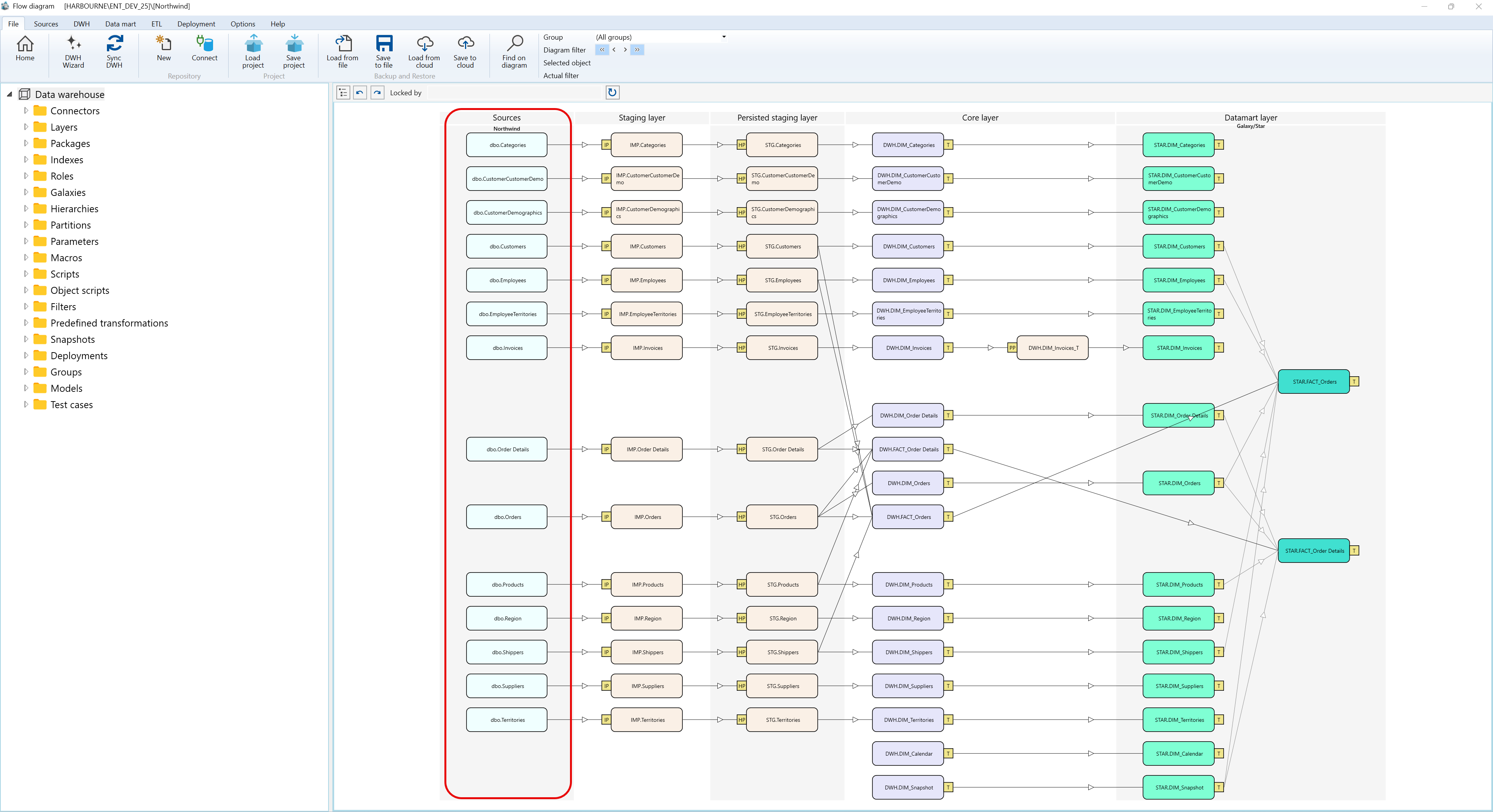
Source in the dataflow diagram represents an input object supplied by a connector. It shows where external data enters the model and how that data can feed imports, exports, transformations, references, and downstream warehouse objects.
Function
A source object appears as a selectable label on the dataflow diagram. Users can focus it in the navigation tree, use it as a diagram filter, preview its data, refresh its structure, open its reference diagram, or start related import and export work from the same context.
Double-clicking a source opens the source editor. The editor maintains the source name, schema, connector, group, type, friendly name, description, path, query, directory options, and column definition. File-based sources also expose CSV and directory settings, while query-based sources use the Query tab.
Refresh actions compare the source definition with the connected data provider and can update columns, keys, descriptions, imported-table metadata, and source references. This keeps the diagram and the source editor aligned with the external structure used by the model.
Access
Sources can be listed from the Sources toolbar tab, managed from the Sources branch in the navigation tree, and opened directly from a visible source label on the dataflow diagram. The diagram canvas also supports adding a new data source from the Add menu.
How to access
Navigation tree
Sources -> connector -> Sources -> source
Toolbar
Sources -> Sources
Diagram
Source label context menu, source label double-click, or diagram canvas Add -> Data source
Visual element
Source object on the dataflow diagram and the source editor
Screen overview
Context Menu
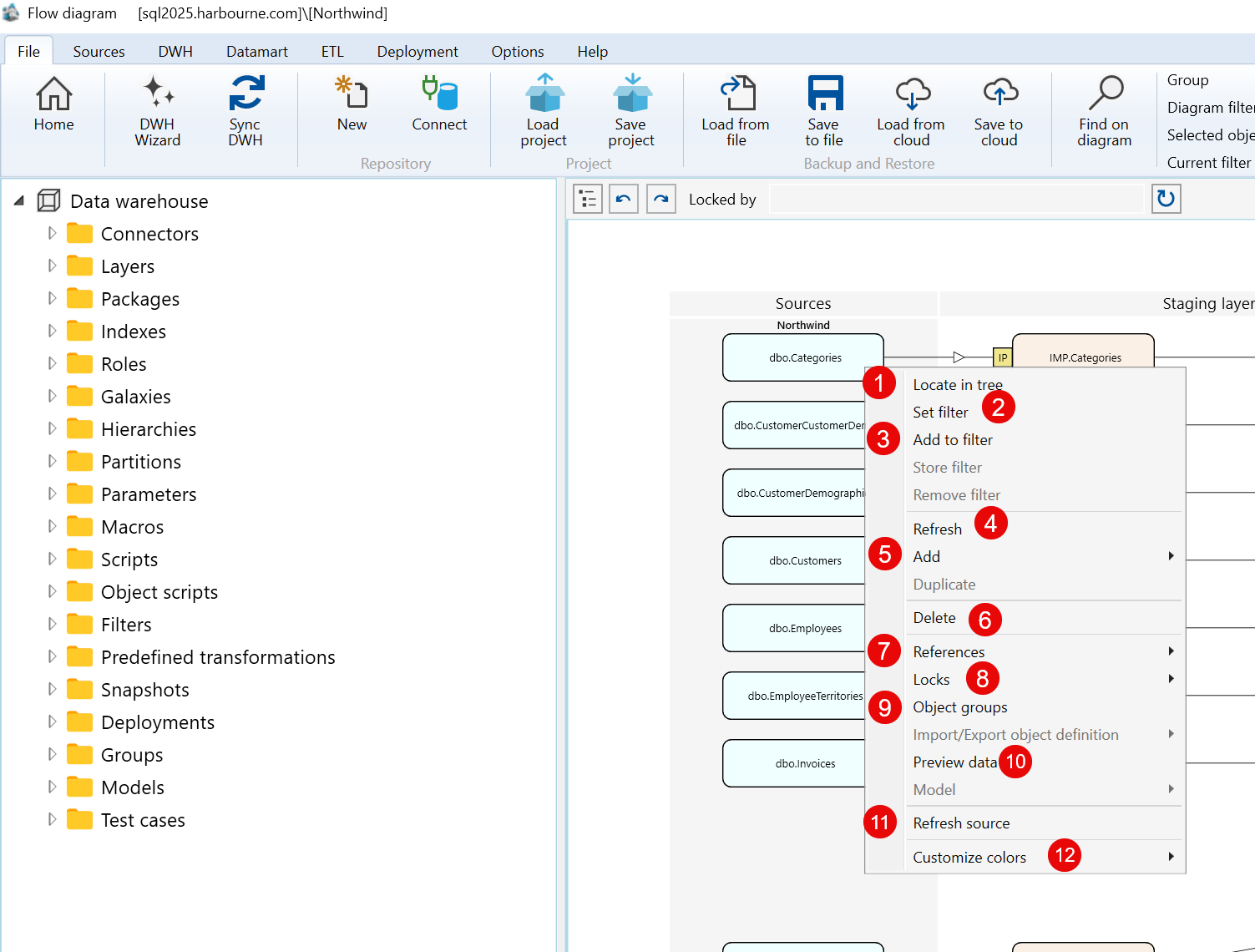
| ID | Command | Description |
|---|---|---|
| 1 | Locate in tree | Locates the selected source object in the navigation tree. |
| 2 | Set filter | Sets the selected source object as the current filter for the flow diagram. |
| 3 | Add to filter | Adds the selected source object to the current diagram filter. |
| 4 | Refresh | Refreshes the selected source object in the flow diagram. |
| 5 | Add | Opens the submenu containing the available options for adding a related object. |
| 6 | Delete | Deletes the selected source object. |
| 7 | References | Opens the submenu containing reference-related options for the selected source object. |
| 8 | Locks | Opens the submenu containing lock-related options for the selected source object. |
| 9 | Object groups | Opens options for managing the object groups associated with the selected source object. |
| 10 | Preview data | Opens a preview of the data returned by the selected source object. |
| 11 | Refresh source | Refreshes the selected source definition from its connected data provider. |
| 12 | Customize colors | Opens the submenu for customizing the display colors of the selected source object. |
Sub menus
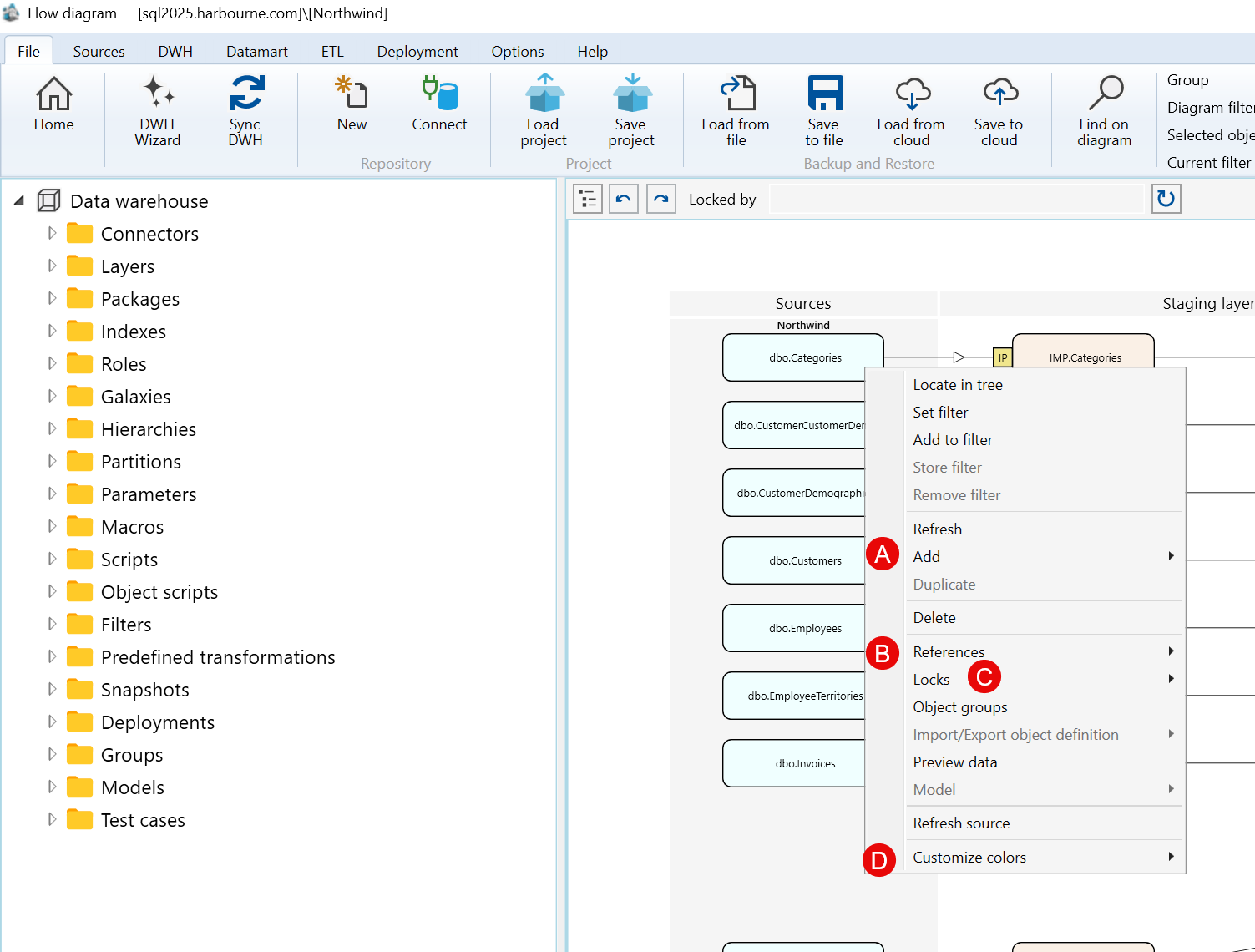
| ID | Submenu group | Description |
|---|---|---|
| A | Add | Contains the available options for adding an object related to the selected source object. |
| B | References | Contains options for viewing or managing references associated with the selected source object. |
| C | Locks | Contains options for locking the selected source object. |
| D | Customize colors | Contains options for customizing the colors used to display the selected source object. |
A) Add Submenu
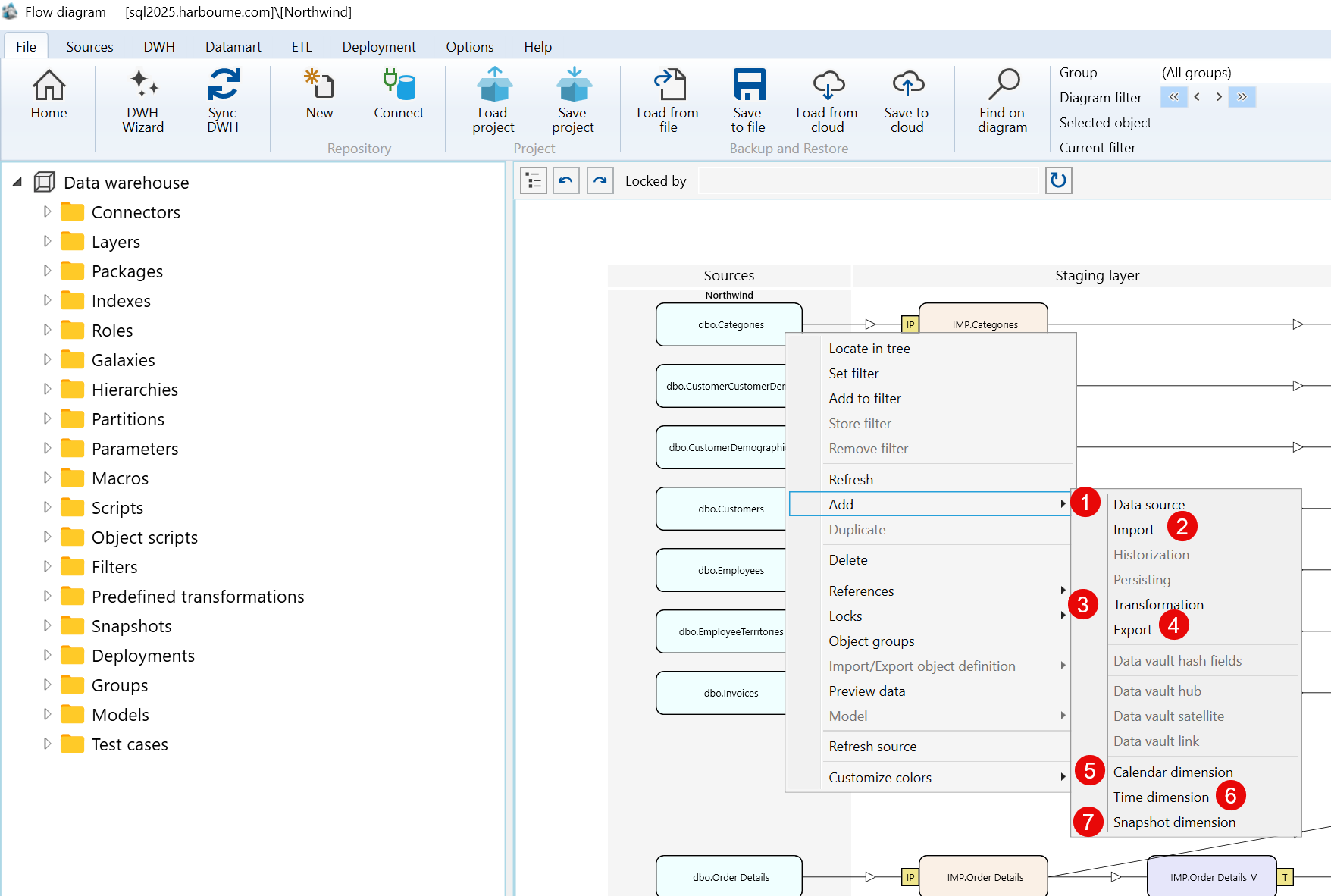
| ID | Command | Description |
|---|---|---|
| 1 | Data source | Opens options for adding a data source. |
| 2 | Import | Opens options for adding an import object. |
| 3 | Transformation | Opens options for adding a transformation object. |
| 4 | Export | Opens options for adding an export object. |
| 5 | Calendar dimension | Opens options for adding a calendar dimension. |
| 6 | Time dimension | Opens options for adding a time dimension. |
| 7 | Snapshot dimension | Opens options for adding a snapshot dimension. |
B) References Submenu
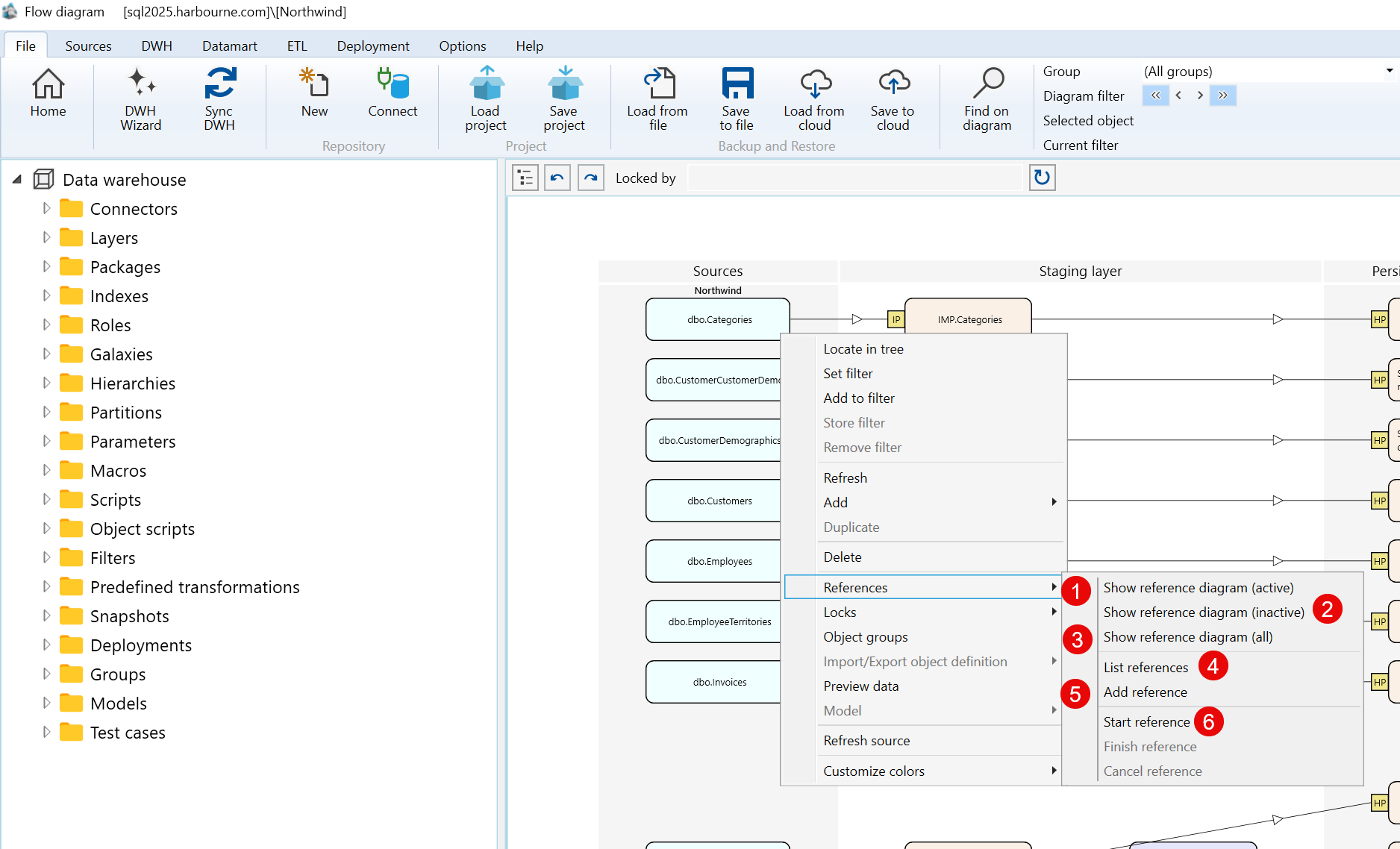
| ID | Command | Description |
|---|---|---|
| 1 | Show reference diagram (active) | Shows active reference diagrams associated with the selected source object. |
| 2 | Show reference diagram (inactive) | Shows inactive reference diagrams associated with the selected source object. |
| 3 | Show reference diagram (all) | Shows all reference diagrams associated with the selected source object. |
| 4 | List references | Lists references associated with the selected source object. |
| 5 | Add reference | Adds a reference to the selected source object. |
| 6 | Start reference | Starts creating a reference from the selected source object. |
C) Locks Submenu
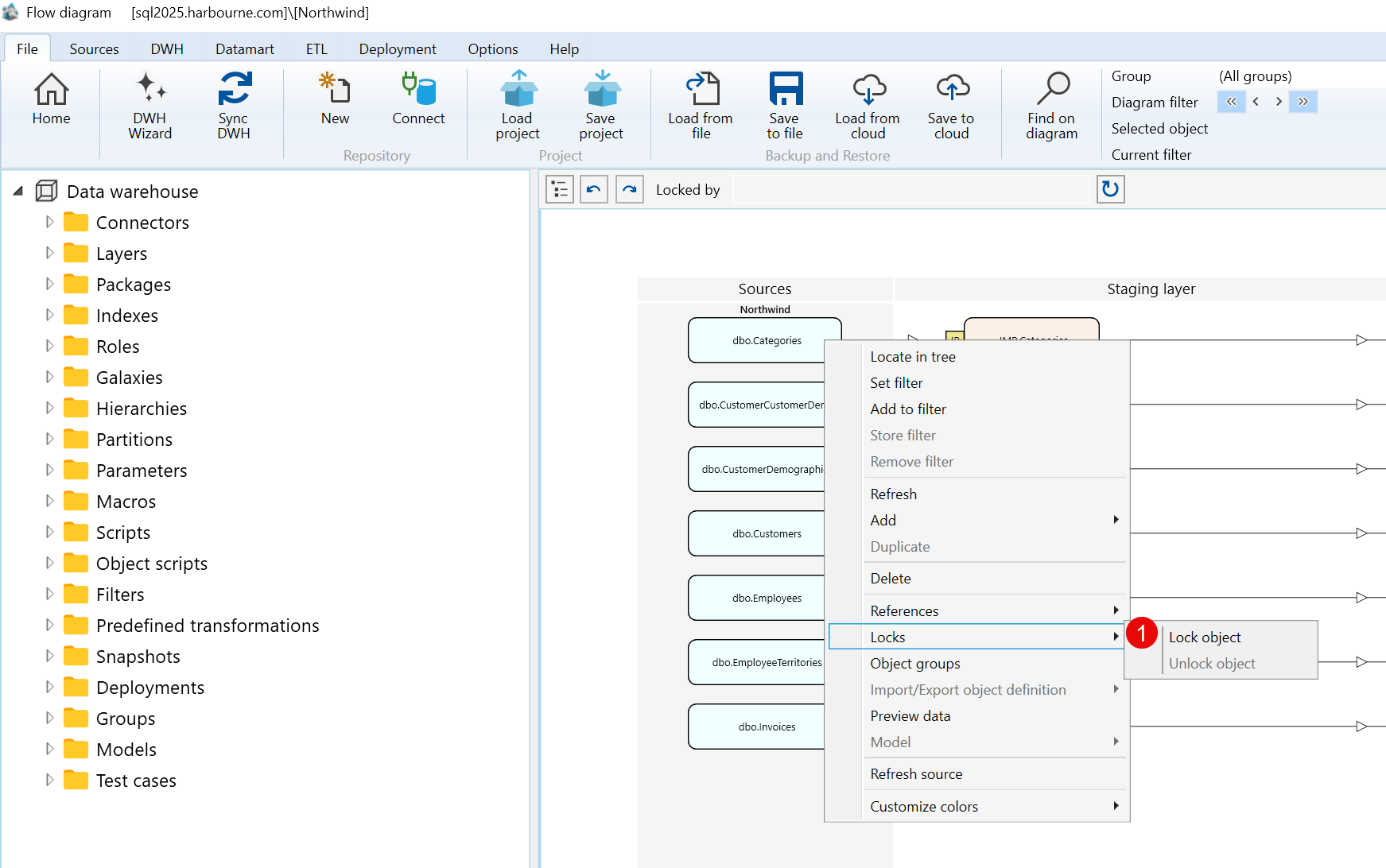
| ID | Command | Description |
|---|---|---|
| 1 | Lock object | Locks the selected source object. |
D) Customize colors Submenu
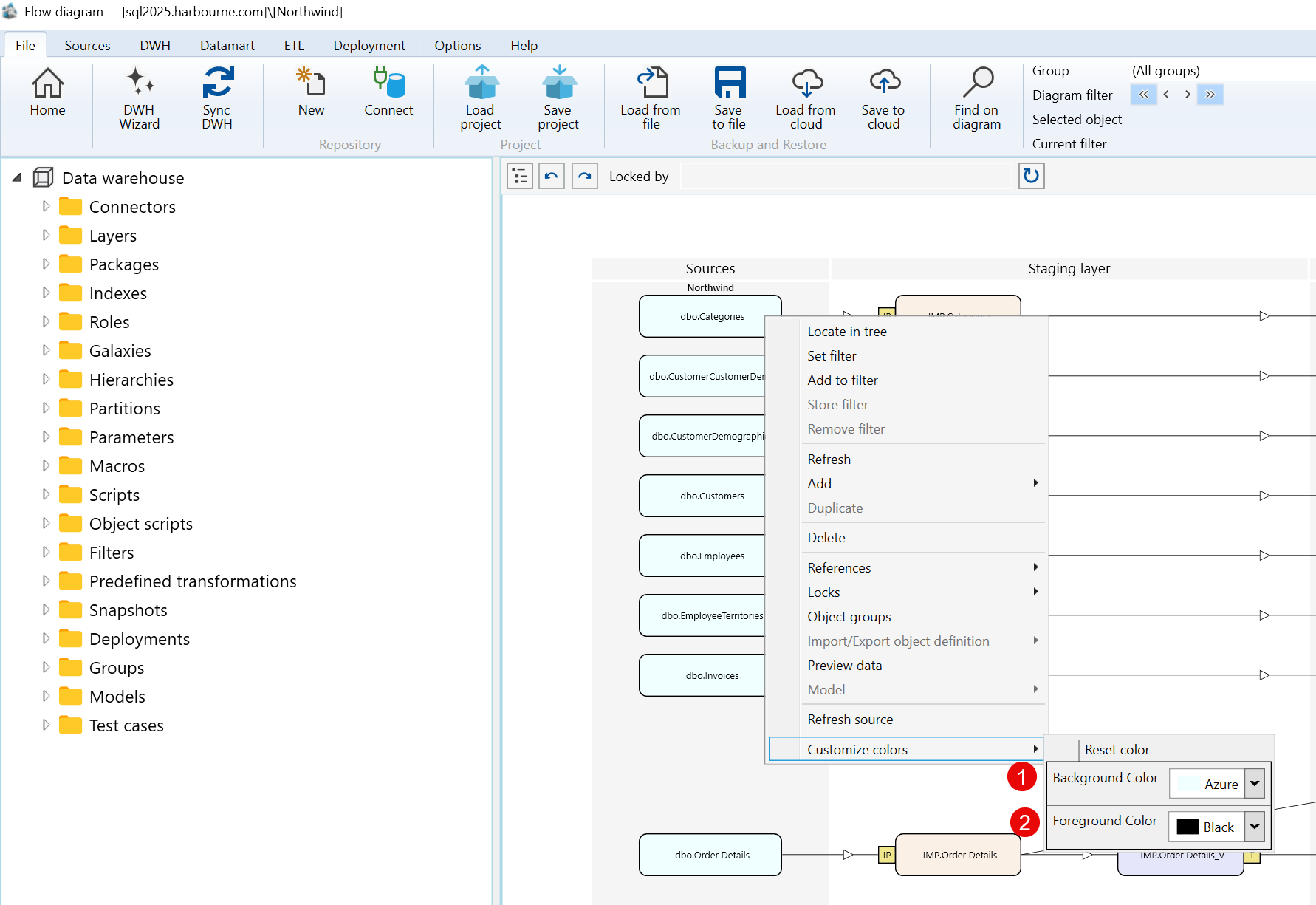
| ID | Command | Description |
|---|---|---|
| 1 | Background Color | Changes the background color of the selected source object. |
| 2 | Foreground Color | Changes the foreground color of the selected source object. |
