Layers
Overview
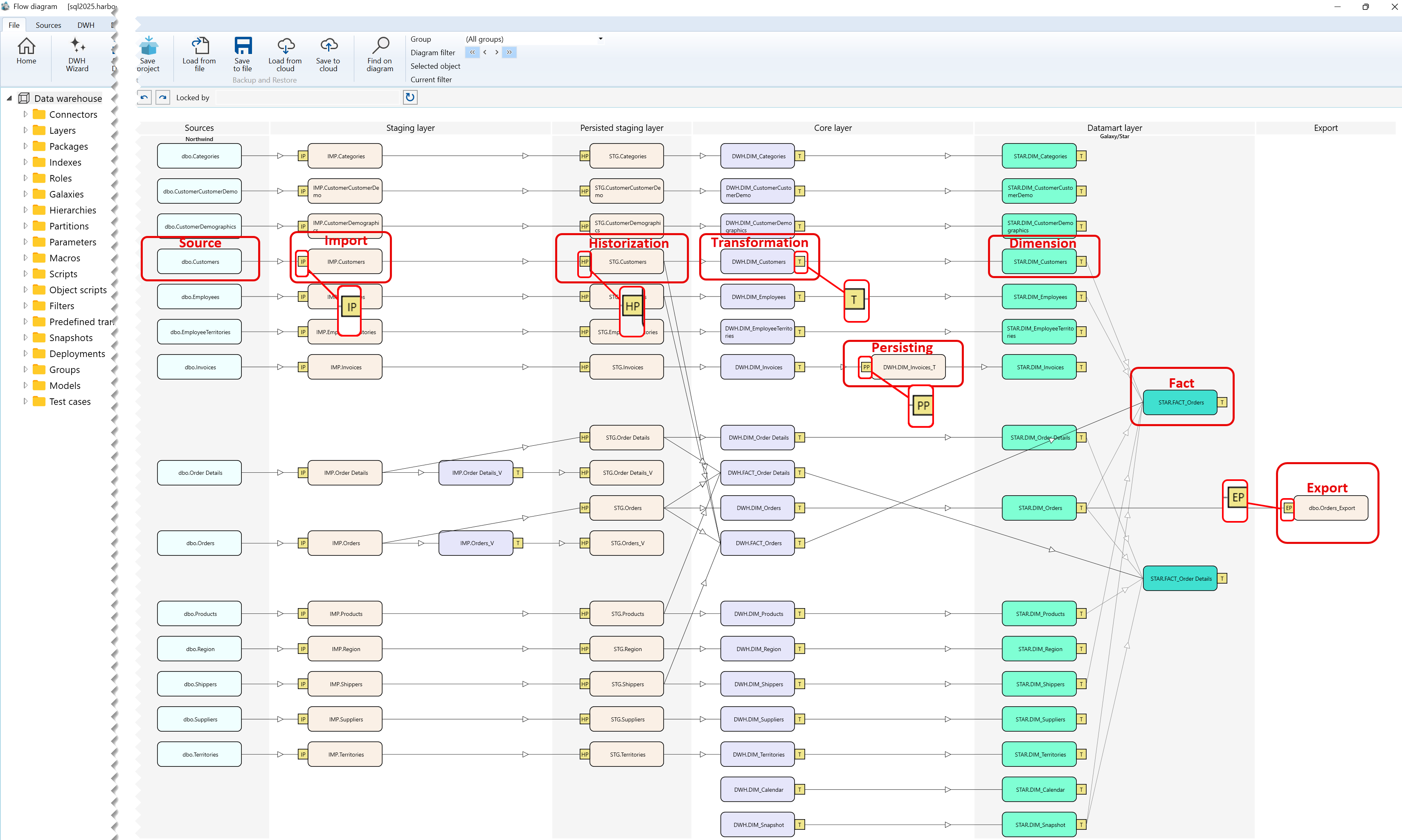
Layers are the vertical architectural bands that organize the Dataflow Diagram from external sources through staging, warehouse processing, analytical structures, and export targets.
Function
Each layer shows where an object belongs in the end-to-end data flow. Reading the diagram from left to right makes it possible to follow data from the original source, through import and historization, into Core transformations, Datamart dimensions and facts, and finally to an export target.
Layers describe architectural placement. General diagram-background commands, such as DWH synchronization or saving the diagram as a picture, are diagram-wide actions and are not documented here as Layer-specific commands.
Layer sequence
| ID | Layer | Role | Example objects |
|---|---|---|---|
| 1 | Sources | Contains external source objects supplied by connectors. | dbo.Categories, dbo.Customers |
| 2 | Staging layer | Contains imported objects created from source data. | IMP.Categories, IMP.Customers |
| 3 | Persisted staging layer | Contains historized or persisted staging results. | STG.Categories, STG.Customers |
| 4 | Core layer | Contains warehouse transformations and Core tables. | DWH.DIM_Invoices, DWH.FACT_Orders |
| 5 | Datamart layer | Contains analytical dimensions and facts. | STAR.DIM_Customers, STAR.FACT_Orders |
| 6 | Export | Contains target objects that receive exported data. | dbo.Orders_Export |
Common Flow for the Layer sequence
| Flow | Path shown in the diagram |
|---|---|
| Import | Source object → IP → IMP object |
| Historization | IMP object → HP → STG object |
| Persisting | Transformation → PP → persisted table |
| Export | Dimension or another eligible predecessor → EP → export target |
Access
Open the Dataflow Diagram from the DWH area to review the architectural bands and the objects placed in each stage. Use the Layers branch in the Data warehouse navigation tree when Layer records themselves must be reviewed or maintained.
How to access
Navigation tree
Data warehouse -> Show diagram; Data warehouse -> Layers -> layer name
Toolbar
DWH -> Layers
Diagram
Open the Dataflow Diagram and read the named bands from left to right.
Visual element
Vertical band with a heading such as Sources, Core layer, Datamart layer, or Export.
Screen overview