
Dimension
Overview
A dimension on the dataflow diagram represents descriptive business data prepared for analytical use. It shows where the dimension is created, how it connects to upstream processing, and how it supports facts, models, exports, and other downstream objects.
Function
A dimension appears as a green rectangular object in the Datamart layer. Its connections show the upstream Core object that supplies it and the downstream facts, models, exports, or references that use it.
Context Menu
Right-click the dimension rectangle to open its complete context menu. The commands provide access to diagram filters, related-object creation, references, locks, object groups, definition export, model membership, and display settings.
Access
Dimensions are available on the dataflow diagram as green Datamart objects. A dimension can be opened by double-clicking its rectangle or managed from its object context menu.
How to access
Navigation tree
Use the navigation tree to locate the related dimension object outside the diagram.
Toolbar
Dimension objects are not opened directly from a dedicated Dataflow Diagram toolbar command.
Diagram
Double-click the dimension rectangle to open it, or right-click the rectangle to open the context menu.
Screen overview
Context Menu
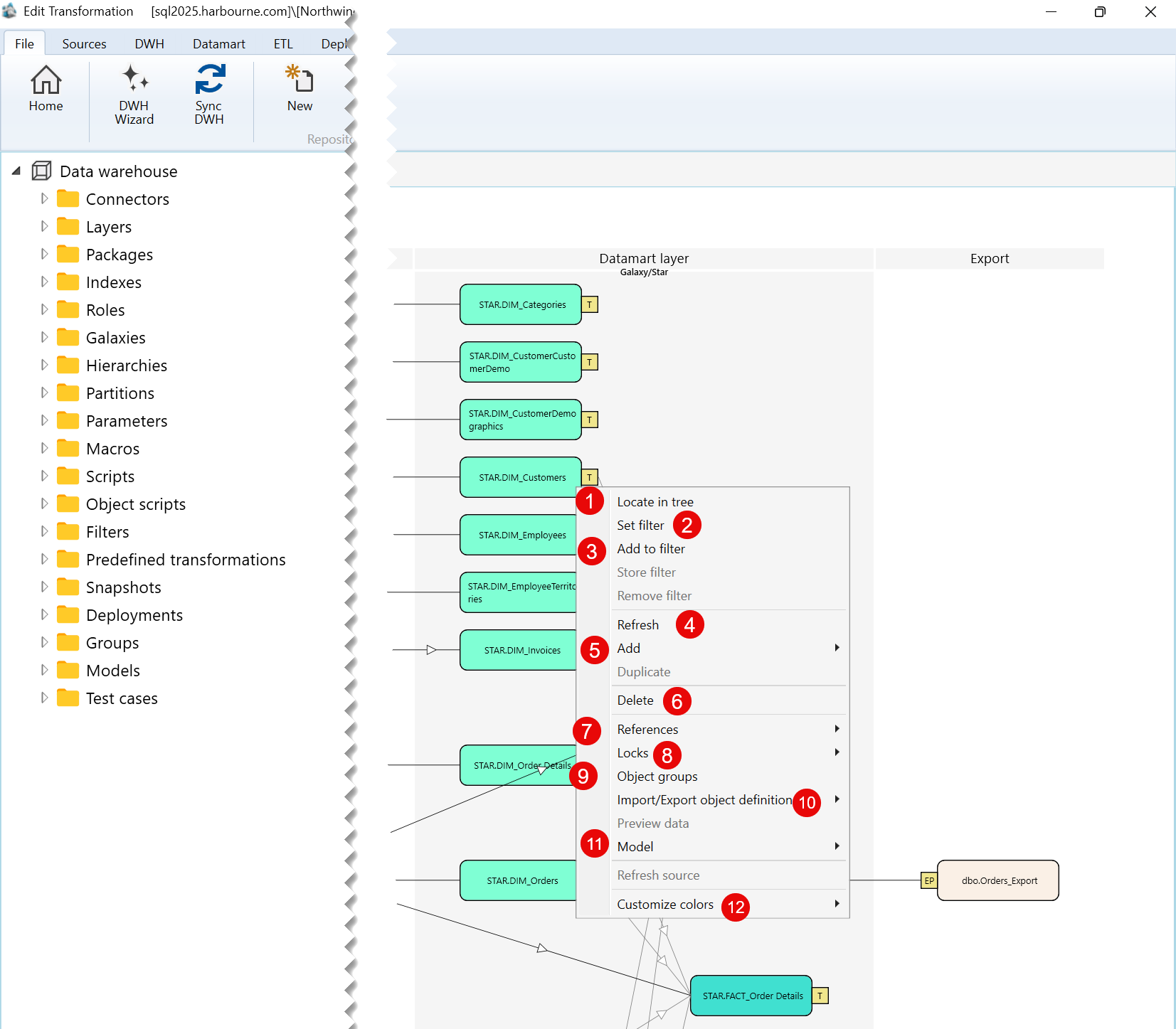
| ID | Command | Description |
|---|---|---|
| 1 | Locate in tree | Locates the selected dimension in the Data warehouse tree. |
| 2 | Set filter | Sets the selected dimension as the current filter for the dataflow diagram. |
| 3 | Add to filter | Adds the selected dimension to the current diagram filter. |
| 4 | Refresh | Refreshes the selected dimension in the dataflow diagram. |
| 5 | Add | Opens the submenu containing the available options for adding a related object. |
| 6 | Delete | Deletes the selected dimension. |
| 7 | References | Opens the submenu containing reference-related options for the selected dimension. |
| 8 | Locks | Opens the submenu containing lock-related options for the selected dimension. |
| 9 | Object groups | Opens options for managing the object groups associated with the selected dimension. |
| 10 | Import/Export object definition | Opens the submenu for exporting the selected dimension definition. |
| 11 | Model | Opens the submenu containing model-related options for the selected dimension. |
| 12 | Customize colors | Opens the submenu for customizing the display colors of the selected dimension. |
Sub menus
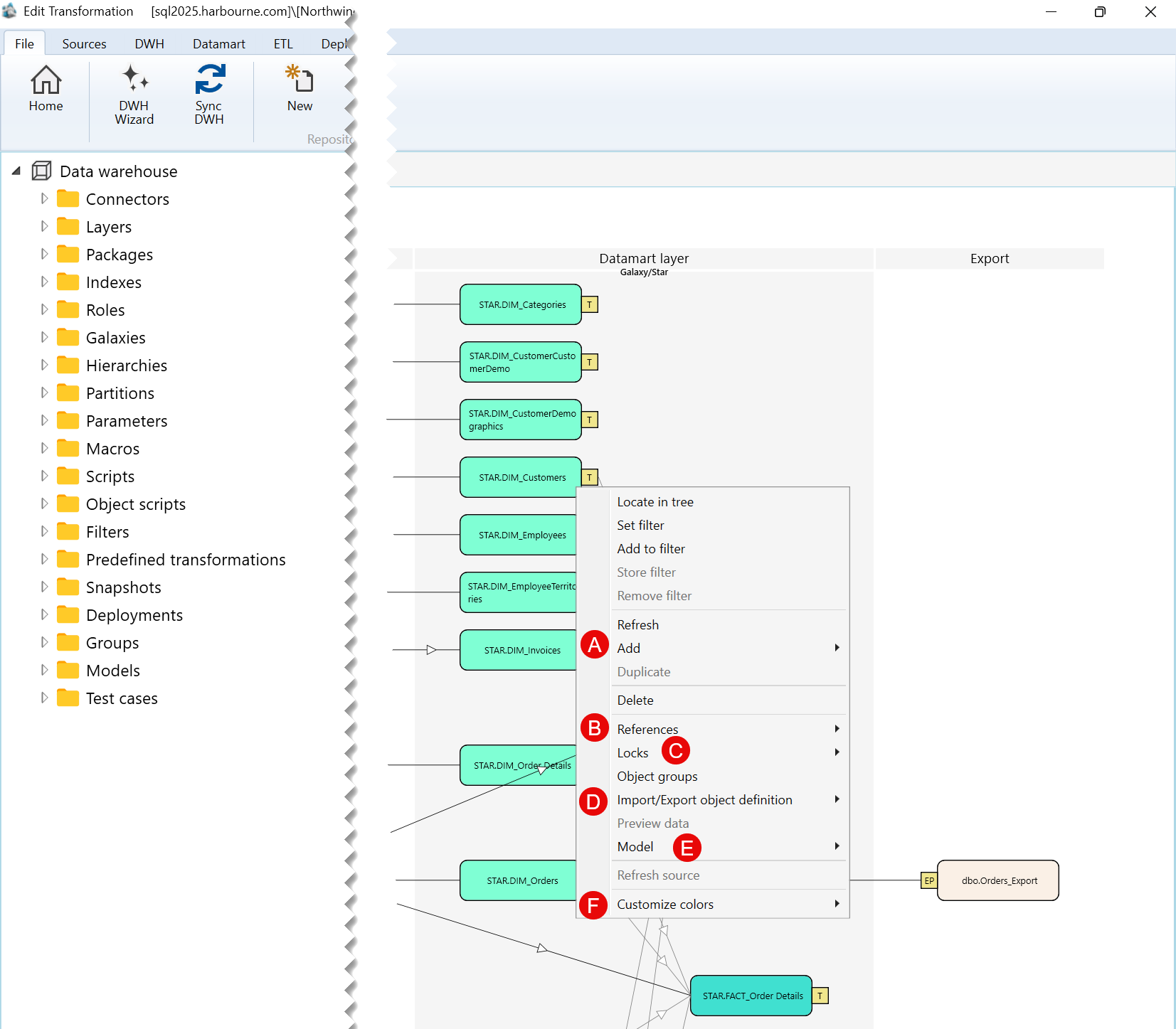
| ID | Submenu group | Description |
|---|---|---|
| A | Add | Contains the available options for adding an object related to the selected dimension. |
| B | References | Contains options for viewing or managing references associated with the selected dimension. |
| C | Locks | Contains lock-related options for the selected dimension. |
| D | Import/Export object definition | Contains options for exporting the selected dimension definition. |
| E | Model | Contains options for creating a model or adding the selected dimension to a model. |
| F | Customize colors | Contains options for customizing the colors used to display the selected dimension. |
A) Add Submenu
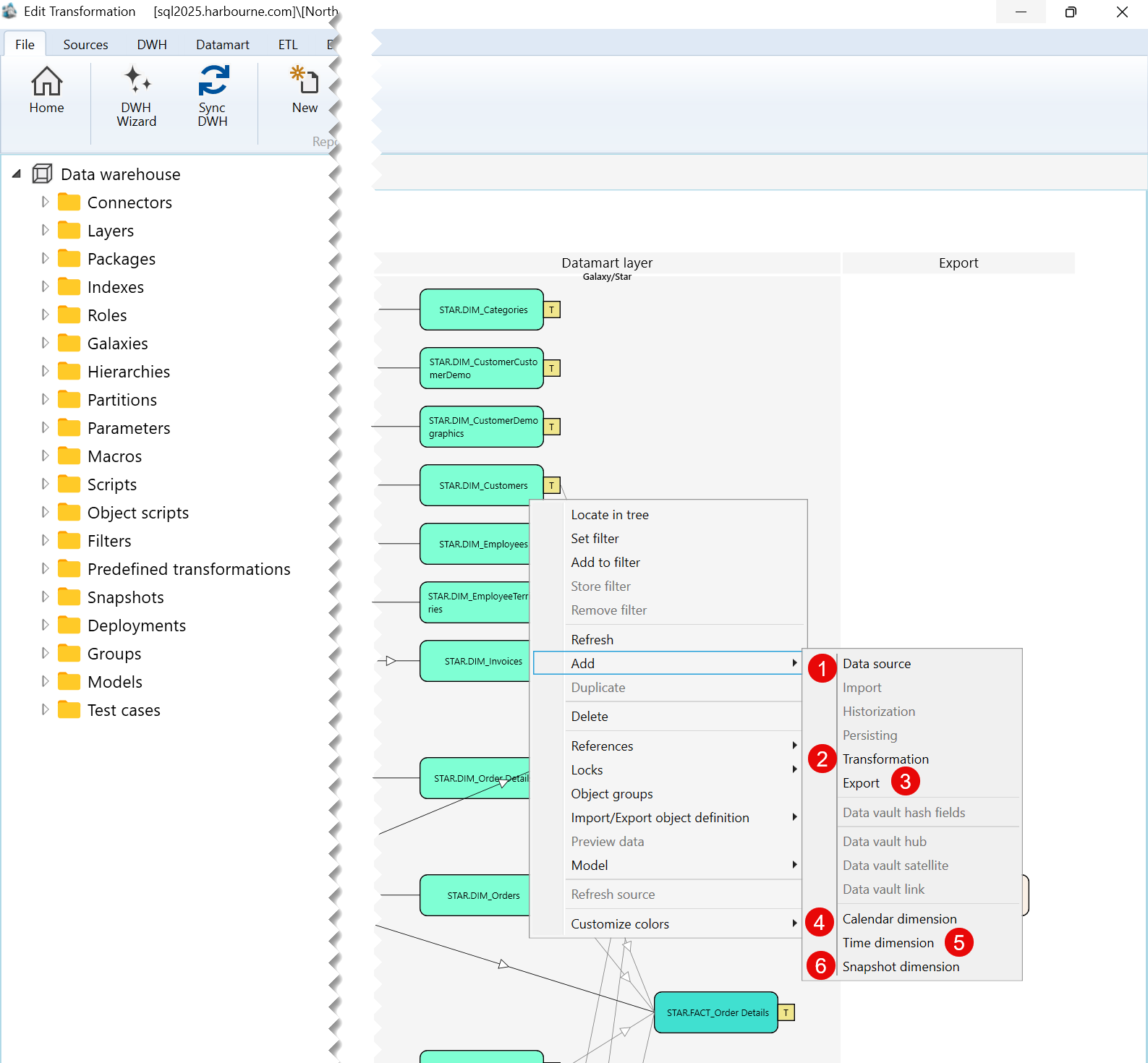
| ID | Command | Description |
|---|---|---|
| 1 | Data source | Opens options for adding a data source. |
| 2 | Transformation | Opens options for adding a transformation object. |
| 3 | Export | Opens options for adding an export object. |
| 4 | Calendar dimension | Opens options for adding a calendar dimension. |
| 5 | Time dimension | Opens options for adding a time dimension. |
| 6 | Snapshot dimension | Opens options for adding a snapshot dimension. |
B) References Submenu
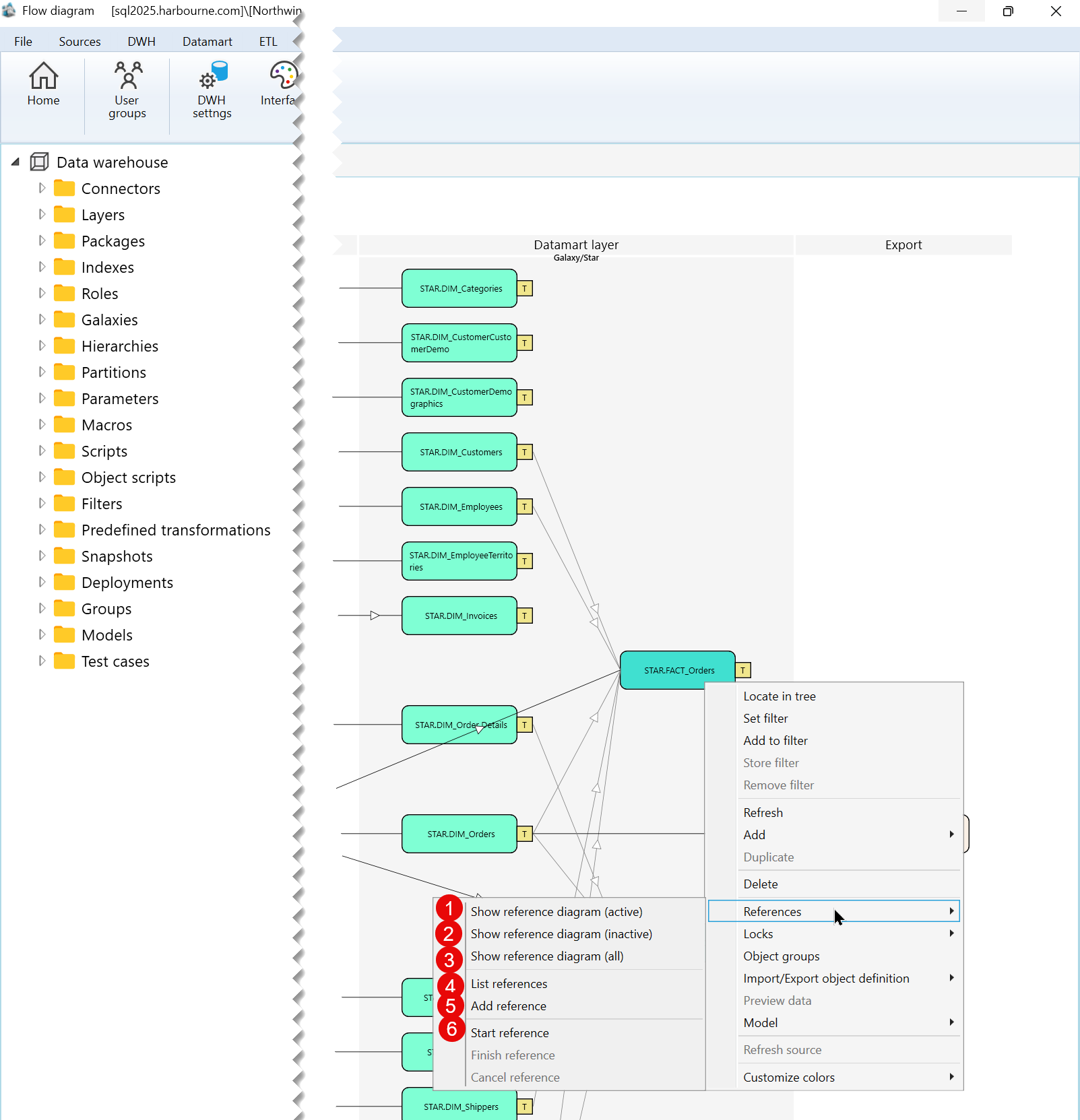
| ID | Command | Description |
|---|---|---|
| 1 | Show reference diagram (active) | Shows active reference diagrams associated with the selected dimension. |
| 2 | Show reference diagram (inactive) | Shows inactive reference diagrams associated with the selected dimension. |
| 3 | Show reference diagram (all) | Shows all reference diagrams associated with the selected dimension. |
| 4 | List references | Lists references associated with the selected dimension. |
| 5 | Add reference | Adds a reference to the selected dimension. |
| 6 | Start reference | Starts creating a reference from the selected dimension. |
C) Locks Submenu
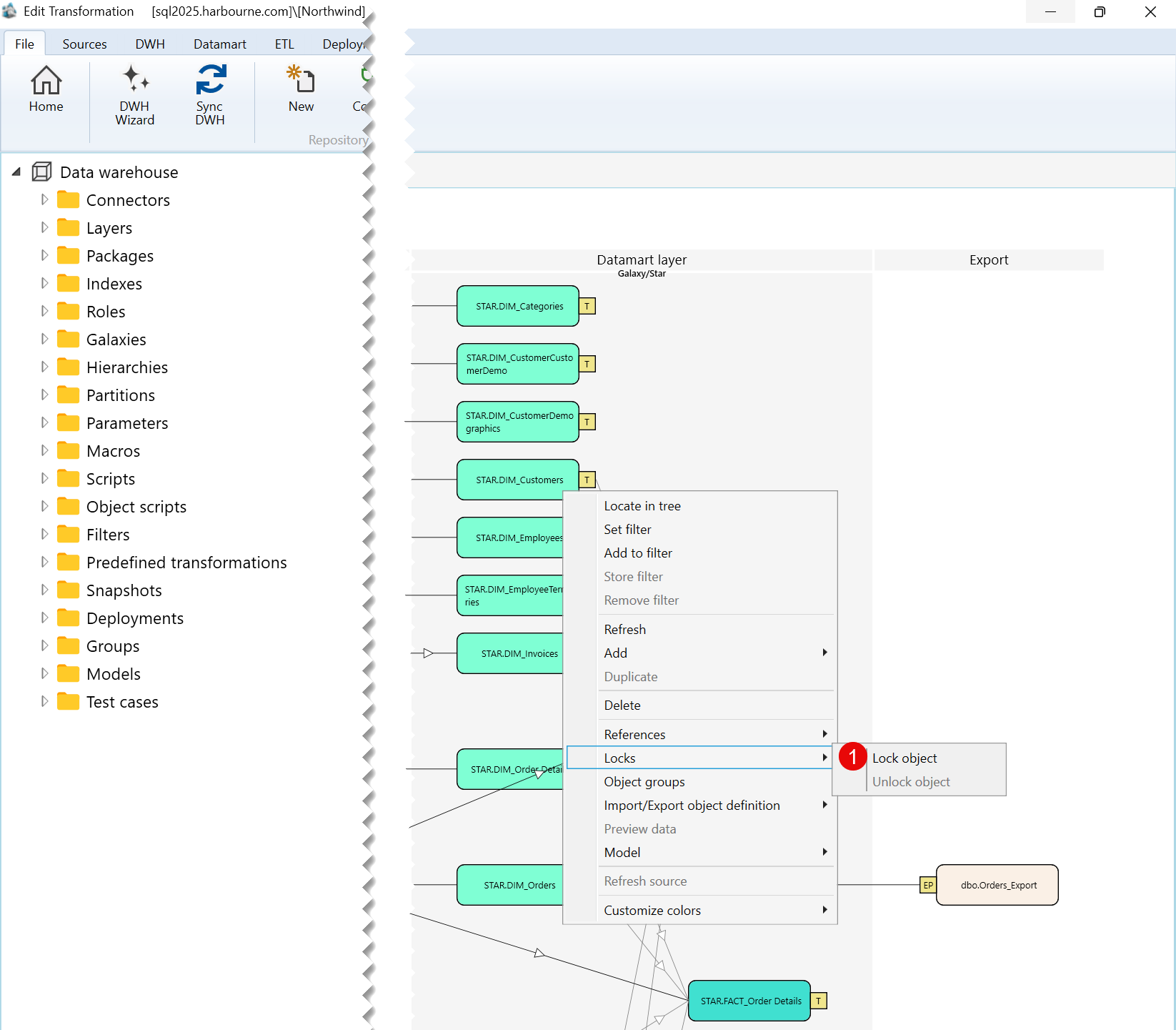
| ID | Command | Description |
|---|---|---|
| 1 | Lock object | Locks the selected dimension. |
D) Import/Export object definition Submenu
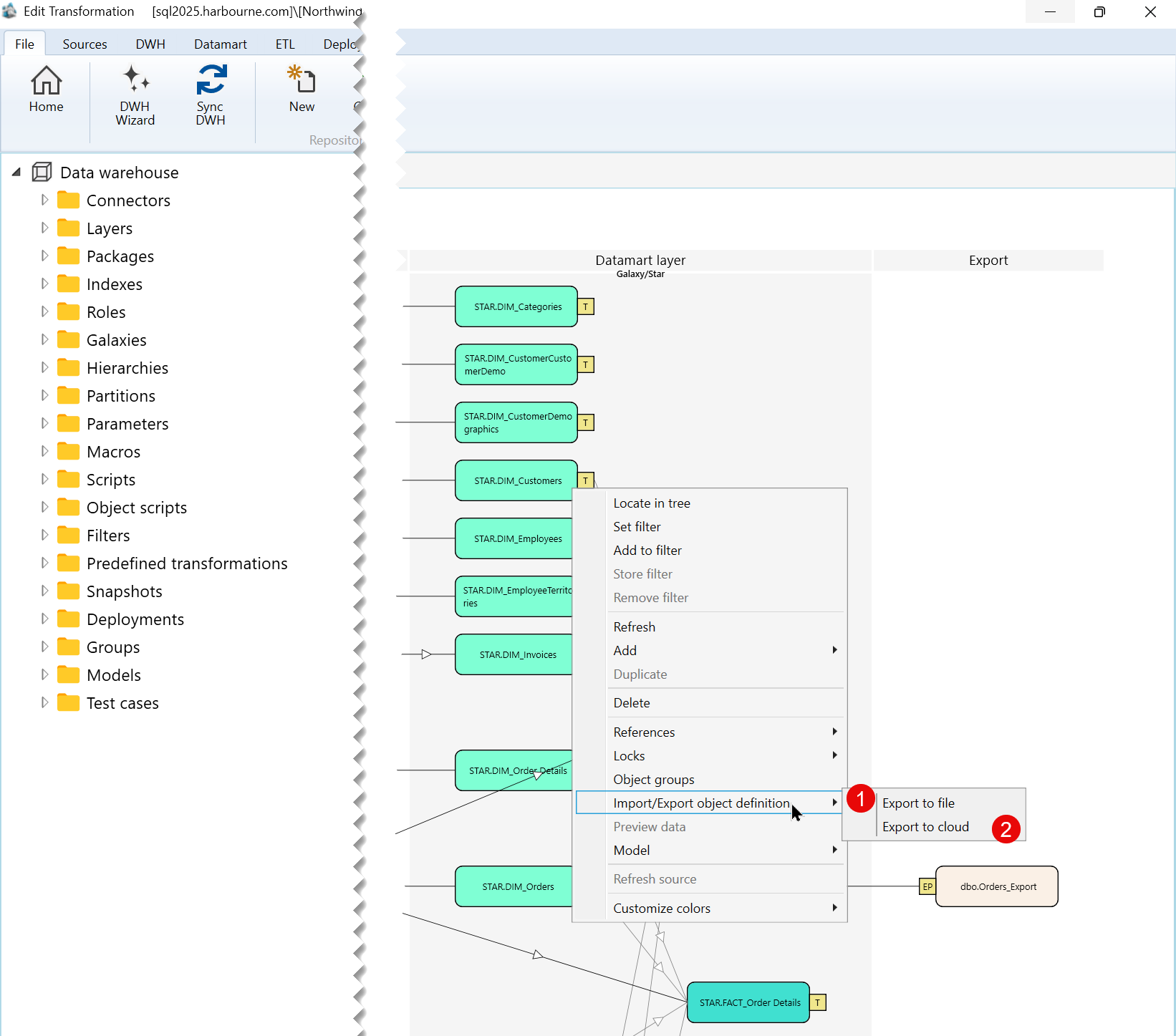
| ID | Command | Description |
|---|---|---|
| 1 | Export to file | Exports the selected dimension definition to a file. |
| 2 | Export to cloud | Exports the selected dimension definition to the cloud. |
E) Model Submenu
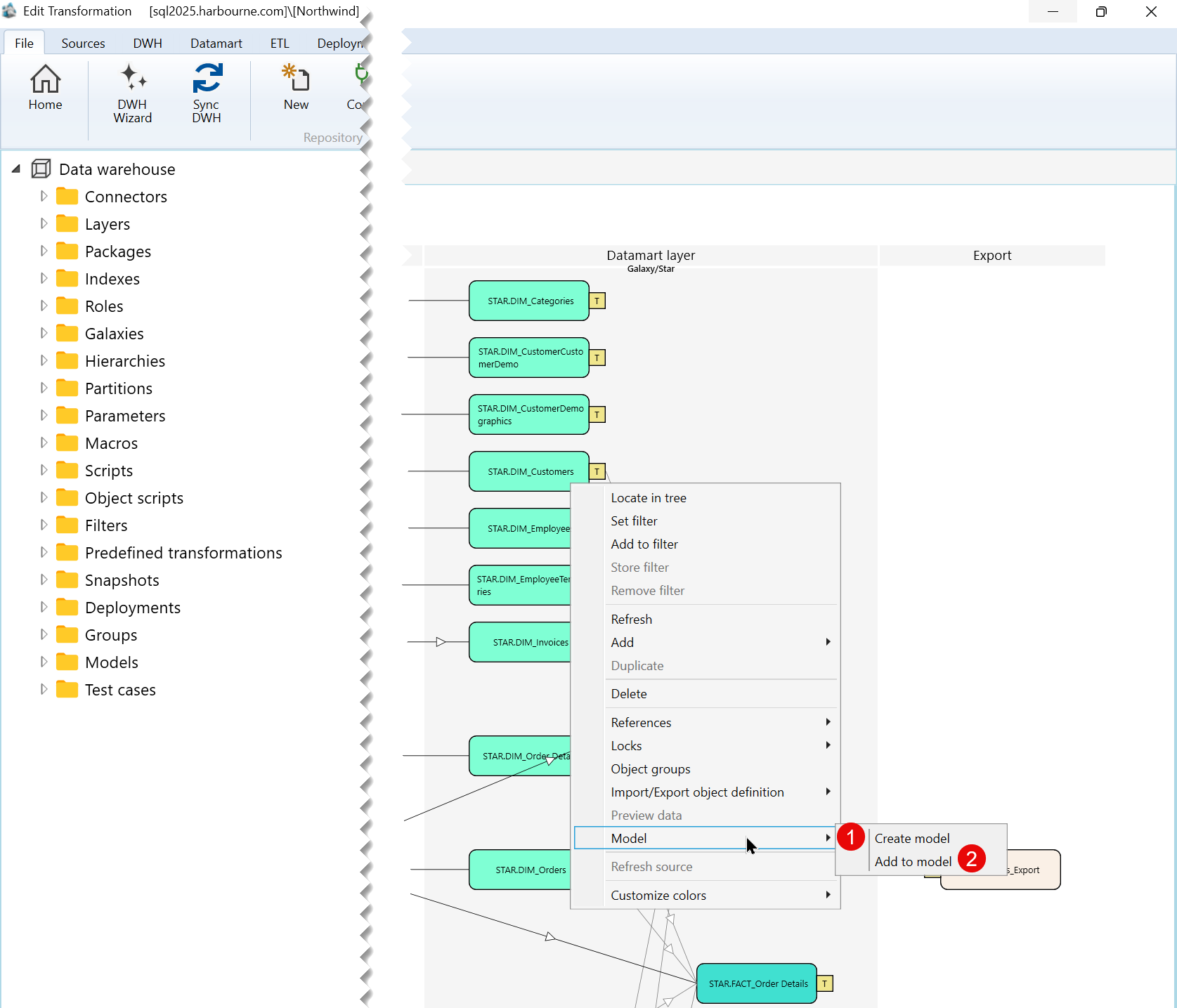
| ID | Command | Description |
|---|---|---|
| 1 | Create model | Creates a model based on the selected dimension. |
| 2 | Add to model | Adds the selected dimension to an existing model. |
F) Customize colors Submenu
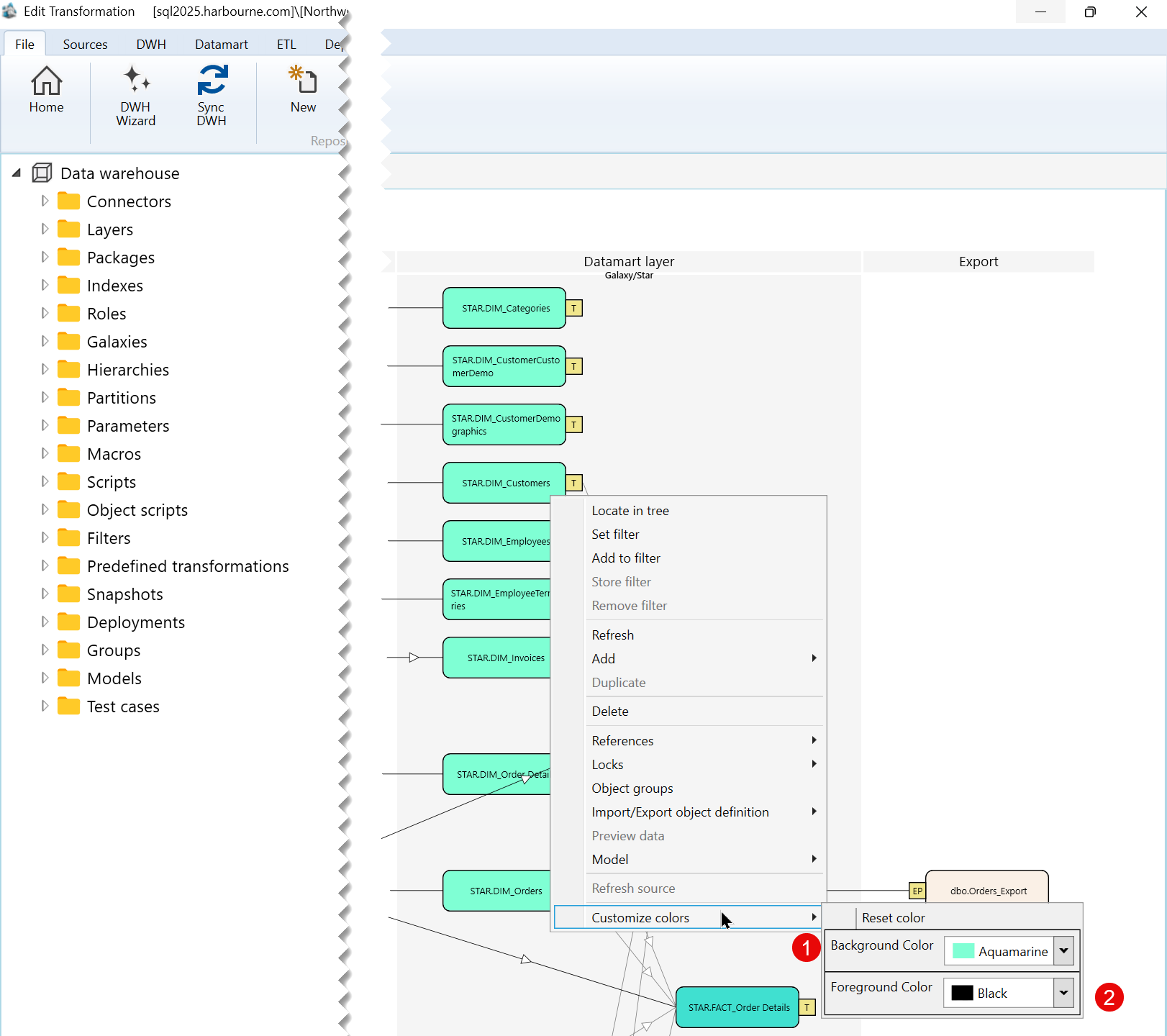
| ID | Command | Description |
|---|---|---|
| 1 | Background Color | Changes the background color of the selected dimension. |
| 2 | Foreground Color | Changes the foreground color of the selected dimension. |
