
Macro
Overview
The Macro page is used to add or edit reusable macro statements in AnalyticsCreator. Use it to name and describe a macro, choose its language, optionally bind it to a table context, and maintain the statement that other design objects can reuse.
Function
Use this page to create or maintain reusable macro logic. A macro stores a reusable statement that can be referenced by other AnalyticsCreator objects.
Macro name identifies the macro when it is referenced elsewhere. Description documents the purpose of the macro. Language controls how the macro statement is interpreted.
Referenced table can attach the macro to a table context. The list includes a no-table option and tables that can provide a key-based context for the macro. Statement contains the reusable macro statement body.
Save validates the required fields, stores the macro, refreshes affected transformation views that reference the macro directly or through another macro, and refreshes the navigation tree. Cancel closes the page without continuing the current edit.
Access
Open this page when you need to add a new macro or edit an existing macro. Existing macros can be opened from the Macros branch in the navigation tree or from the Macros list.
How to access
Navigation tree
Data warehouse -> Macros -> Add macro, or Data warehouse -> Macros -> [macro] -> Edit macro.
Toolbar
DWH -> Macros, then use New to add a macro or double-click an existing row to edit it.
Diagram
The Macro page is not opened directly from the diagram. Use the navigation tree, toolbar, or Macros list.
Screen overview
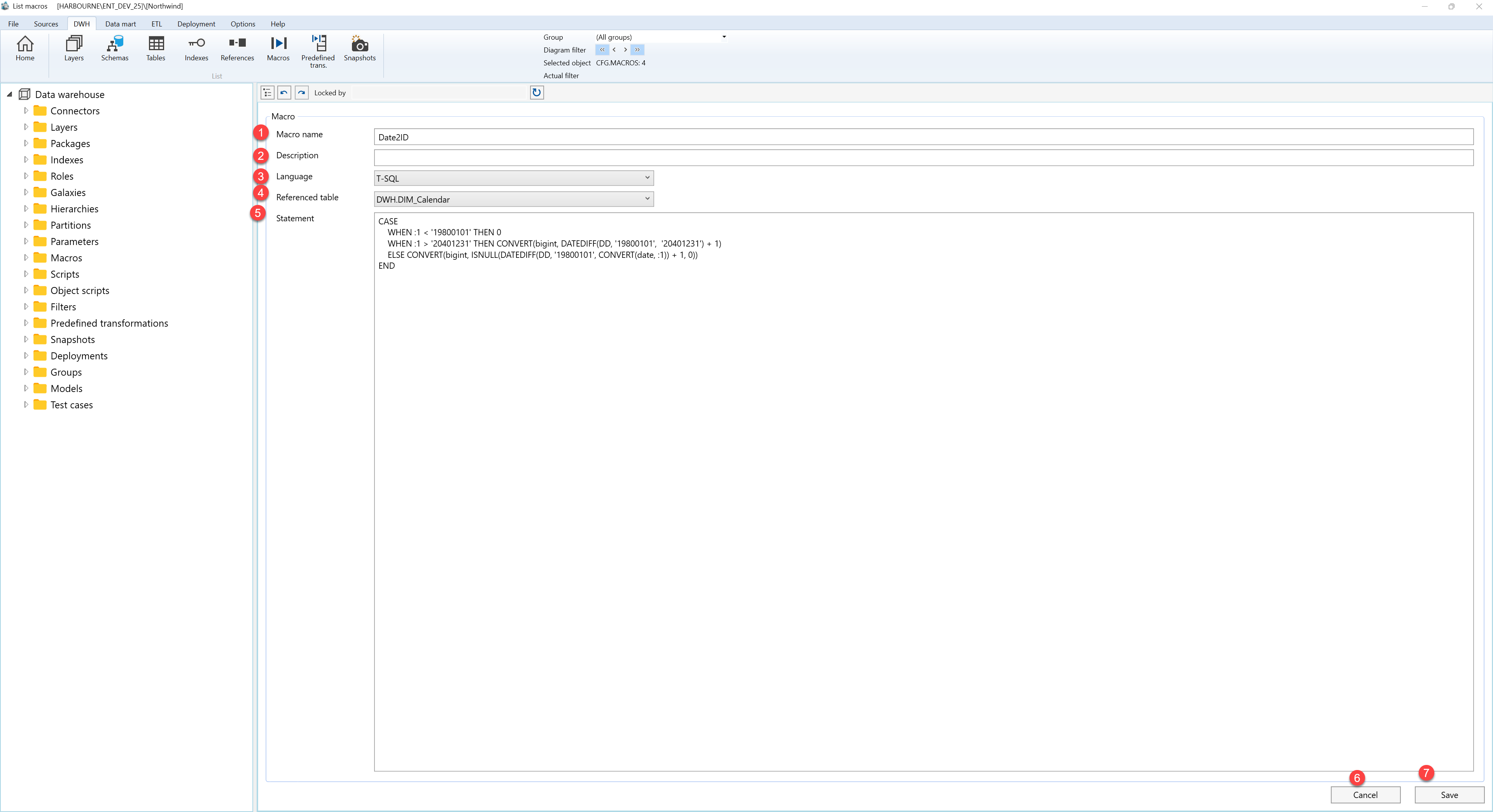
The Macro page contains the macro details fields, the statement editor, and the page action buttons. The table below follows the numbered markers in the screenshot.
| ID | Property | Description |
|---|---|---|
| 1 | Macro name | Required macro name used when the macro is referenced by other objects. |
| 2 | Description | Optional description for the macro. |
| 3 | Language | Required language used to interpret the macro statement. |
| 4 | Referenced table | Optional table context for the macro. The list includes a no-table option and tables that can provide a key-based context. |
| 5 | Statement | Required reusable statement body for the macro. |
| 6 | Cancel | Closes the page without continuing the current edit. |
| 7 | Save | Validates required fields, stores the macro, refreshes affected transformation views, and refreshes the navigation tree. |
