
Parameters
Overview
Parameters are configuration settings that control technical behavior, naming rules, deployment options, and other system or project-specific functions across the application.
Each parameter provides a technical or project-related setting that influences areas such as logging, naming conventions, deployment behavior, storage settings, and provider configuration.
Function
The Parameters feature is used to review default parameter values and define custom values for the current project.
Changes made in this area affect how AnalyticsCreator behaves during modeling, generation, deployment, and related technical processing.
Access
Parameters are available from the AnalyticsCreator navigation tree and the Options ribbon tab.
How to access
Navigation tree
Parameters
Toolbar
Options -> Parameter
Diagram
Not opened from a diagram. Use the Options ribbon tab.
Visual element
Parameter settings page opened from the Options ribbon.
Screen overview
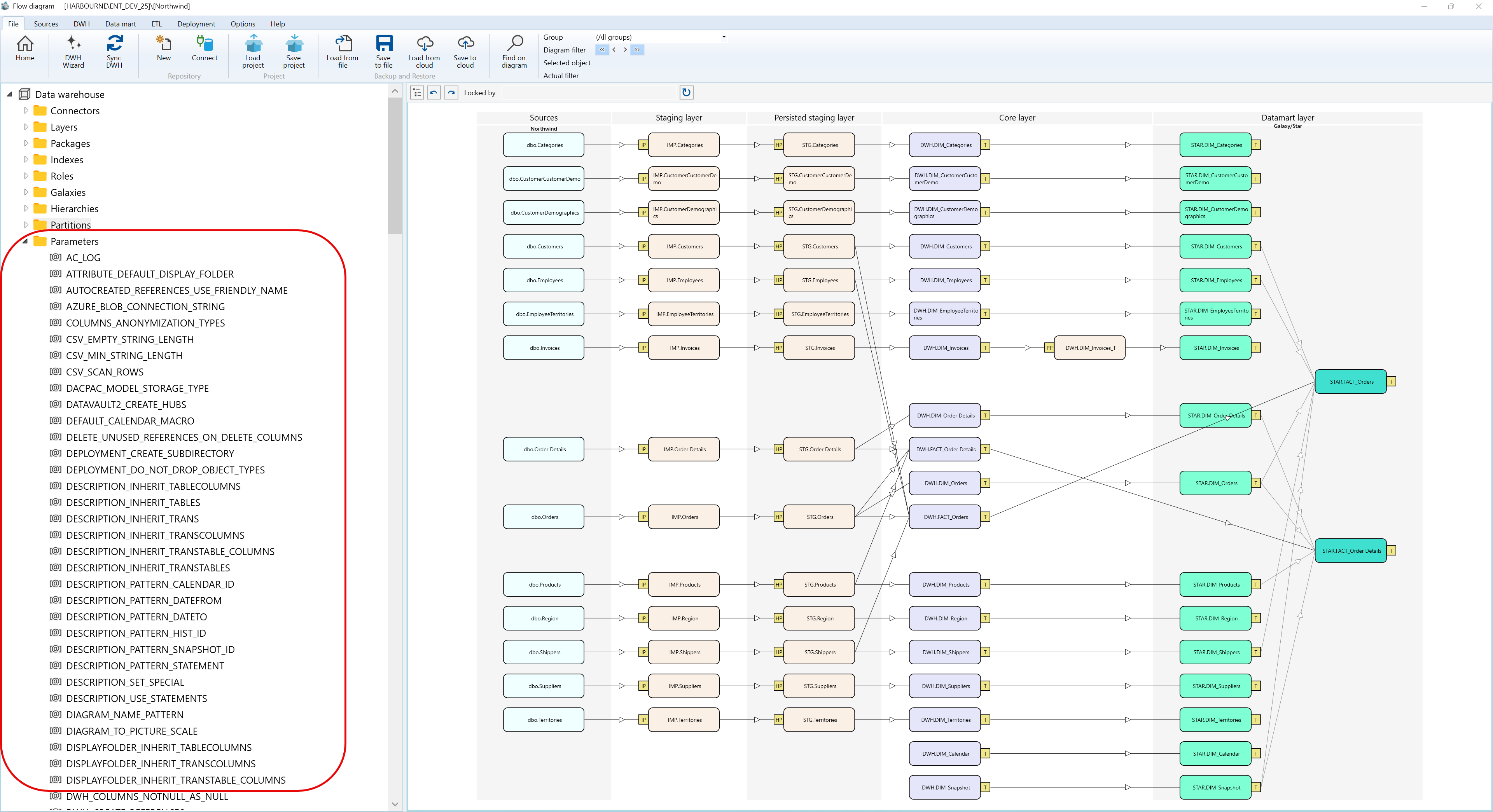
The Parameters screen contains a parameter list with default values and optional custom values.
Context menus access - Parameters - Where I can find it
The context menu examples below use the supplied Parameters screenshots and show the Parameters branch plus an individual parameter node.
A.1) Parameters
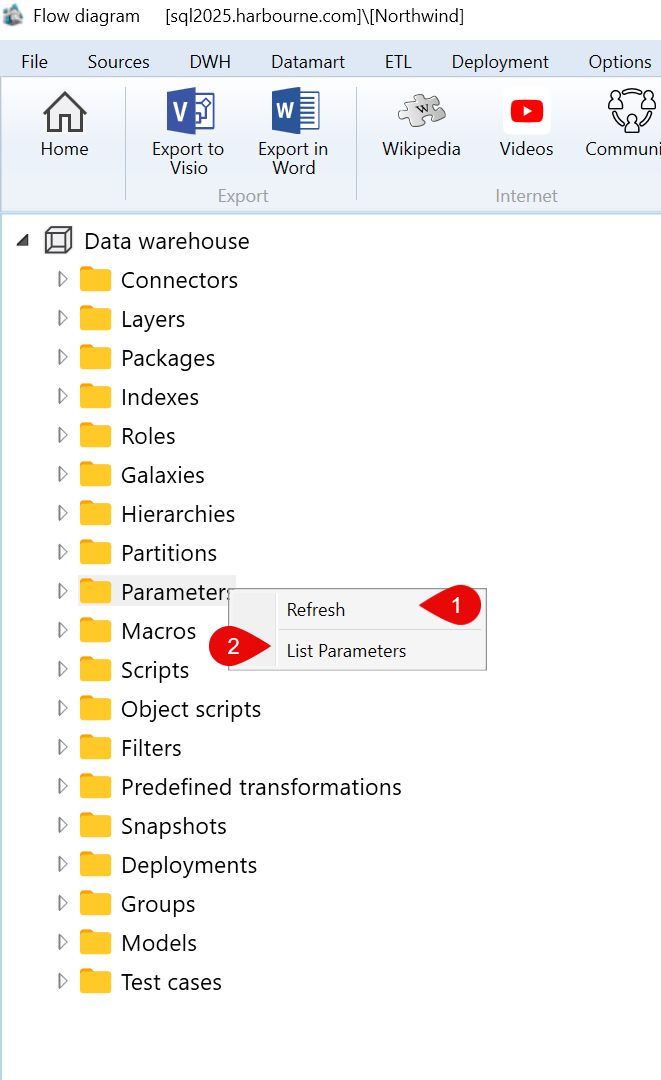
| ID | Command | Description |
|---|---|---|
| 1 | Refresh | Reloads the Parameters branch. |
| 2 | List Parameters | Opens the parameter list. |
A.2) Parameters > Parameter
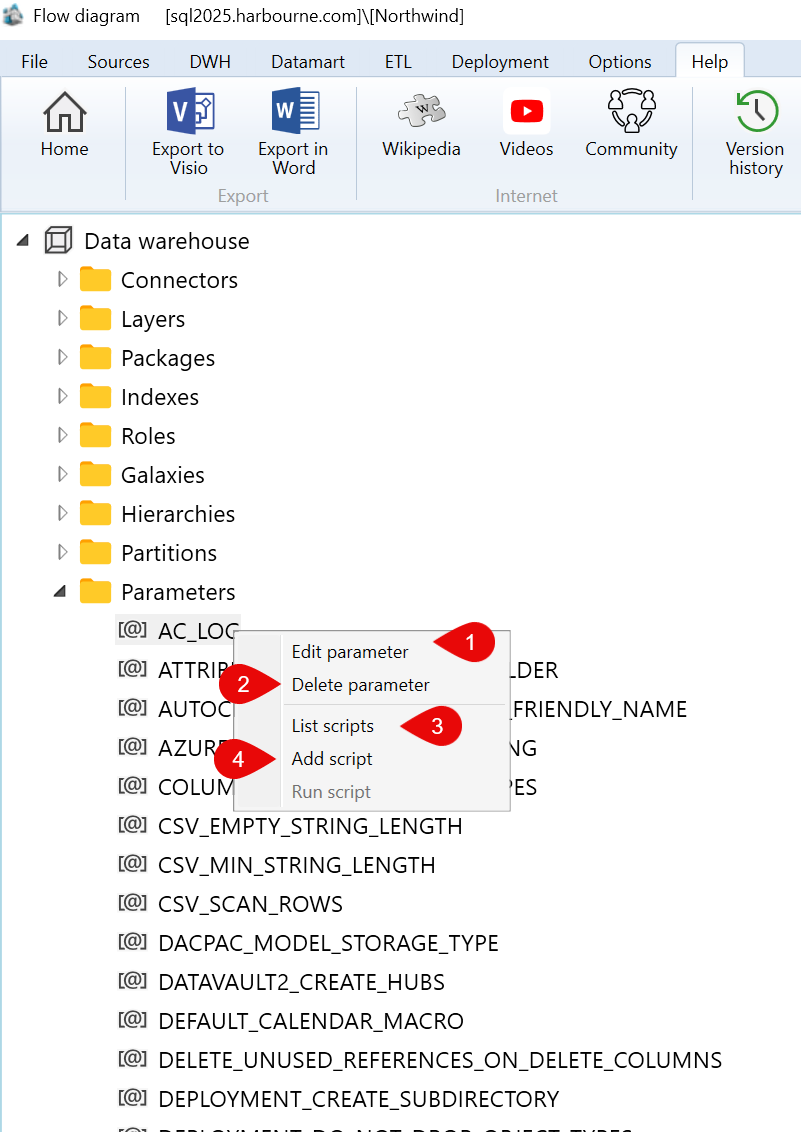
| ID | Command | Description |
|---|---|---|
| 1 | Edit parameter | Opens the selected parameter for editing. |
| 2 | Delete parameter | Deletes the selected parameter value or entry. |
| 3 | List scripts | Lists scripts available for the selected parameter. |
| 4 | Add script | Adds a script to the selected parameter. |
| 5 | Run script | Runs a script for the selected parameter. |
