
Search
Overview
Search helps users find objects that are already visible on the active dataflow diagram. Use it when a diagram contains many sources, tables, transformations, packages, or relationships and you need to jump directly to a known object.
Function
The Search dialog accepts a keyword, optional whole-word matching, and optional case-sensitive matching. It searches diagram object labels and moves through matching results with Find next (F3) and Find previous (Shift+F3).
When a match is found, AnalyticsCreator scrolls the diagram to the matching object and highlights its label. The most recent keyword remains available for the next F3 or Shift+F3 search. If no object matches the keyword, AnalyticsCreator shows a message that the keyword was not found.
Access
Open Search from the File toolbar while the dataflow diagram is active, or use the keyboard shortcuts while working in the diagram.
How to access
Navigation tree
Not direct. Use Search while the dataflow diagram is active.
Toolbar
File -> Find on diagram
Diagram
Press Ctrl+F, F3, or Shift+F3 while the diagram is active.
Visual element
Search dialog and highlighted diagram label
Screen overview
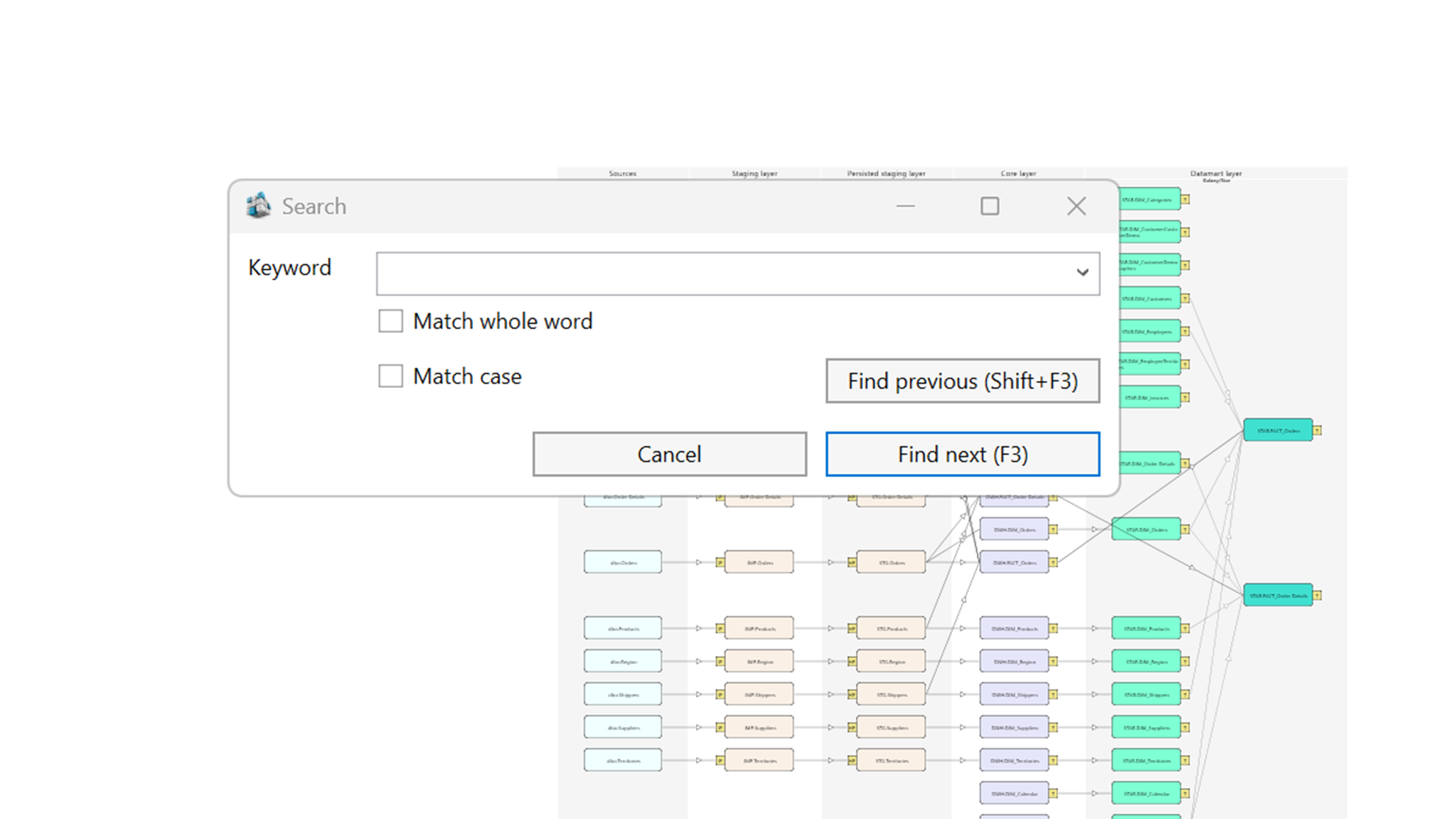
| ID | Property | Description |
|---|---|---|
| 1 | Keyword | Search text used to match visible diagram object labels. |
| 2 | Recent keyword list | Keeps previous search terms available so the latest keyword can be reused with F3 or Shift+F3. |
| 3 | Match whole word | Limits results to complete object-label matches instead of partial text matches. |
| 4 | Match case | Requires the capitalization in the keyword to match the diagram label. |
| 5 | Find next (F3) | Moves to the next matching object and brings it into view on the diagram. |
| 6 | Find previous (Shift+F3) | Moves to the previous matching object in the result list. |
| 7 | Cancel | Closes the dialog without changing the current diagram focus. |
| 8 | Highlighted diagram label | Shows the object currently selected by the search result. |
