
Open/save in cloud
Overview
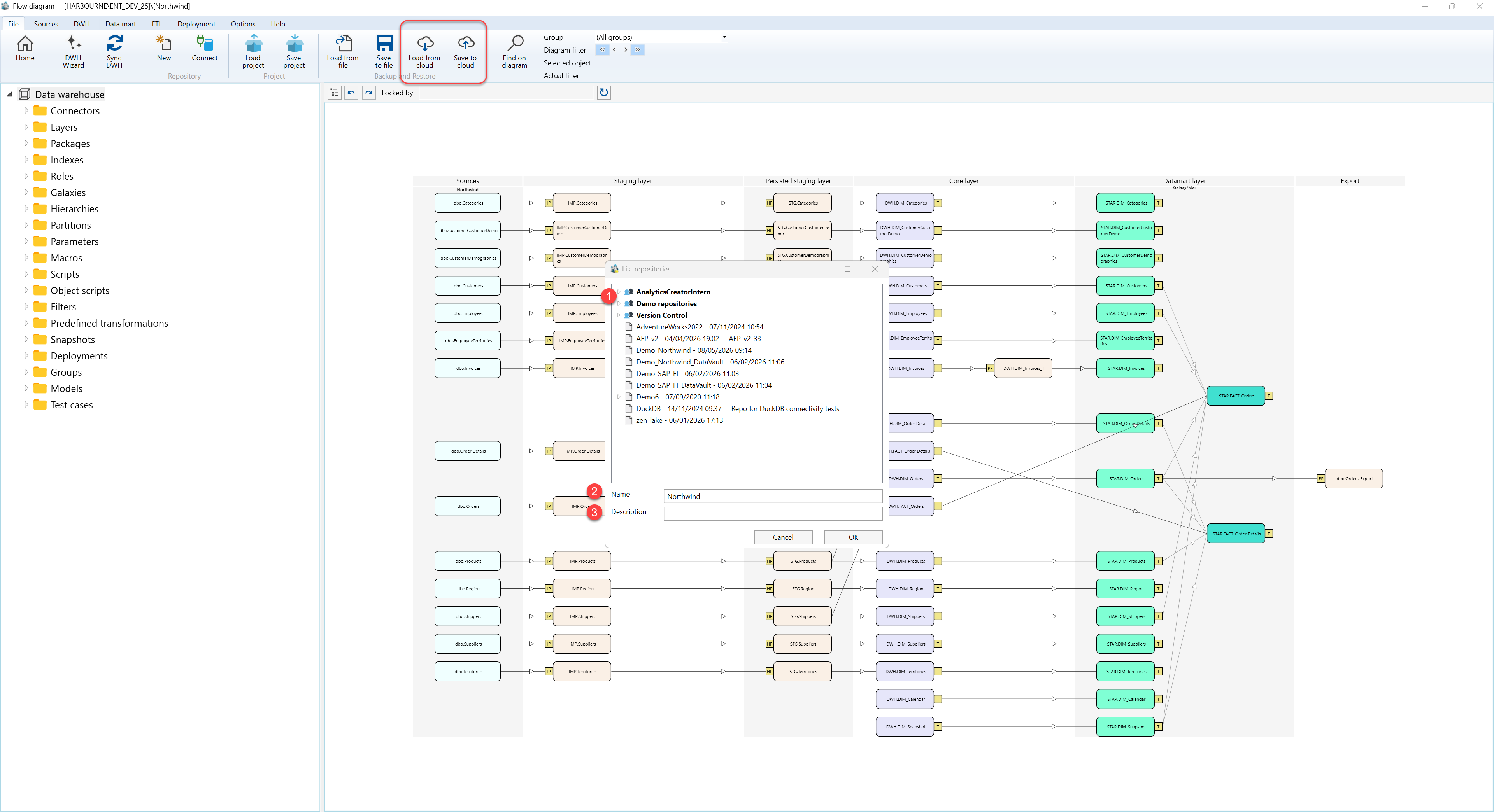
Open/save in cloud uses the List repositories dialog to load a repository backup from AnalyticsCreator cloud storage or save the current repository to cloud storage.
Function
Use this dialog to select an existing cloud repository or define the name and description used when saving a repository to cloud storage.
In load mode, select a repository entry from the list and confirm with OK. In save mode, enter the repository Name and optional Description, then confirm with OK.
The repository list shows available cloud repository entries. A selected entry can be used as the source for loading, or as the target entry when maintaining an existing cloud repository entry.
OK confirms the selected or entered cloud repository information. Cancel closes the dialog without loading or saving a cloud repository.
Access
Open the dialog from the File toolbar. Load from cloud starts the cloud restore workflow. Save to cloud saves the connected repository to cloud storage.
How to access
Toolbar
File -> Load from cloud, or File -> Save to cloud.
Screen overview
The List repositories dialog contains the available cloud repository entries and the fields used to name or describe the selected repository entry. The table below follows the numbered markers in the screenshot.
| ID | Property | Description |
|---|---|---|
| 1 | Repository list | Displays available cloud repository entries. The selected entry is used when opening a repository from cloud storage. |
| 2 | Name | Repository name used for the cloud entry. In save mode, this value defines the name stored in cloud storage. |
| 3 | Description | Optional description stored with the cloud repository entry. |
