
Interface settings
Overview
Interface settings is the dialog for adjusting how AnalyticsCreator displays the application interface. It controls colors, diagram sizing, navigation-tree spacing, and page layout preferences.
Function
The dialog groups visual settings into four tabs: Colors, Diagram, Navigation tree, and Pages. Use these settings to tune the appearance of diagrams, object boxes, connector lines, navigation-tree items, detail pages, and list pages.
The dialog can also load one of three predefined visual profiles with Default 1, Default 2, or Default 3. Choose Save to store the settings and refresh the architecture view. Choose Cancel to close the dialog without applying the current edits.
Access
Open Interface settings from the Options toolbar when you need to adjust the visual presentation of AnalyticsCreator.
How to access
Navigation tree
Not direct. Use the Options toolbar.
Toolbar
Options -> Interface
Diagram
Not direct. Diagram appearance is configured here after opening the dialog from Options.
Visual element
Interface Settings dialog
Screen overview
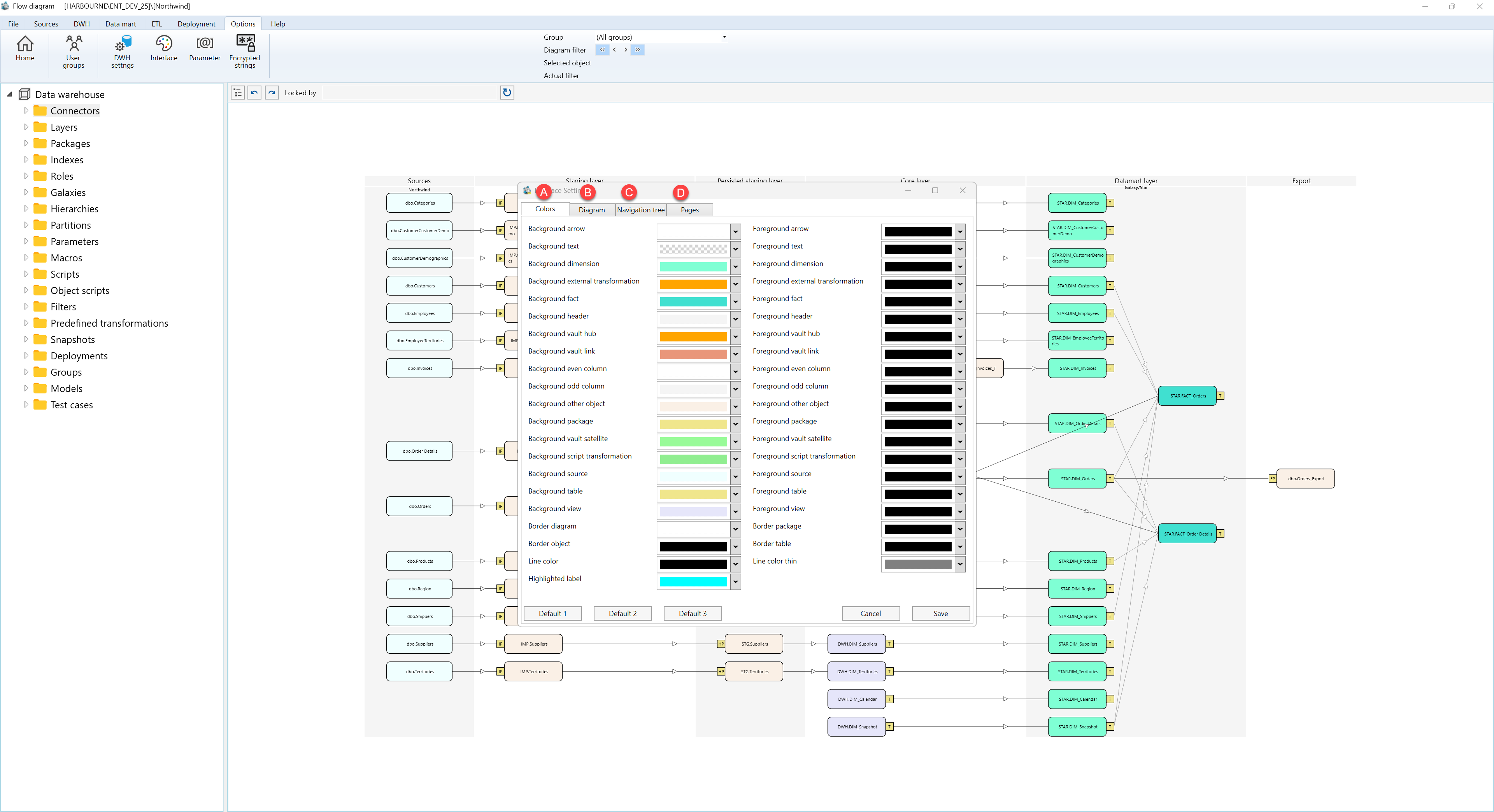
| ID | Property | Description |
|---|---|---|
| 1 | Colors | Tab for choosing background, foreground, border, line, and highlighted-label colors used in diagrams and interface elements. |
| 2 | Background and foreground color pickers | Sets colors for arrows, text, dimensions, facts, sources, tables, views, packages, script transformations, external transformations, and Data Vault object types. |
| 3 | Border and line colors | Controls diagram borders, package borders, object borders, table borders, standard line color, thin line color, and highlighted-label color. |
| 4 | Diagram | Tab for numeric diagram layout settings such as arrow size, font size, cell size, header size, box size, scale, and minor connector-line opacity. |
| 5 | Navigation tree | Tab for tree icon size, line space, scale, font size, and splitter position. |
| 6 | Pages | Tab for detail-page and table-page alignment, maximum width, maximum height, and FrameScale. |
| 7 | Default 1 | Loads the first predefined interface profile into the dialog fields. |
| 8 | Default 2 | Loads the second predefined interface profile into the dialog fields. |
| 9 | Default 3 | Loads the third predefined interface profile into the dialog fields. |
| 10 | Cancel | Closes the dialog without saving the current edits. |
| 11 | Save | Saves the interface settings, refreshes the architecture view, and closes the dialog. |
