
Search

Overview

Search helps users find and focus objects that are already shown on the dataflow diagram canvas. It is useful when a model contains many sources, tables, transformations, packages, and relationships and the user needs to jump directly to a known object.

Function

The Find on diagram command opens the Search dialog for the active dataflow diagram. Users enter a keyword, choose whether the match must use the whole word or match case, and move through results with Find next (F3) or Find previous (Shift+F3).

Search compares the keyword with visible diagram object names and friendly names. When a match is found, the diagram scrolls to that object and highlights its label. Repeating the search moves to the next or previous matching object. If no match is found, AnalyticsCreator shows a message that the keyword was not found.

Search works together with diagram navigation and filters. Navigation-tree commands can locate an object on the diagram, while diagram filter commands narrow the canvas first and then Search helps jump within the visible result set.

Access

Search is available from the File toolbar while the dataflow diagram is open. It can also be started from the keyboard, and object-focused navigation can be started from source, table, or transformation nodes in the navigation tree.

How to access

Source, table, or transformation context menu -> Locate in diagram

Toolbar

File -> Find on diagram

Diagram

Press Ctrl+F, F3, or Shift+F3 while the diagram is active.

Visual element

Search dialog and highlighted diagram label

Screen overview
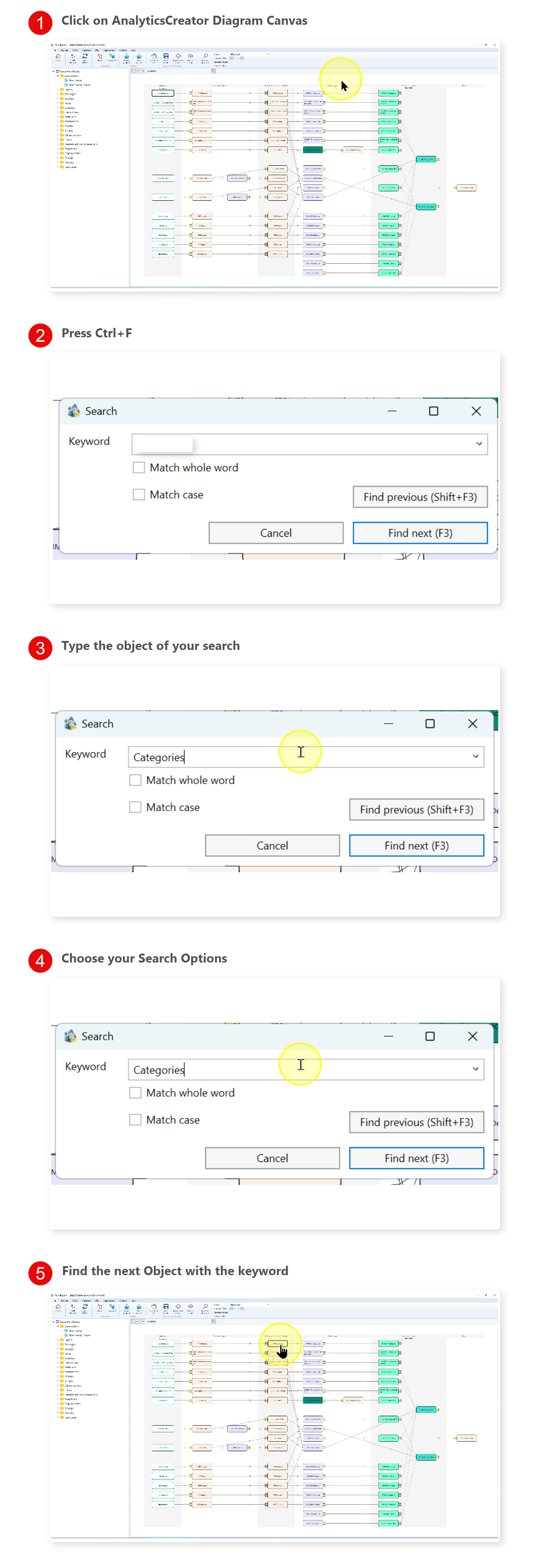
ID Property Description
1Find on diagramOpens the Search dialog for the active dataflow diagram.
2Search dialogCollects the keyword and search options before moving to a diagram result.
3KeywordDefines the text used to match visible diagram object names and friendly names.
4Match whole wordLimits search results to complete matching names instead of partial text matches.
5Match caseRequires the capitalization in the keyword to match the diagram label.
6Find next (F3)Moves to the next matching diagram object and brings it into view.
7Find previous (Shift+F3)Moves to the previous matching diagram object.
8CancelCloses the Search dialog without changing the current diagram focus.
9Recent keywordKeeps the latest successful keyword available for F3 and Shift+F3 navigation.
10Highlighted labelShows which diagram object is currently selected by the search result.
11Diagram scroll positionMoves the canvas so the matching object is visible near the center of the diagram area.
12Locate in diagramOpens or focuses the dataflow diagram and selects the object chosen in the navigation tree.
13Set diagram filterRebuilds the diagram around the selected navigation-tree object.
14Add to diagram filterAdds the selected navigation-tree object to the active diagram filter.
15GroupLimits the diagram to all objects or to a selected object group before searching.
16Diagram filterControls how much connected context is visible around selected diagram objects.
17Selected objectDisplays the object currently selected or focused in the diagram context.
18Actual filterShows the active diagram filter as a comma-separated object list.
19Store filterSaves the current object filter with a user-provided name.
20Remove filterClears the active diagram filter and refreshes the full diagram view.

Related topics