
Use existing Source metadata with DWH Wizard
Introduction
DWH Wizard can reuse Source metadata already stored for a Connector in a Data Warehouse (DWH) project. A Connector defines a connection to a source system. Metadata describes objects such as tables, views, and columns; it is separate from the rows of business data. A Source is an input object supplied by a Connector.
Use this workflow to select stored Sources, classify the definitions to generate, and review their naming and generation settings. Expected Results: the intended definitions are available for inspection in the Data Warehouse (DWH) project. Finishing DWH Wizard does not demonstrate that data has been loaded.
Applicability
Use this how-to when the required Source definitions already exist for the selected Connector and you want to reuse them to create or refresh definitions in the Data Warehouse (DWH) project. Select Use metadata of existing sources for this task. It is the only supported metadata mode when the Connector connection string is empty.
Reading fresh external metadata is a separate task: see Read metadata from a Connector with DWH Wizard. External-retrieval settings within this workflow still require a verified connection.
Prerequisites
3.1. An editable Data Warehouse (DWH) project containing a Connector and the Source metadata you intend to reuse.
3.2. An agreed architecture, classification plan, target schemas, and naming convention for the requested generated objects.
3.3. A decision about which existing definitions may be refreshed. The Exist in DWH indicator identifies an existing imported Source that will be refreshed.
3.4. A verified connection if you intend to enable a setting that retrieves information from the external source.
Steps
Open DWH Wizard for the intended Connector
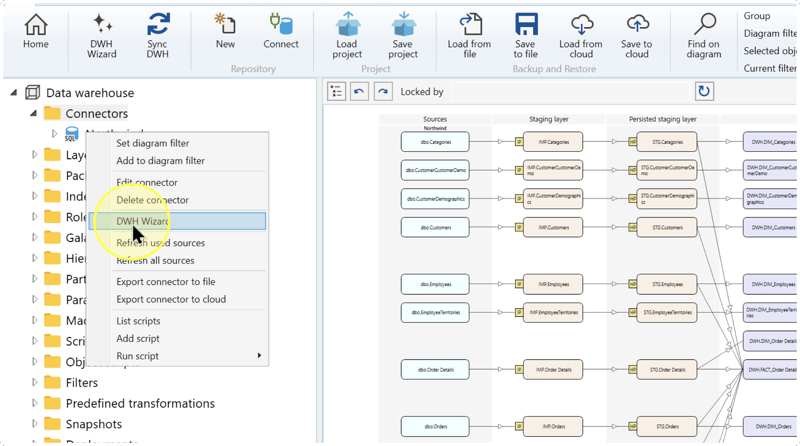
Expand Connectors, right-click the Connector containing the required stored Sources, and select DWH Wizard from its context menu. The Connector defines the connection to the source system; its stored Sources describe the input objects you intend to reuse. Select the Connector required by your Data Warehouse (DWH) project.
Expected Results: DWH Wizard opens for review.
Confirm the metadata mode and architecture
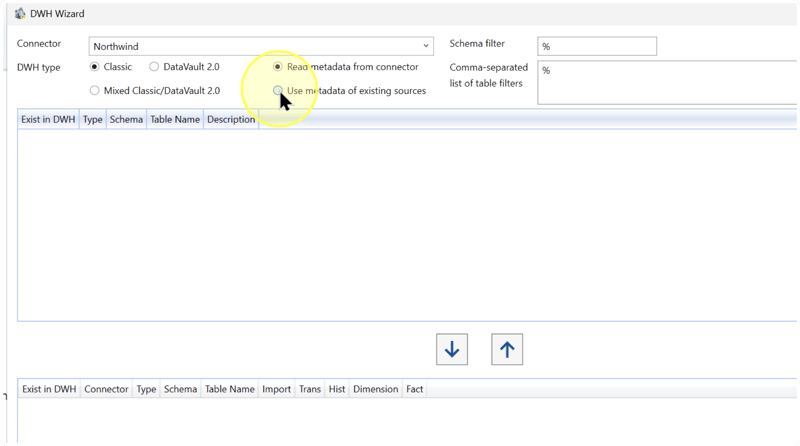
In Connector, confirm the intended entry and select Use metadata of existing sources. This mode reuses Source definitions already stored for the Connector; it does not perform a new external metadata read. It is the only supported metadata mode when the Connector connection string is empty. An empty connection string does not create missing stored Sources.
In DWH type, select the architecture specified by your Data Warehouse (DWH) project. Classic uses a Kimball-style design. DataVault 2.0 provides Data Vault classifications: a Hub represents a business entity's key, a Satellite holds descriptive or history information, and a Link represents a relationship. Mixed Classic/DataVault 2.0 combines Kimball structures with hash keys instead of business keys. A business key identifies an entity in source business data; a hash key is derived from values by a hash function.
If you use an SAP Connector, review the applicable source-list settings: Tables shows SAP tables, DeltaQ identifies SAP Delta Queue Sources, and ODP identifies Operational Data Provisioning Sources. Use the choices required by the configured SAP extraction.
Check before continuing: confirm the Connector, the selected existing-metadata mode, and the required architecture. The capture points to the mode you need, but still shows the external-read mode selected. Select and check the mode itself before clicking Apply.
Filter the stored Source list
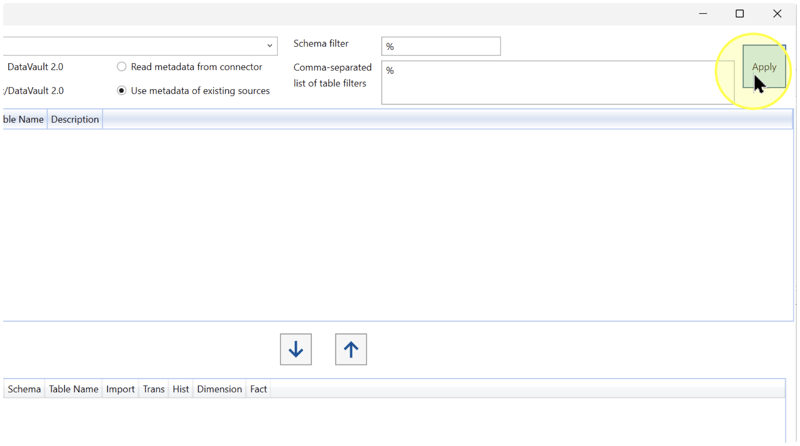
If you need to restrict which stored Sources appear, enter the required Schema filter, Comma-separated list of table filters, or both. If the current filters already match the intended scope, keep them unchanged. If you need the unrestricted stored Source list, leave both filters blank. A schema is the namespace grouping Source objects. The schema filter limits that namespace; the table filter limits object names using names or patterns separated by commas. Review the filter values for the intended scope, then click Apply to populate the list.
Filter examples: dbo identifies an example source schema; Orders,Customers lists two example object names. The pattern Sales% matches names beginning with Sales, and %Orders% matches names containing Orders. Use patterns appropriate to the Sources you intend to retrieve.
Expected Results: the upper list displays the stored Source objects matching the selected filters. Inspect their identity before selecting rows. If no Sources appear, check the selected Connector, its stored Source definitions, and the filters.
Select the Sources for this task
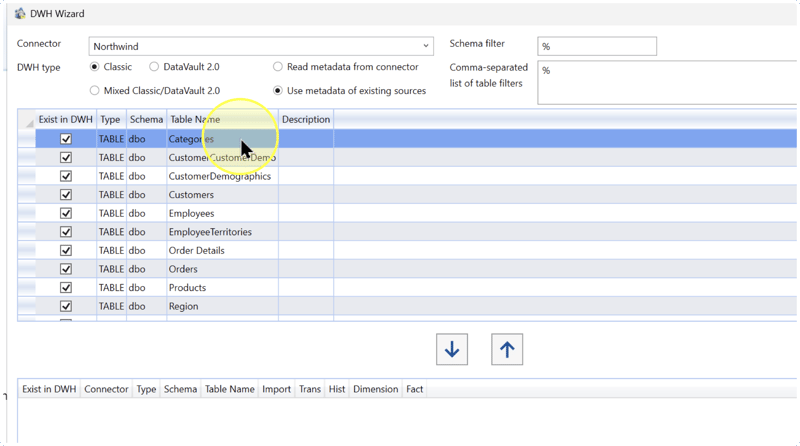
Review the Type, Schema, and Table Name columns to identify the required objects. Type identifies the object category, such as a table (TABLE), a database view (VIEW), or an SAP Source (DELTAQ or ODP, explained in Confirm the metadata mode and architecture). Schema identifies the source namespace; Table Name identifies the Source object.
Select the required rows. Hold Ctrl while clicking to select several individual rows. Review Exist in DWH, the read-only status indicating that a Source is already imported and will be refreshed. It is separate from selecting a row and does not show whether business data has been loaded. Include existing Sources only when their refresh is intended.
Move the selection into classification
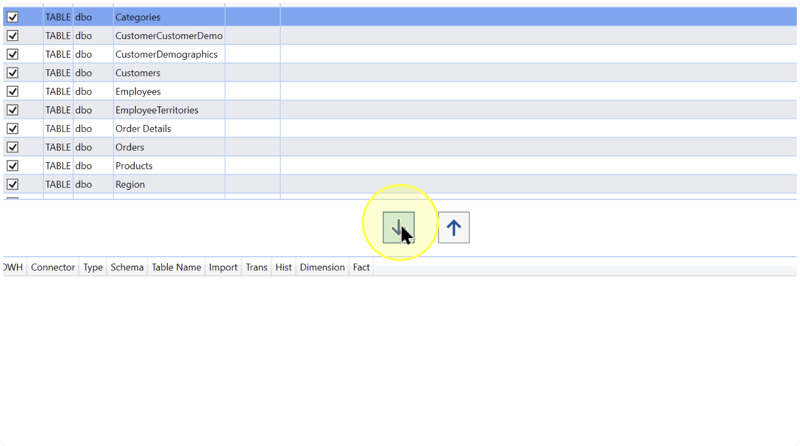
Click the down-arrow button between the lists. Check that the lower classification area contains exactly the intended Connector, schema, and object names. To remove an unintended selection from that area, select it and click the up-arrow button before proceeding.
Expected Results: the lower area contains the Sources whose classifications you will configure. Moving rows into this area does not demonstrate that definitions have been generated.
Choose the required classifications
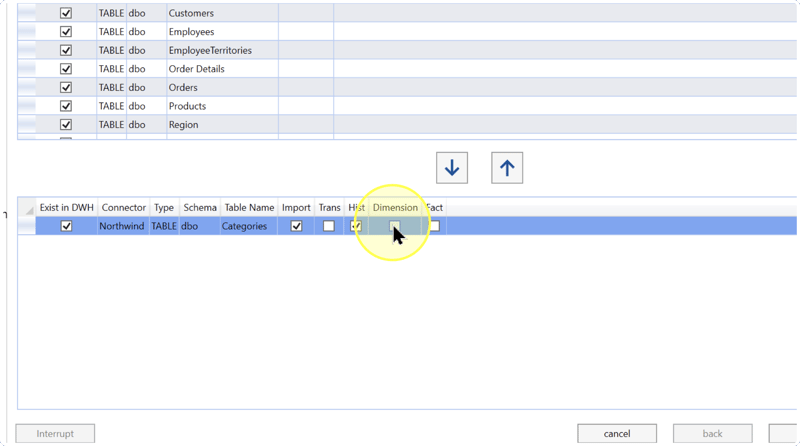
For each selected Source, select or clear the classification checkboxes according to the intended output:
- Import — Requests an Import definition for the flow from an external Source object into an IMP object in the Staging Layer (IMP), the layer used for imported source data. Selecting the checkbox does not itself run a data load.
- Trans — Requests a Transformation after Import. A Transformation combines input objects, applies processing logic, and produces a reusable Data Warehouse (DWH) result for downstream work.
- Hist — Requests Historization, which handles changes over time through the flow from an IMP object in the Staging Layer (IMP) to an STG object in the Persisted Staging Layer (STG). This layer retains staging data beyond a transient import step. IMP and STG identify layers here; they do not require particular schema names.
- Dimension — Requests a Dimension containing descriptive business data prepared for analytical use, such as customer attributes.
- Fact — Requests a Fact Transformation for measurable business events, balances, or transactions, such as sales amounts.
- Auto / Hub/Sat / Link — DataVault 2.0 choices. Auto requests automatic creation of a Hub and Satellite or a Link; review the outcome against the required design before accepting the generated definitions. Hub/Sat explicitly requests a Hub and Satellite; Sat abbreviates Satellite. Link requests a relationship structure. Use only the choices applicable to the selected architecture and approved design.
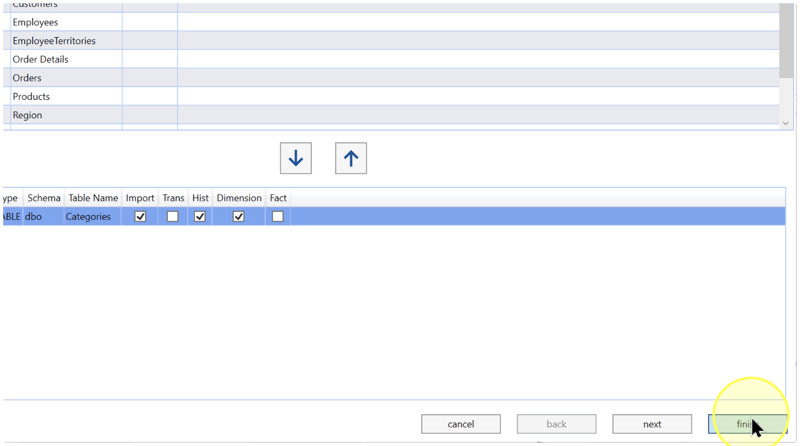
Classification example: the final capture in Finish the reviewed configuration shows Import, Hist, and Dimension selected for one Source. Apply the combinations required by your Data Warehouse (DWH) project. The capture below points at Dimension before that checkbox is visibly selected.
If an SAP Source exposes Update Mode, use the mode required by its extraction configuration. For DeltaQ, use the configured logical system in DQ Log.Sys and the configured destination in DQ RFC dest. DQ refers to DeltaQ here. For DeltaQ or ODP, check the intended automatic synchronization behavior before changing Auto sync.. The available modes and correct values depend on the SAP configuration; DWH Wizard retains these field explanations.
Review naming settings before proceeding
Click next to open the naming screen. Review naming patterns for the object types selected in Choose the required classifications.
- Naming patterns — Review each required object's naming template against the Data Warehouse (DWH) project's convention. A placeholder substitutes a value into the name; a prefix or suffix is fixed text before or after that value. Preserve the spelling, case, and braces of placeholders.
In Tables per package, enter the number of tables to group in each generated package. A package groups processing work. Enter the naming templates required by your project in Import Package names, Historizing Package names, Table names, Transformation names, Dimension names, and Fact names for the definitions you requested. Keep existing values when they match the required grouping and naming convention.
For required Data Vault objects, review the Hub, Satellite, and Link package, Transformation, and table templates, including the Link Satellite template when applicable. Review Key field name for key naming and Calendar in facts name for calendar-related field names in Facts. The latter does not set the Calendar dimension's name or period.
Naming examples: for a Source named
Categories,DIM_{SRC_NAME}producesDIM_Categories, and{SRC_NAME}_VproducesCategories_V.{SRC_NAME}represents the Source object's name.DIM_is a literal prefix;_Vis a literal suffix. Use these patterns only when they match your naming convention.In package templates such as
IMP_{CONNECTOR_NAME}{NR},{CONNECTOR_NAME}represents the selected Connector name and{NR}is a numbering placeholder. Do not assume a starting number or collision-handling rule, or rely on the placeholder to predict an exact final package number. Check the generated package names after completion.{SRC_SCHEMA}represents the source schema, and{SRC_FRIENDLY_NAME}represents a defined readable Source name; confirm that such a name exists before relying on it.In
FK_{TableName},FK_is a literal prefix and{TableName}is a field-specific placeholder for the table name. The prefix alone does not establish the key's behavior. The{ColumnName}placeholder supplies the column name in the calendar-related field template, and{LINK_NAME}supplies the Link name in the Link Satellite template. Preserve their spelling and use them in the fields that support them; do not assume every placeholder works in every field. See DWH Wizard for the complete lookup.
Check the templates against the requested object types and naming convention. Correct unintended prefixes, suffixes, or placeholder spellings before proceeding. These naming settings belong to DWH Wizard; the separate DWH settings dialog is a different configuration location.
Review generation settings
Click next to open the generation-settings screen. Continue the configuration review with field-name appearance and target schemas:
- Field names appearance — Select No changes to retain field casing, Upper case to convert it to uppercase, or Lower case to convert it to lowercase. Use the casing required by downstream consumers. Example: Upper case changes
CustomerCodetoCUSTOMERCODE. - Schemas for the generated objects — Select the target schemas for the requested Import tables, Import transformations, Historicized tables, and Facts and dimensions. A schema groups target objects; these choices do not change the source Schema filter. IMP, STG, and DWH are project-specific schema names.
Then review the applicable generation settings:
- Retrieve relations — Select this if the design requires retrieving relationships from the source database and you have verified the connection; otherwise leave it clear. The wizard attempts retrieval, but detection of every required relationship is not guaranteed. Reusing stored metadata does not establish a live connection.
- Create Calendar dimension — A Calendar dimension contains date-related attributes. If this task requires creating one, select the checkbox, enter its name in Calendar dimension name, and enter the required start and end dates in Calendar period. Otherwise, leave the checkbox clear. The setting has no effect when the dimension already exists. Use Create a calendar dimension for the calendar-specific workflow.
- Create Snapshot dimension — Requests creation of a dimension used with snapshot-date reporting. This is separate from selecting an existing snapshot and has no effect when the dimension already exists. Use it when your design requires that creation; otherwise leave it clear.
- Include tables in facts — Select directly related tables or direct-and-indirect related tables, restricted to N:1 relationships or including all relationships, according to the Fact design. N:1 means many records relate to one record. Direct relationships connect to the main table; indirect relationships pass through other tables. Relationship example: many orders may belong to one customer. Review the resulting Fact inputs against your design.
- Use friendly names in transformations as column names — Uses defined readable field names as Transformation column names when available. Select it when those are the intended output names; clear it when downstream consumers require technical Source names.
- Default transformations — Select No defaults to apply no predefined rules, All defaults to apply all configured rules, or Selected defaults to apply only chosen rules. With Selected defaults, select each required existing rule in the available-rule list and click that list's transfer button to add it to the selected rules. Check that the selected-rule list contains only the rules required for this task. Inspect each saved rule's input conditions, expression, and intended result before applying it; its name is not a full specification. The Trim rule example removes leading and trailing spaces from text fields, but a customized rule may differ.
- Stars — Select the Stars that should receive the generated Facts or Dimensions and clear any unintended selections. A Star groups a Fact with its related Dimensions. This list is separate from both the predefined-rule list and the Source-selection list on the first wizard screen.
For SAP Sources, set SAP description language to the language code required for table and field descriptions. For SAP DeltaQ, use the SAP DeltaQ transfer mode required by the extraction configuration. IDoc and tRFC are transfer-mode labels, not universal recommendations. Use values from the configured SAP setup.
Recheck the field casing, target schemas, and applicable generation settings before continuing. DWH Wizard retains the complete settings and rule explanations.
Finish the reviewed configuration
If a reviewed choice needs correction, click back to return to the relevant screen. Confirm the existing-metadata mode, selected Sources, intended refreshes, classifications, naming settings, and generation settings. Then click finish.
The capture shows the finish button directly on the classification screen. It does not show the naming and generation settings reviewed in Review naming settings before proceeding and Review generation settings, or the definitions resulting from completion. Continue with Expected Results to verify the actual outcome.
Expected Results
5.1. Expand the selected Connector and locate the Sources using their actual saved names. Check the source schemas and column definitions, including the metadata of Sources whose refresh you intended.
5.2. Locate the requested generated definitions under the appropriate Layers, schemas, and Packages in the navigation tree. Compare their names, roles, and target schemas with the classifications and settings reviewed before clicking finish.
5.3. Open the relevant definitions and inspect their configured Source and target. Investigate missing or unexpected results and any reported errors before accepting the configuration. An object appearing in the diagram does not demonstrate successful package execution or loaded data.
Decisions and variations
Use stored metadata for this workflow; choose the external-read mode only when you intend the different task on Read metadata from a Connector with DWH Wizard. Related-object inclusion, predefined rules, stars, and Data Vault choices are design decisions that must be made before generation. The Reference section retains the full wizard lookup material; essential decisions are also explained in the steps.
Troubleshooting
- No Sources appear — Check the selected Connector, stored Source definitions, and schema/table filters, then click Apply again. An empty external connection string does not create missing stored metadata.
- Unexpected objects selected — Inspect the lower classification list. Select unintended rows and click the up-arrow button to return them before finishing.
- Names or generated roles differ — Compare the chosen architecture, classifications, naming rules, and target schemas with the intended project design.
- External retrieval fails — Stored-metadata mode does not prove external connectivity. Verify the connection before enabling source-dependent relation retrieval.
