
Apply a Predefined transformation rule
Introduction
Apply an existing Predefined transformation rule to a Regular transformation in your Data Warehouse (DWH) project. A predefined rule reuses expression logic for matching fields, so you can apply the same treatment to several fields without entering an expression separately for each one.
This how-to covers selecting the rule, checking its generated expressions, saving the transformation, and verifying that the assignment is retained. Trim illustrates removing leading and trailing spaces from text; select it only when that treatment is needed.
Applicability
Use these steps for an existing Regular transformation and an existing rule whose matching conditions and expression meet your requirements. A Regular transformation uses AnalyticsCreator-managed inputs, joins, columns, filters, and references to define its logic. Editing the shared rule definition is a separate task.
The steps follow the AnalyticsCreator desktop interface shown in the screenshots. No specific product version is identified. UseOnVault appears as a configuration example; this workflow does not require changing it.
Prerequisites
3.1. An open, editable development Data Warehouse (DWH) project containing the Regular transformation to update, with known input and output fields.
3.2. An existing Predefined transformation rule with known matching conditions, expression, and intended effect. A familiar rule name alone does not establish how a customized rule behaves.
3.3. Fields that meet the rule’s matching conditions and a requirement for its effect. For the Trim example, the relevant fields have varchar or nvarchar character data, and leading or trailing spaces must be safe to remove.
3.4. A known target database and a known Transformations Createviews setting for the project. This setting controls view creation when saving: 0 = No, 1 = Compile only, and 2 = Yes. A view is a named database query. Saving can therefore include compiling or creating a view.
Steps
Open the ETL ribbon
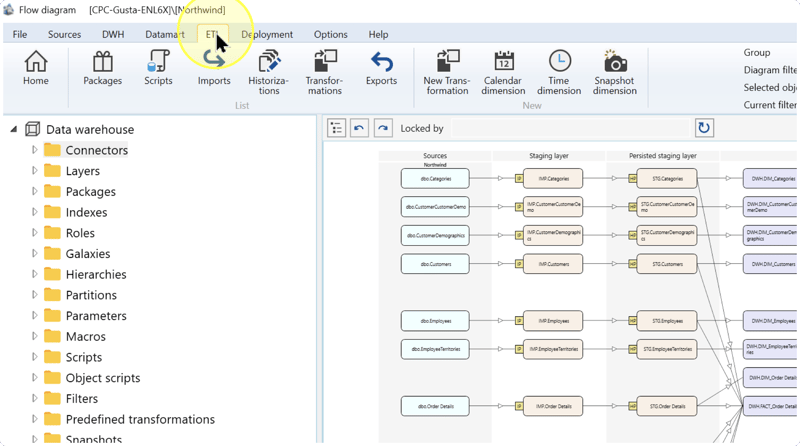
In the intended Data Warehouse (DWH) project, click ETL in the toolbar. This tab provides access to package, script, Import, Historization, and Transformation workflows.
Open the transformation list
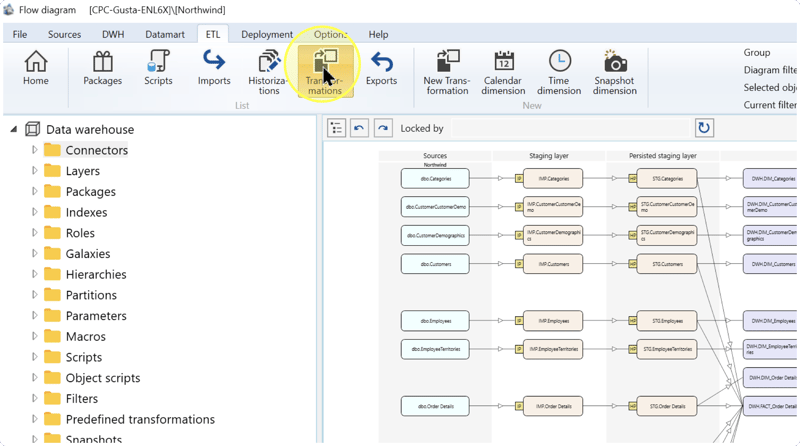
Click Transformations in the List group to open the list of transformations.
Identify and open the transformation
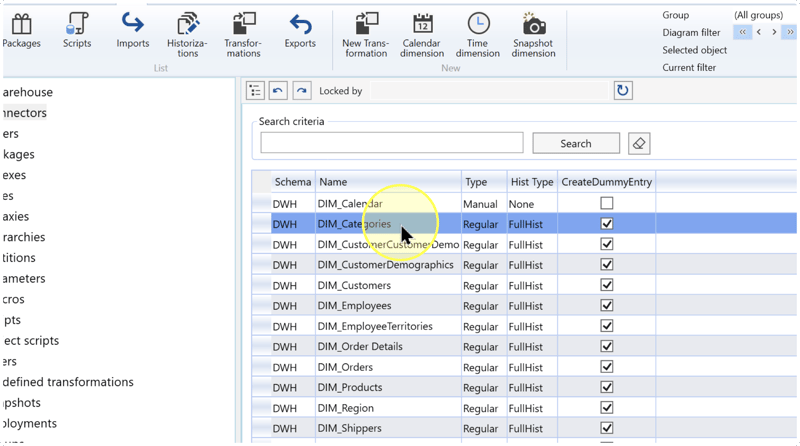
Locate the intended row using the Name and Schema columns. Schema identifies the namespace containing the transformation. Check that the Type column shows Regular, then double-click the row to open it.
Example: the screenshot selects DIM_Categories in schema DWH. Select the transformation whose fields need your chosen rule.
Select the required predefined rule
In the transformation editor, confirm Name and Schema. Retain Regular in TransType, the transformation-type setting. Select the Definition tab, which contains the transformation settings, and locate Predefined transformations on the right, below Stars.
If the required rule is already assigned, review its existing row. To assign a rule that is not listed, open the dropdown in an empty row’s Predifined Transformation cell and select the rule. This is the rule-name column shown in the screenshot. Preserve other rules that are still required.
- Predefined transformation — A reusable transformation rule maintained through the Predefined transformation page. The rule’s matching conditions determine which fields receive its expression. Selecting an existing rule here assigns it to this transformation without editing the shared definition.
- Trim — The example rule applies
LTRIM(RTRIM(FieldName))tovarcharandnvarcharfields.LTRIMremoves leading spaces andRTRIMremoves trailing spaces. Select Trim only when those spaces should be removed, and check the saved rule because rules can be redefined. - varchar / nvarchar — Character-data type labels used by the Trim example. Check the saved rule’s supported field types; the example does not apply to every field.
Trim example: the following expression changes ' London ' to 'London'. It removes spaces at the ends of the value, not internal spaces, and does not convert NULL, a missing value, to an empty string.
LTRIM(RTRIM(FieldName))FieldName represents the field in this example. It is not a literal column name or a placeholder to enter in the rule-selection grid. Selecting the saved rule uses that rule’s configured expression.
- NumberNULLToZero / StringNULLToNA — Example rule names in the dropdown. Check their saved definitions for replacement values, eligible field types, and the required treatment of missing values.
- BinaryToStr / HierarchyToString / StringMaxTo8000 / TimeToDatetime / XmlToString / Anonymization — Other rule names shown in the dropdown. Select one only when its configured matching conditions and expression meet your requirements; do not infer its behavior from the name.
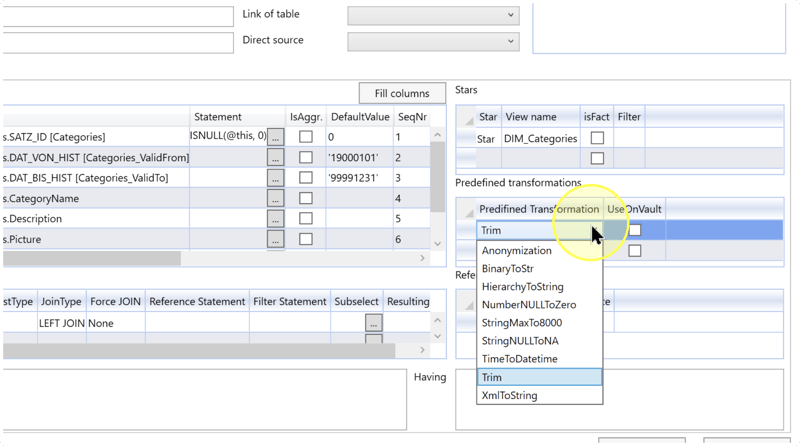
- UseOnVault — A checkbox beside the rule assignment. Leave its value unchanged for this task. If a separate requirement calls for changing it, establish its intended effect and required value before doing so.
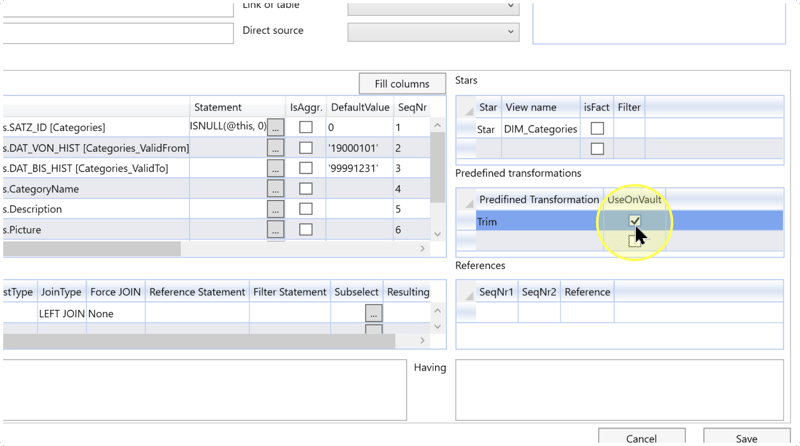
The surrounding grids show existing field expressions and join settings. Use these explanations to distinguish them from the rule assignment:
- @this / ISNULL — The pictured expression
ISNULL(@this, 0)replaces a missing value with zero.@thisis the default placeholder for the current field; Trans Field Alias configures that placeholder. This existing key-field expression is separate from the Trim rule. - SATZ_ID / DAT_VON_HIST / DAT_BIS_HIST — Example historical key, validity-start, and validity-end field names.
- SeqNr / IsAggr. / JoinHistType — Sequence-number, aggregation, and historical-join settings in the surrounding grids. Assigning the required predefined rule does not require changing these settings.
Review the generated expressions
Select VIEW in the transformation editor to inspect the generated SQL. Compare the expressions for the intended fields with the chosen rule’s saved definition and matching conditions.
For the Trim example, check that the generated expression for an eligible text field applies the intended leading- and trailing-space removal. A blank field-level Statement cell alone does not verify whether a predefined rule was applied; review the generated expression.
If an expression does not match your requirement, return to Definition and check the selected rule and field eligibility before saving. Retain other expressions and rules that the transformation still needs.
Review and save the assignment
4.6.1. Return to Definition. Confirm the target transformation, selected rule, and unchanged surrounding settings against your intended configuration.
4.6.2. Check the target database and the Data Warehouse (DWH) project’s Transformations Createviews setting: 0 = No, 1 = Compile only, or 2 = Yes. Proceed when the corresponding save-time behavior is intended.
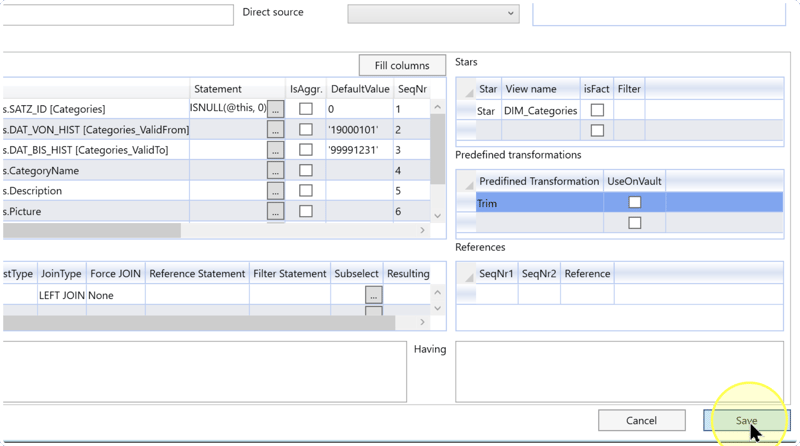
4.6.3. Click Save. If an error appears, resolve its reported cause before considering the assignment saved. Then perform the checks in Expected Results.
Expected Results
The intended Predefined transformation rule is stored on the selected transformation, and its generated expressions match the required field treatment.
5.1. Reopen the transformation through ETL → Transformations, identifying it by Name and Schema. On Definition, confirm that the intended rule is listed and that the surrounding settings retain their intended values.
5.2. Select VIEW and check a representative eligible field against the saved rule’s matching conditions and expression. For Trim, use a varchar or nvarchar field; other rules can have different eligibility conditions.
5.3. Saving and reopening verify the stored assignment. Database view creation depends on Transformations Createviews. To verify actual data values, use your project’s established development validation process with representative inputs and expected outputs. Saving alone does not demonstrate data loading, package execution, or production readiness.
Decisions and variations
6.1 Rule selection: choose the existing rule by its matching conditions and expression, as described in Select the required predefined rule. Use Trim when eligible text fields need leading and trailing spaces removed. If a different treatment is required, select a rule whose saved definition provides it.
6.2 Existing assignment: if the required rule is already listed, review that row and its generated expressions rather than adding another assignment of the same rule.
6.3 UseOnVault: keep its value unchanged unless a separate, understood configuration requirement calls for a change. The screenshots illustrate different checkbox states.
6.4 Save-time behavior: check Transformations Createviews in Review and save the assignment to determine whether saving also compiles or creates the database view.
Troubleshooting
- Required rule is absent — Check that the intended rule exists in the current project. If it does not, arrange for its definition to be created and verified before assigning it. Do not substitute a similarly named rule without checking its expression.
- A field is unchanged — Check the field’s data type and the rule’s matching conditions, then inspect the generated expression on VIEW. If the assignment or expression is incorrect, correct it before saving and repeat the checks in Expected Results.
- UseOnVault is unfamiliar — This walkthrough requires no change to that checkbox. If your task includes changing it, confirm the intended value and effect with the project owner before proceeding with that change.
