
Introduction
Use DWH Wizard to create import definitions and their packages from selected Sources. This route is useful when configuring several objects together. Select the required import classifications, review package grouping and names, then inspect the created definitions before executing packages.
Applicability
Use this procedure when one or more source objects must be prepared as imports as part of a broader DWH configuration. Use the dedicated Import Wizard when you need to create a single import from an existing source to a target table.
Prerequisites
- Configure a connector that can return the required source metadata, or create the required AnalyticsCreator source definitions.
- Identify the schema and table filters needed to locate the source objects.
- Confirm the import schema and package-naming requirements used by the DWH configuration.
- Confirm that you have permission to create DWH objects and packages.
Steps
Select and classify sources
Expand Connectors and locate the connector supplying the metadata.
Locate the connector for the DWH Wizard. 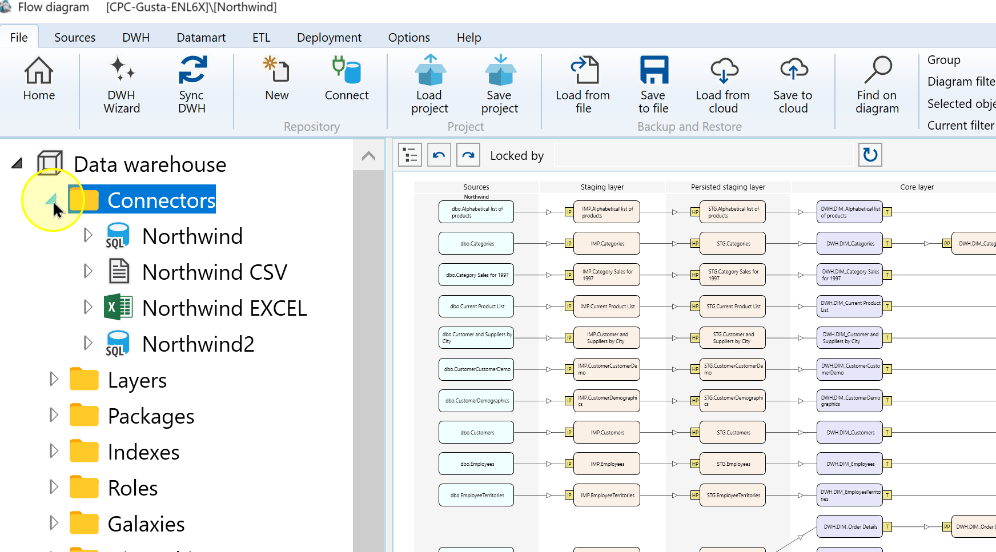
Open the required Connector’s context menu. The example uses the Excel Connector.
Open the Excel connector context menu. 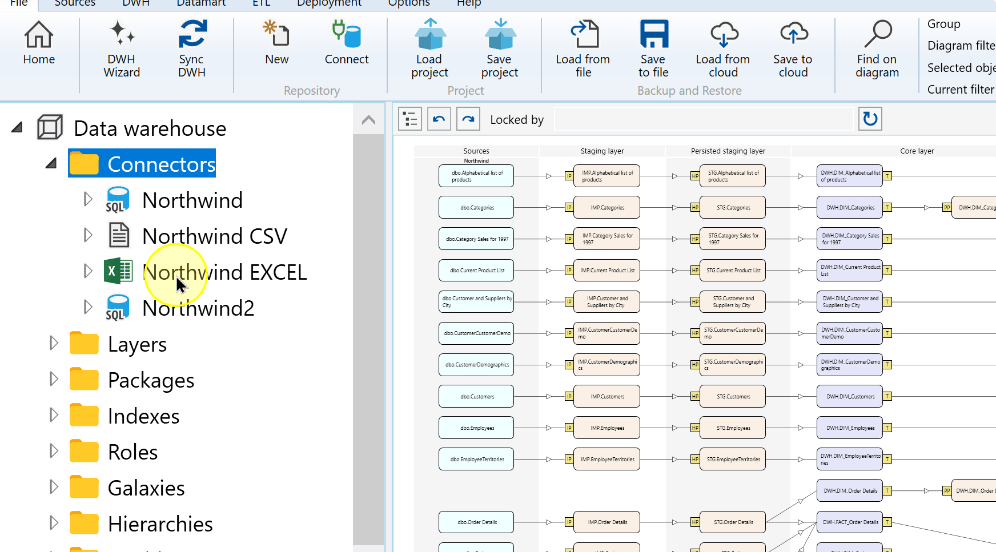
Choose DWH Wizard. The ribbon and supported Sources or diagram context menus provide alternative entry points.
DWH Wizard in the connector context menu. 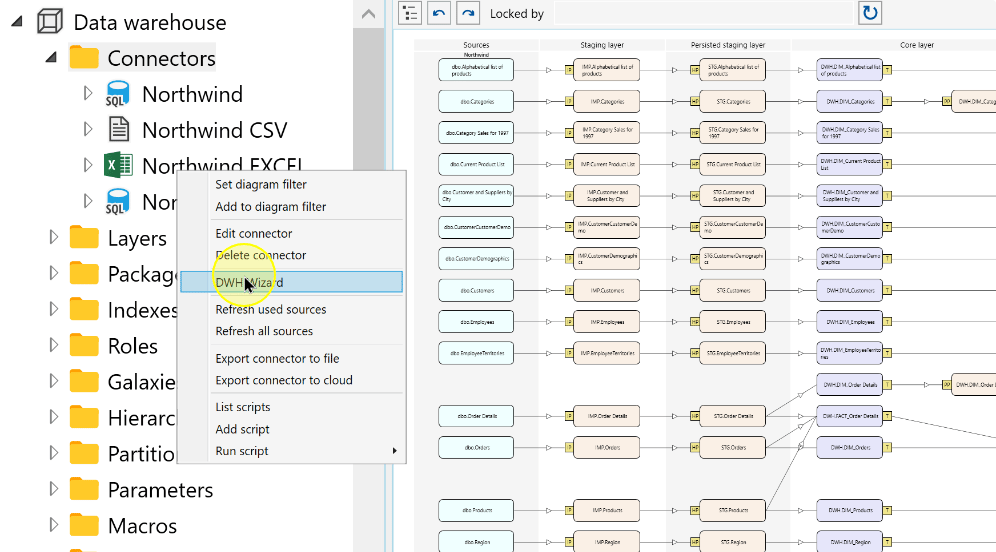
Select Use metadata of existing sources for the illustrated route. If reading connector metadata instead, select that mode and confirm the connector.
Setting Explanation Read metadata from connector Reads the definitions from the external source through the selected Connector. Use metadata of existing sources Uses Source definitions already stored for that Connector. Use this route when working from those saved definitions. Choose the metadata source in the DWH Wizard. 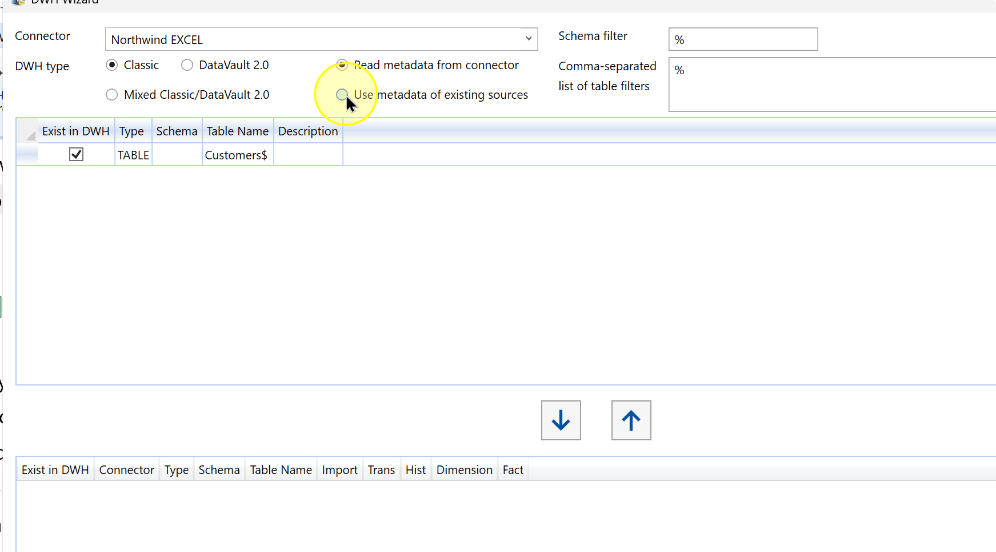
Enter the required schema and table filters, then choose Apply.
Apply the metadata filters. 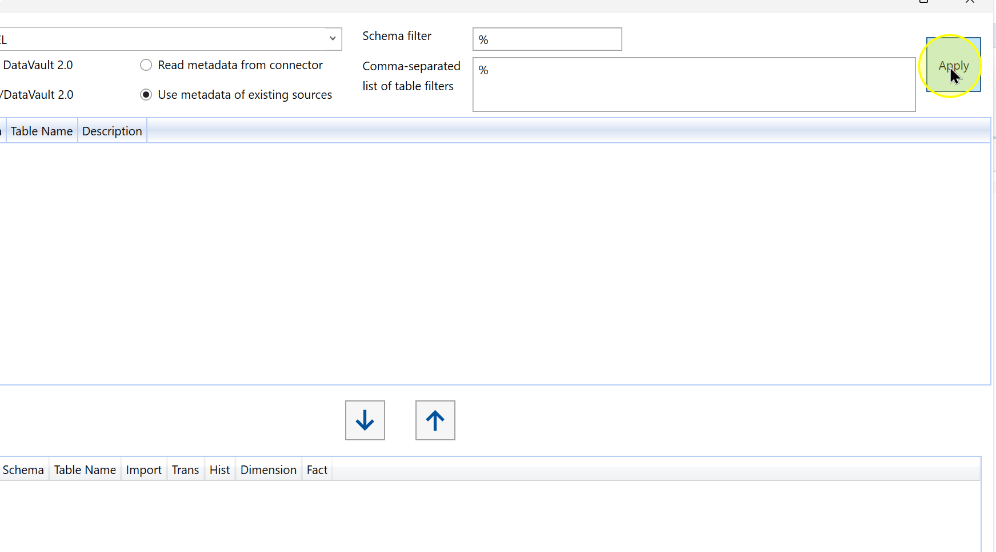
Select the required Source rows, checking their Connector, schema and name. The example selects Customers$.
Select the Customers$ source object. 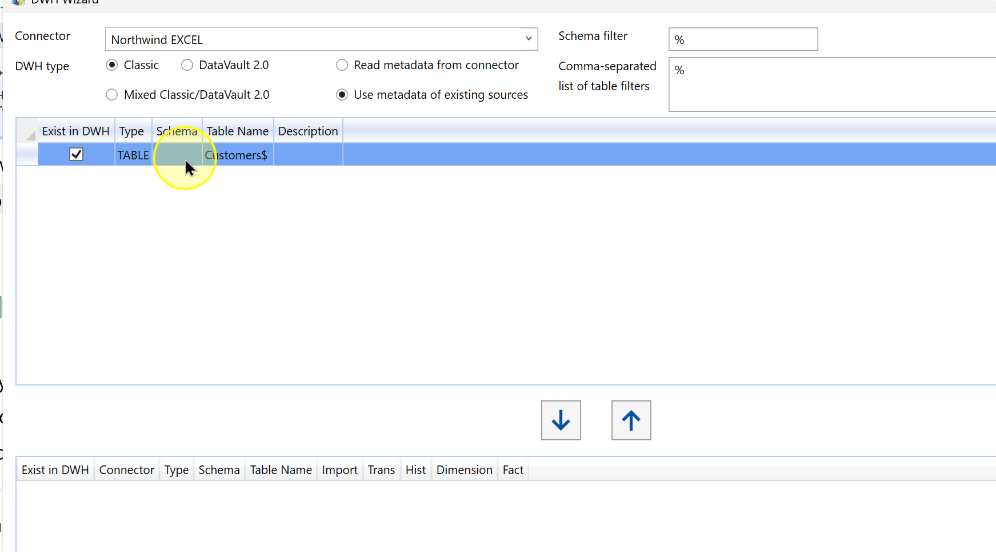
Choose the down arrow to move the selection into the lower configuration list.
Move the selected source into the configuration list. 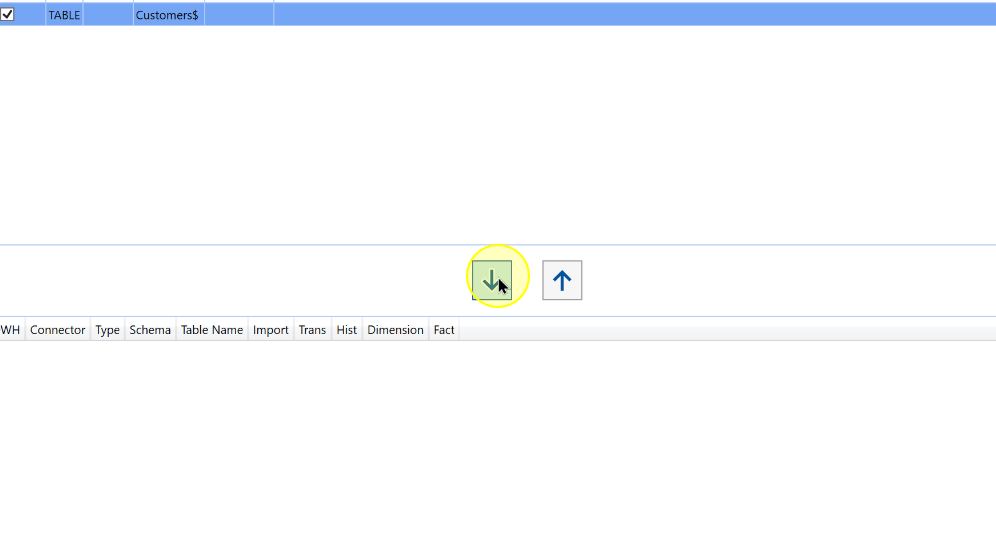
Select Import for each Source that requires an import definition. Review Trans, Hist, Dimension and Fact separately; they request additional related objects. The example shows additional classifications selected. Keep only the classifications required for this workflow.
Setting Explanation Import Requests the import definition for the Source. Trans Creates a Transformation after Import. Hist Requests Historization for the Source. Dimension Creates a Dimension for descriptive analytical data. Fact Creates a Fact Transformation. Object classifications, with Import selected and the pointer over Trans. 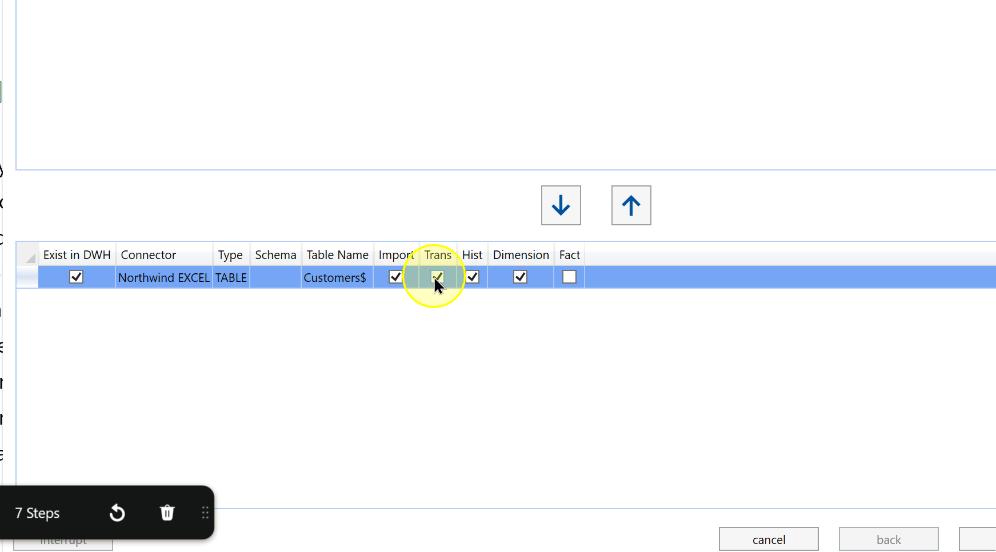
Choose next after reviewing the selected classifications.
Continue from object classification toward the completion settings. 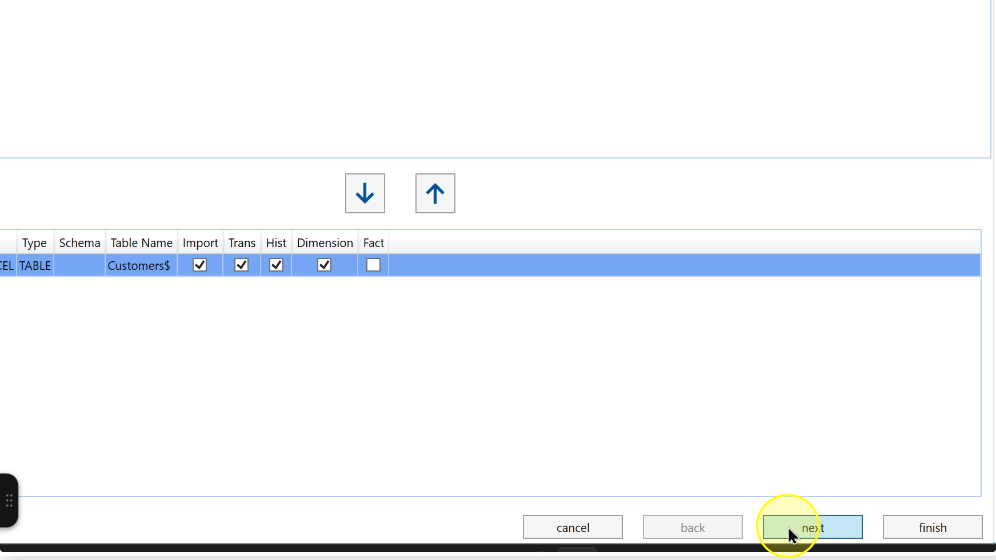
Set naming and complete the wizard
Set Tables per package to the required grouping.
Setting Explanation Tables per package Number of tables grouped in each generated package. This grouping value does not by itself determine the exact final package count. Import Package names Names the generated import packages. A template such as IMP_{CONNECTOR_NAME}{NR}combines literal text with the Connector name and package numbering placeholder.Table names Names generated tables. {SRC_NAME}uses the source name; preserve the supported placeholder spelling and braces.DWH naming settings before completion. 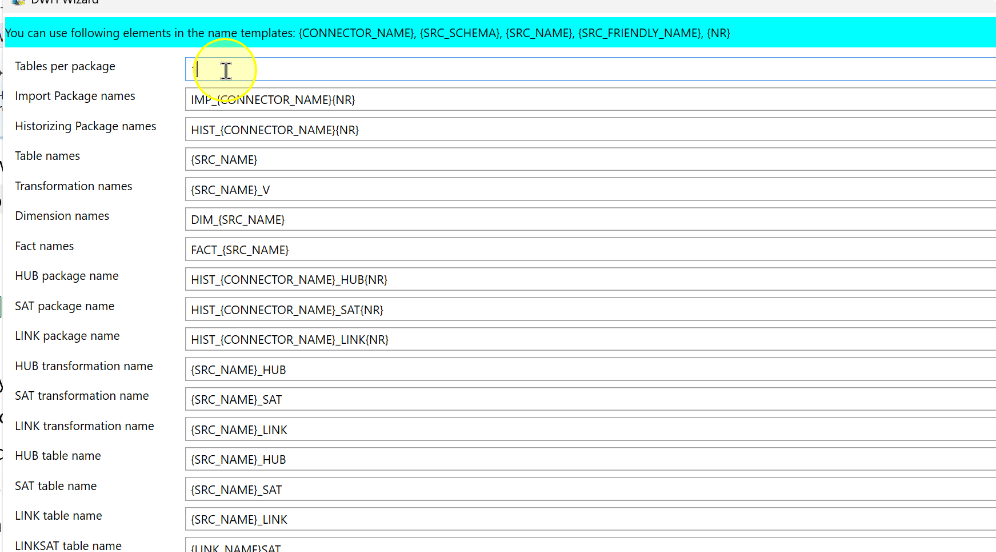
Review or enter Import Package names. The example uses Import_Customers_Excel. Use a literal name or supported naming template that identifies the intended package grouping.
An example import package name before completion. 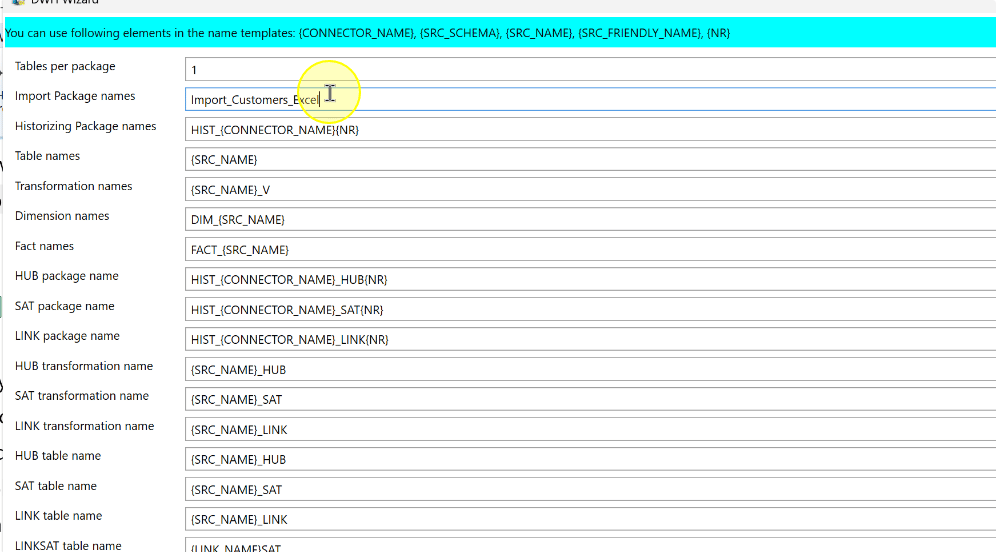
Review or enter Table names. The example uses Customers_Excel; a template such as
{SRC_NAME}instead derives the name from the Source. Check the resulting names against the intended targets.An example table name before completion. 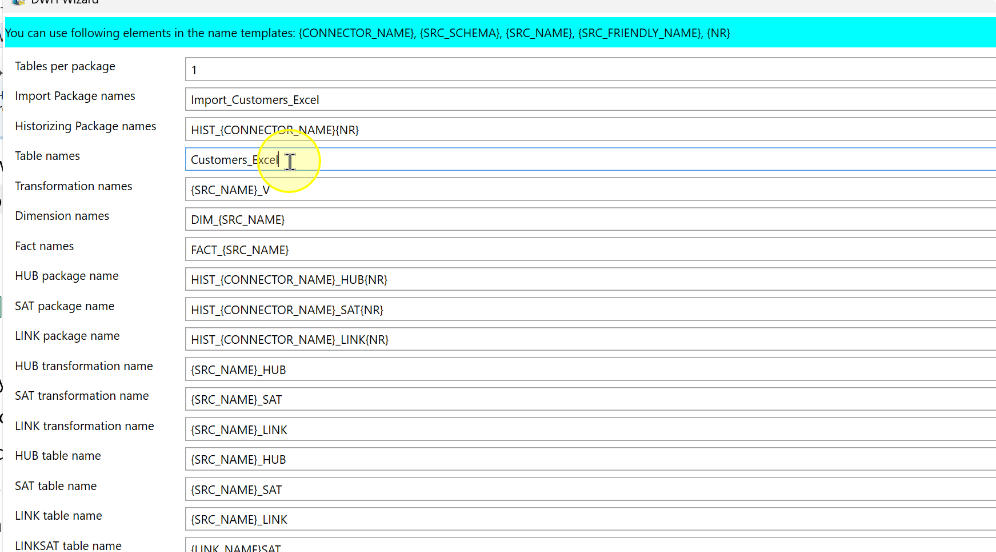
Review the remaining naming settings and choose finish. Check the created import and package definitions before later execution.
Finish the selected DWH creation workflow. 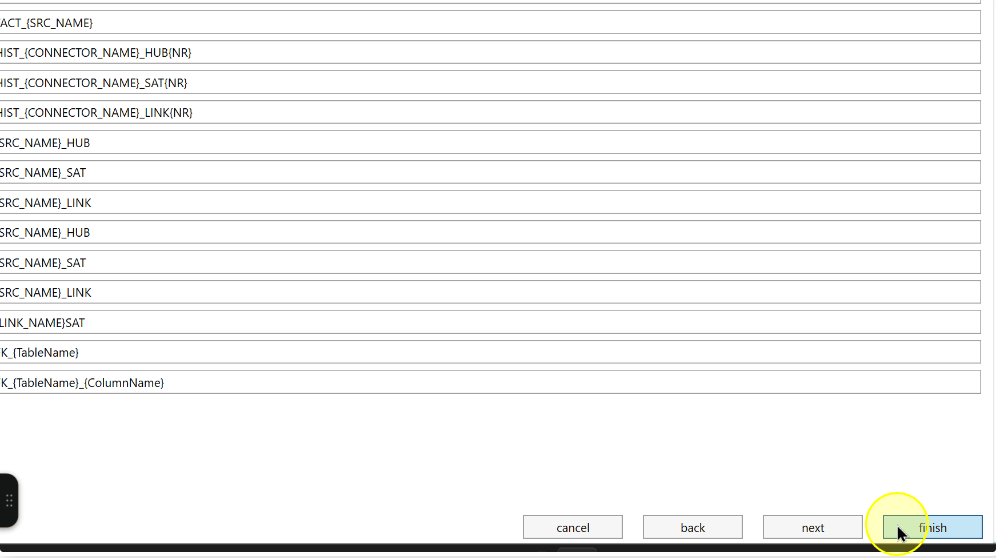
Expected Results
- In ETL → Imports, locate imports for the selected Sources and compare source-to-target relationships with the intended configuration.
- Check generated table and package names against the literal names or templates entered. Review any additional objects requested by the classifications.
- The definitions and packages are prepared for execution; creation is not proof of a completed data load.
Decisions and variations
- Use DWH Wizard when several Sources and related objects must be configured together. Use Import Wizard to define an import for one existing Source.
- Selecting Hist, Trans, Dimension or Fact requests additional related definitions.
- Package names using
{NR}contain a numbering placeholder. Check generated names instead of assuming a particular starting number. - Completing this wizard creates configuration and packages; execute and validate them through the separate loading workflow.
Troubleshooting
- Wrong Sources: check metadata mode and Connector, then review filters and Apply before selecting rows.
- Unexpected objects or names: compare classifications, package grouping and naming templates with the created definitions before executing packages.
