
Configure an SAP Connector
Introduction
A Connector stores the settings used to connect to a source system. The SAP Connector connects AnalyticsCreator to supported SAP source interfaces. Use this how-to to create, configure, test, and save an SAP connection in your Data Warehouse (DWH) project, then reopen the saved Connector to verify its settings.
The intended outcome is a saved Connector with the required SAP connection settings and a successful connection test. Reading source metadata and loading data are subsequent tasks.
For a prebuilt SAP metadata catalog, see SAP-Ready to use metadata.
Applicability
This workflow creates a new SAP Connector using an application-server host, system number, client, language, and SAP credentials. It assumes the SAP environment and required connection components are already configured. Installing those components, preparing SAP extraction, selecting source objects, and running data loads are separate tasks.
Follow these steps in the AnalyticsCreator desktop interface with the Connector settings shown below. Use the connection-string template provided by your installed version.
Prerequisites
3.1. An open Data Warehouse (DWH) project that you can edit, and a name that identifies the new SAP connection.
3.2. The application-server host, system number, client, language, and SAP credentials for the intended environment. The account must have access to the intended SAP source interface.
3.3. The SAP extraction setup and connection components required by your environment, with their availability confirmed by the SAP administrator.
3.4. Your project's requirement for storing the connection string in CFG.SSIS_Configurations. If the project uses a protected password alias, the corresponding entry must already exist in Encrypted strings, the list of protected values used by connection settings. If the project also requires an Azure source type classification, have its specified value available.
Steps
Open the Connector editor
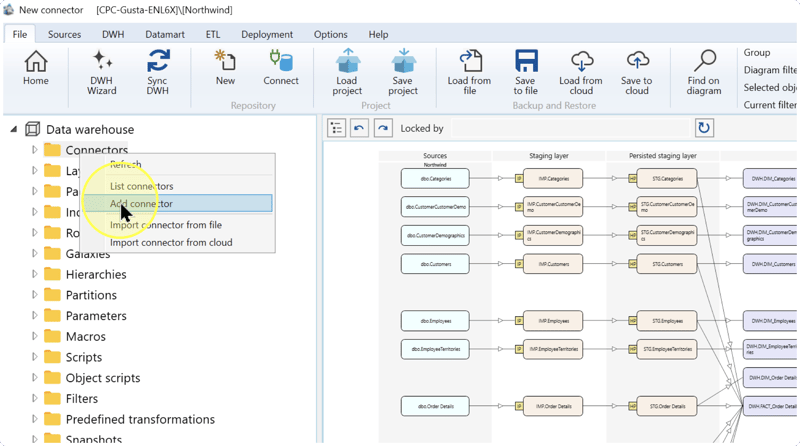
Confirm that the intended Data Warehouse (DWH) project is open. In the navigation tree, right-click Connectors and select Add connector.
Expected Results: the new Connector editor opens.
Name the Connector and select SAP
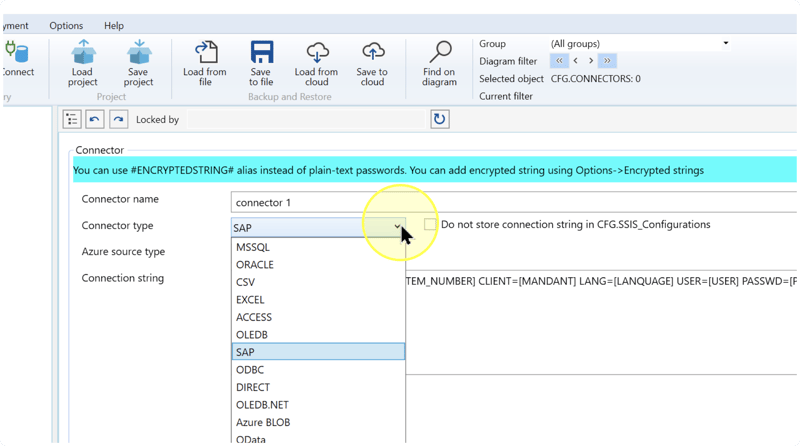
In the Connector editor, enter a name in Connector name that identifies your SAP environment. In Connector type, select SAP. This setting identifies the source technology; confirm it before working with the connection-string template.
Enter the SAP connection settings
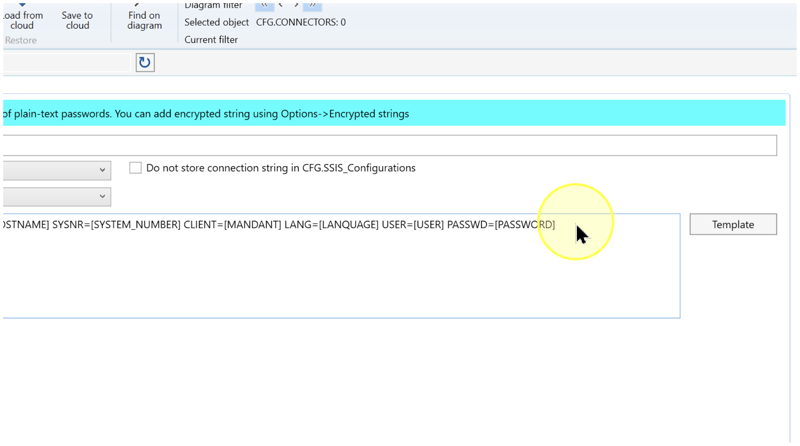
In Connection string, enter the settings for your SAP environment. A connection string contains the values needed to reach and authenticate to that environment. If you need a starting string, click Template before entering your values.
The SAP template uses the following keys. Replace the bracketed placeholders with values supplied for the same SAP environment, keeping the key names and the syntax of your installed template:
- ASHOST — Replace
[HOSTNAME]with the SAP application-server host. - SYSNR — Replace
[SYSTEM_NUMBER]with the SAP system number. - CLIENT — Replace
[MANDANT]with the intended SAP client. The client identifies the SAP client environment for this connection; it is separate from the AnalyticsCreator user. - LANG — Replace
[LANGUAGE]with the language value supplied for this SAP connection. - USER / PASSWD — Replace
[USER]with the SAP user and[PASSWORD]with that user's password. If your project uses protected passwords, enter the configured encrypted-string alias in place of the password. The editor shows the alias form#ENCRYPTEDSTRING#; use the alias for your existing entry. To inspect that entry, open Options and select Encrypted strings.
SAP template: ASHOST=[HOSTNAME] SYSNR=[SYSTEM_NUMBER] CLIENT=[MANDANT] LANG=[LANGUAGE] USER=[USER] PASSWD=[PASSWORD]
The bracketed words are placeholders to replace, not literal connection values. An encrypted-string alias is a reference to a configured protected value; it is not an unresolved template placeholder. Before testing, check that every bracketed placeholder has been replaced and that the host, system number, client, language, and credentials match the intended environment.
Review connection-string storage and source classification
Review these settings in the Connector editor before testing and saving:
- Do not store connection string in CFG.SSIS_Configurations — Select this checkbox when your project requires the connection string to be excluded from the named configuration table. Clear it when the project's configuration requires the string to be stored there. This storage choice is separate from using an encrypted-string alias for the password.
- Azure source type — This is a separate source classification. If your project specifies an Azure classification for this connection, select that value. Otherwise, leave this setting unchanged.
Check the storage choice against your project's configuration before continuing.
Test the SAP connection
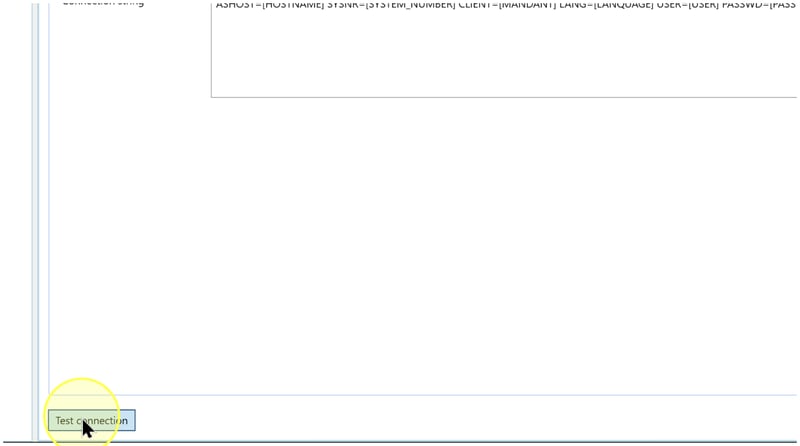
Click Test connection at the bottom of the Connector editor and read the reported result. A click alone does not establish that the connection succeeded.
If the test reports a failure, use the reported problem to recheck the SAP host, system number, client, language, credentials, or required connection components. Apply the relevant checks in Troubleshooting, correct the settings, and test again. Continue to Save only after the intended connection reports success.
Expected Results: the test reports a successful connection with the settings you entered.
Save the Connector
Review Connector name, Connector type, Connection string, and the settings from Review connection-string storage and source classification. If you change the connection settings after a successful test, repeat Test the SAP connection before saving.
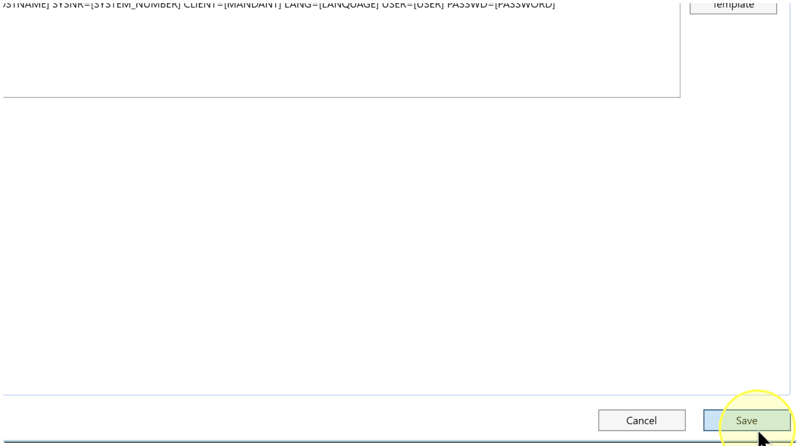
Click Save at the bottom of the editor to save the Connector definition.
Reopen and verify the saved Connector
In the navigation tree, expand Connectors and locate the name you saved. Right-click that Connector and select Edit connector.
Check that Connector name is the intended name, Connector type is SAP, and Connection string contains the intended SAP settings, including the password or configured password alias. Check the configuration-storage choice and any specified Azure classification as well.
Click Test connection and confirm that the saved settings produce a successful result. If a correction is needed, update the setting, test again, and click Save after success.
SAP-Ready to use metadata
Start faster with ready-to-use metadata connectors (data catalogs). AnalyticsCreator Metadata Connectors provide prebuilt catalogs for commonly used source systems, giving you a structured, documented starting point for modelling and development.
What the catalogs contain
The catalogs contain technical and descriptive metadata, including table and field names, friendly names and descriptions, data types, field lengths and formats, keys, relationships, dependencies, source structures, and other relevant technical attributes. Additional semantic information can be included where available.
For SAP, AnalyticsCreator provides catalogs for individual modules and a broader SAP catalog covering the most relevant tables and structures across the system. These maintained catalogs reduce manual source analysis, improve consistency across implementations, and help you move more quickly from understanding the source system to building analytical and data warehouse solutions.
Available SAP metadata connectors
Other modules are available on request, with delivery within a few weeks.
Align metadata with your SAP environment
The metadata can be aligned with your individual SAP environment. The connector can identify custom fields, tables, and other customer-specific extensions and incorporate these differences into the available metadata. Changes and additions can be made visible to the development team so that differences from the standard structure are easier to understand.
When SAP introduces new or changed structures, updated metadata can be incorporated and compared with the previously used version to help assess the impact of source-system changes.
Where the metadata is already connected to an underlying data model in AnalyticsCreator, changes can also be traced into dependent structures. This helps identify which parts of the data warehouse design, transformations, or related objects may be affected.
How to access standard metadata connectors
AnalyticsCreator Metadata Connectors are optional licensed components available for an additional fee.
For connector-package import commands, see Connectors in the navigation tree, which documents Import connector from cloud and Import connector from file.
To work with connector metadata and use saved Source definitions in DWH Wizard, follow How to load and use meta-connector.
Expected Results
5.1. The Connector is available under Connectors in the intended Data Warehouse (DWH) project, using the name you entered.
5.2. Reopening it with Edit connector shows SAP as its type and the intended connection and storage settings.
5.3. Test connection reports success for the saved settings, as checked in Reopen and verify the saved Connector.
Saving stores the Connector definition. A successful connection test does not establish that source metadata has been read, data has been loaded, or a deployment has completed. A Source is an input object supplied by a Connector; selecting its metadata and loading its data require subsequent workflows.
Decisions and variations
- Password or protected alias — Use the password handling required by your project. When using an alias, its protected value must already be configured in Encrypted strings; see Enter the SAP connection settings.
- Configuration storage and Azure classification — Follow the project's specified storage requirement and any Azure classification. The decisions and their actions are explained in Review connection-string storage and source classification.
- New or existing source metadata — After verifying the Connector, use Read metadata from a Connector with DWH Wizard for a new external metadata read. If the Source definitions are already stored in the Data Warehouse (DWH) project, use Use existing Source metadata with DWH Wizard. Reusing metadata is a separate task and does not verify a live SAP connection.
Troubleshooting
- Provider or driver error — If the reported error identifies a missing SAP connection component, have the SAP administrator check the required component in the environment that performs the connection test. Confirm its required configuration before changing the connection string, then test again.
- Connection or authentication failure — Read the reported error. Recheck ASHOST, SYSNR, CLIENT, and LANG against the values for the intended SAP environment, and USER and PASSWD against the intended account. Replace any remaining bracketed placeholders. If using an encrypted-string alias, check the corresponding entry through Options → Encrypted strings. If the values match but the test still fails, ask the SAP administrator to check the reported problem and the account's access to the intended interface.
- Saved item not found — Confirm that you clicked Save in the intended Data Warehouse (DWH) project. Right-click the Connectors folder and select List connectors, then look for the actual name you entered. Check the project and list before creating another Connector.
