
Configure an existing OLAP partition
Introduction
Use this how-to to find an existing OLAP partition, update its definition, save it, and check the saved settings. A partition definition identifies an analytical table and the source query for the rows assigned to that partition. Its row coverage is the set of rows that the query selects.
The intended outcome is a saved definition that matches your table and row-coverage plan. Saving the definition does not generate, deploy, or process the analytical model, and does not verify loaded data.
The incomplete query shown in Complete the source query and review Slice is not ready to save or execute.
Applicability
This workflow edits an existing partition in the AnalyticsCreator desktop interface. Only Facts and Dimensions in the Data Mart Layer (DM) are eligible. Multidimensional models support Fact partitions; tabular models support both Fact and Dimension partitions.
Use the workflow when the intended source query and model-specific Slice setting are confirmed for the resulting configuration. If your interface differs from the captures, confirm the matching controls before changing the definition. To create a partition instead, see Create an OLAP partition.
Prerequisites
3.1. An open Data Warehouse (DWH) project that you can edit, containing the partition to change and its intended analytical table.
3.2. The target model type, multidimensional or tabular, and an eligible table in the Data Mart Layer (DM).
3.3. A defined row-coverage plan and a complete source query for the intended table. For several partitions of the same table, the plan must identify each partition’s rows and the intended combined coverage.
3.4. A Slice setting already validated for the intended model, table, and row coverage, including confirmation if it should be blank. A blank field in a screenshot is not sufficient confirmation.
Steps
Open the Datamart ribbon
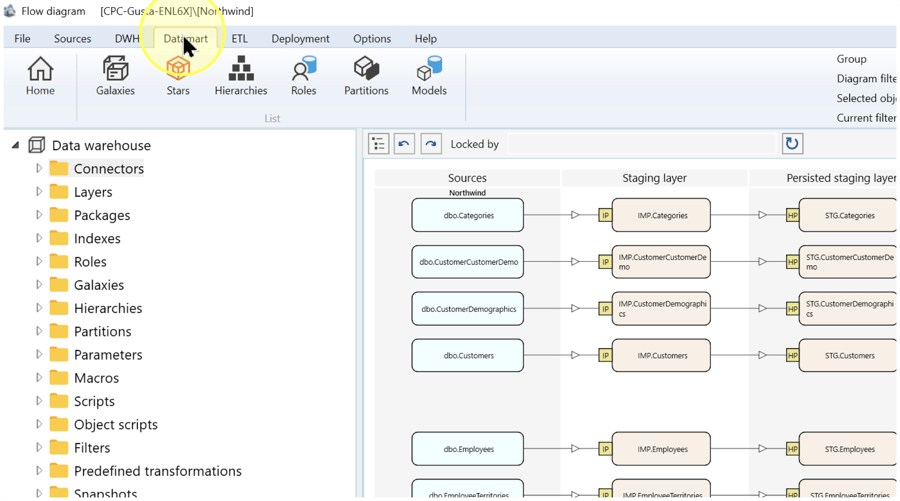
Check that the intended Data Warehouse (DWH) project is open. On the toolbar, click the Datamart tab.
Open Partitions
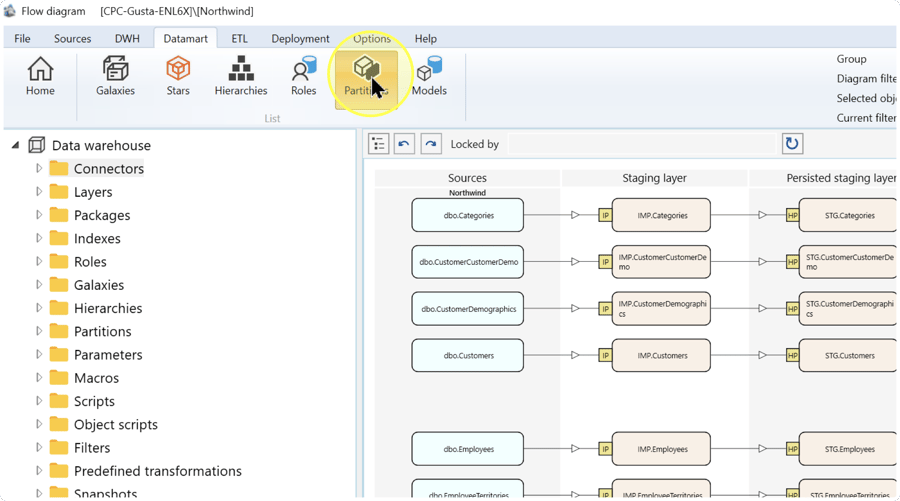
On the Datamart ribbon, click Partitions to open the partition list.
Find the existing partition
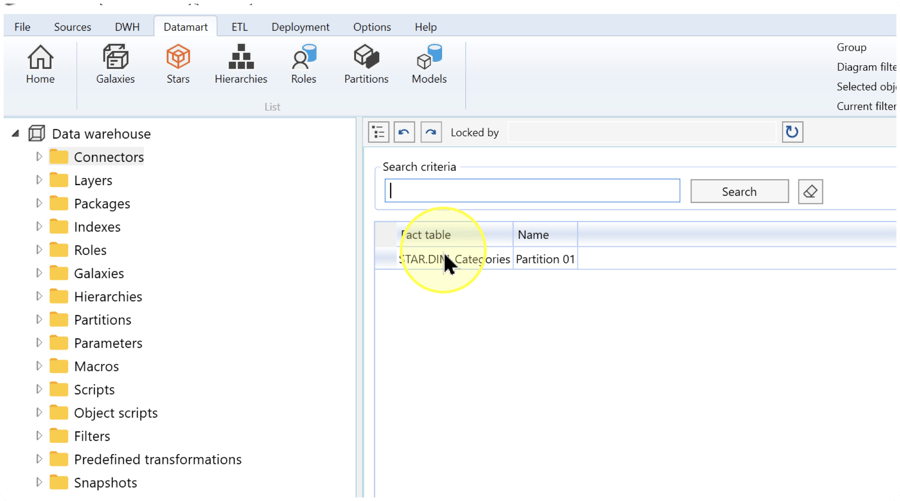
In Search criteria, enter the partition name to find and click Search. In the returned list, compare the table and partition name with your intended definition, then select the matching row.
- Fact table — The column showing the table assigned to the partition. The captured example shows a Dimension despite this column heading; confirm the actual object type and model eligibility in Review the definition and set the name and table.
- Name — The column showing the partition’s name. Use it together with the table to identify the definition you need.
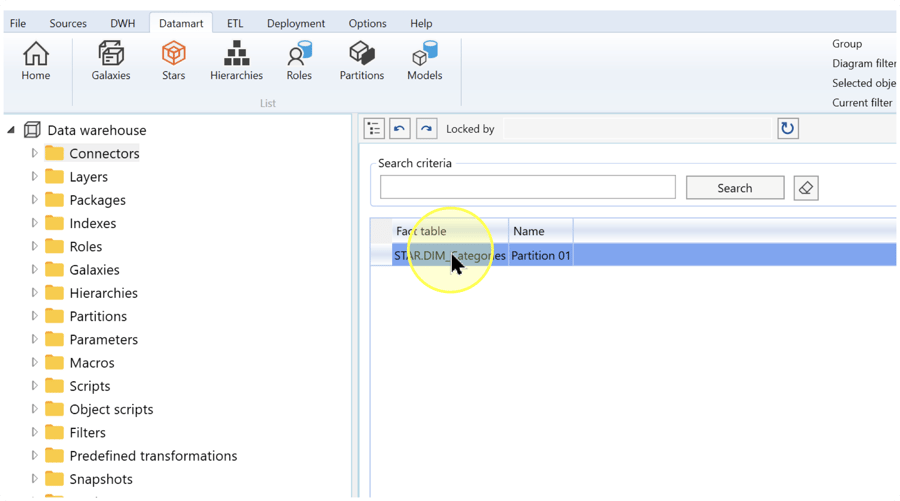
Expected Results: the intended partition is selected.
Open the selected definition
Double-click the intended row to open its OLAP Partition page.
Review the definition and set the name and table
On the OLAP Partition page, record the current Partition name, Table, Slice, and SQL before editing. Slice is a separate model-specific partition setting; SQL contains the source query that determines the rows for this partition.
- Partition name — Identifies the definition. Keep the current name if it still describes the intended coverage; if renaming is part of your change, enter the new name.
- Table — The analytical table assigned to the partition. Keep the current selection when it remains the intended table. If changing it, select the required eligible table and review its source query and Slice setting in Complete the source query and review Slice.
Only Facts and Dimensions in the Data Mart Layer (DM) are eligible. A Fact represents measurable business events, balances, or transactions; a Dimension represents descriptive business data prepared for analytical use. For a multidimensional model, select a Fact. For a tabular model, select the Fact or Dimension required by your design.
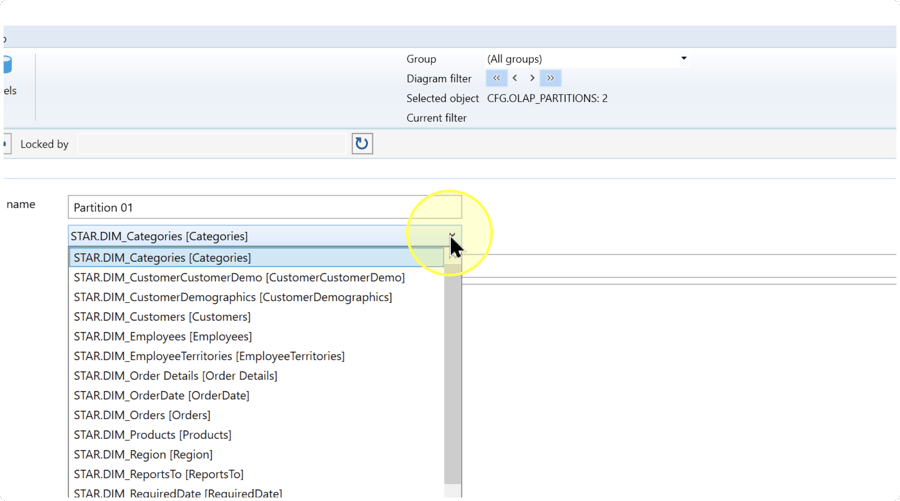
Complete the source query and review Slice
In SQL, review the existing source query. Keep it if it already returns the required columns and intended rows for the selected table. If the table or row coverage changes, enter the complete query for the resulting definition.
- Filtered coverage — When the partition should contain only a subset of rows, use a complete
WHEREcondition with the project’s actual fields and boundaries. For related partitions, compare the conditions to avoid unintended overlaps or gaps. - Whole-table coverage — When all rows from the source table belong in this partition, use an unfiltered query without a
WHEREclause. Do not use it for a partition intended to cover only one subset. - Slice — Review this setting separately from SQL. Retain the existing value only if it is validated for the resulting model, table, and coverage. If it must change, enter a value validated for that configuration. Leave it blank only when that state is confirmed as valid. Do not assume that a SQL
WHEREcondition is a valid Slice expression. If the required setting is unconfirmed, stop before saving and obtain confirmation from the person responsible for the analytical model.
Whole-table query example: if [STAR].[DIM_Categories] exists in your project and every row belongs in this partition, the following query selects all of its columns and rows:
SELECT *
FROM [STAR].[DIM_Categories];Check before continuing: confirm that the query references existing objects, returns the selected table’s required columns, and selects exactly the intended rows. A query that ends with WHERE is incomplete: supply the condition for filtered coverage, or remove the entire clause for intended whole-table coverage.
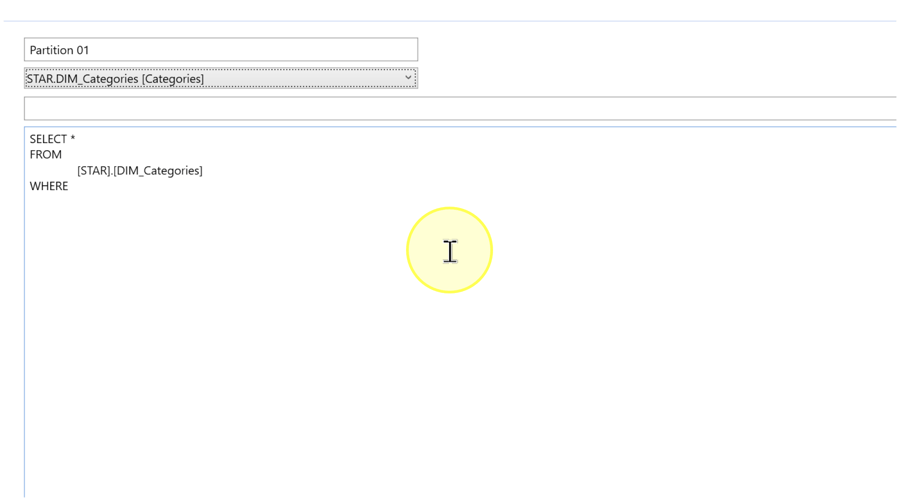
Review and save the definition
Compare Partition name, Table, SQL, and Slice with the intended configuration. Confirm that the query is complete and the Slice setting has been validated for that configuration. Click Save.
If saving fails or is unavailable, follow Troubleshooting. Verify persistence by reopening the definition in Reopen and check the saved definition; clicking Save alone is not the final check.
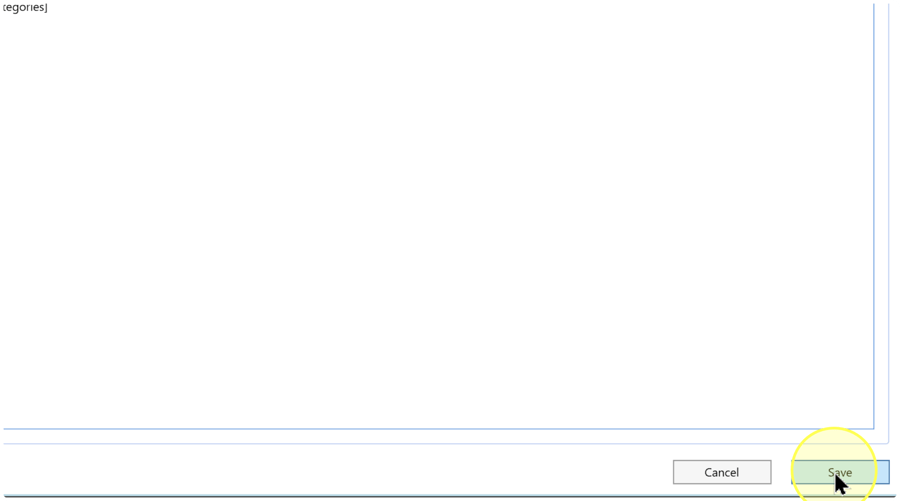
Reopen and check the saved definition
Click Datamart, then Partitions. Enter the saved partition name in Search criteria and click Search. If you renamed it, use the new name. Check the table and name in the returned row, then double-click it.
Compare the reopened Partition name, Table, Slice, and SQL with the values you intended to save. Resolve any difference before using the definition for analytical model processing.
Expected Results: the reopened definition contains the intended settings. The checks in Expected Results describe the completion boundary.
Expected Results
5.1. The partition is findable under its saved name and intended table in Partitions.
5.2. Reopening it as described in Reopen and check the saved definition shows the intended name, table, complete SQL query, and validated Slice setting.
5.3. The saved query agrees with the row-coverage plan. For multiple partitions of the same table, compare all relevant query conditions with that plan to identify unintended overlaps or gaps.
These checks verify the saved definition and its intended coverage. They do not establish successful query execution, generated or deployed model changes, loaded rows, or production readiness. Model processing and validation of actual data are separate tasks.
Decisions and variations
- Model type — Follow the eligibility check in Review the definition and set the name and table: multidimensional models use Facts; tabular models can use Facts or Dimensions. The pictured Dimension is not a universal choice.
- Whole table or subset — Use the query guidance in Complete the source query and review Slice. An unfiltered query selects all source rows. For a subset, use the actual date, key, or other field and boundaries from your coverage plan.
- Unchanged or revised Slice — Reuse a setting only when it remains validated for the resulting configuration. A change to the table or coverage requires review; copying a blank field or a query condition is not a substitute for that review.
Troubleshooting
- Required object is missing — Confirm the Data Warehouse (DWH) project. If the partition row is missing, remove unintended text from Search criteria and click Search again. If the required Table is unavailable, confirm that it is a Fact or Dimension in the Data Mart Layer (DM) and is eligible for the target model. Do not substitute a different object just because it is listed.
- Save is unavailable or fails — Read any displayed message and check Locked by at the top of the page. A lock held by another user prevents saving; ask the lock owner or repository owner to resolve it. If the message identifies a field or query problem, correct that problem and review the definition again before clicking Save. A query ending at
WHEREneeds a complete condition or removal of the clause, as explained in Complete the source query and review Slice. - Saved definition differs from the intended result — Check that you reopened the correct table and partition name, including any renamed value. Compare the four settings with your intended configuration. Correct unintended differences, save, and repeat Reopen and check the saved definition. If the saved settings match but processed data does not, validate the analytical model and its processing separately; saving the definition does not prove the runtime result.
