
Configure an OData Connector
Introduction
Use this how-to to create, test, and save an OData Connector for an existing OData service in AnalyticsCreator. The Connector defines the connection to the service: its address identifies where the data is exposed, and its authentication setting determines how the connection identifies itself.
The intended outcome is a saved Connector with the service address and authentication required for your Data Warehouse (DWH) project, together with a successful connection test. Reading source metadata and loading data are subsequent tasks.
Applicability
This how-to covers creating a new Connector using the OData Connector type in the AnalyticsCreator desktop interface. It covers the Connector name, service address, authentication selection, connection test, and saving the definition. The authentication choices shown are None, Windows, and Basic; use the method required by your service.
The screenshots do not identify a product version. If your interface differs, confirm the corresponding Connector setup for your version before proceeding.
Prerequisites
3.1. An open Data Warehouse (DWH) project in AnalyticsCreator that you can edit.
3.2. An existing OData service and its confirmed endpoint address, available from the environment where you will test the connection.
3.3. The authentication method required by the service. For Windows or Basic authentication, have the service's connection setup instructions and the required account access or credentials available.
Steps
Open a new Connector
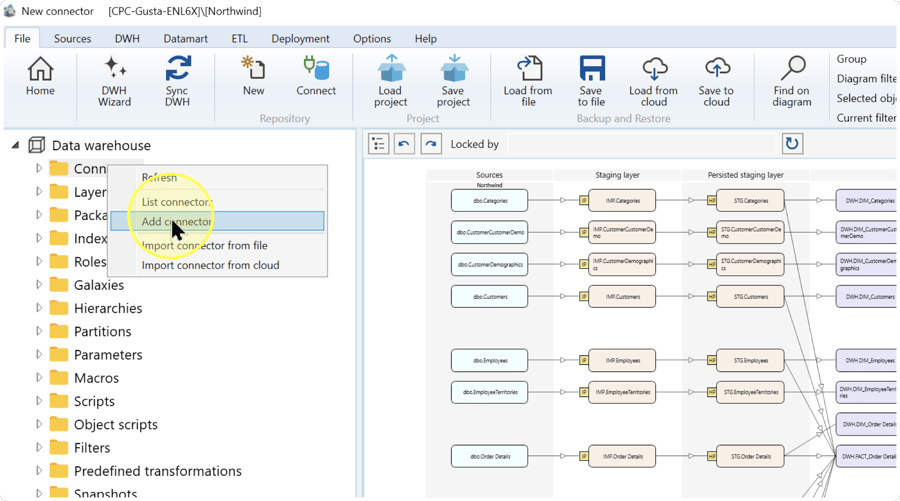
In the navigation tree of your Data Warehouse (DWH) project, right-click Connectors and select Add connector. This opens the page for a new Connector.
Name the Connector and select OData
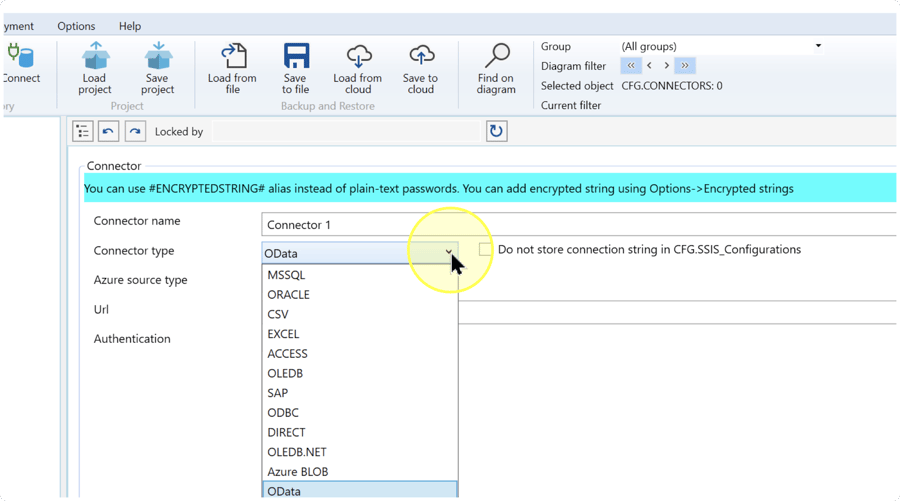
On the Connector page, enter a name that identifies the intended service in Connector name. A Connector stores the connection definition, and this name helps you identify it later in the project.
In Connector type, select OData. This type connects AnalyticsCreator to an OData service. The OData connection settings include Url and Authentication, which you configure in the following steps.
Enter the service address
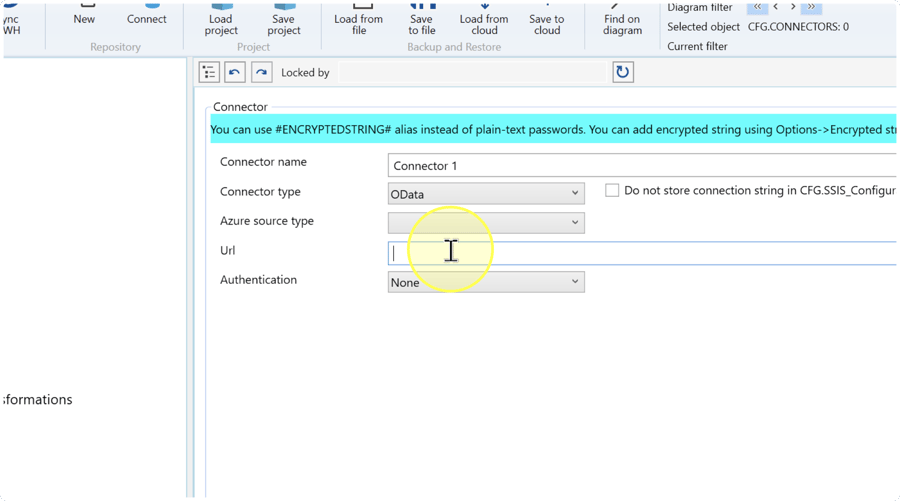
Enter the confirmed OData service endpoint in Url. The endpoint is the address through which the service exposes its data. Use the address provided for that service.
Address example: https://data.example.com/odata/ illustrates an endpoint address. It is not a working source; enter your service's actual address.
Select the required authentication
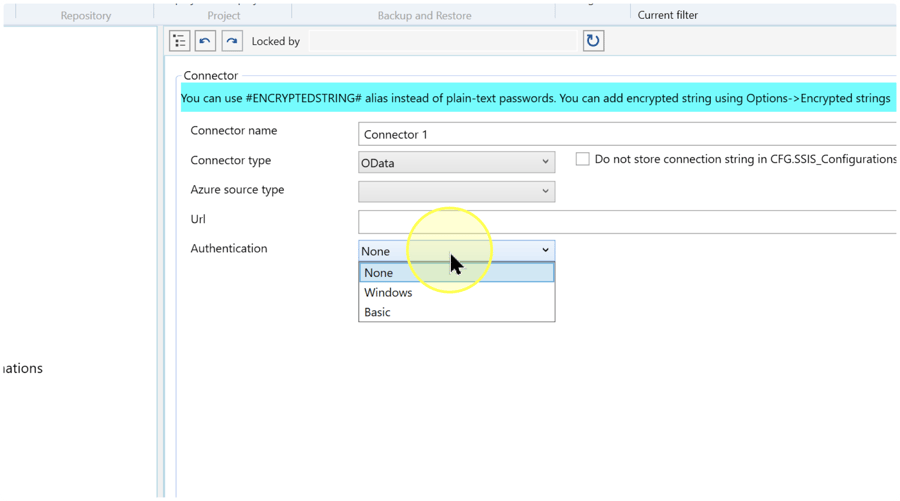
In Authentication, select the method required by the service. Authentication determines how the connection identifies itself to the service.
- None — Use when the service allows access without authentication.
- Windows — Use when the service requires Windows authentication. Confirm the connecting identity and its access with the service owner.
- Basic — Use when the service requires Basic authentication. Use the credentials supplied for access to that service.
For Windows or Basic, complete the authentication setup using the service's connection setup instructions before testing. If you do not know which method or account the service requires, confirm those details with the service owner before continuing.
Test the connection
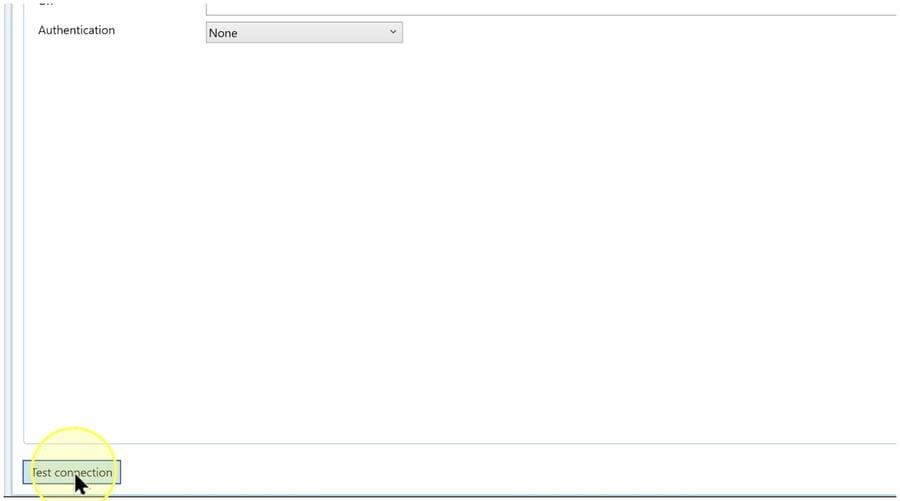
Check the entered Url and selected Authentication, then click Test connection at the bottom of the Connector page. Read the reported result.
If the test fails, use the reported problem and the checks in Troubleshooting to correct the connection settings, then click Test connection again. Continue to Save the Connector definition only after the test reports success for the intended service.
Expected Results: the connection test reports success with your service address and authentication setup. This checks the connection; it does not select source metadata or demonstrate a data load.
Save the Connector definition
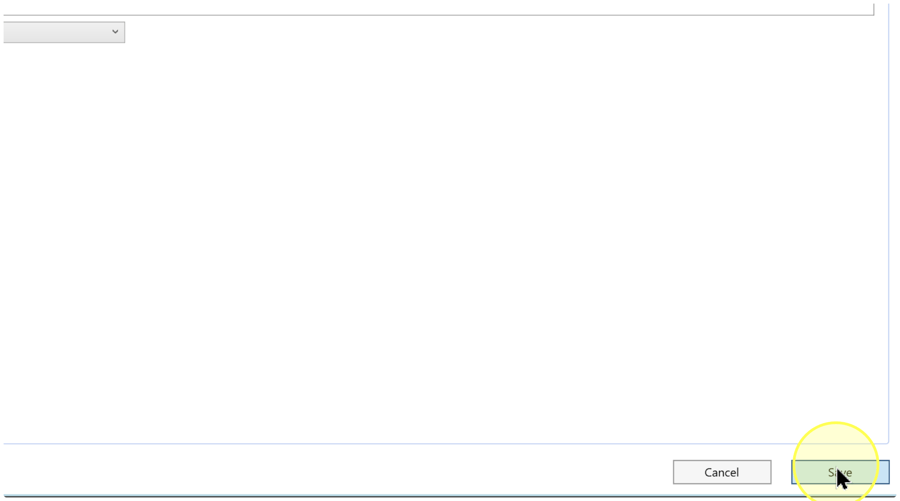
Review Connector name, Connector type, Url, and Authentication. If you changed the connection settings after the successful test, repeat Test the connection with those settings. Then click Save at the bottom of the Connector page.
Expected Results: the Connector definition is saved. Follow Expected Results to check the saved entry and settings.
Expected Results
5.1. Expand Connectors in the navigation tree and locate the name you saved in Save the Connector definition. You can also right-click Connectors and select List connectors to find the saved entry.
5.2. Select the saved Connector under Connectors and check that Connector type is OData and that Url and Authentication match the settings you intended to save.
5.3. Click Test connection on the saved Connector and confirm that the test still reports success. If it fails, follow Troubleshooting; a saved definition alone does not confirm service access.
The outcome is a saved, tested connection definition. A Source is an input object supplied by a Connector and represented in the dataflow diagram. To read and select the service's Source metadata next, follow Read metadata from a Connector with DWH Wizard. Metadata describes object structure, such as columns and data types; reading it is separate from loading business data.
Decisions and variations
6.1 Authentication method. Use the criteria in Select the required authentication to select None, Windows, or Basic.
6.2 Service address and name. Use the endpoint confirmed by the service owner and a Connector name meaningful to your project.
Troubleshooting
Read the result from Test connection before changing settings. After correcting an issue, repeat Test the connection.
- Endpoint fails — Compare Url with the exact endpoint supplied by the service owner. Confirm that the service is reachable from the environment where the connection is tested, and correct the address if it differs.
- Authentication fails — Confirm the required authentication method, account access, and credentials with the service owner. Correct the connection setup accordingly. Select None only if the service permits access without authentication.
- No expected Sources — A successful connection test does not select Source metadata. Confirm that the Connector points to the intended service, then follow Read metadata from a Connector with DWH Wizard to read and select its objects.
