
Introduction
Create a table reference that describes how two tables are related. Select the table endpoints, set the relationship behavior, map the matching columns or provide a required statement, then save and inspect the definition.
Applicability
Use DWH > References to create an explicit metadata relationship between existing tables. Creating the reference does not by itself execute a join or load business data.
Prerequisites
- Both table definitions available in the intended project.
- Their schemas, names, matching keys and intended table order.
- The cardinality, join behavior and any required relationship expression prepared for those tables.
Steps
Start a table reference
Open DWH and locate the table-reference commands on its ribbon.
Open the DWH tab to reach table-reference commands. 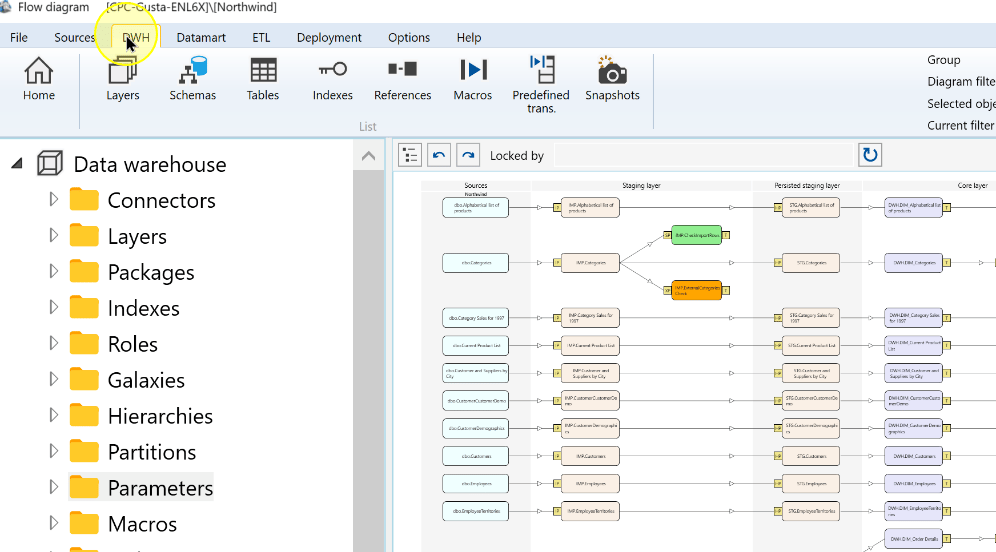
The DWH ribbon contains the References command. 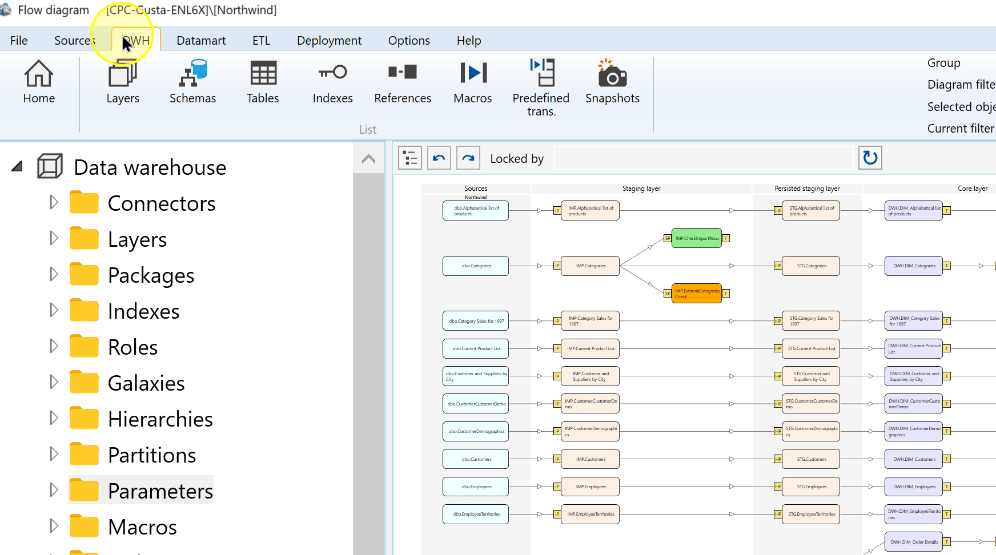
Click References to open the table-reference list.
Open References from the DWH ribbon. 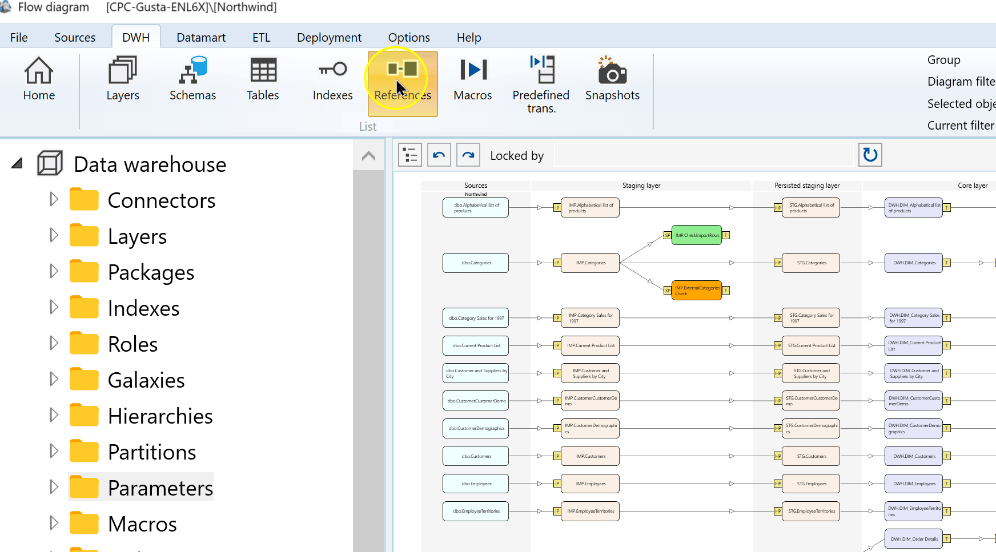
Click New to start a table-reference definition.
Choose New in the table-reference list. 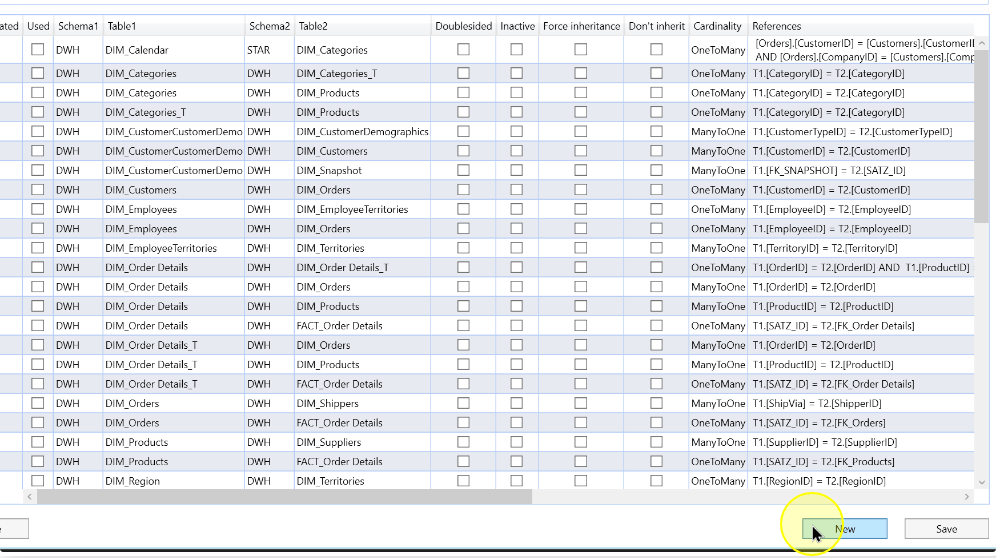
Select the table endpoints
Select the schema for Table 1. The example uses IMP.
Choose the schema for Table 1. 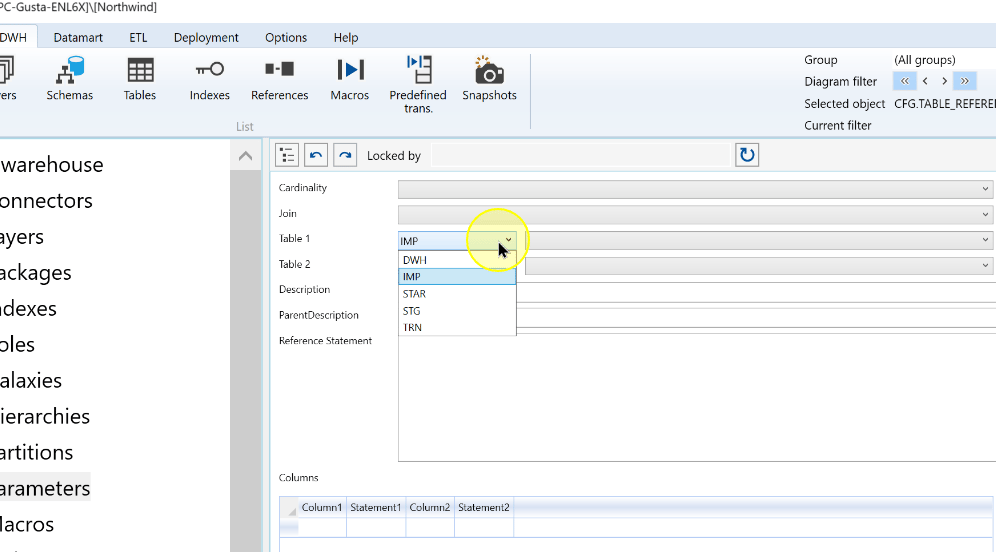
Select the first participating table. The example uses Customers; confirm its schema as well as its name.
Choose the first participating table. 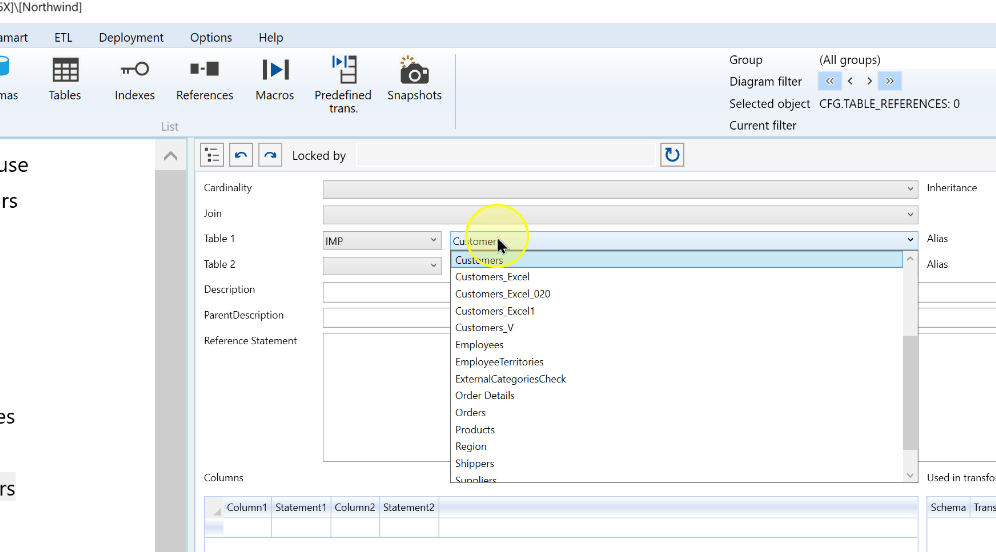
Select the schema for Table 2. The example also uses IMP.
Choose the schema for Table 2. 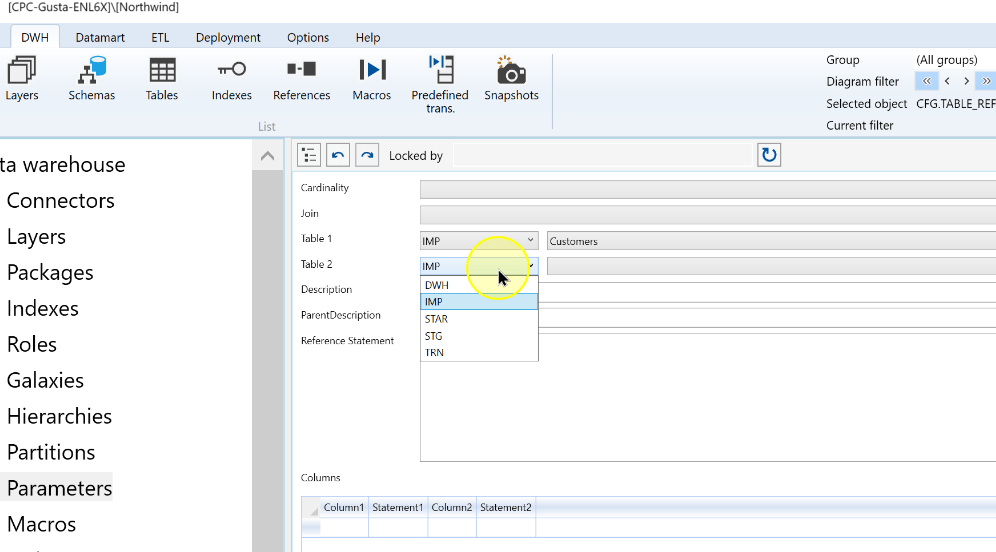
Select the second participating table. The example uses Orders.
Choose the second participating table. 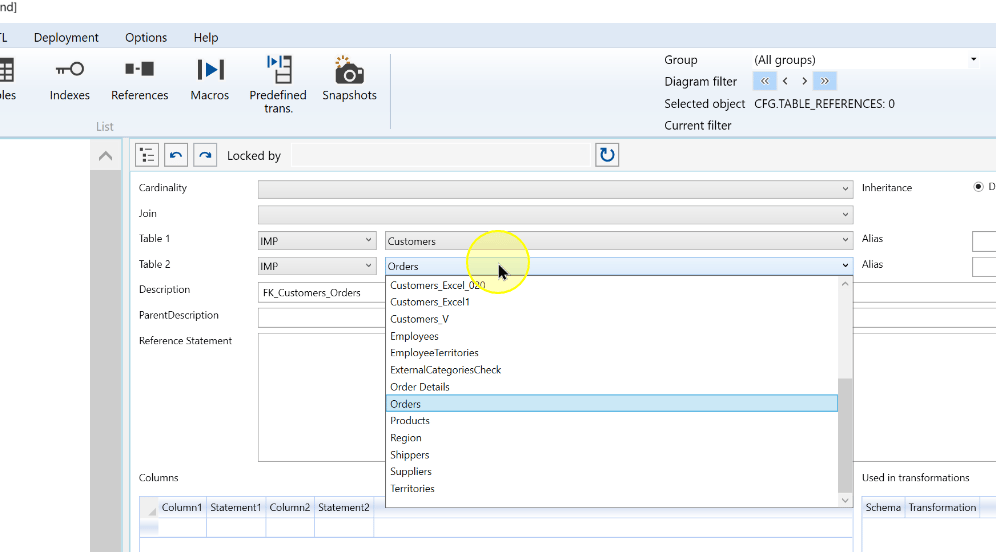
Describe the relationship
Set Cardinality to describe the number of matching rows on each side. The example uses OneToMany: one customer in Table 1 can have several orders in Table 2. Check key uniqueness on the one side.
Set the table-reference cardinality. 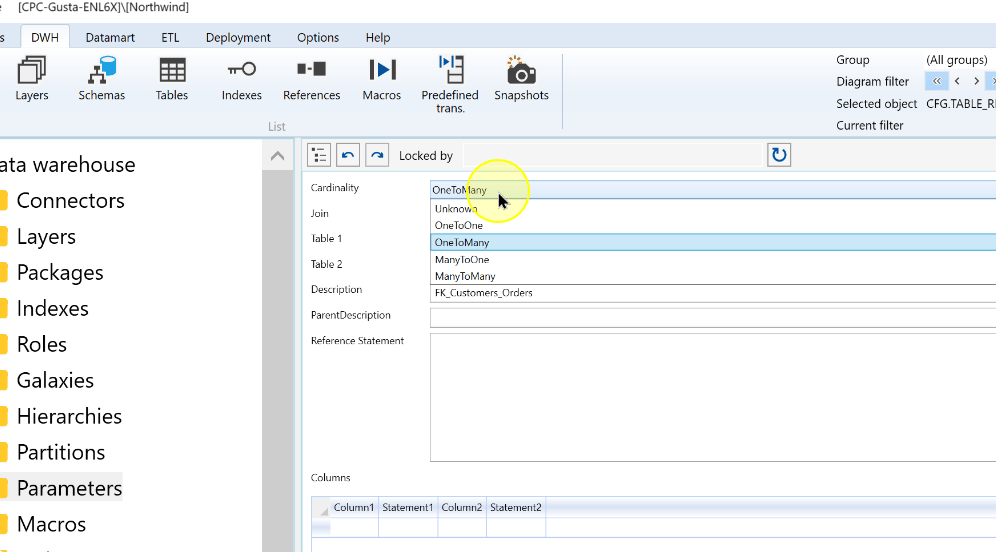
Select Join for the intended treatment of matching and unmatched rows. The example uses INNER JOIN, which retains matching combinations from both tables.
Set the join behavior. 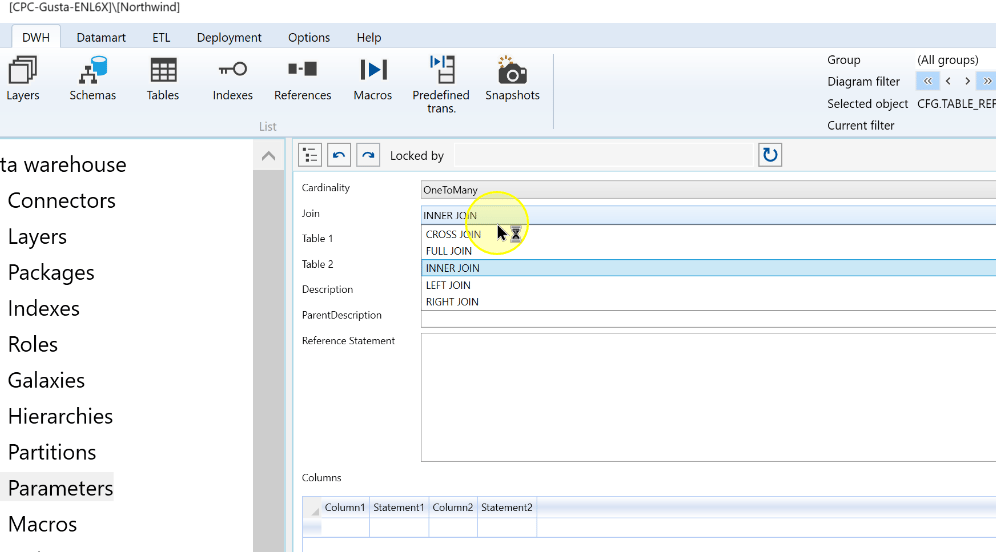
Enter or review Description so that you can identify the relationship later. The example uses FK_Customers_Orders. Confirm the selected tables before mapping their columns.
Review the reference description and selected tables. 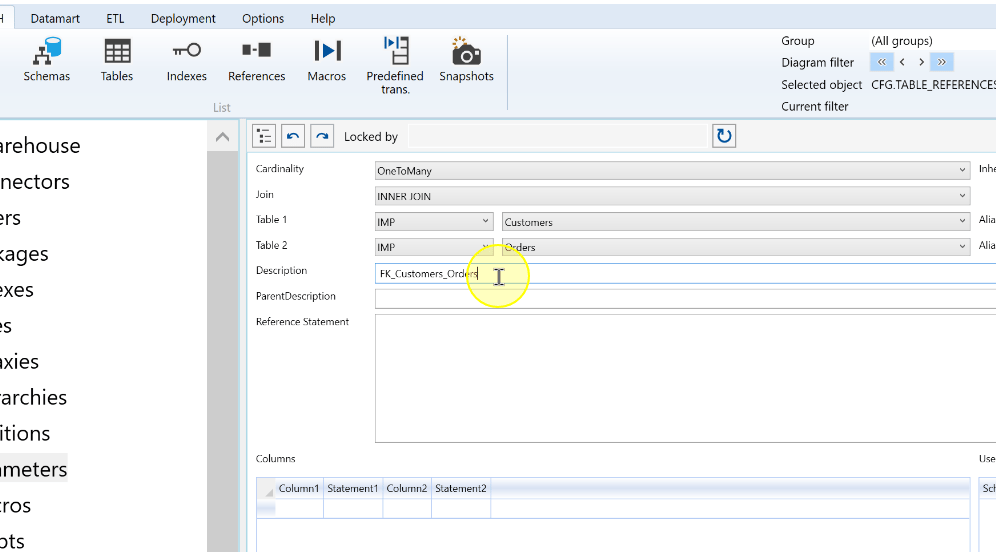
Map the matching columns and review inheritance
In the Columns grid, choose the related Table 1 key in Column1. The example selects CustomerID.
Choose the matching column from Table 1. 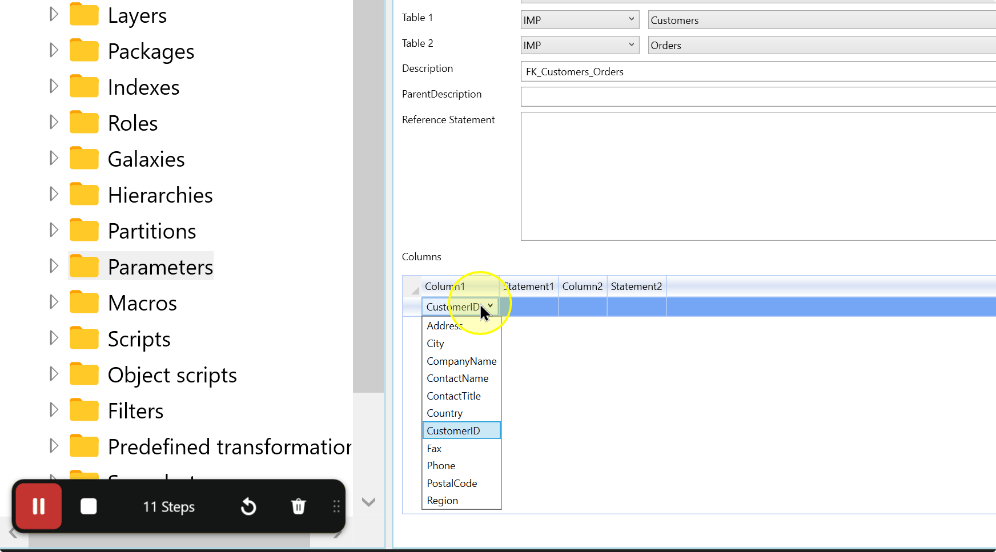
On the same row, choose the matching Table 2 key in Column2. The example pairs CustomerID with CustomerID. Match the columns by their business meaning and compatible values.
Choose the matching column from Table 2. 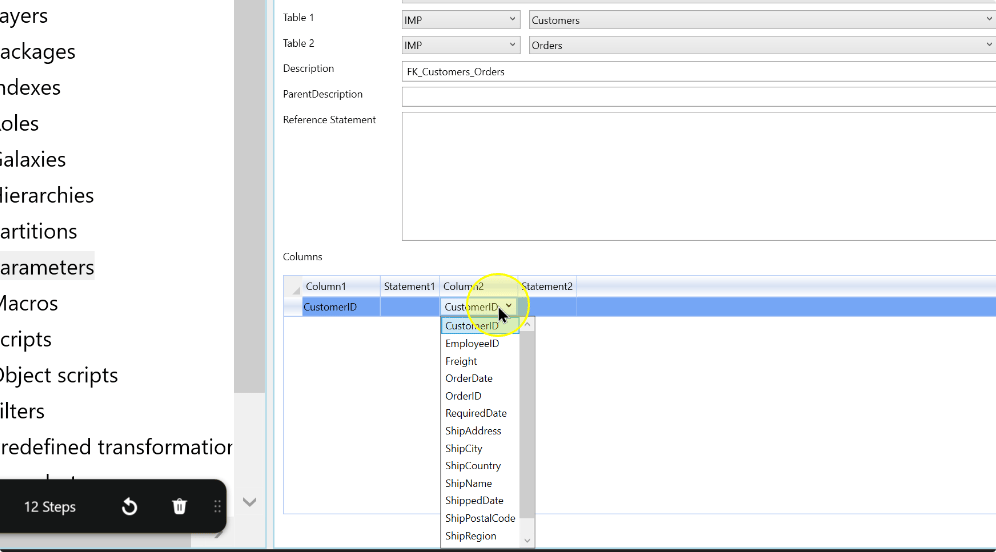
Review Inheritance for the reference. Default follows the default inheritance behavior, Not inherit prevents inheritance and Force inherit forces it. Check this setting with the complete relationship before saving.
Review inheritance alongside the mapped columns. 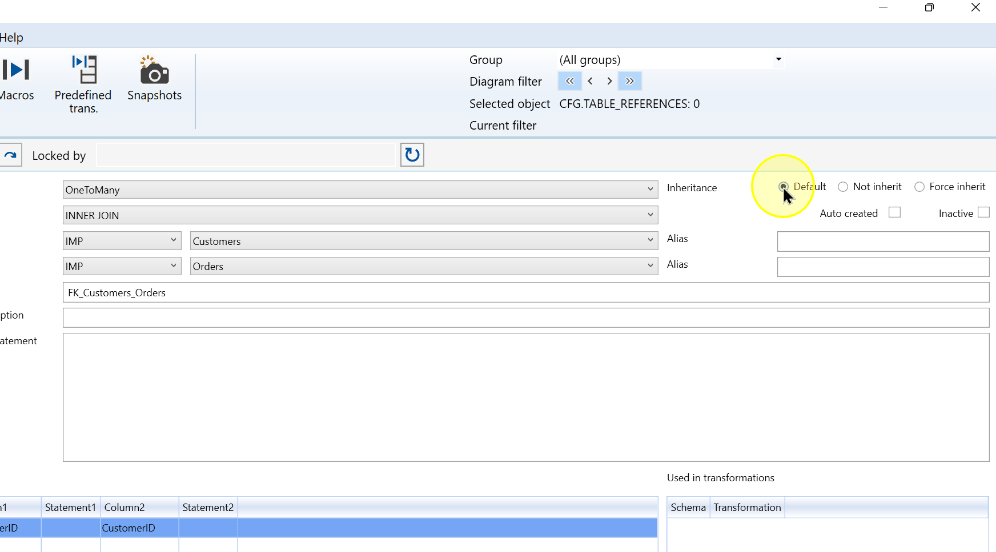
Add a Reference Statement when required by a non-direct relationship. Set an Alias for each table and use those aliases in the SQL expression.
Check that the expression uses the exact aliases assigned to the two selected tables before saving.
Click Save, then reopen the reference and compare its tables, cardinality, join, matching condition and inheritance with the intended definition.
Save the new table-reference definition. 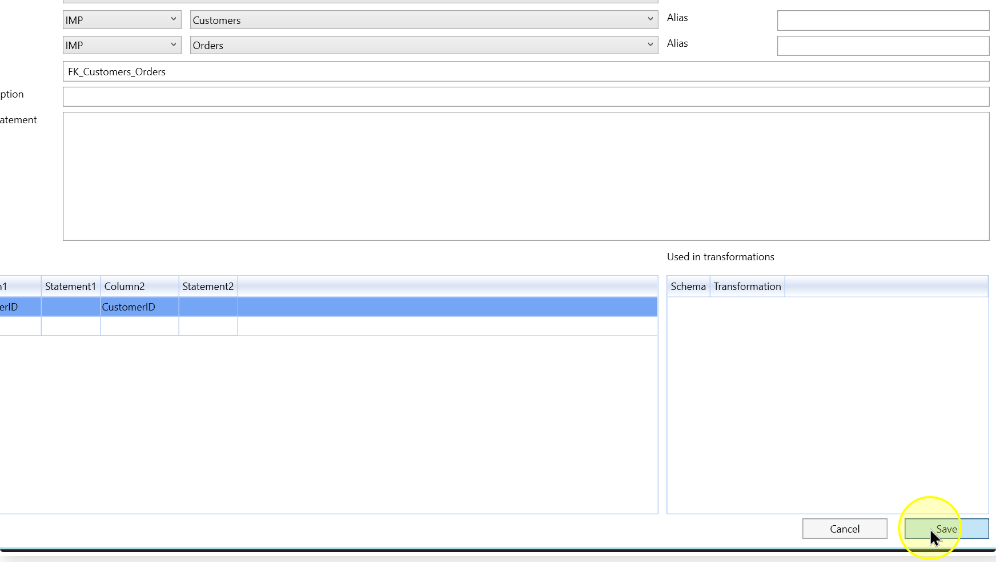
Expected Results
- Return to DWH > References and reopen the reference by its tables and description.
- Compare both schema/table pairs, cardinality, join, matching columns, inheritance and any required statement or aliases with the intended relationship.
- Verify key uniqueness on the side required by the selected cardinality before using the relationship in dependent processing.
Decisions and variations
- Table order: OneToMany describes one Table 1 row matching several Table 2 rows. Review this interpretation if you reverse the tables.
- Complete matching condition: confirm all participating key columns or the validated expression. Incorrect mappings can change joins and generated results.
Troubleshooting
- A table or column is not the expected one: check the selected schema and table on that side, then compare the column with the intended key.
- The saved reference differs from the design: reopen it and compare both endpoints, cardinality, join and the complete matching condition. Correct the required values and save again.
