
Introduction
Configure an existing Excel worksheet or range Source to process matching workbooks from a directory. Locate or create the Source definition, then set its directory, file extension and subdirectory scope. Saving retains those settings for the later import workflow.
Applicability
Use this procedure when several Excel workbooks should be processed through one AnalyticsCreator source configuration instead of creating a separate source for every workbook.
Prerequisites
- Configure an AnalyticsCreator connector whose Connector type is Excel.
- Confirm that the workbooks are available from a directory accessible to AnalyticsCreator.
- Identify the worksheet or range metadata that will define the source structure.
- Determine the root directory and file extension that identify the intended workbooks.
- Decide whether workbooks in nested directories must also be included.
Steps
Locate the Excel source
Expand Connectors.
Expand Connectors to locate the Excel connector. 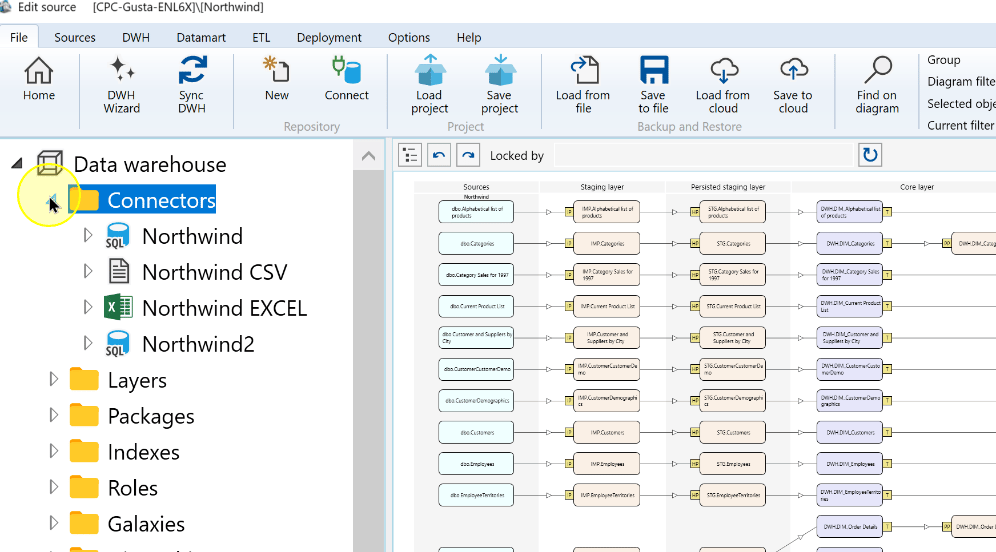
Expand the required Excel connector.
Expand the Excel connector to show Sources. 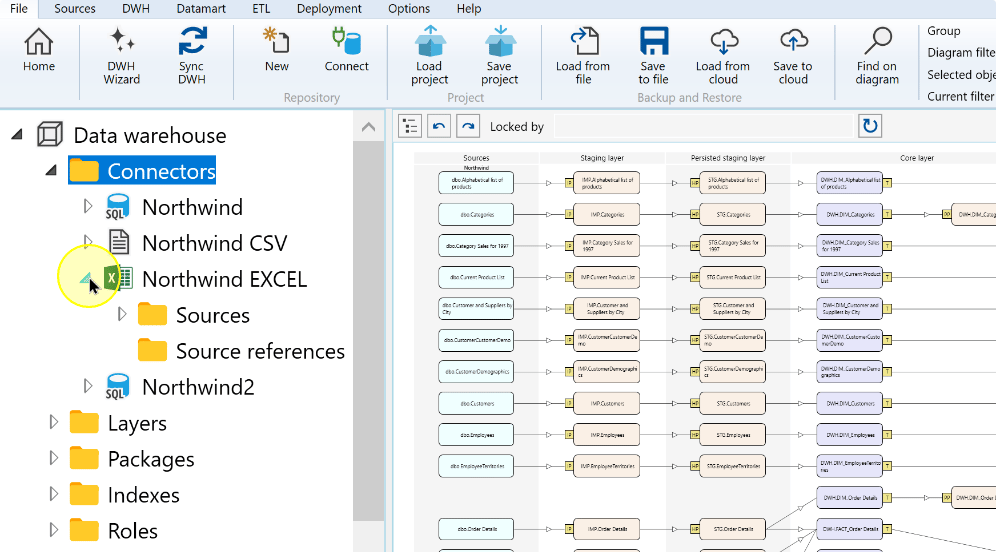
Expand Sources and locate the required worksheet or range definition. If it already exists, continue with “Edit directory processing” below.
Expand Sources beneath the Excel connector. 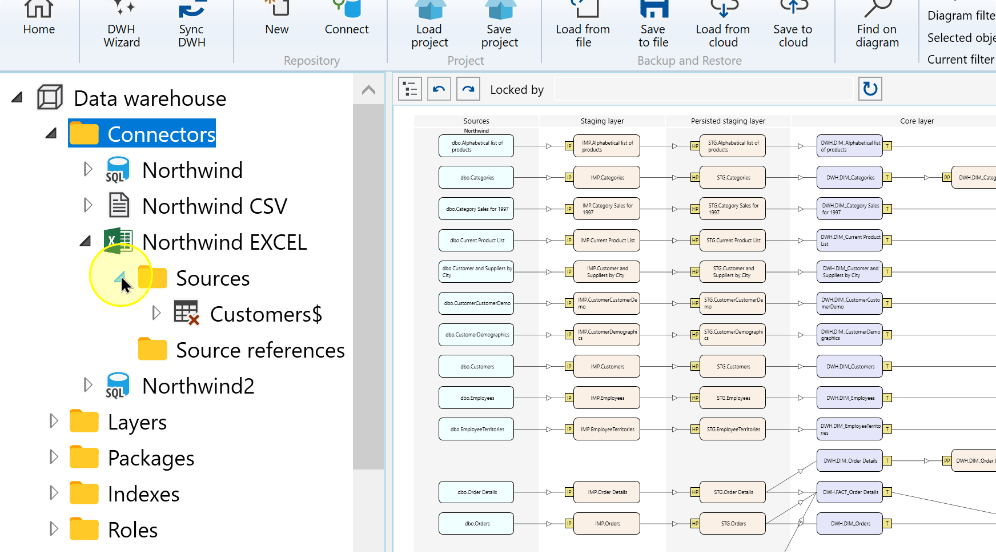
If required: create the missing Excel source
If the required source is missing, choose Read source from connector from the Excel connector’s Sources context menu, then complete the following creation steps.
In Source Wizard, confirm the Excel Connector and select Table.
Expected: The intended connector and Table mode are selected in the source-creation dialog.
Use Filter schema and Filter table when you need to limit the worksheet or range metadata returned by the connector.
Choose Apply, select the required source object, and then choose Finish.
Expected: After Apply, the matching objects are listed. After selecting the required objects and choosing Finish, their source definitions are created.
Edit directory processing
Open the context menu for the existing or newly created Excel worksheet/range Source, such as Customers$.
Select the Customers$ Excel source. 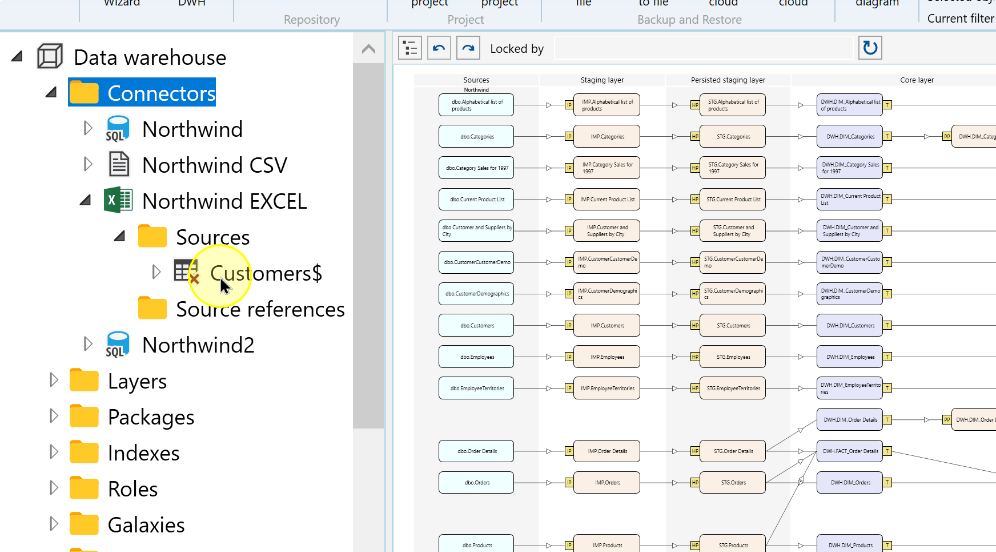
Choose Edit source.
Edit source in the Excel source context menu. 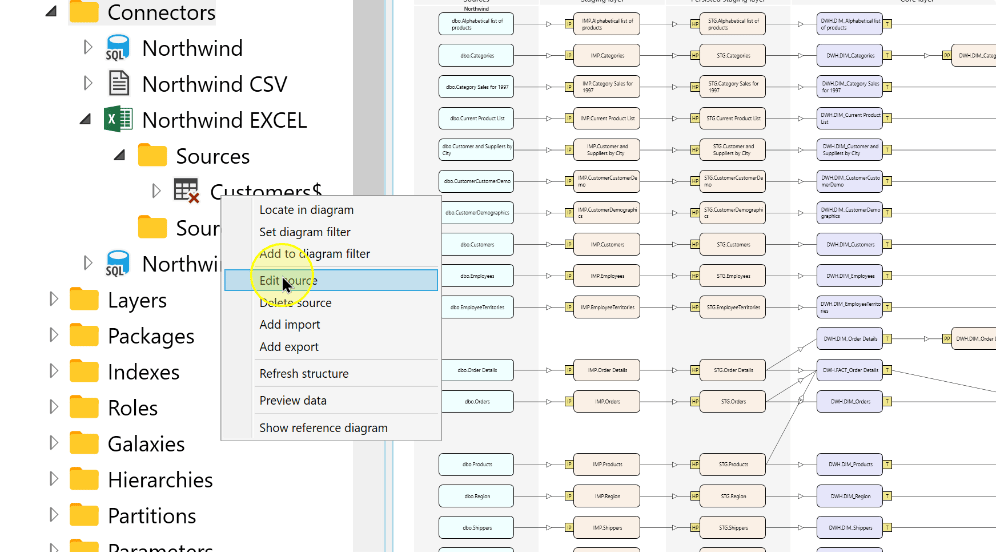
Enable Process files in directory.
Setting Explanation Process files in directory Switches the source from one file to directory-based processing. Directory The root folder containing the intended files. File extension Limits the file extension included by the source. Include subdirectories Includes matching files in nested folders when selected. Leave it cleared when the source should use only the root folder. Enable Process files in directory for the Excel source. 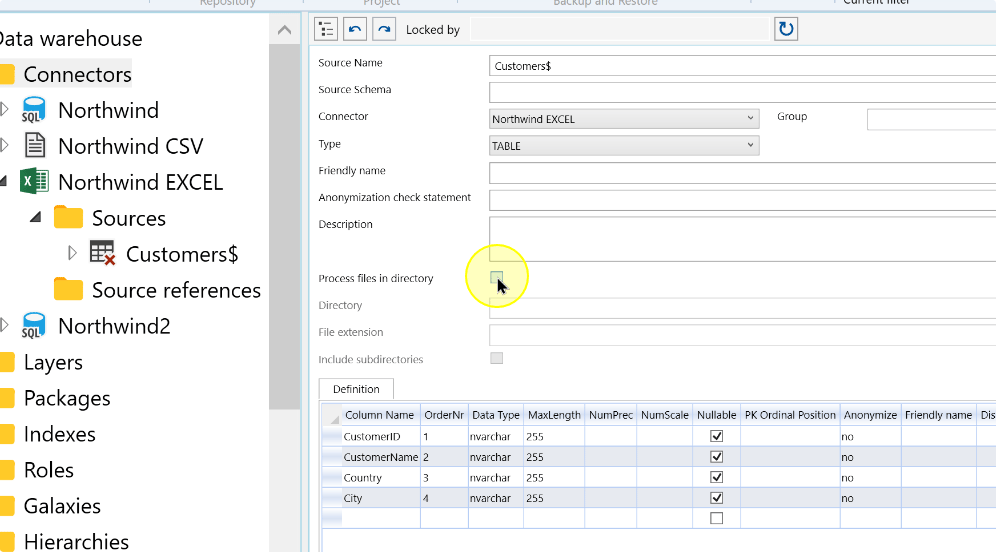
Enter or select the root folder containing the workbooks in Directory.
Directory containing the Excel workbooks. 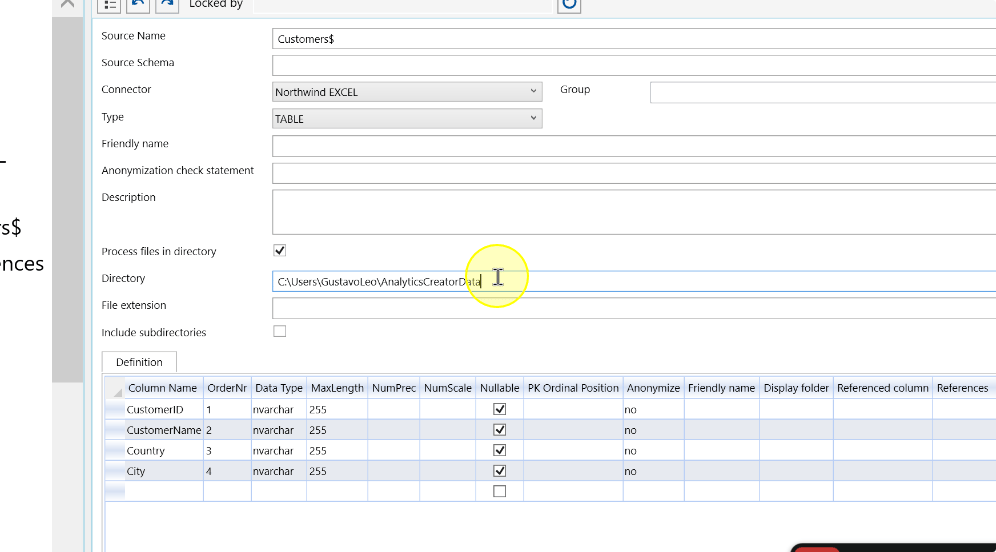
Set File extension to the required extension, such as .xlsx. Select Include subdirectories only when matching files in nested folders belong to the Source; otherwise leave it cleared.
The .xlsx file-extension filter. 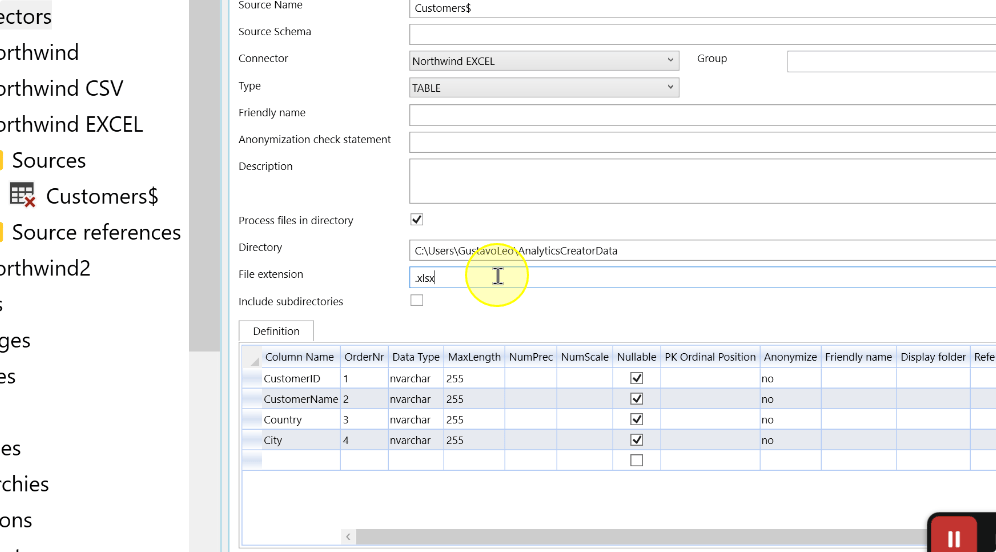
Choose Save, then check that the directory-processing settings remain when you reopen the source.
Save the Excel directory-processing settings. 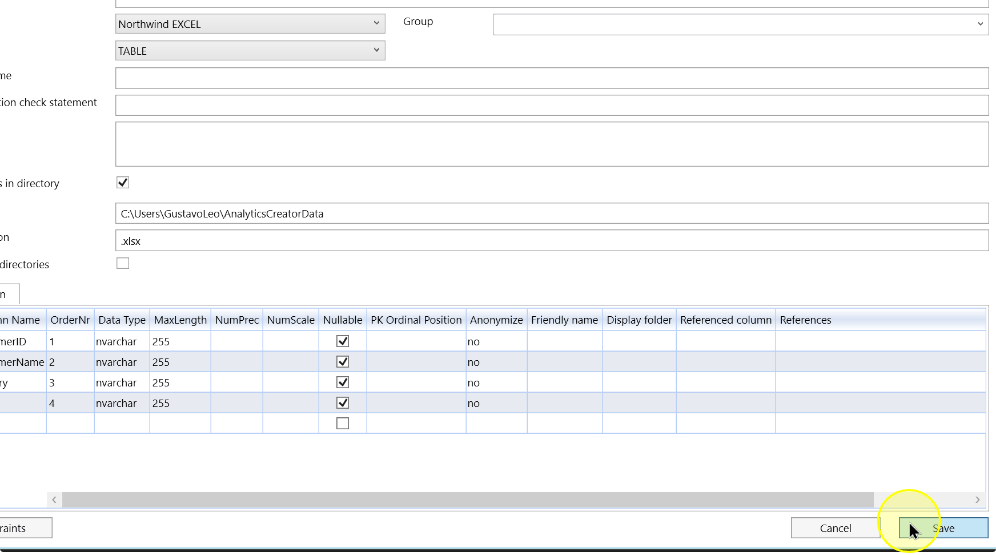
Expected Results
- Reopen the same Excel Source and compare Directory, File extension and Include subdirectories with the intended workbook scope. Confirm Process files in directory remains enabled.
- The worksheet/range definition remains the intended input structure. Saving these settings does not execute an import.
Decisions and variations
- The worksheet or range Source identifies the data structure. Directory and File extension identify the workbook files to process.
- Use a directory and extension that exclude unrelated or temporary workbook files.
Troubleshooting
- Worksheet or range absent: confirm the Excel Connector, use the conditional creation branch and inspect objects returned by Apply.
- Unexpected workbooks: check Directory, extension and Include subdirectories. Exclude unrelated or temporary files from the intended scope.
