
Introduction
Review or change an existing source reference. Select the participating sources, explain their matching relationship through the column mapping or a reference statement, and verify the saved cardinality, join and inheritance settings.
Applicability
Use Sources > References to maintain relationships between source definitions under Connectors. This guide edits an existing source reference; table references use the separate DWH route.
Prerequisites
- Both source definitions and their column metadata available under the intended Connectors.
- The existing reference to maintain and its intended source order, matching keys, key uniqueness, cardinality and join behavior.
- Any required relationship expression and source aliases prepared and validated for those inputs.
Steps
Open the existing source reference
Open Sources.
Open the Sources tab. 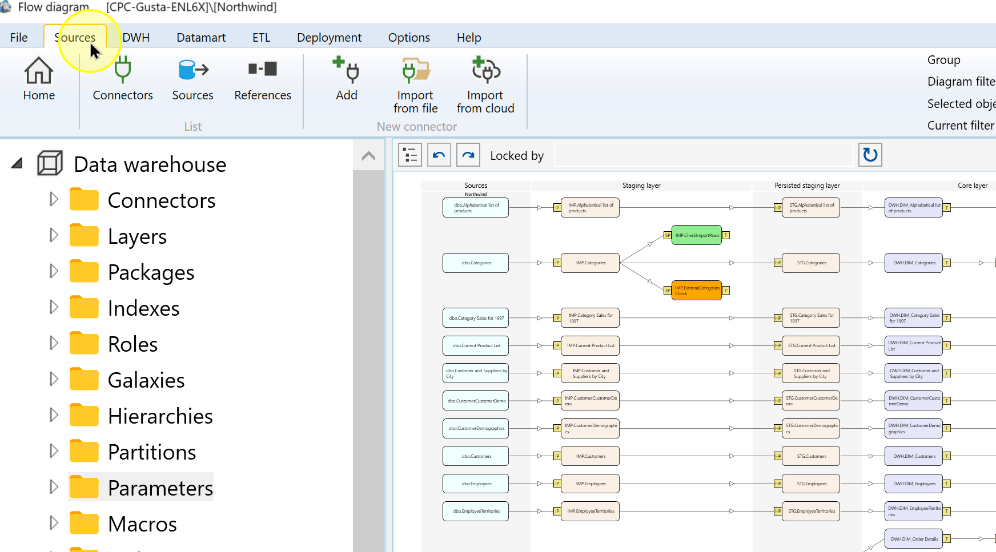
Choose References.
Open source References from the Sources ribbon. 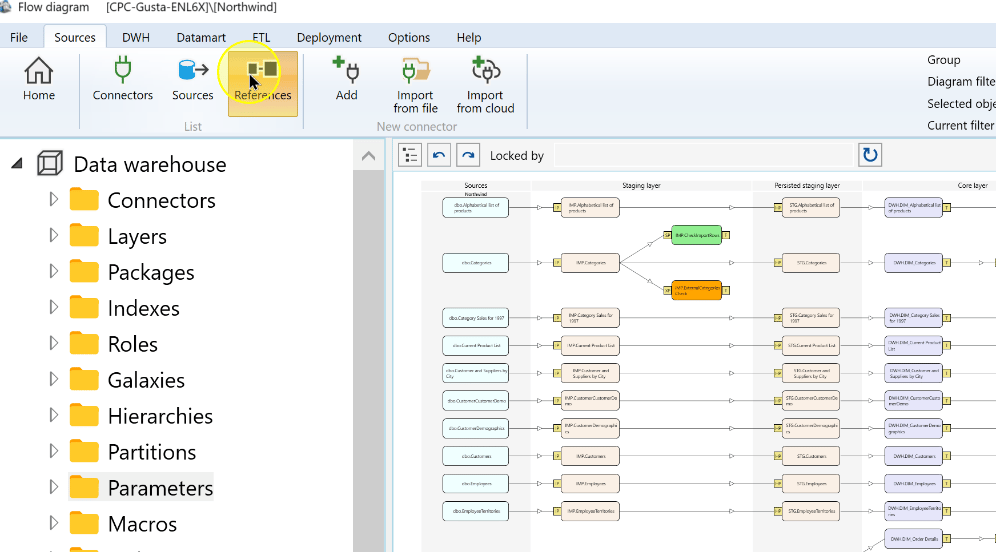
Open the source reference to maintain. The example selects the Customers-to-Orders relationship.
The source-reference list includes a Customers-to-Orders reference. 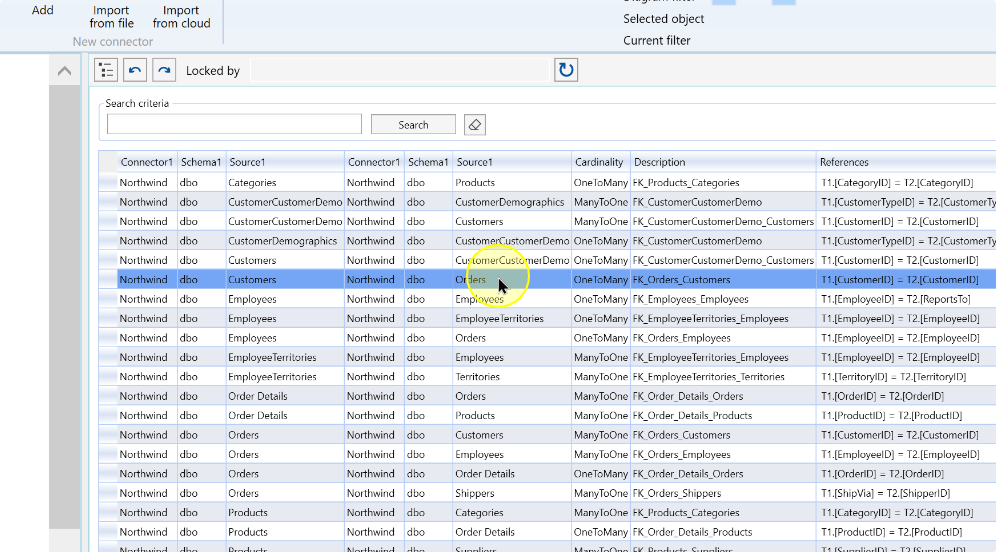
Review Source Reference Details, including the two sources, existing column mapping, and Reference Statement area.
The source-reference editor shows the two sources, column mapping, and reference-statement area. 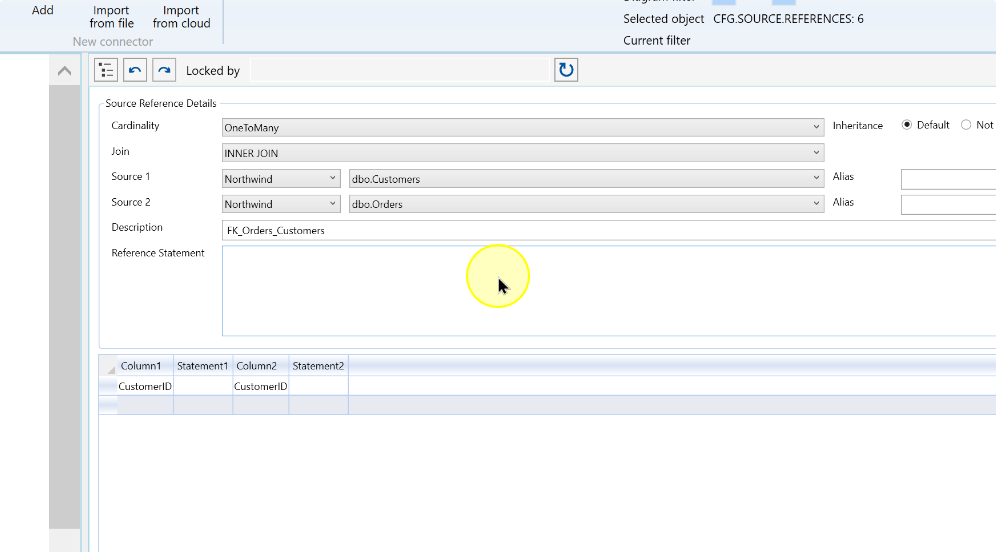
Review the participating sources and relationship
Select the Connector for Source 1. It identifies where the first source definition is held.
Choose the connector for Source 1. 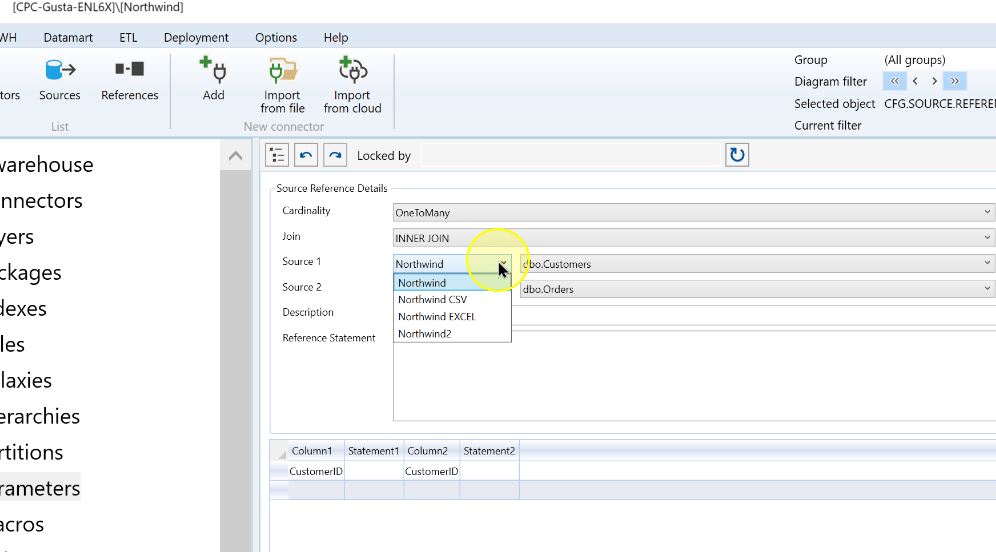
Open the Source 1 source selector and choose the first participating source. The example uses dbo.Customers; confirm both schema and name.
The Source 1 table control identifies the first source. 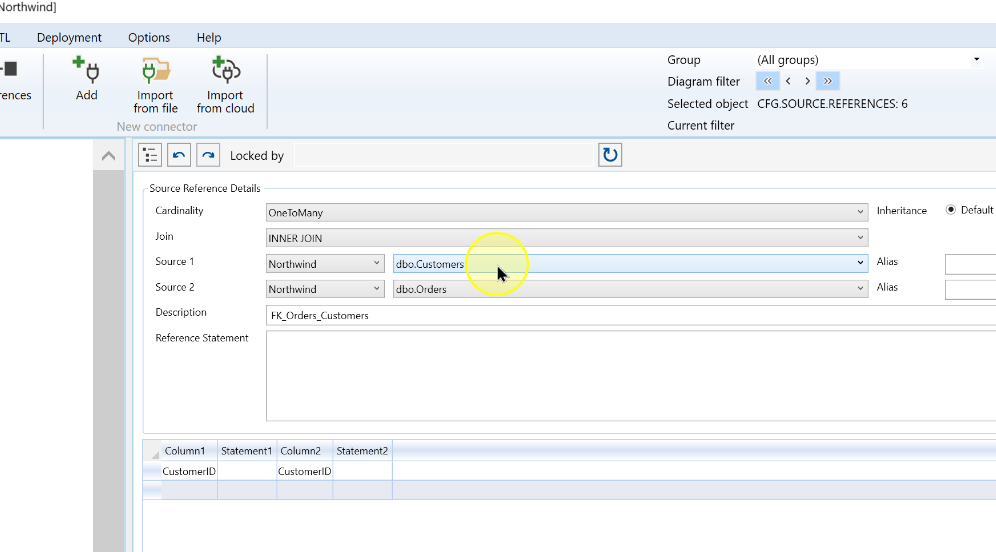
Choose the Source 1 table from the available sources. 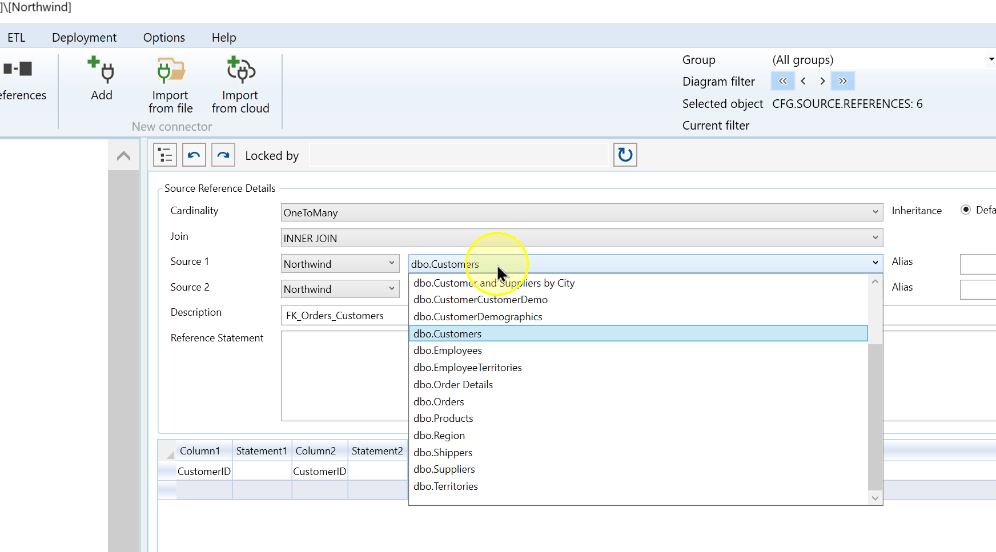
Select the Connector for Source 2, then check that it contains the intended second source.
Choose the connector for Source 2. 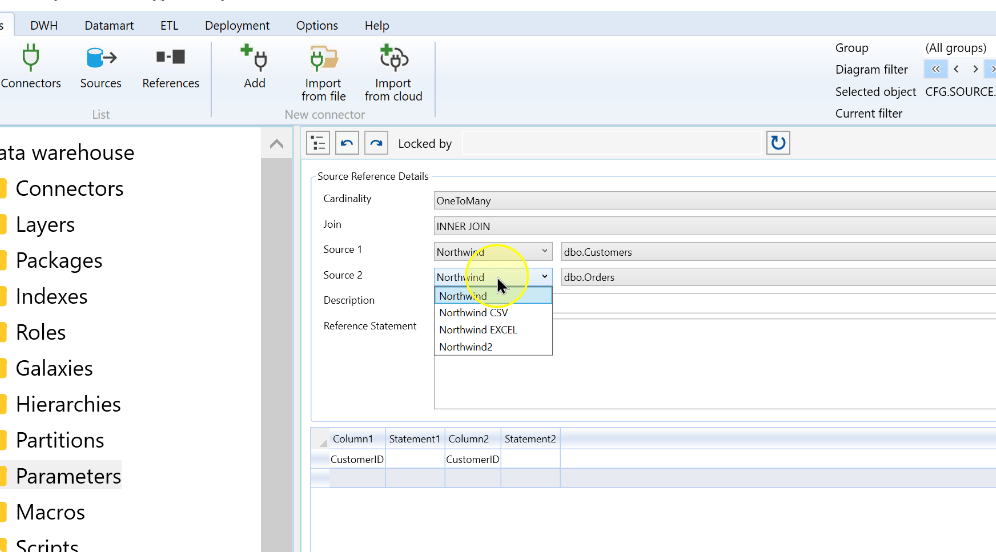
Choose the second participating source. The example uses dbo.Orders. Keep the source order consistent with the intended cardinality and join.
Choose the Source 2 table. 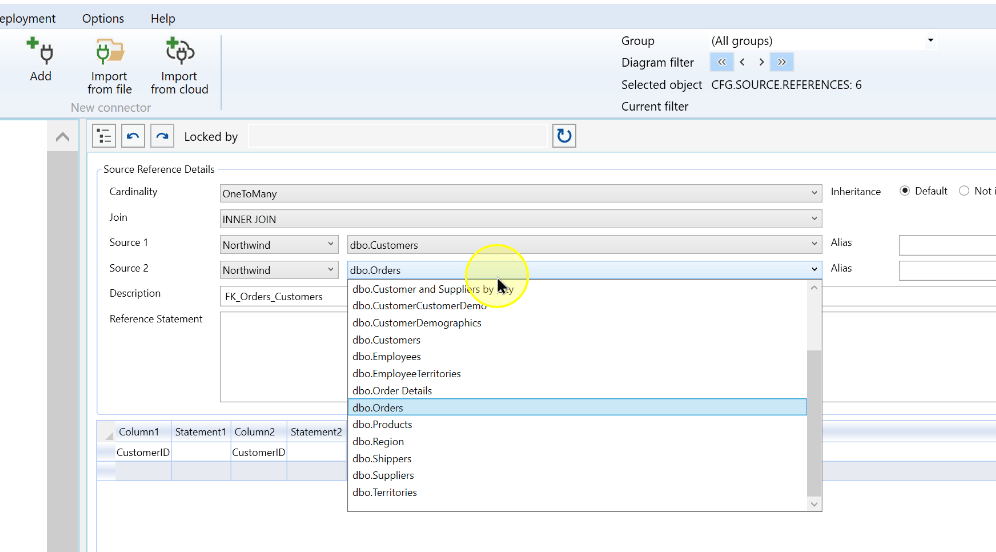
Review cardinality, join and inheritance
Select Cardinality to describe how many rows on each side can match. OneToMany fits this example when one customer in Source 1 can have several orders in Source 2. Confirm that the matching key is unique on the one side; selecting a cardinality does not remove duplicate keys.
Review the source-reference cardinality options. 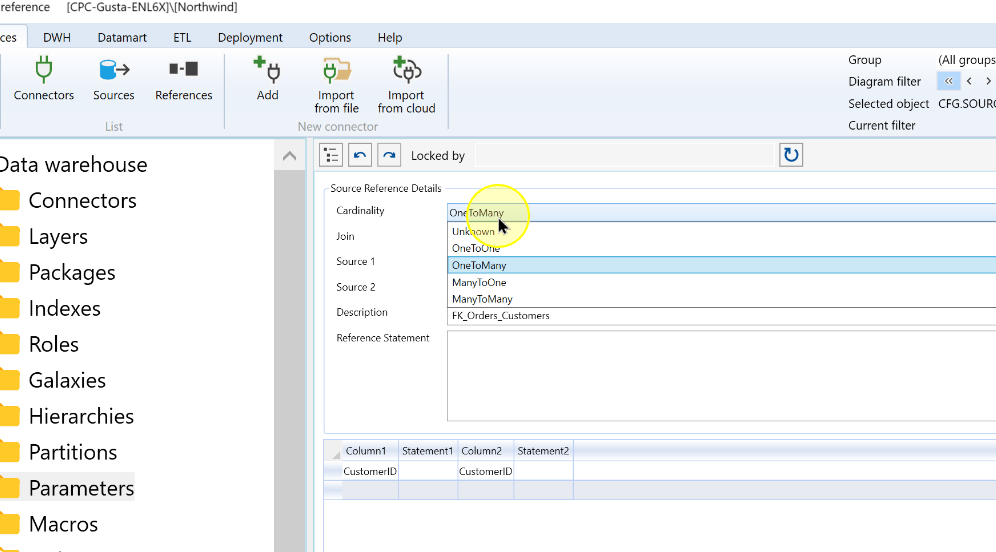
Review or update Description so that the relationship can be identified. The example uses FK_Orders_Customers.
The description field labels the source reference. 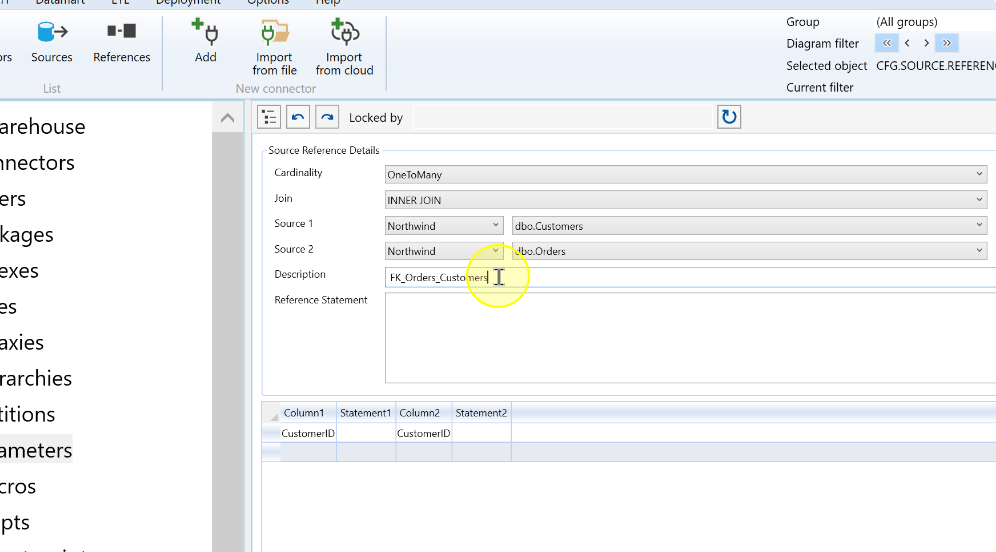
Select Join for the intended treatment of matching and unmatched rows. The example uses INNER JOIN, which retains matching combinations from both sources. Recheck the join if the source order changes.
Choose the join behavior for the source reference. 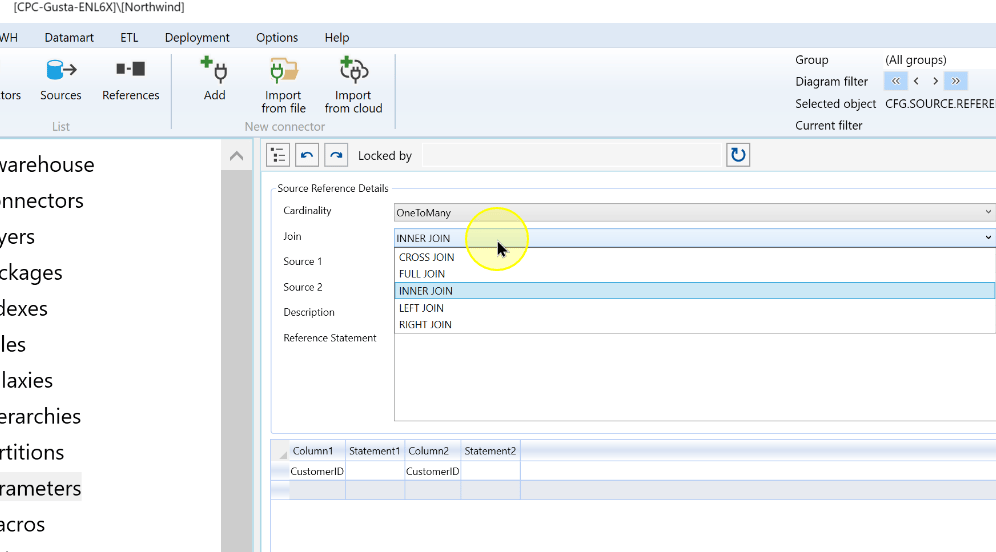
Review Inheritance, which controls how the reference metadata is carried to dependent objects. Default follows the default inheritance behavior, Not inherit prevents inheritance and Force inherit forces it. The example has Default selected and pairs CustomerID with CustomerID.
Review the reference inheritance setting. 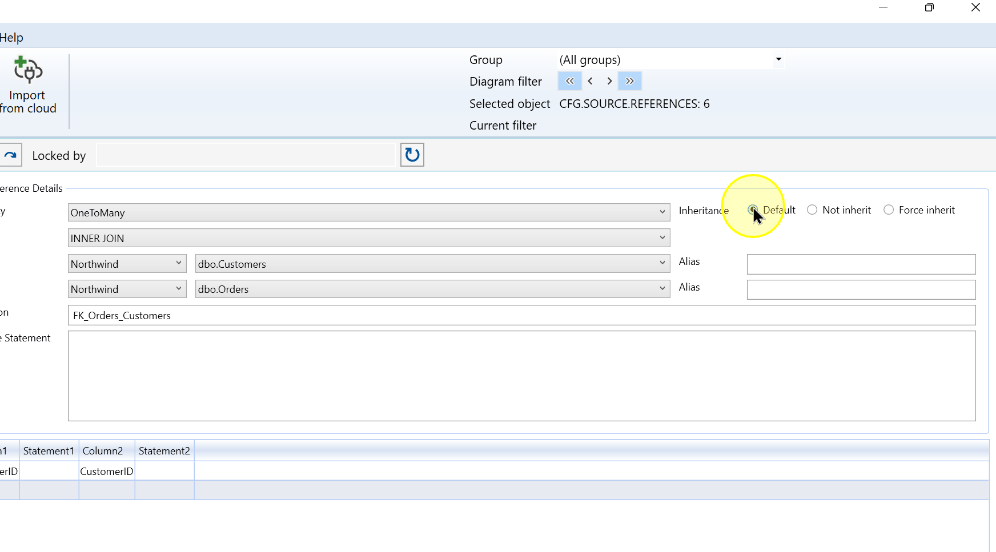
For a direct relationship, review or map the corresponding columns in the grid. For a Reference Statement, set each source’s Alias field and use those aliases in the SQL expression. When column mapping alone is insufficient, enter the prepared Reference Statement and validate it against the two sources before saving.
Compare both sources and the complete matching condition, then click Save. Reopen the reference and check its stored settings as described in Expected Results.
Save the source-reference configuration. 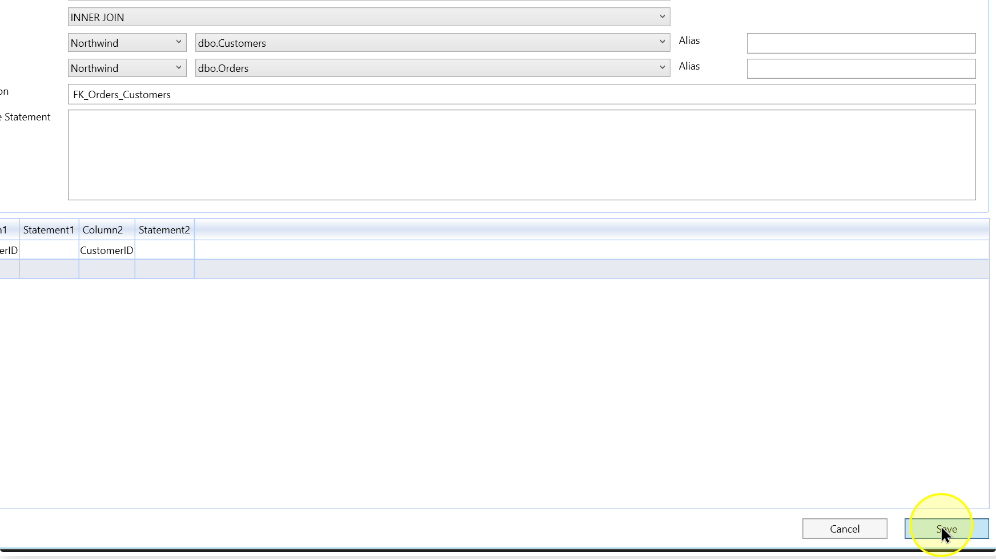
Expected Results
- Return to Sources > References and reopen the intended relationship. Compare both sources and their order with the intended definition.
- Check the saved cardinality, join, description, matching columns or statement, aliases where used, and inheritance.
- Review dependent workflows after changes. Saving a reference confirms its stored definition, not that a join has executed or data has loaded.
Decisions and variations
- Source order: OneToMany means one Source 1 row can match several Source 2 rows; reversing the sources changes that meaning. Recheck cardinality and join after changing an endpoint.
- Matching condition: direct column pairs and a Reference Statement are configured in the same editor; there are no separate Simple or Complex mode controls. Use a validated expression when column references alone do not express the relationship.
Troubleshooting
- The wrong source or column is selected: compare both Connector/source pairs and each mapped column with the intended keys before saving.
- A transformation still uses an earlier relationship: after a source-reference change is inherited, a prior reference may remain with a
_changed(N)suffix. Review the transformation's selected reference and choose the new inherited reference when it should use the updated relationship.
