
Find an object on the diagram
Introduction
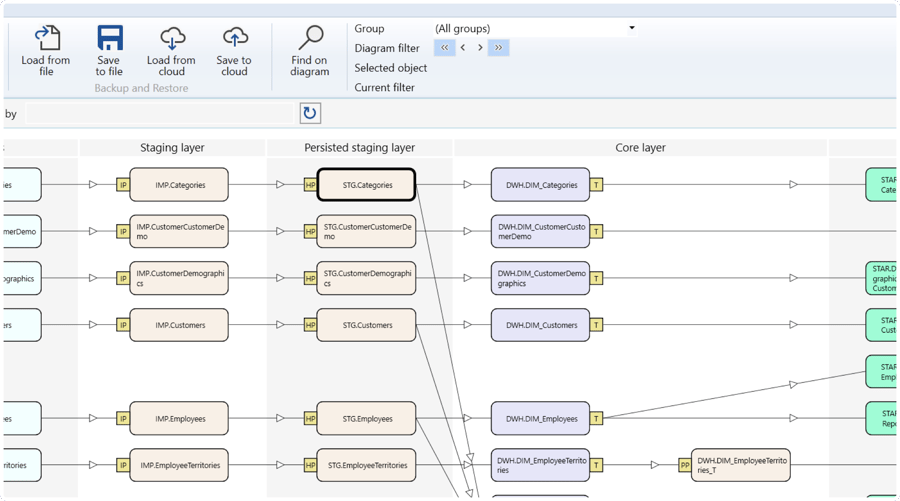
Use Find on diagram to locate an object by name in the active dataflow diagram and move between matching objects. The matching object is highlighted with a black outline so you can check its identity and inspect its position in the data flow.
Applicability
This how-to applies to the Search dialog opened from Find on diagram in AnalyticsCreator desktop. It searches objects already shown on the active dataflow diagram, not every object in the repository. Searching locates objects; it does not change their definitions.
Prerequisites
3.1. An open Data Warehouse (DWH) project with its dataflow diagram displayed and containing the objects to search.
3.2. The name, or a distinctive part of the name, of the object you need. Know its schema or source identity if several objects have similar names.
Steps
Open diagram search
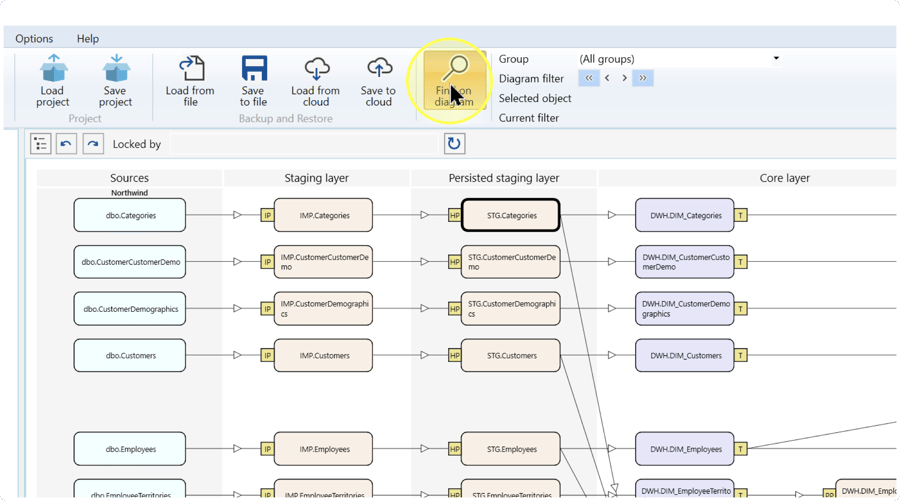
Confirm that the intended Data Warehouse (DWH) project and diagram are open. Click Find on diagram on the ribbon to open the Search dialog.
Enter the search text and choose matching settings
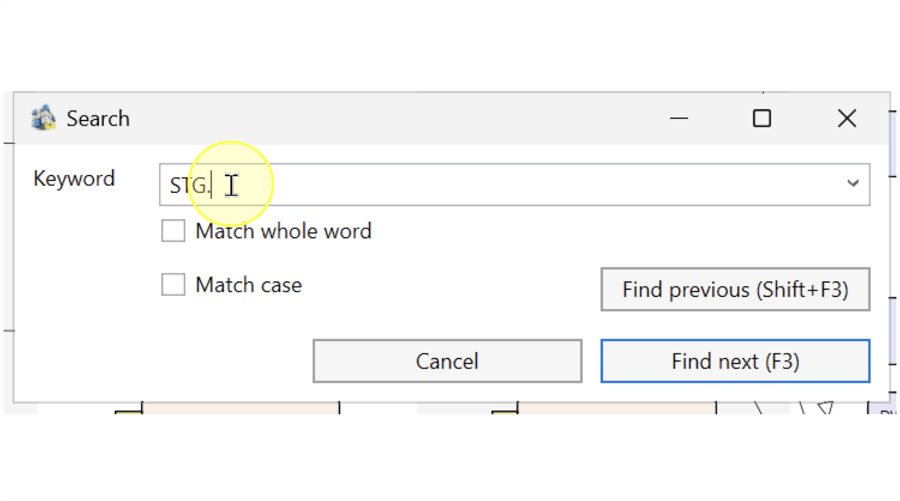
In the Search dialog, enter the object name or a distinctive part of it in Keyword. This is the text used to find matching objects on the active diagram.
Choose the matching settings according to the text you entered:
- Match whole word — Select this checkbox when the keyword must match a whole word. Leave it clear, or clear it if selected, when searching for part of a name.
- Match case — Select this checkbox when uppercase and lowercase letters must match exactly. Leave it clear, or clear it if selected, when letter case should not restrict the results.
Search example: STG. is literal text shared by several names in the pictured diagram. With both checkboxes clear, the example finds objects whose names contain that text. It is not a special search token. Use text from the object names in your own project.
Entering text and choosing settings prepares the search. Run it in Find the next match to locate a match.
Find the next match
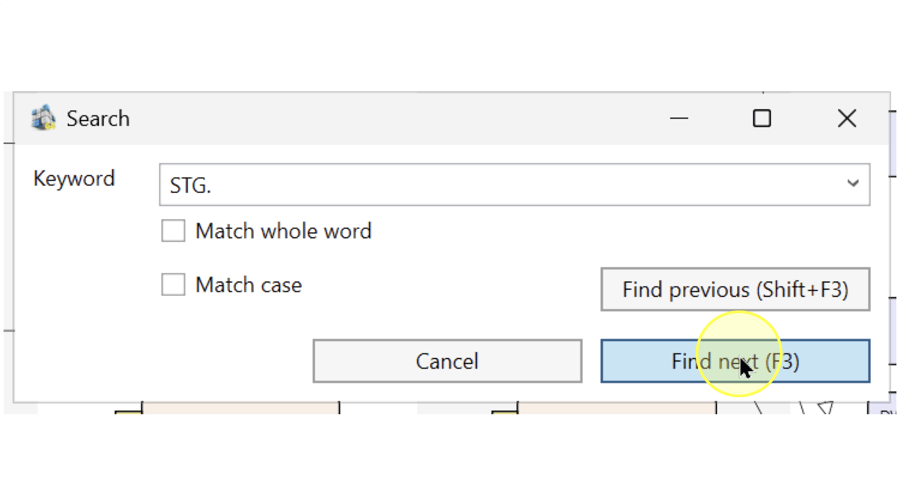
Click Find next (F3) or press F3.
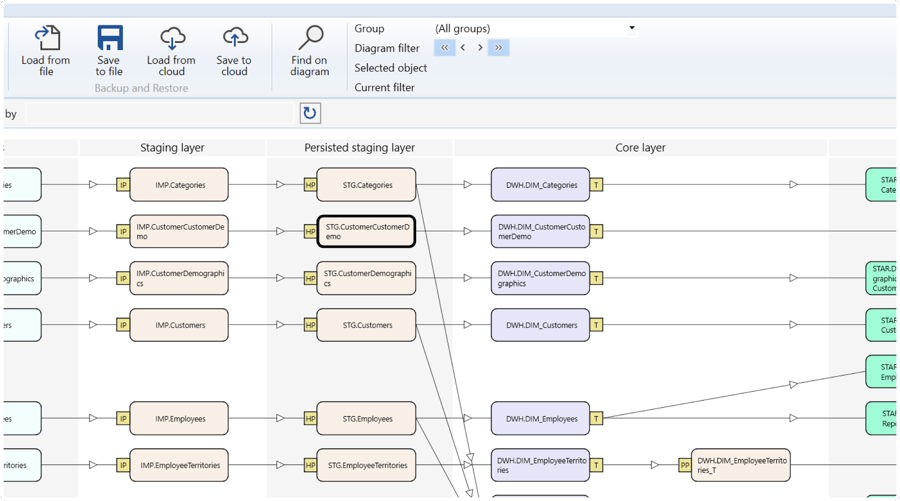
Expected Results: if an object matches the keyword and matching settings, the result is highlighted on the diagram with a black outline. If you cannot identify a match, use Troubleshooting to check the search text and diagram scope.
Inspect the highlighted object
Locate the object with the thick black outline. Read its name, including its schema or source identity, and check that it is the object you need. A partial keyword can match several objects, so a matching name alone may not identify your intended object.
If this is the intended object, verify the outcome using Expected Results. If you need another match, continue with Move through matches or refine the search.
Move through matches or refine the search
When more than one object matches, press F3 to move to the next result or Shift+F3 to move to the previous result. In the Search dialog, the corresponding buttons are Find next (F3) and Find previous (Shift+F3). Check the outlined object's identity after each move and stop when you reach the object you need.
If too many objects match, click Find on diagram to open Search again, enter a more distinctive Keyword, and review the matching settings as described in Enter the search text and choose matching settings. Click Find next (F3) to search with the revised settings.
Expected Results
The intended object is located and highlighted on the active dataflow diagram.
5.1. Confirm that the outlined object's full name and schema or source identity match the object you intended to find.
5.2. If you browse several matches, confirm that the outline moves between matching objects and that the final highlighted object is the one you need. Finding an object does not prove that its data has been loaded or that any processing has run.
Decisions and variations
6.1. Search part of a name. Use a distinctive part in Keyword with Match whole word clear. If several objects match, browse them or refine the text as described in Move through matches or refine the search.
6.2. Restrict matching. Use Match whole word for a whole-word match and Match case for exact uppercase and lowercase matching. Make these choices before searching, as described in Enter the search text and choose matching settings.
6.3. Search within a focused diagram. Keep the current group and filter when they show the objects you want to search. If an expected object is outside that view, review the diagram scope using Troubleshooting; changing the keyword alone does not make an excluded object searchable.
Troubleshooting
- No useful match — Open Search through Find on diagram. Check the spelling in Keyword, clear Match case or Match whole word if the restriction is unintended, and try a distinctive part of the object's name. Click Find next (F3) to search again.
- Expected object is not visible — Confirm the current Data Warehouse (DWH) project. Review the ribbon's Group selection and Current filter, because search works on objects shown on the diagram. If the selected group excludes the object you need, select a group containing it or (All groups). If a diagram filter excludes it, follow Apply, store, and reuse diagram filters to remove that filter. Review the resulting diagram, then repeat the search. Do not change group membership merely to find an object.
