
Change interface appearance and colors
Introduction
Use Interface settings to adjust the diagram, navigation tree, pages, and colors for readable day-to-day work. You can start from a predefined profile and then customize it.
Applicability
Applies to the AnalyticsCreator desktop interface. This guide does not cover sharing or synchronizing appearance settings between users or computers.
If your controls differ, confirm the workflow for your installed version before proceeding.
Prerequisites
- Access to the AnalyticsCreator desktop interface.
- A note or screenshot of existing values if you want to be able to restore a custom appearance.
Steps
Open Options
Click Options.
Open Options. 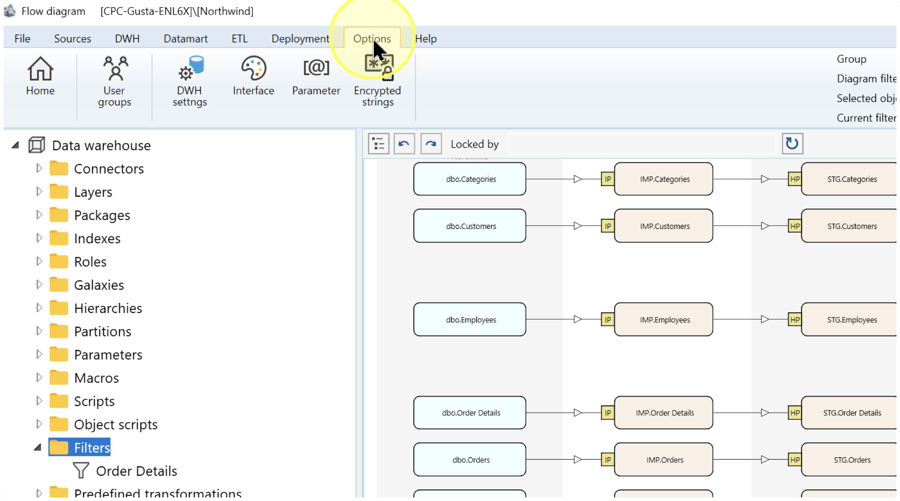
Open Interface settings
Click Interface.
Open Interface settings. 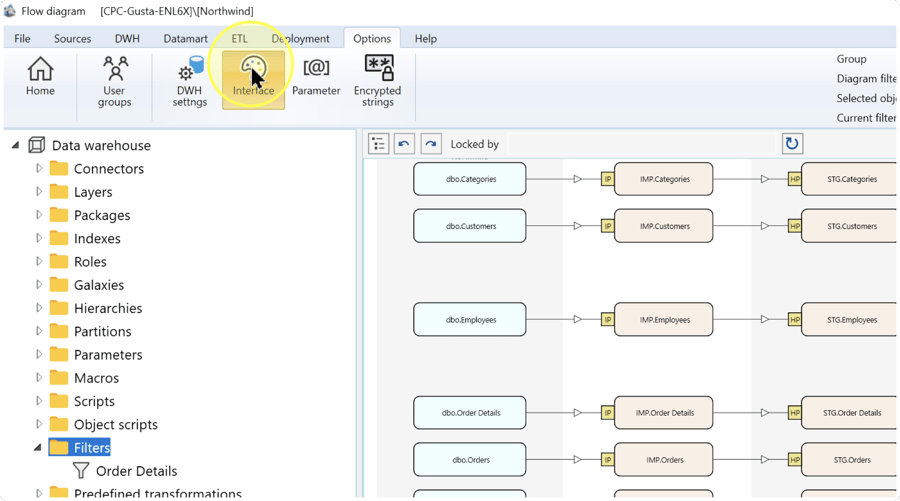
Review the setting categories
Use the Colors, Diagram, Navigation tree, and Pages tabs to find the settings to change. On Diagram, adjust the relevant font, dimensions, scale, and line appearance.
- Colors — Appearance settings for interface colors.
- Diagram — Settings such as font size, cell/box dimensions, arrow dimensions, border thickness, scale, and connector-line opacity.
- Navigation tree — Appearance settings for the tree.
- Pages — Appearance/layout settings for detail and list pages.
Review the setting categories. 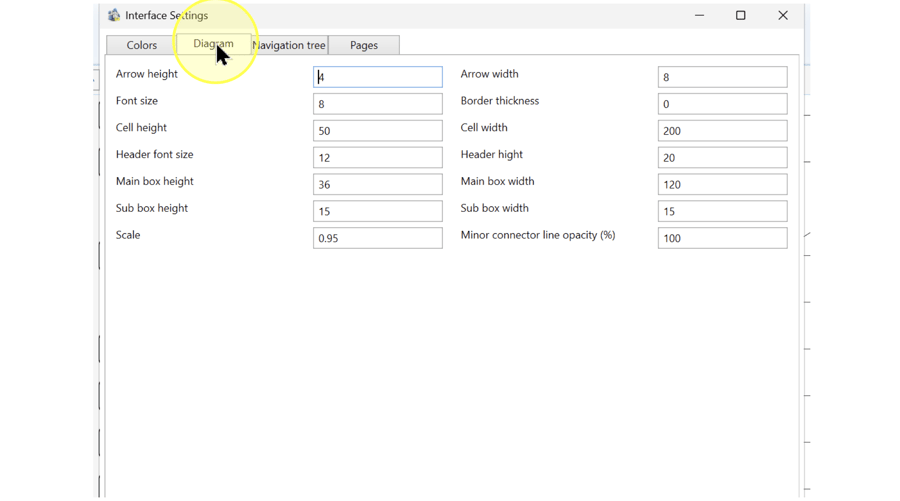
Choose a profile if desired, then customize
To start from a predefined profile, choose Default 1, Default 2, or Default 3. Review the resulting values and make any custom adjustments after selecting the profile, so the profile does not replace those changes.
Choose a profile if desired, then customize. 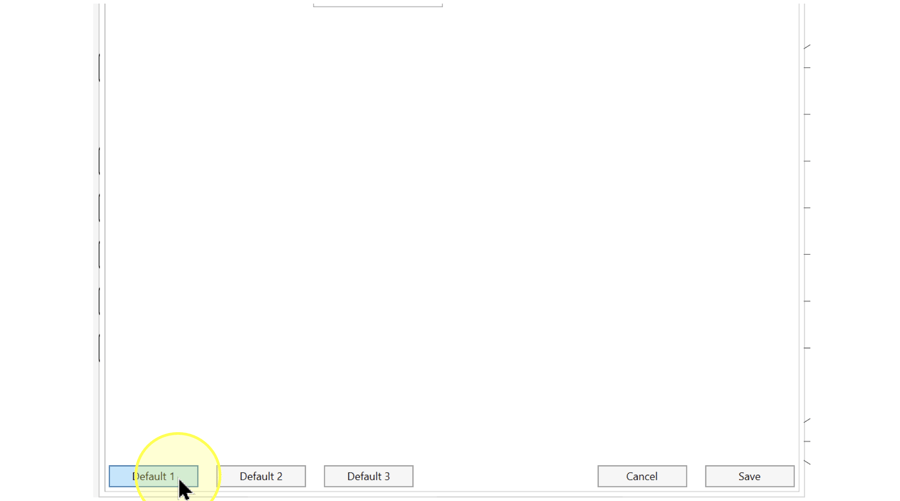
Save the appearance settings
Click Save. Return to the diagram and representative editor pages to check readability.
Save the appearance settings. 
Verify the result
- The intended diagram, tree, or page appearance is visible.
- Text, connectors, and selected objects remain distinguishable at the chosen size and colors.
- Reopen Interface settings and confirm the retained values.
Decisions and variations
Use profiles as starting points. Keep text and selection states distinguishable.
Troubleshooting
- Expected item is missing — Check the current Data Warehouse project and the selected list or navigation branch. Clear unintended search criteria.
- A change is not retained — Reopen the same definition and compare the saved fields. Resolve any validation or permission message before repeating Save.
