
Introduction
Use a saved encrypted-string alias in a connector connection string so that the connector refers to the secret without displaying its plaintext value. Create or update the entry, insert its delimited alias and test the connection before saving.
Applicability
This workflow uses Options > Encrypted strings and a connector that supports encrypted-string aliases. Keep the remaining connection settings valid for that connector provider and source.
Prerequisites
- The intended connector and permission to edit it.
- The secret to store and a name for its encrypted-string entry. If the entry already exists, know which alias should be used.
- The provider-specific connection settings needed to test the intended source.
Steps
Create or update the encrypted-string entry
Open Options.
The Options tab contains the Encrypted strings command. 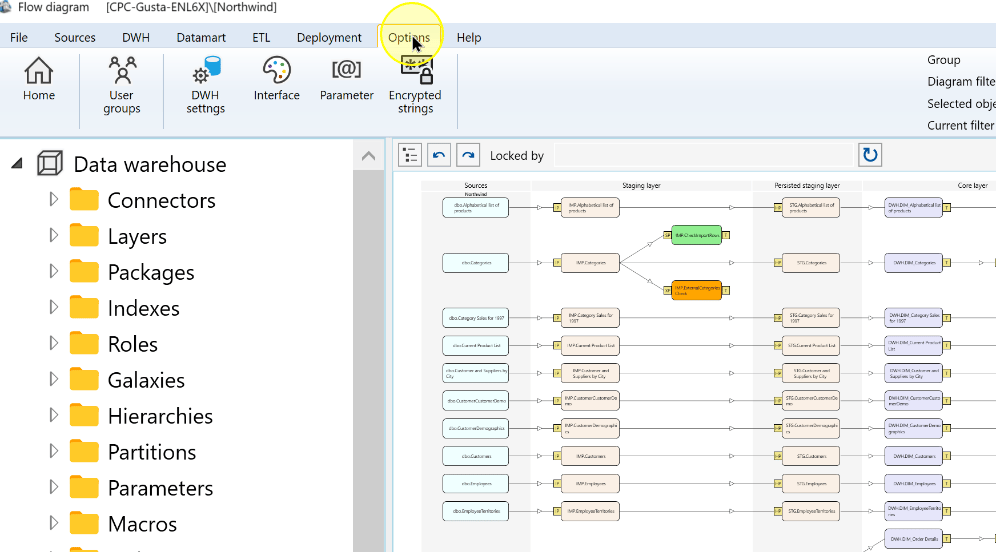
Choose Encrypted strings.
Open Encrypted strings from the Options ribbon. 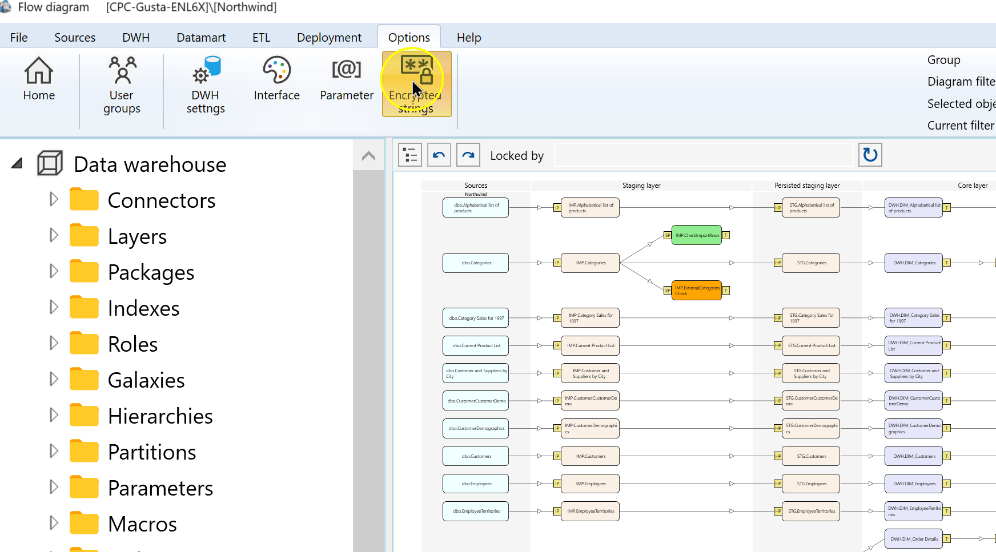
Add or select the entry's alias in Name. The example uses Northwind. This name is the identifier you will reference in the connector.
The encrypted-string list contains the example alias Northwind. 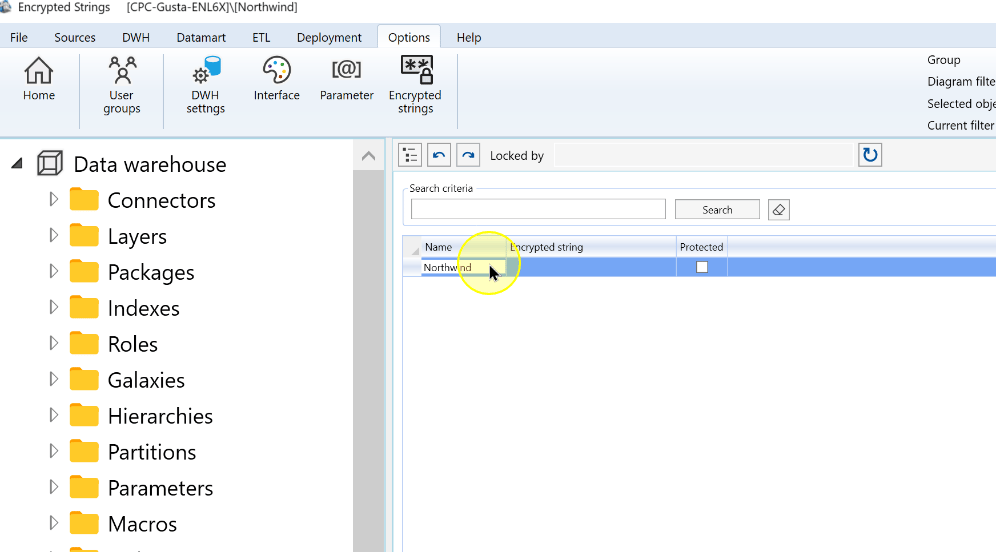
Enter the secret in the Encrypted string value cell. Confirm that it is masked on screen.
The encrypted-string value is masked in the value cell. 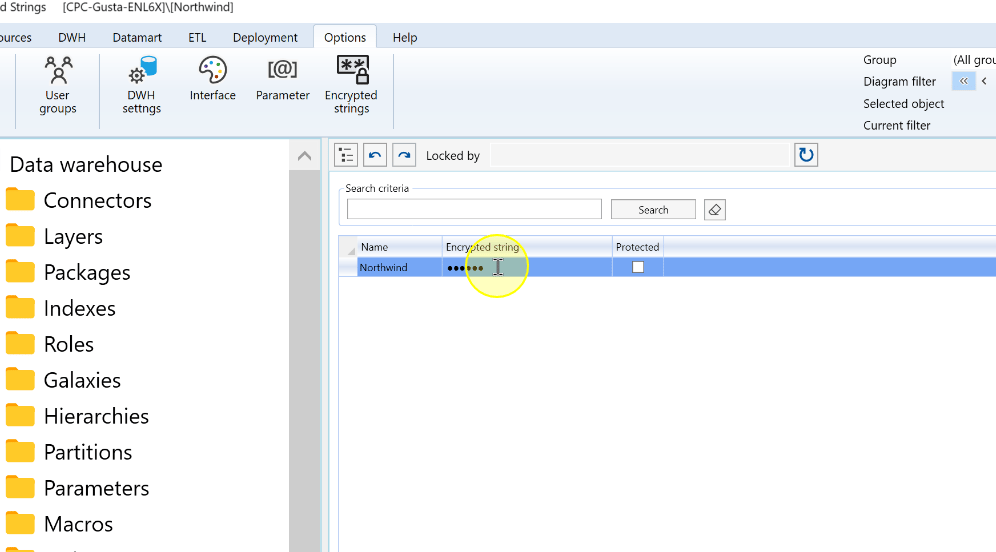
Choose Save to store the entry.
Save the edited encrypted-string entry. 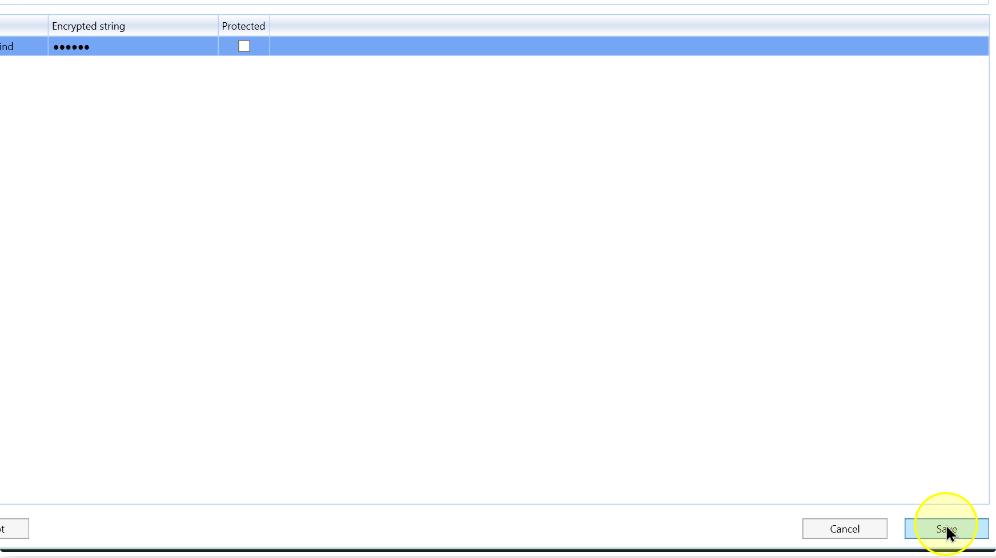
Use the alias in the connector
Open Sources.
The Sources tab provides access to connector settings. 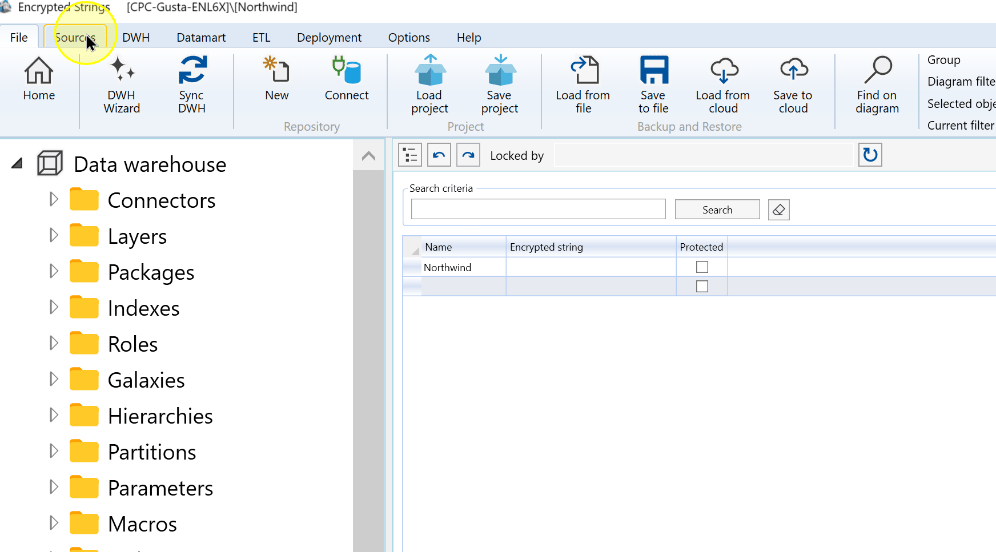
Choose Connectors.
Open the Connectors list from the Sources ribbon. 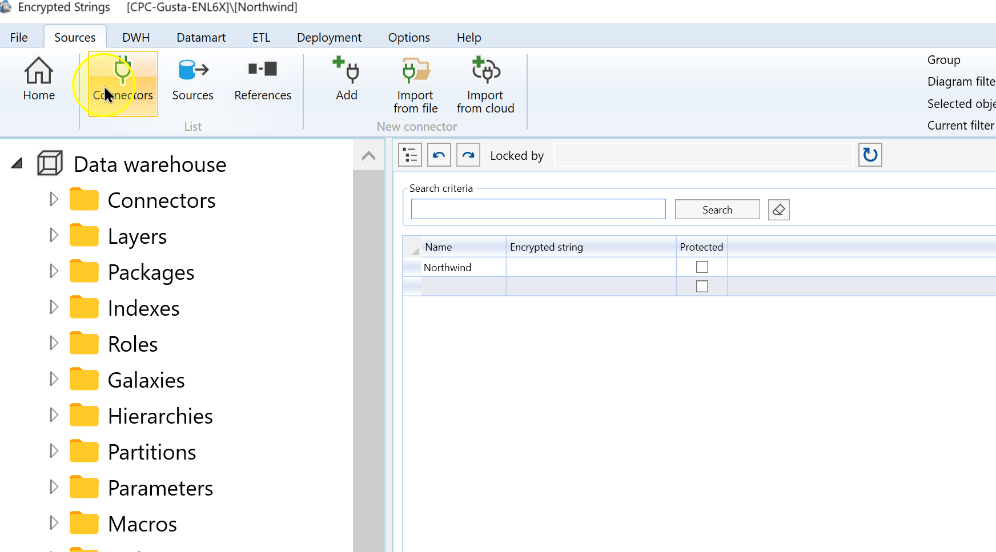
Open the required connector for editing.
Select the connector to edit; Northwind is shown in this example. 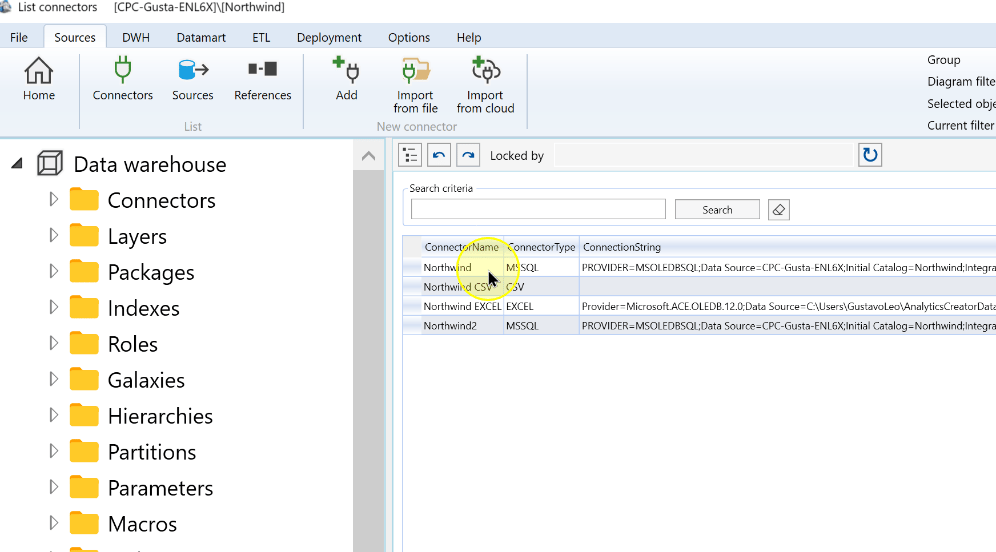
Replace the plaintext password value with the saved alias enclosed in
#characters, using the banner's#ENCRYPTEDSTRING#form. For the example alias Northwind, the reference is#Northwind#. A provider password setting would read:Password=#Northwind#;This is the password setting within the provider's connection string, not a complete connection string. Keep its other settings valid. A bare
Northwindvalue, as visible in the example field, is not the documented delimited alias form.The connector editor displays an encrypted-string syntax reminder above the connection-string field. 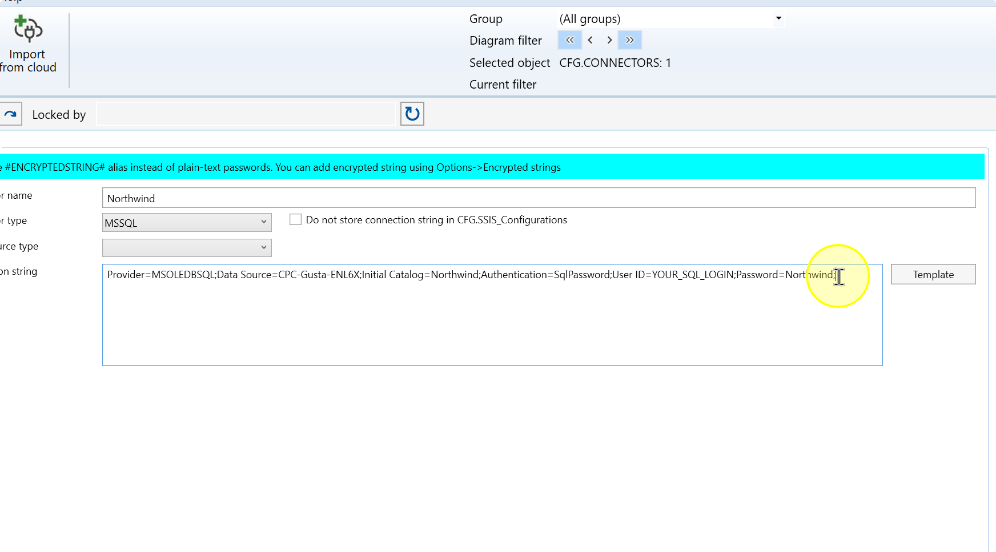
Test and save the connector
Choose Test connection and read the reported result. If the test fails, correct the reported issue, check the alias name and delimiters against the saved encrypted-string entry, and test again before saving.
Choose Save when the connection test succeeds. Reopen the connector and confirm that its saved connection string retains the intended alias instead of the plaintext password.
The connector editor provides a Save button below the connection string. 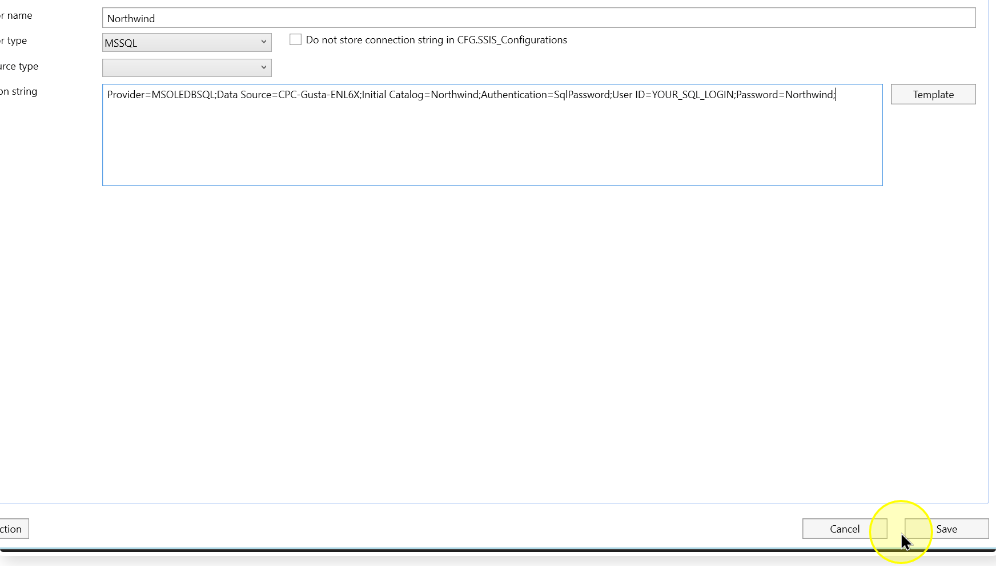
Expected Results
- The encrypted-string entry is saved under the intended Name.
- The connection test succeeds with the alias reference.
- Reopen the connector and confirm that the saved connection string contains the intended delimited alias, such as
#Northwind#, instead of the plaintext password.
Decisions and variations
- Use the exact saved alias when moving configurations between environments. Check that the intended entry is available in the environment where the connector is used.
- Keep plaintext secrets out of screenshots, documentation, Git and logs.
Troubleshooting
- Connection test fails: read the reported result. Compare the alias name with the saved encrypted-string entry and check both
#delimiters; also check the provider's connection settings. Correct the reported issue and test again. - The connection string contains a bare alias: replace it with the documented
#ENCRYPTEDSTRING#form, using the actual saved alias. - The saved connector still shows a plaintext password: replace that value with the intended alias, test the connection, save and reopen the connector to confirm the reference.
