
Introduction
Configure one existing CSV Source to process matching files from a directory. The directory, extension and subdirectory settings define which files belong to the Source; the existing source structure and CSV parsing settings still need to match those files.
Applicability
Use this procedure when multiple CSV files in one directory tree should be processed through one AnalyticsCreator source configuration.
Prerequisites
- Have an existing CSV source under its configured CSV connector.
- Place or identify the intended CSV files in an accessible file or folder location.
- Confirm which directory is the root of the source.
- Decide whether files in nested directories must be included.
- Ensure unrelated files are not unintentionally included in the selected location.
Steps
Open the existing CSV source
Expand Connectors.
Locate the CSV connector beneath Connectors. 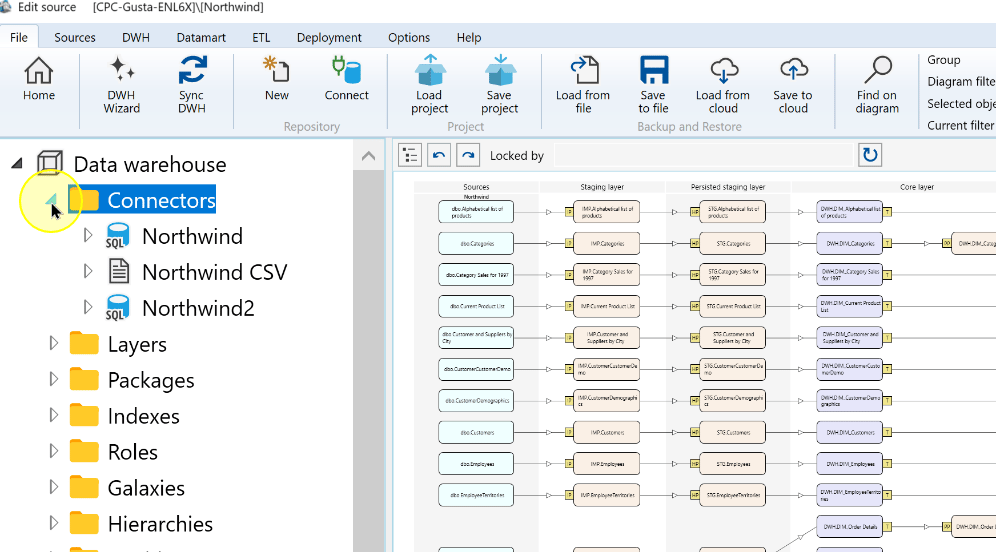
Expand the required CSV connector.
Expand the Northwind CSV connector. 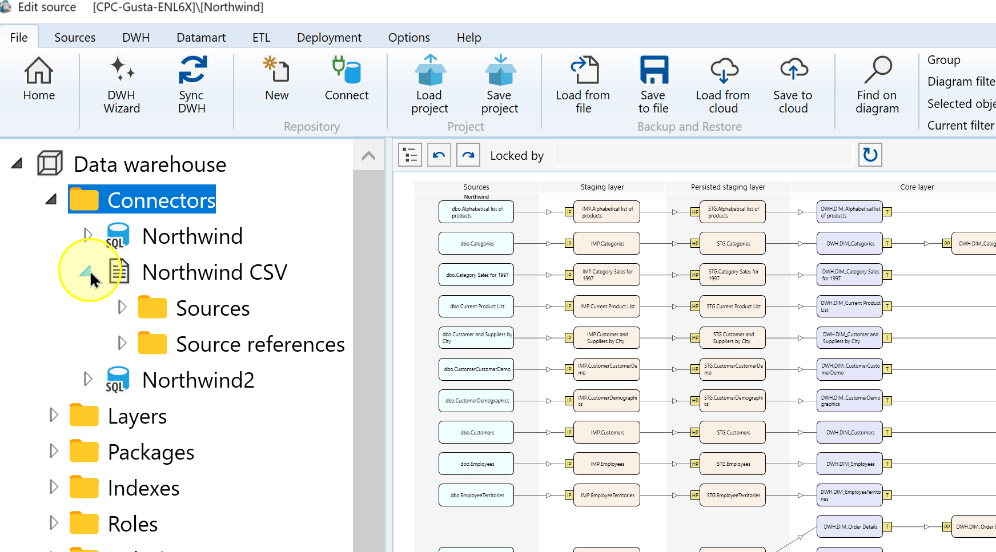
Expand Sources.
Expand Sources for the CSV connector. 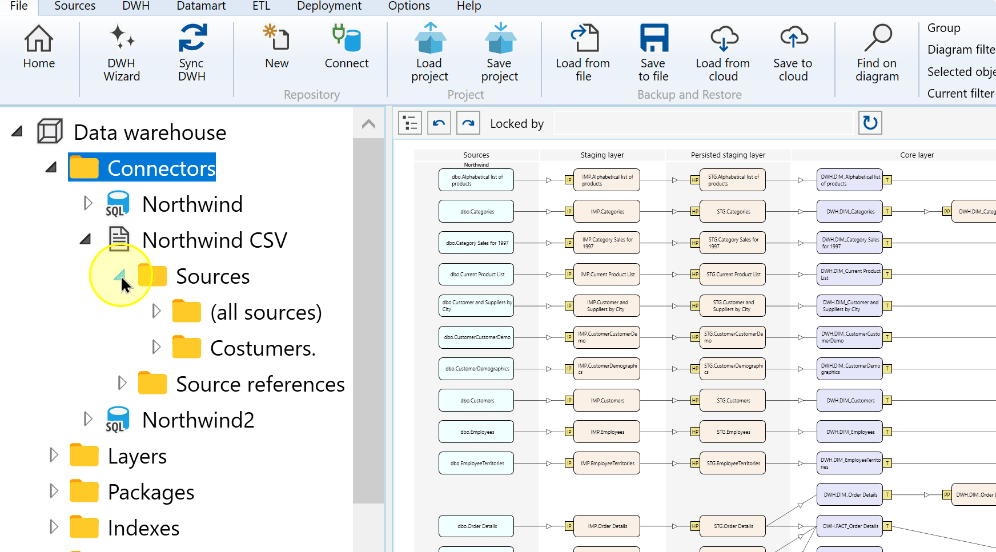
Expand (all sources) when the sources are grouped under that node.
Expand the all sources group. 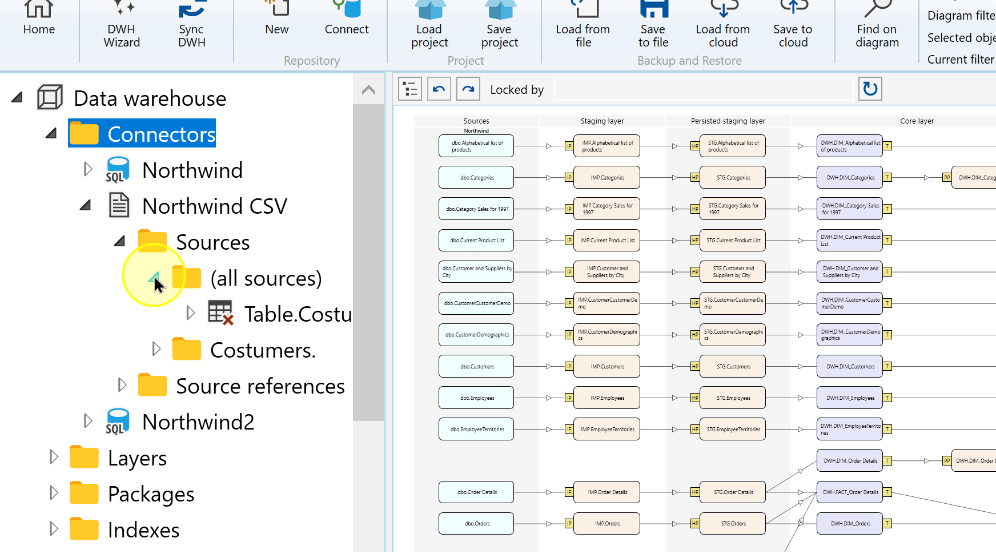
Open the context menu for the required CSV source.
Select the existing CSV source. 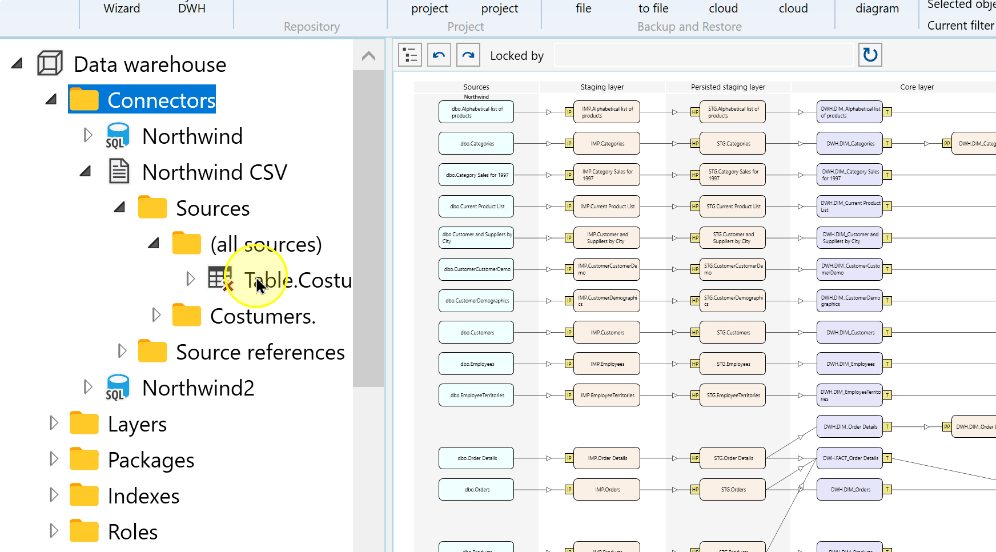
Choose Edit source.
Edit source in the CSV source context menu. 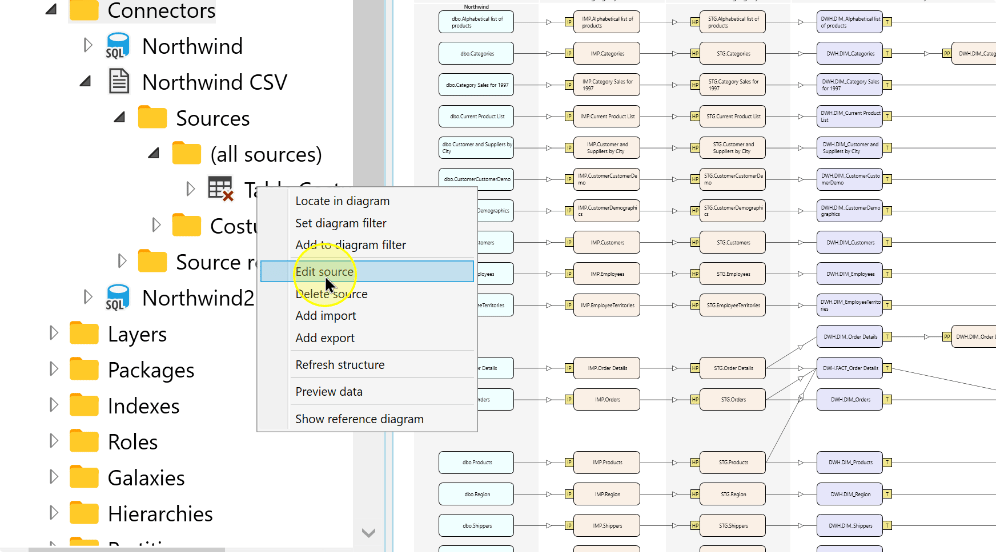
Configure directory processing
Enable Process files in directory.
Setting Explanation Process files in directory Switches the source from one file to directory-based processing. Directory The root folder containing the intended files. File extension Limits the file extension included by the source. Include subdirectories Includes matching files in nested folders when selected. Leave it cleared when the source should use only the root folder. Enable Process files in directory on the CSV source. 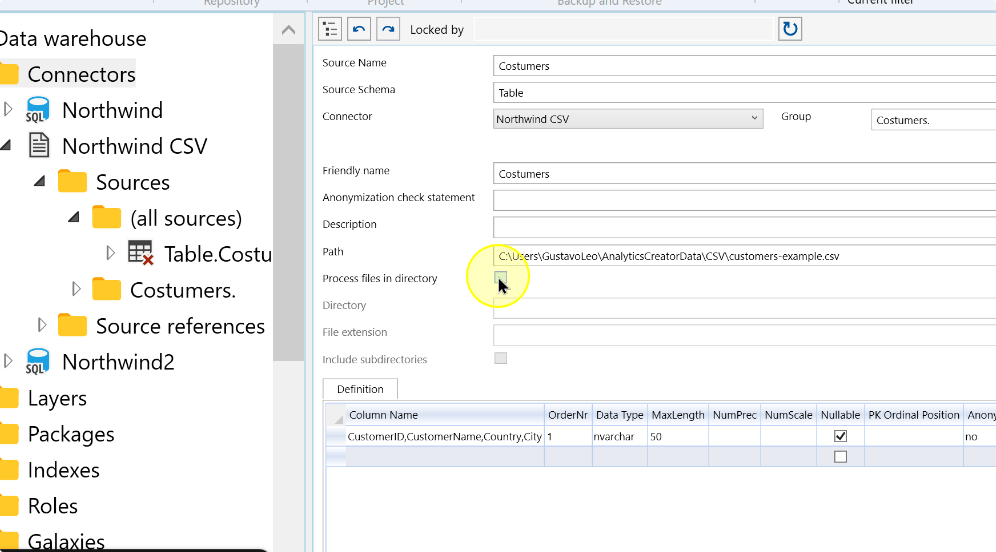
Enter the root folder containing the CSV files in Directory.
Directory for the CSV source files. 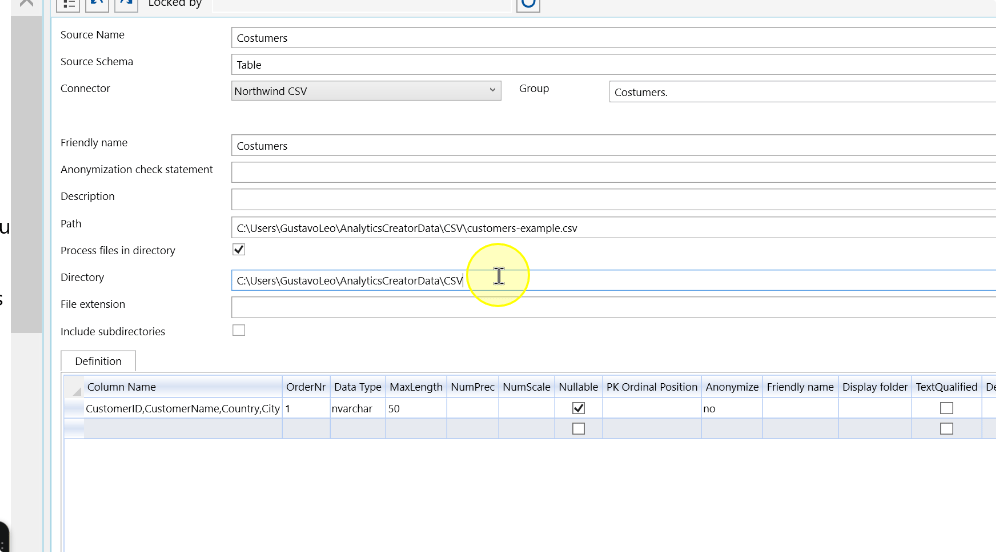
Set File extension to the required extension, such as .csv. Select Include subdirectories only when matching files in nested folders belong to the Source; otherwise leave it cleared.
A .csv file-extension filter for directory processing. 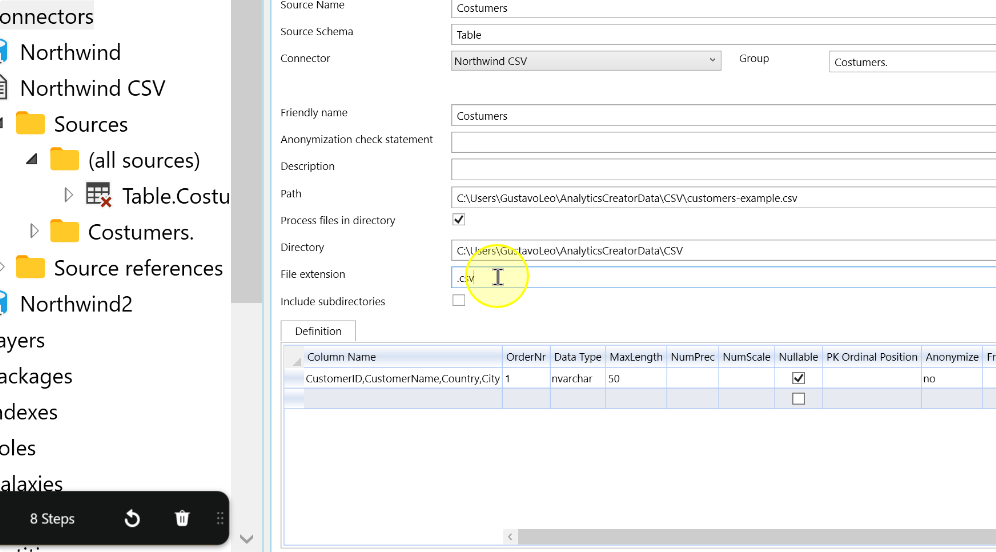
Choose Save. Reopen the source to check the saved directory, file extension, and subdirectory setting.
Save the CSV directory-processing settings. 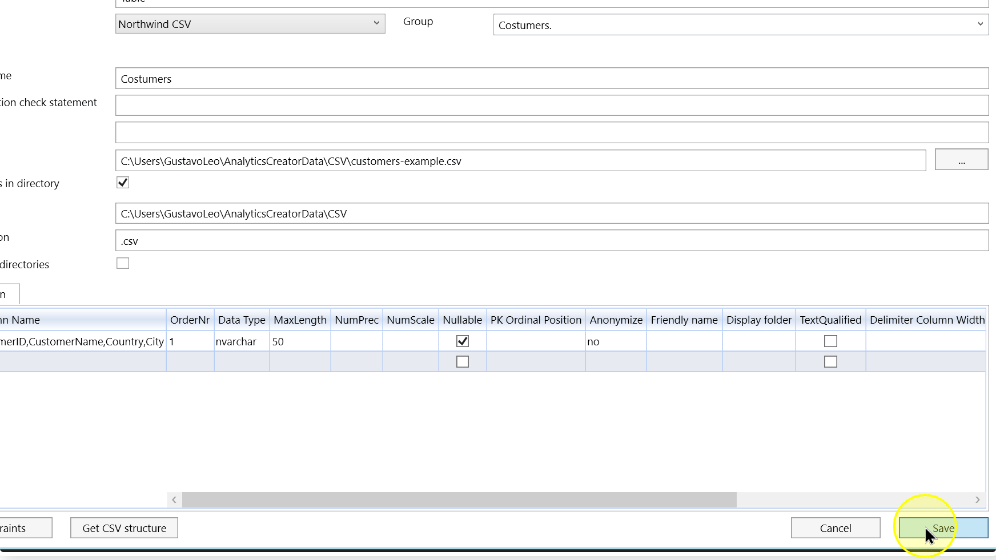
Expected Results
- Reopen the same CSV Source and check that Process files in directory is enabled and Directory, File extension and Include subdirectories retain the intended values.
- These settings describe the file scope. Import execution and checking processed data belong to the later loading workflow.
Decisions and variations
- This procedure configures a CSV Source. Use the Excel directory-processing guide for workbook Sources.
- Directory selection does not replace the Source’s column definitions or CSV parsing settings. Check the delimiter, encoding and file structure against the configured CSV Source.
Troubleshooting
- Wrong file scope: reopen the Source and compare Directory, extension and Include subdirectories with the intended files.
- Columns do not match: inspect the CSV Source structure and parsing settings, including delimiter and encoding. Directory selection does not correct a parsing mismatch.
