
Introduction
Use Ctrl+Mousewheel to enlarge a diagram for closer inspection or reduce its scale to see more of the workflow at once.
Applicability
Use this shortcut on an AnalyticsCreator diagram or interface surface that supports Ctrl+Mousewheel scaling.
Prerequisites
- Open the diagram or other scalable surface you want to inspect.
- Use a mouse with a scroll wheel and a keyboard with a Ctrl key.
Steps
Adjust the view
Place the pointer over the scalable diagram surface. Note the current size of the objects and how much of the workflow is visible.
The flow diagram before changing its scale. 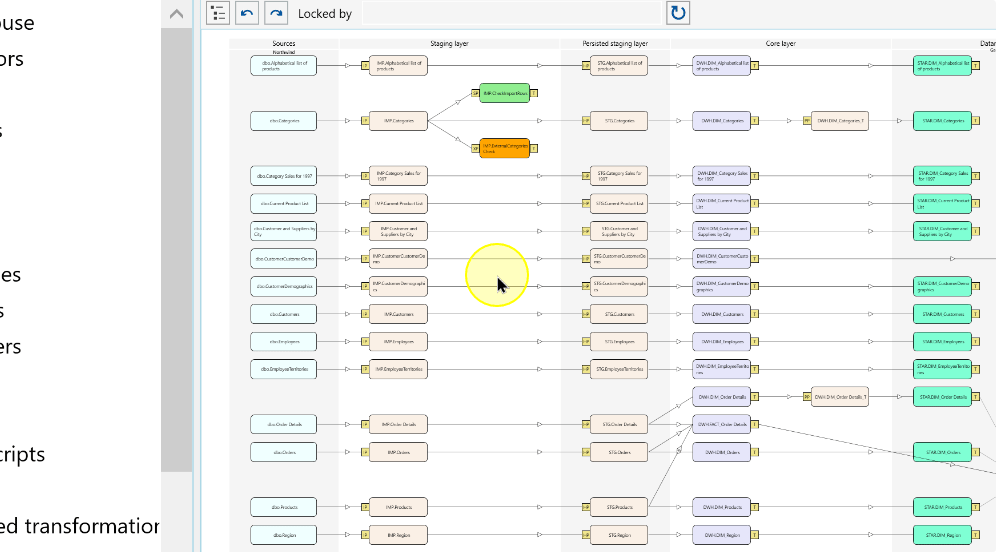
Hold Ctrl and rotate the mouse wheel upward to increase the scale. Use the larger view to inspect object names and connections.
The flow diagram at a larger scale. 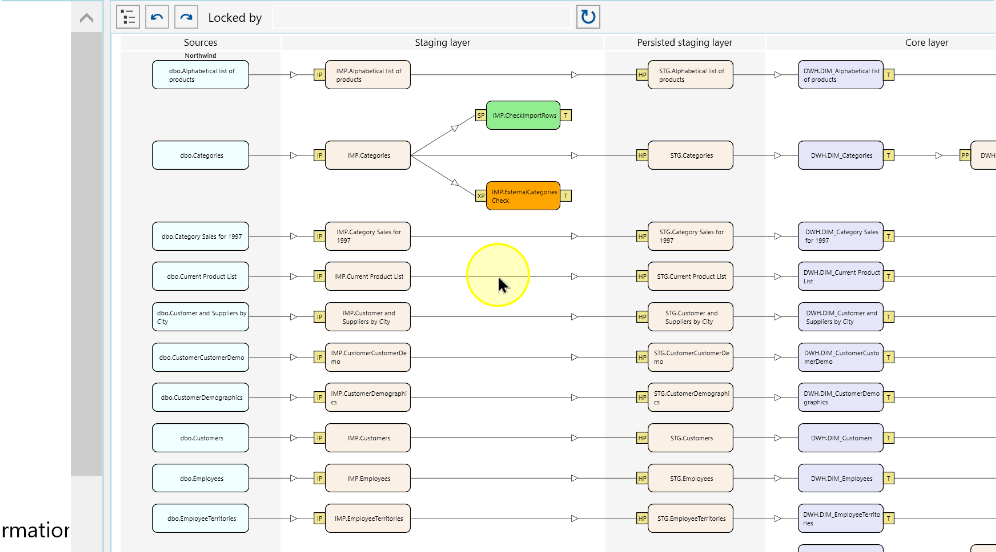
While holding Ctrl, rotate the wheel downward to reduce the scale and bring more of the workflow into view. Release Ctrl when the view reaches the required size.
The flow diagram at a reduced scale. 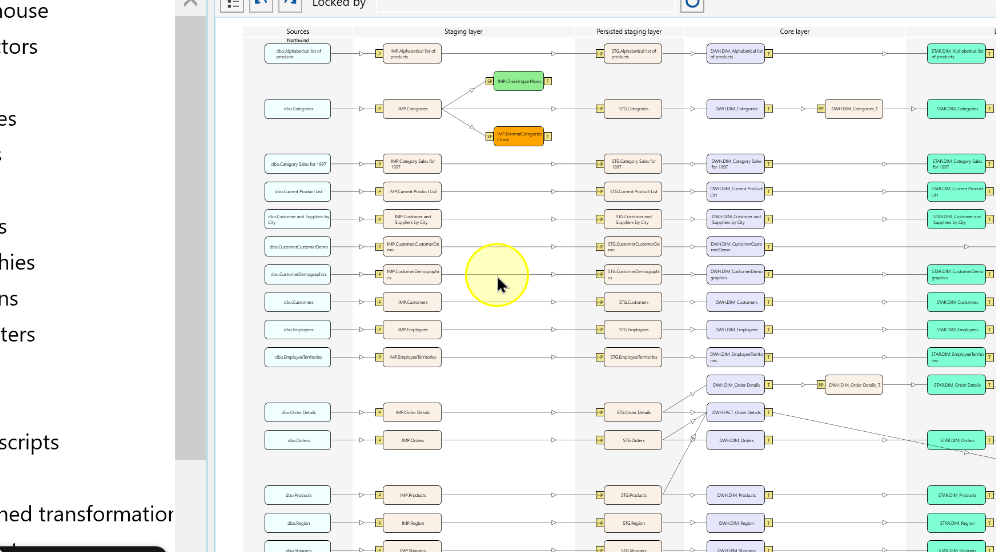
Expected Results
The objects appear larger after scrolling upward and smaller after scrolling downward. Compare the view with its starting scale to confirm the change.
Decisions and variations
Choose a larger scale for detail or a smaller scale for an overview. Scaling changes the view, not the object metadata.
Troubleshooting
If the scale does not change, check that the pointer is over the scalable surface and that Ctrl remains pressed while you rotate the wheel. The shortcut applies only to surfaces that support this interaction.
