
Introduction
Use Source Wizard to read table or view metadata from an existing Connector and create the selected Source definitions. Filter the available objects, inspect their identities, and finish with the intended definitions under the Connector’s Sources node.
Applicability
Use this procedure when an existing connector exposes one or more tables that should be stored as AnalyticsCreator source definitions.
Prerequisites
- Configure a connector that can return the required table metadata.
- Confirm that you can identify the required schema and table.
- Start from the connector whose metadata you want to read.
Steps
Open Source Wizard
Expand Connectors.
Expand Connectors to locate the source connector. 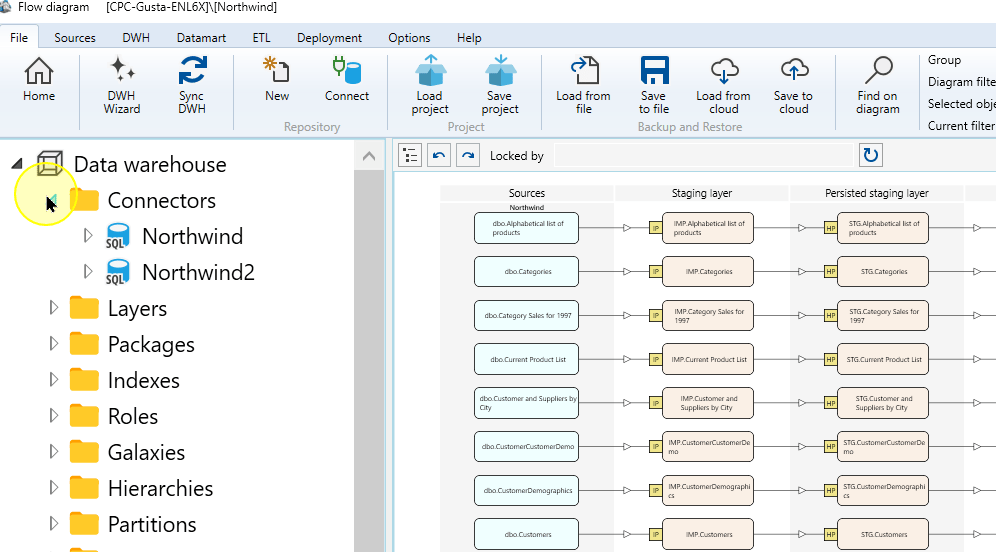
Expand the required connector.
Expand Northwind to show Sources. 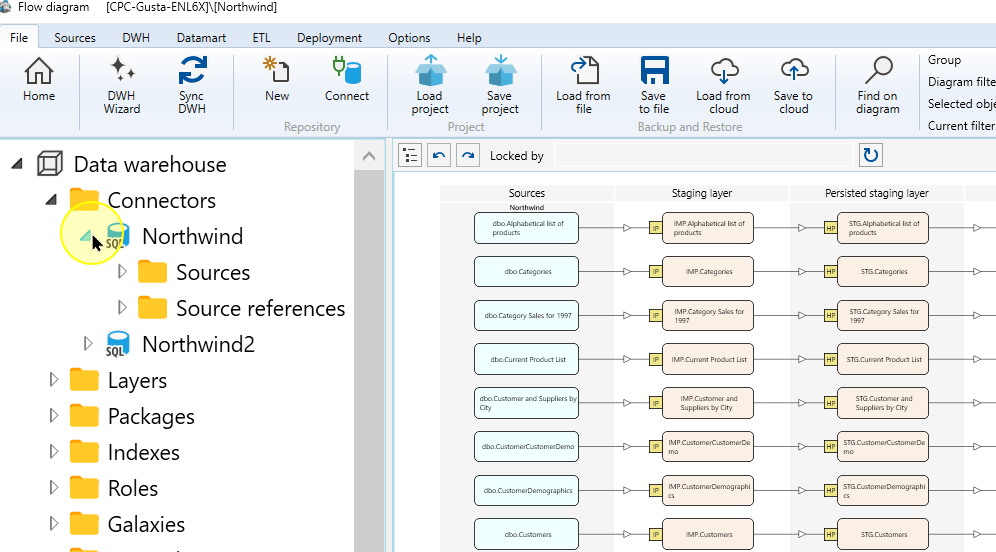
Open its Sources context menu.
Open the Sources context menu. 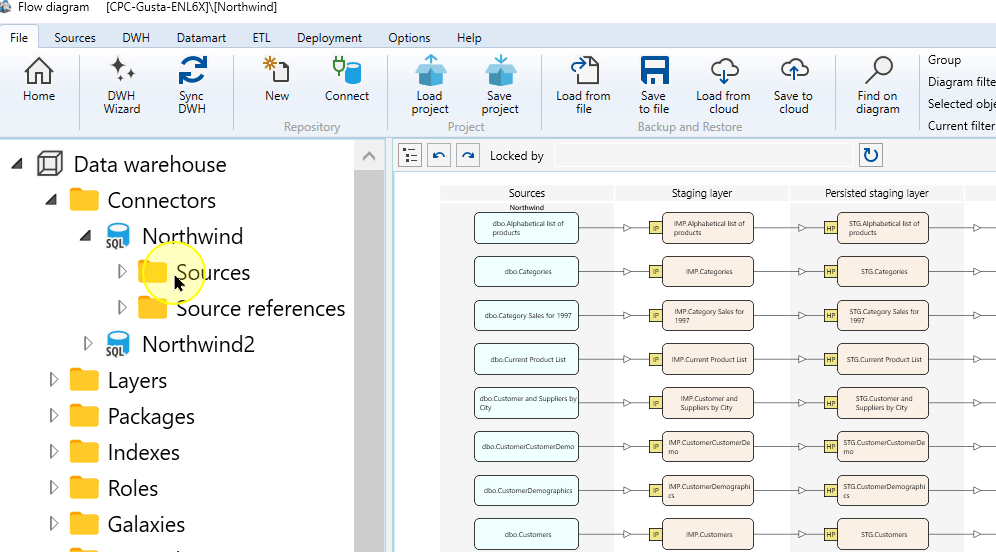
Choose Read source from connector.
Read source from connector in the Sources menu. 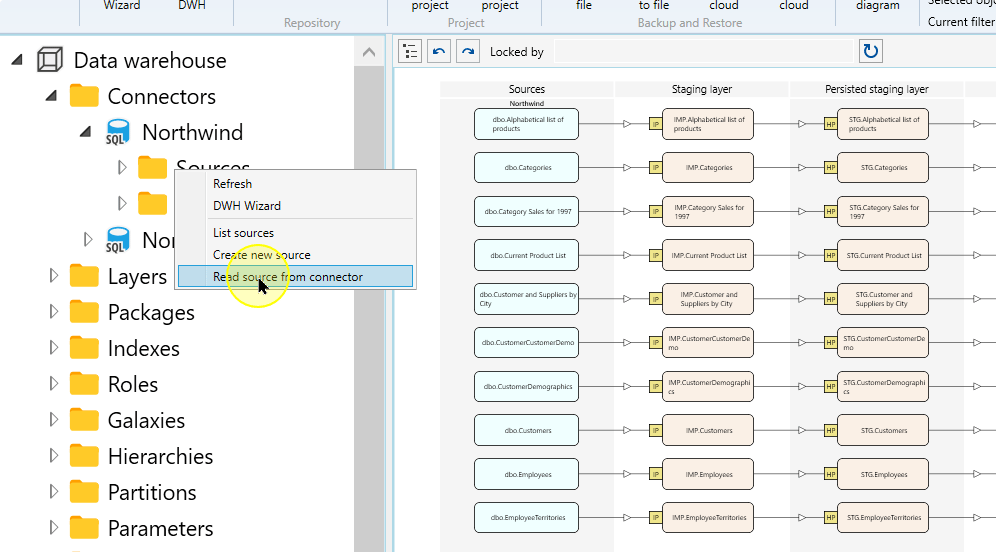
In Source Wizard, confirm the selected Connector.
Confirm the connector in Source Wizard. 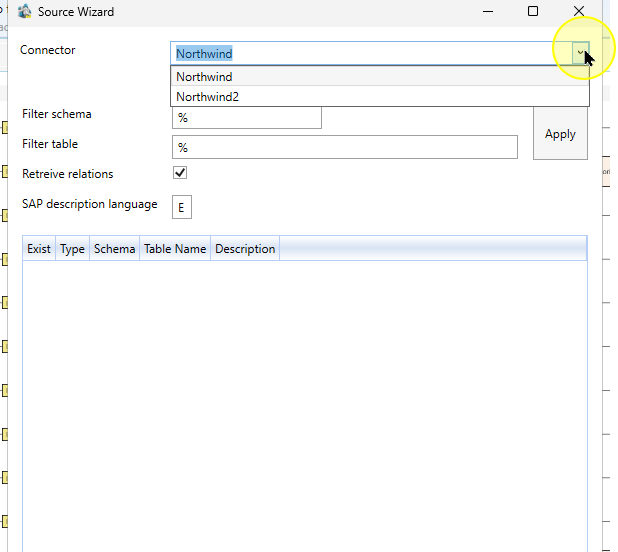
Choose the table metadata
Select Table when the Table/Query selector is available. Enter Filter schema and Filter table values when you need to limit the objects.
Setting Explanation Connector The configured connection that supplies the source metadata. Confirm its identity before reading the list. Filter schema Limits the returned objects by their source schema. Filter table Limits the returned objects by their name. Use the source objects you intend to add. Apply Refreshes the source-object list using the selected connector and filters; it does not finish source creation. Table mode in Source Wizard. 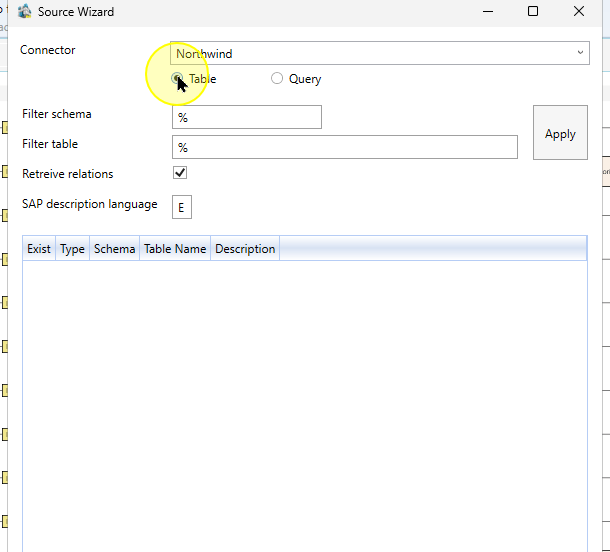
Choose Apply to refresh the object list using those filters.
Apply the schema and table filters. 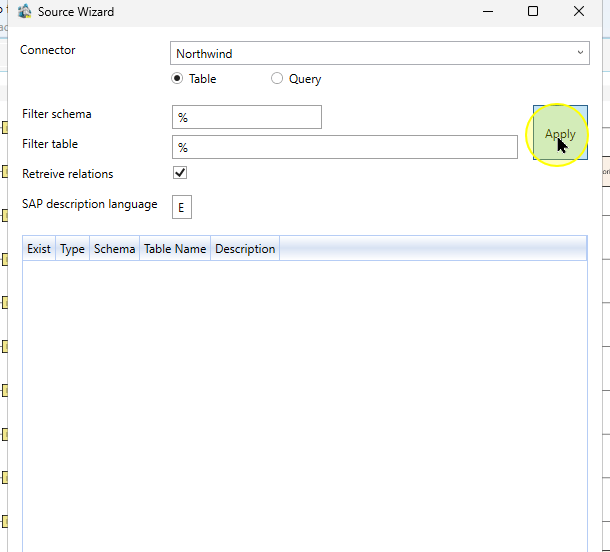
Review the returned objects using Type, Schema and Table Name, then select the required definitions. Exist reports an existing Source; it is not a replacement for checking which rows you intend to use. Choose Finish and check the resulting entries under the Connector’s Sources node.
Column Explanation Exist Indicates that a source object already exists in AnalyticsCreator. Review its identity before finishing source creation. Type The object type returned by the connector, such as a table or view. Schema and Table Name Together identify the source object; compare them with the definition you intend to use. Finish after reviewing the table-source list. 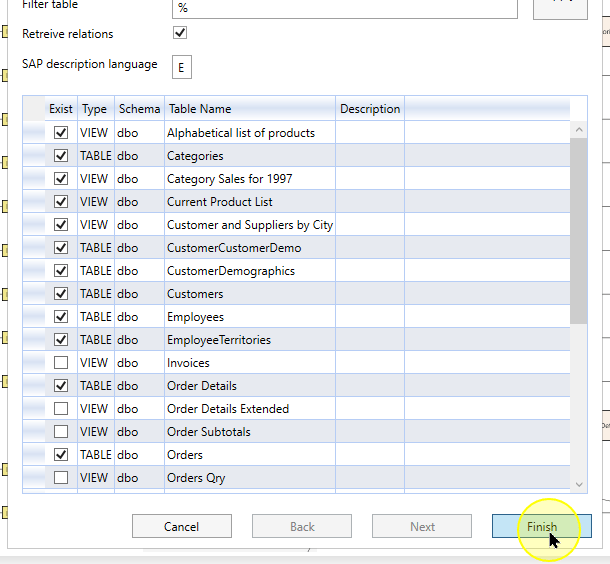
Expected Results
- The selected table or view definitions are available under the intended Connector’s Sources node.
- Open each intended entry and compare its schema, name and columns with the source object selected in the wizard.
Decisions and variations
- The source-creation interface and availability of Table/Query depend on the Connector type. Some connectors open Define source instead of Source Wizard.
- Creating source definitions does not itself execute an import or another downstream process.
Troubleshooting
- Expected object missing: check Connector and Filter schema/Filter table, then click Apply. Inspect schema and name rather than relying on an existing-object indicator.
- Different creation form: confirm the Connector supports the Source Wizard route shown here.
