
Create a reusable Macro
Introduction
A Macro is a reusable parameterized statement. When another expression calls it, its placeholders are replaced by the supplied arguments. This lets you reuse calculation logic in Transformations, calculated columns, measures, and other expressions.
This how-to creates a named Macro, defines its language and statement, and verifies that the saved definition matches the intended calculation. The AddPair example illustrates a Macro that adds two numeric expressions. Use it when that calculation matches your task, or define your own expression and inputs.
Use the settings required by your Data Warehouse (DWH) project. Creating a Macro does not execute its calculation or add a call to another object.
Applicability
Use these steps to create a reusable Macro through DWH → Macros in the AnalyticsCreator desktop interface. The worked example uses T-SQL and numeric arguments. For another language, you need a complete expression suitable for the location where the Macro will be called.
The screenshots do not identify a product version. If your interface differs, confirm the matching controls for your installed version before continuing. Using the saved Macro in a Transformation or another Macro is a separate task; see Related Guides.
Prerequisites
3.1. An open Data Warehouse (DWH) project that you can edit.
3.2. An unused, meaningful Macro name and a defined calculation, including the inputs, their order and types, and the intended output.
3.3. The expression language required by the intended caller, and enough knowledge of that language to review the complete expression. For the AddPair example, use T-SQL and two numeric inputs.
3.4. If the Macro needs a table reference, an existing table identified by its schema and name, with its role in the calculation already established. The AddPair example uses only its arguments and needs no table reference.
Steps
Open the DWH ribbon
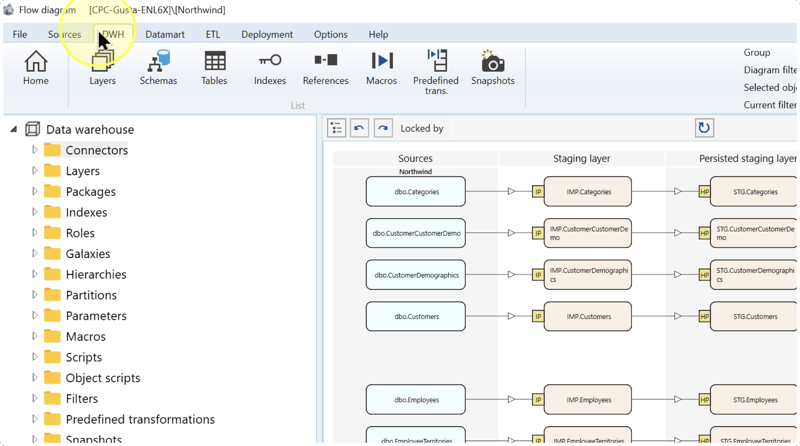
Confirm that the intended Data Warehouse (DWH) project is open. Click the DWH toolbar tab to display its object-maintenance commands.
Open the Macro list
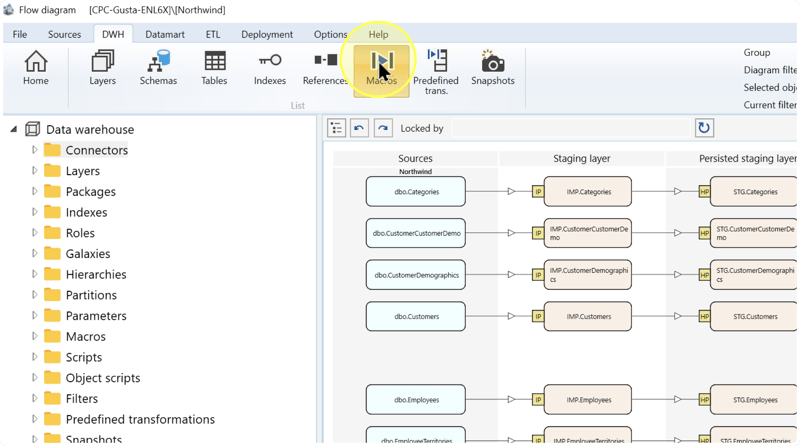
On the DWH ribbon, click Macros.
Expected Results: the list of reusable Macro definitions opens.
Start a new Macro
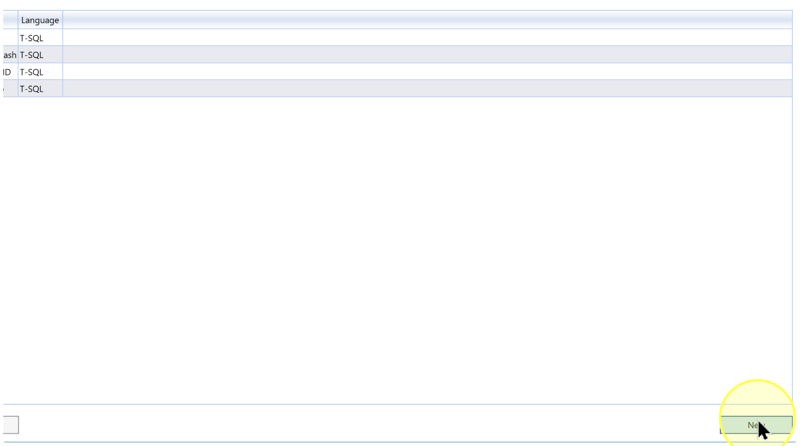
The Macros page lists existing definitions. Click New at the bottom of the list to open the Macro editor. Do not open an existing shared Macro when your task is to create a new definition.
Name and describe the Macro
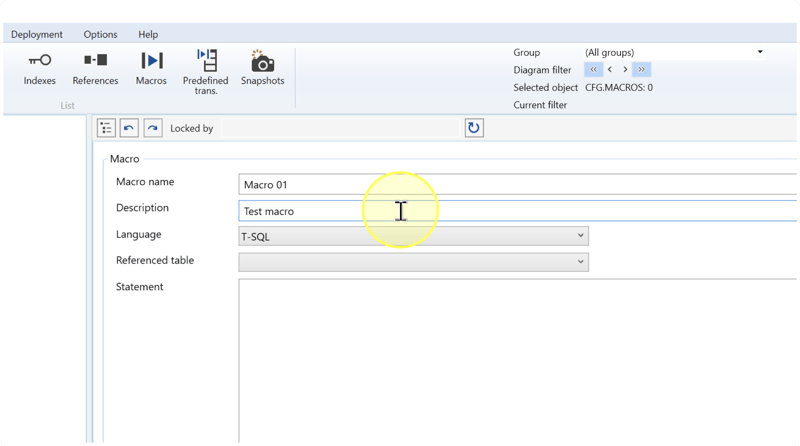
In the Macro editor, enter the new Macro name and a Description. The editor also contains Language, Referenced table, and Statement; set those in the following steps.
- Macro name — The saved name used after
@when calling the Macro. Enter the name without the call's@prefix or argument list. - Description — Explain the calculation, its inputs, and its output so another user knows how to call it.
Naming example: for the two-input addition example, enter AddPair as the name and “Adds two numeric expressions; argument 1 is the first value and argument 2 is the second value” as the description. For a different calculation, use a name and description that explain its purpose.
Select the expression language
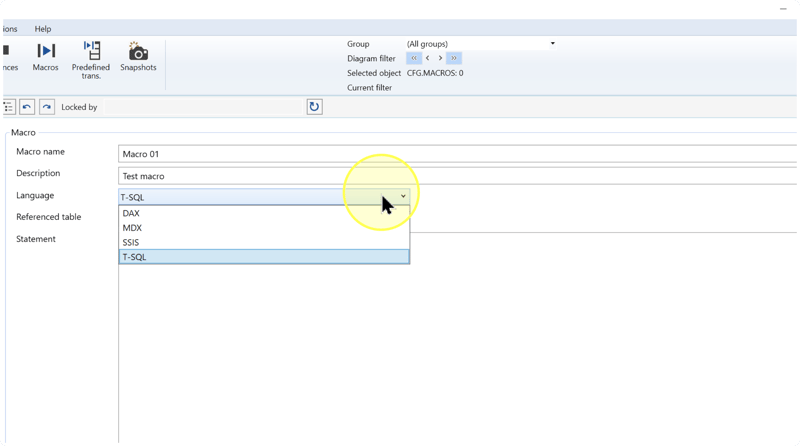
In Language, select the language required by the expression that will call the Macro. Match the Macro statement to that language; changing the selection is not a substitute for writing valid syntax.
- T-SQL — Use for a T-SQL expression, such as a SQL Server Transformation statement. Select this for the
AddPairexample. - DAX — Use when the caller requires a DAX expression, such as a tabular measure statement.
- MDX — Use when the caller requires an MDX expression, such as a multidimensional measure statement.
- SSIS — Refers to SQL Server Integration Services (SSIS). Select it when the intended caller requires that expression language.
Confirm the caller's language before continuing.
Set the table reference when needed
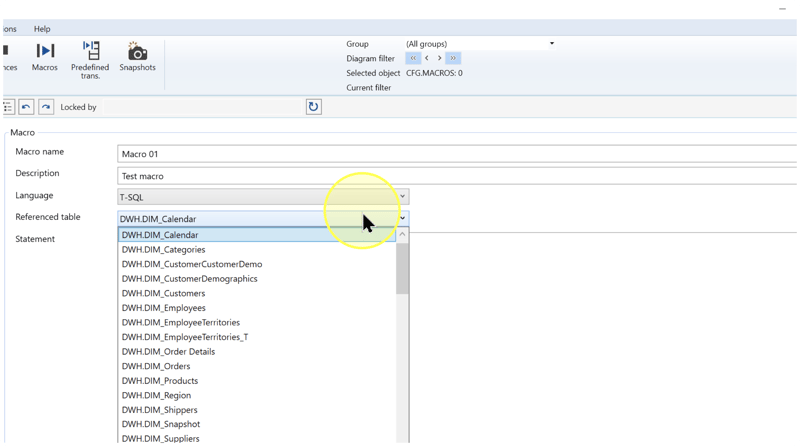
If the Macro uses a table as a reference, select the intended table in Referenced table. Identify it by its schema and table name according to your calculation. A schema is a namespace grouping database objects. If the Macro has no table reference, as in the AddPair example, leave this setting unselected.
Referenced table identifies the table used as the Macro's reference. The pictured DWH.DIM_Calendar identifies table DIM_Calendar in schema DWH.
Enter the complete Macro statement
In Statement, enter the reusable expression. Where an input must come from the caller, use its positional placeholder. An argument is a value or expression supplied by the caller; its position determines which placeholder it replaces.
- Statement — The expression that replaces the Macro call when it is parsed. Enter the complete calculation, not just its name or a description.
- :1, :2, :3 — Placeholders replaced by the first, second, and third call arguments, respectively. Further arguments follow the same positional pattern.
- @MacroName(argument1, argument2) — Call syntax using the saved Macro name and comma-separated arguments. The call belongs in the expression that will use the Macro, not in the Macro name field.
- Missing argument — A positional placeholder without a supplied argument is replaced by
NULL, not zero. Supply every argument needed by the calculation.
Two-input addition example: if you are creating AddPair, enter this complete Statement:
:1 + :2A later call @AddPair(2, 3) substitutes 2 for :1 and 3 for :2, producing 2 + 3. Evaluating that arithmetic gives 5. A call @AddPair(2) instead produces 2 + NULL because its second argument is missing.
Before saving, compare the placeholders with the planned argument order and types. For AddPair, both arguments must be numeric for the intended addition. Entering this definition does not run either example call.
Save and reopen the Macro
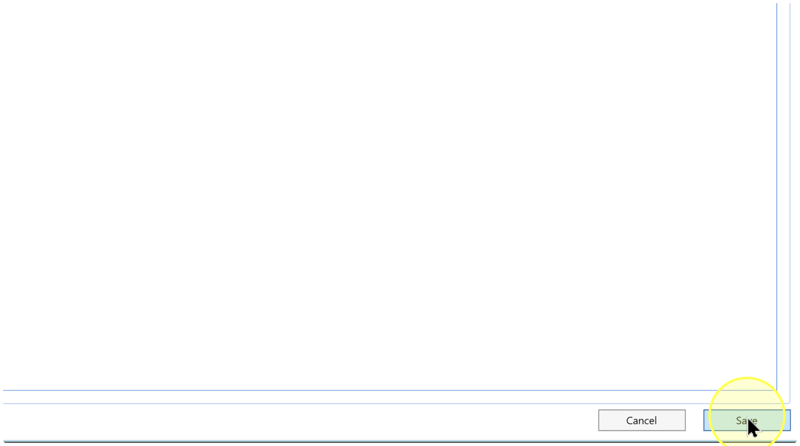
Check Macro name, Description, Language, Referenced table, and the complete Statement against your intended definition. Click Save.
In the navigation tree, expand Macros, find your saved Macro by its name, right-click it, and click Edit macro. Compare the reopened settings with the definition you entered. If they differ, follow Troubleshooting before using the Macro elsewhere.
Expected Results: the Macro can be found by its saved name, and its reopened definition retains the intended settings and complete statement. Saving and reopening checks the definition, not its execution.
Expected Results
5.1. The intended Macro exists in the current Data Warehouse (DWH) project and can be reopened through Macros → your Macro → Edit macro.
5.2. Its saved name, description, language, table reference where needed, and complete statement match the intended calculation.
5.3. For the AddPair example, the name is AddPair, Language is T-SQL, Referenced table is unselected, and Statement is :1 + :2. The description explains its two numeric inputs.
This completes Macro creation. No calculation has been demonstrated merely by saving the definition. When you need to use it in a Transformation, continue with Create a Macro and use it in a Transformation statement and verify the calling expression separately.
Decisions and variations
- Language — Match the intended caller, as explained in Select the expression language. The T-SQL addition example is not a template for every expression language.
- Table reference — Select a table only when your calculation uses that reference; leave it unselected for the argument-only example. See Set the table reference when needed.
- Argument count and order — Use the placeholders required by your calculation, not necessarily two. Check all required arguments at each call because omitted positional arguments become
NULL. See Enter the complete Macro statement. - Reuse inside another Macro — A Macro statement can call another saved Macro. If your calculation needs this, follow Call a Macro from another Macro using compatible languages and the inner Macro's required arguments.
Troubleshooting
- Object not found — Confirm the current Data Warehouse (DWH) project and look under Macros for the exact name entered in Macro name. The
@prefix belongs to a call, not to the saved name. If the name is absent, check whether the save completed before creating another definition. - Configuration differs after reopening — Confirm that you opened the intended Macro. Compare each setting and the complete Statement with what you entered in Name and describe the Macro–Enter the complete Macro statement. Correct the differences, click Save, address any reported error, and repeat the reopen check in Save and reopen the Macro.
- Runtime result differs — If a later call produces an unexpected result, compare the saved Statement with the caller's argument count, order, types, and language. In particular, an omitted argument becomes
NULL. Correct the definition or call as needed and verify the consuming expression again; saving the Macro alone is not an execution test.
