
Change common Data Warehouse (DWH) naming settings
Introduction
Use DWH settings to change common service-field names in your Data Warehouse (DWH) project. Service fields are columns used for functions such as identifying records and recording historical validity. The same dialog also lets you select the repository owner.
This how-to takes you through reviewing the current settings, entering the names required by your project, saving them, and checking affected definitions. The outcome is a saved naming configuration and a review of references to the changed names.
Applicability
Use this how-to when changing common names for service fields used in historized or hashed tables. Historized tables retain record history; hashed tables use hash-key fields. The steps apply to the desktop interface with DWH settings on the Options toolbar tab.
Only the repository owner can change service-field names. Changes can affect existing table and Transformation definitions. A Transformation combines input objects and applies processing logic to produce a result for downstream use. Review those dependencies as part of a rename.
Prerequisites
3.1. An open Data Warehouse (DWH) project containing the settings you intend to change.
3.2. Access as the repository owner for service-field name changes.
3.3. A saved copy of the project and a mapping of each current field name to its intended replacement.
3.4. An identified set of affected tables, regular and manual Transformations, scripts, and downstream consumers to review. If a repository ownership change is intended, the intended owner must also be known.
Steps
Open Options
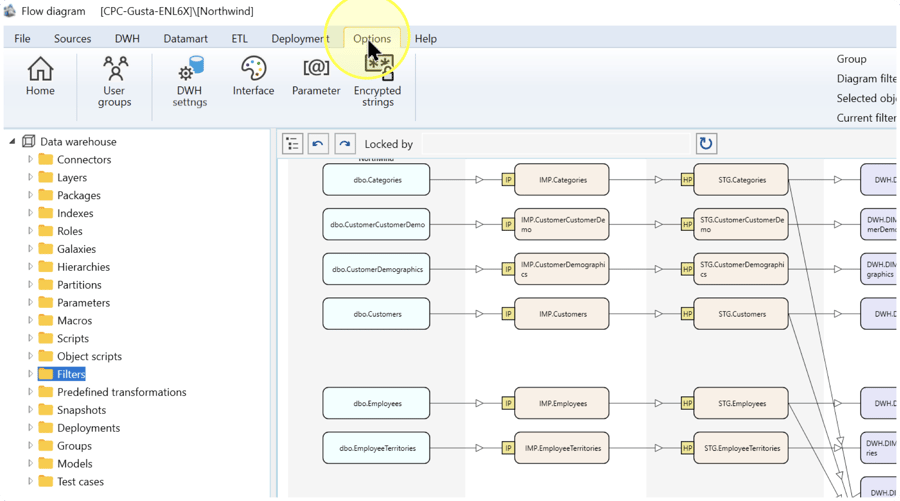
Confirm that the intended Data Warehouse (DWH) project is open, then click Options on the toolbar.
Open DWH settings
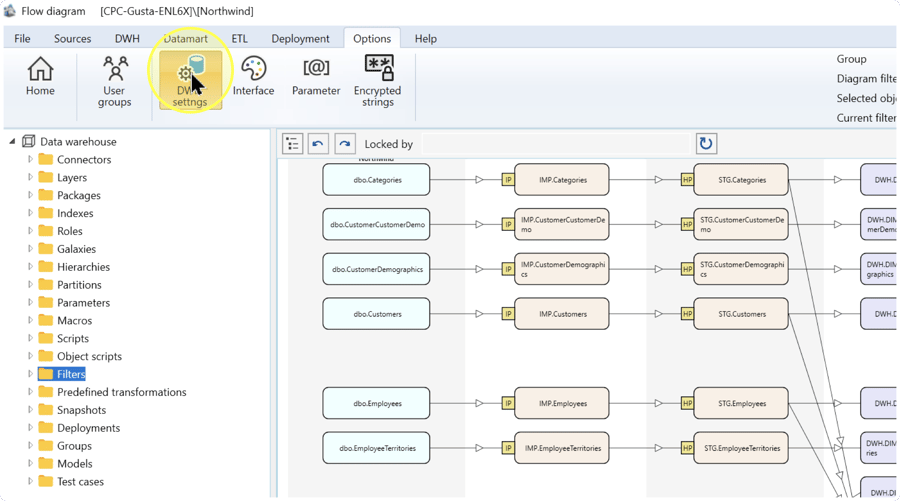
On the Options tab, click DWH settings to open the DWH Settings dialog.
Enter the required names
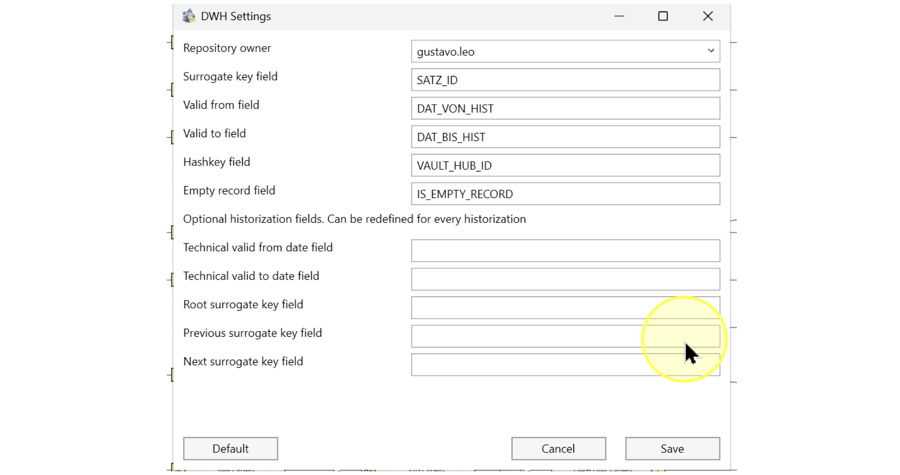
In DWH Settings, compare the existing values with your naming map. The upper part contains the repository owner and common service-field names. The lower group contains names for additional historization columns. Change only the settings required by your task, using these explanations:
- Repository owner — The account responsible for the repository. This account can replace an existing repository and release any object or group lock. If ownership transfer is intended, select the intended account from the list. For a naming-only change, retain the current owner.
- Surrogate key field — The name of the surrogate-key column in historized tables. A surrogate key identifies a record independently of its source business key. To rename this column, enter the intended field name.
- Valid from field / Valid to field — The names of the columns that mark the start and end of a record's historical validity interval. Enter the intended names in the corresponding fields. These settings contain column names, not date values.
- Hashkey field — The name of the hash-key column in hashed tables. To rename that column, enter its intended name. This field specifies a name, not a hash calculation.
- Empty record field — The name of the column used to identify empty records. Enter the intended column name when changing this setting.
IS_EMPTY_RECORDis the name shown in the example. - Optional historization fields — This interface group contains Technical valid from date field, Technical valid to date field, Root surrogate key field, Previous surrogate key field, and Next surrogate key field. If your historization design requires names for these columns, enter the intended common names in the corresponding fields; otherwise retain their existing values. These names can be redefined for each historization, so also review any individual definitions that use them.
Rename effects: changes to the common surrogate-key, validity, and hash-key names update table definitions and regular Transformations automatically. In manual Transformations, automatic replacement applies when the old identifier is enclosed in square brackets, such as [SATZ_ID]. References without square brackets must be changed manually. Include those references in your review after saving; also check the empty-record and additional historization names, scripts, and downstream consumers where affected.
Naming example: the screenshot shows SATZ_ID as the surrogate-key column name and DAT_VON_HIST / DAT_BIS_HIST as the validity-column names. Enter your project's intended names; do not clear the lower fields to match the image.
Review and save the settings
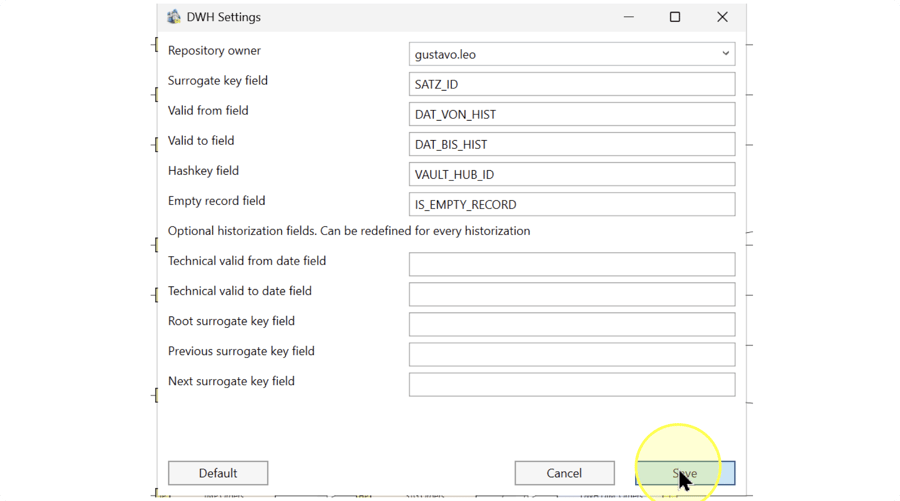
Compare every edited field with your naming map. Confirm the intended Repository owner and any additional historization names, then click Save.
Check the saved settings and affected definitions
4.5.1. Reopen Options → DWH settings in the same project. Compare the saved owner and field names with your intended configuration.
4.5.2. Inspect the affected table and regular Transformation definitions identified before the rename. Confirm that the renamed service fields use the intended names. If you changed names in the lower historization group, check the individual historization definitions that use those columns as well.
4.5.3. Review affected manual Transformations for references to the old names. Check square-bracketed identifiers for the intended replacement, and update remaining references that were not replaced automatically. Review scripts and downstream consumers for the same old names before applying generated database changes.
Expected Results
5.1. Reopening DWH Settings shows the intended saved field names and repository owner.
5.2. The affected table, Transformation, and historization definitions checked in Check the saved settings and affected definitions use the intended names. References requiring manual changes have been reviewed and corrected.
5.3. The naming configuration is saved in the project. Deployment, package execution, and data loading are separate tasks; clicking Save does not verify those outcomes.
Decisions and variations
For a common service-field rename, change the relevant names and retain the current owner. Change Repository owner only when transferring ownership is part of the task.
For additional historization columns, use the lower group only when your design requires those names. Because the names can be redefined for each historization, check the individual configuration as explained in Enter the required names.
For manual Transformations, distinguish square-bracketed identifiers from other references. The automatic replacement behavior and required manual review are described in Enter the required names and Check the saved settings and affected definitions.
Troubleshooting
- Service-field names cannot be changed — Check the account shown in Repository owner. Only that owner can change service-field names; have the repository owner perform the change.
- Old names remain in a manual Transformation — Check how each identifier was written. Automatic replacement of the common surrogate-key, validity, and hash-key names applies to square-bracketed identifiers such as
[SATZ_ID]. Update other affected references manually, then compare them with the saved names.
