
Inspect column dependencies
Introduction
Column dependencies show which input columns a column depends on and which output columns depend on it. Use this how-to to inspect those relationships in an existing table in your Data Warehouse (DWH) project before changing a column’s name, data type, or calculation.
You will open the table’s Dependencies tab, locate the required column, and identify the displayed input and output chains. The inspection itself does not require editing a definition.
Applicability
These steps apply to the dependency list in the AnalyticsCreator desktop table editor. They cover inspecting an existing table or view represented in the project. Changing a source definition or expression is a separate task.
If your interface differs from the one shown, use the documentation for your installed version to locate the equivalent table editor and dependency list.
Prerequisites
3.1. An open Data Warehouse (DWH) project containing the table or view you need to inspect.
3.2. The schema, table name, and column name for the dependency review.
Steps
Open the DWH toolbar tab
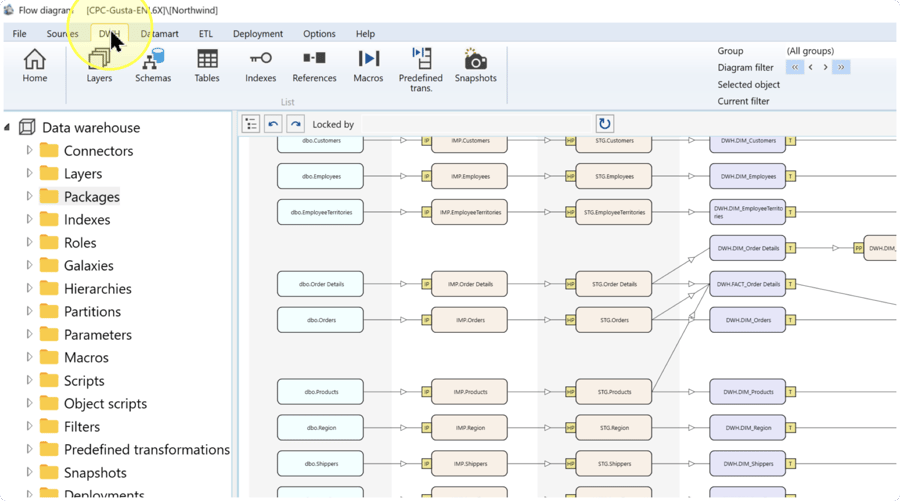
Confirm that the intended Data Warehouse (DWH) project is open, then click DWH on the toolbar.
Open the table list
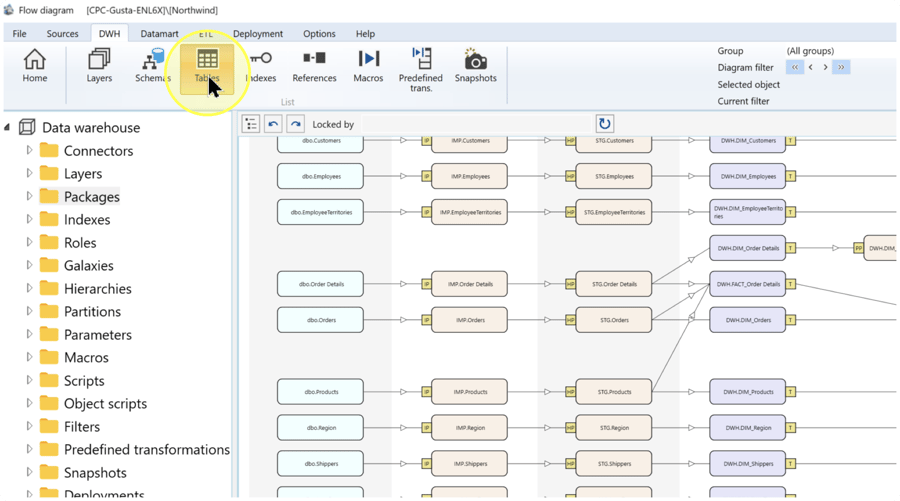
Click Tables on the DWH toolbar to open the table list.
Find and open the required table
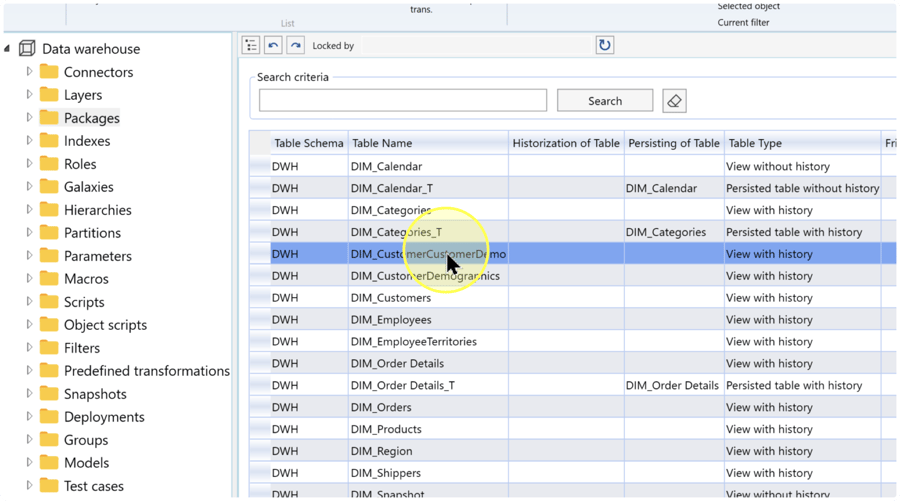
In the table list, find the row whose Table Schema and Table Name match the object you need. A table represents a database table or view in the Data Warehouse (DWH) project, and its schema identifies the group of database objects it belongs to.
If you need to narrow the list, enter the table name in Search criteria and click Search. Check the schema as well as the name before opening a result.
Double-click the required table row to open its editor.
Open the Dependencies tab
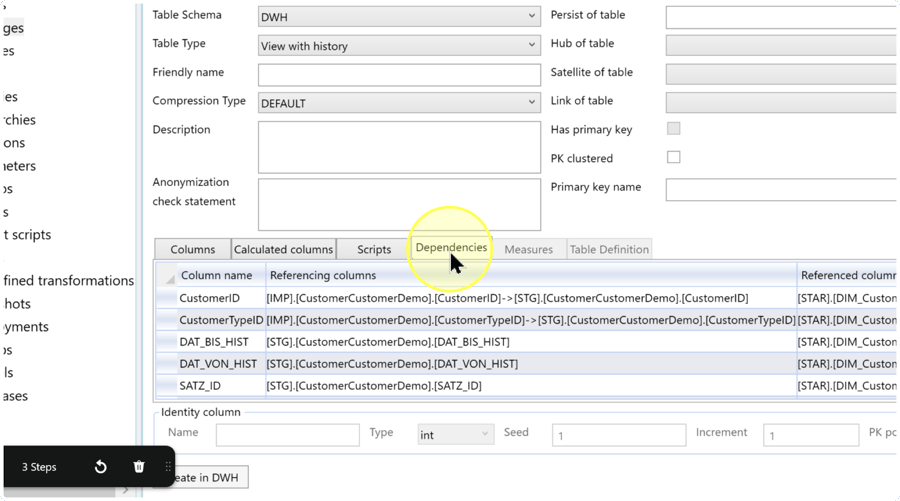
In the table editor, confirm the Table Name and Table Schema, then click the Dependencies tab below the table settings. The dependency list is displayed.
Inspect the column’s input and output chains
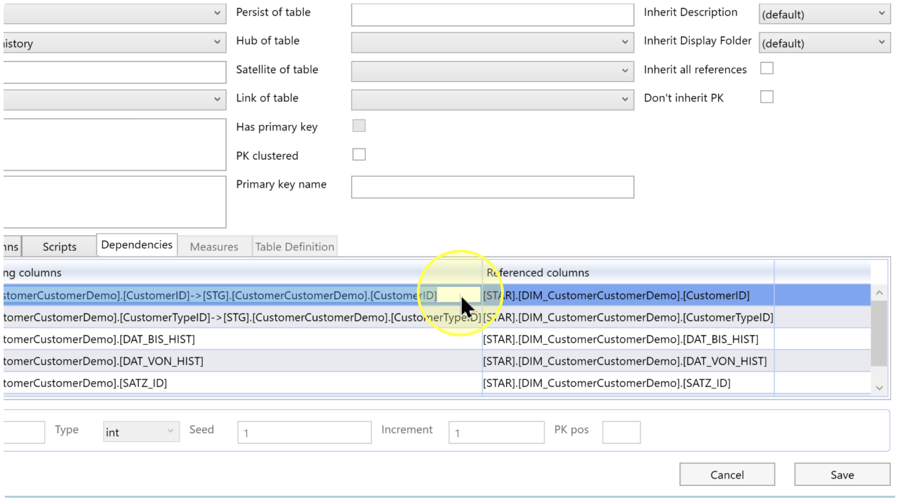
Locate the required row in Column name, then read both dependency columns on that same row. Use these meanings to distinguish the two directions:
- Column name — The column in the open table whose dependencies you are inspecting.
- Referencing columns — The chain of input columns on which this column depends. Review it when tracing where the column’s value comes from.
- Referenced columns — The chain of downstream columns that depend on this column. Review it when identifying outputs that may be affected by a change.
Read each listed identifier as [schema].[table].[column]. The -> separator connects entries in a chain. Check the full identifiers, because the same column name can occur in several tables.
Example: for CustomerID in DWH.DIM_CustomerCustomerDemo, the input chain shows [IMP].[CustomerCustomerDemo].[CustomerID] followed by [STG].[CustomerCustomerDemo].[CustomerID]. The dependent output is [STAR].[DIM_CustomerCustomerDemo].[CustomerID]. Your chains depend on your table definition.
Note the input and output identifiers relevant to your review. If either cell is empty, record that no chain is displayed in that direction. An empty cell does not establish that no external application uses the database column.
Verify the inspection and close the editor
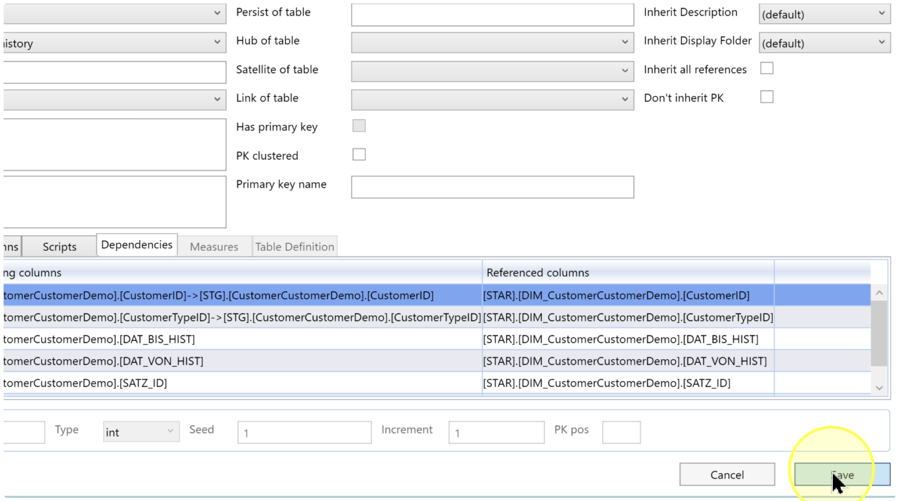
Check your findings against Expected Results. If you only inspected the dependencies, click Cancel to close the table editor without saving changes.
If you intentionally edited the table definition as part of a separate task, review those edits before clicking Save. Saving applies to the definition you edited; it is not required to read the dependency list and does not verify deployment or data loading.
Expected Results
You have identified the displayed dependencies for the intended column. Before closing the editor, verify the following:
5.1. The open table’s schema and name, and the row under Column name, match the object you intended to inspect.
5.2. You can distinguish the input chain under Referencing columns from the dependent outputs under Referenced columns, using the schema, table, and column identifiers shown.
5.3. You have recorded the relevant identifiers or noted that a direction has no displayed chain. Success does not require both directions to contain entries.
Decisions and variations
To trace a column’s inputs, use Referencing columns. To assess its dependent outputs, use Referenced columns. For a change review, inspect both directions as described in Inspect the column’s input and output chains.
For an inspection, finish with Cancel. Use Save only for intentional edits, as explained in Verify the inspection and close the editor. Changing a dependency requires reviewing the relevant source definition or expression as a separate task.
Troubleshooting
- Required table or column is missing — Check the Data Warehouse (DWH) project, schema, table name, and column name. If Search criteria limits the table list, remove unintended text and click Search again. Open the matching table before looking for the column in Dependencies.
- The direction of a chain is unclear — Referencing columns identifies the inputs; Referenced columns identifies dependent outputs. Compare the full identifiers on the required row with the explanation in Inspect the column’s input and output chains.
- A dependency is not displayed — Confirm that you opened the intended table and located the intended column. Compare the displayed chain with the relevant saved source expression or mapping. An empty chain alone does not establish that external tools have no dependency on this column.
- You only need to inspect the chain — Leave the definitions unchanged and click Cancel when finished. Save is relevant only if you intentionally edited the table definition.
