
Add persisting content and choose a replacement strategy
Introduction
Add a persisting definition to an existing Persisting package and choose how it will replace the destination data during Full persisting. Persisting stores a Transformation result in a managed physical table. The package groups these operations, and its Content list identifies their sources and destinations.
Use this how-to to select the Transformation, name the destination table, assign the existing package, choose a replacement strategy, and review the resulting definition. The outcome is a configured operation available for review. Loading the destination data requires execution of the generated persisting routine.
Applicability
Use this workflow when an existing Persisting package needs another operation. The three wizard choices—No partition switching, Partition switching, and Renaming—control the replacement strategy described here for the Full persisting type.
Full, Merge, Historical, Incremental, and Manual are processing types in the persisting editor. They are separate from both the wizard's replacement choices and the package's Package type. This page covers adding and reviewing a definition; deployment and package execution are separate tasks.
Prerequisites
3.1. An open Data Warehouse (DWH) project that you can edit, containing the intended Persisting package.
3.2. An existing Transformation whose result you intend to store, and the destination table name required by your project.
3.3. A requirement to replace the full destination result, with knowledge of the existing destination data and table structure. If you need change processing, history, or insert-only loading instead, review the processing types in Persisting before configuring the operation.
Steps
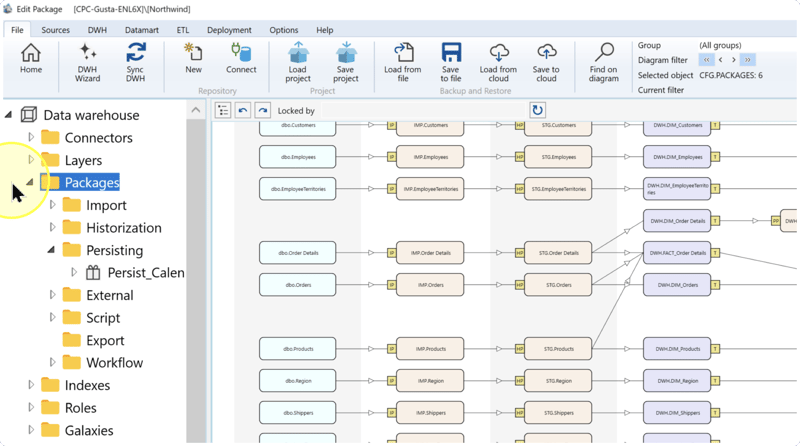
Expand Packages
In the navigation tree of the intended Data Warehouse (DWH) project, expand Packages.
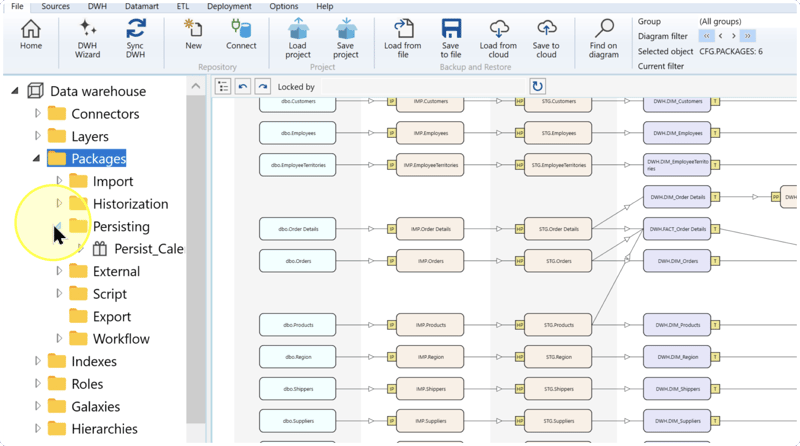
Locate the Persisting package
Expand Persisting under Packages. Locate the existing package that should contain the new operation.
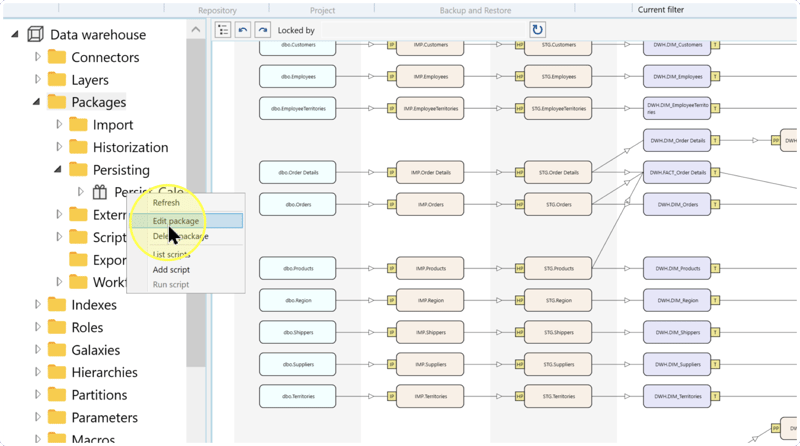
Open the package editor
Right-click the intended package and select Edit package from its context menu.
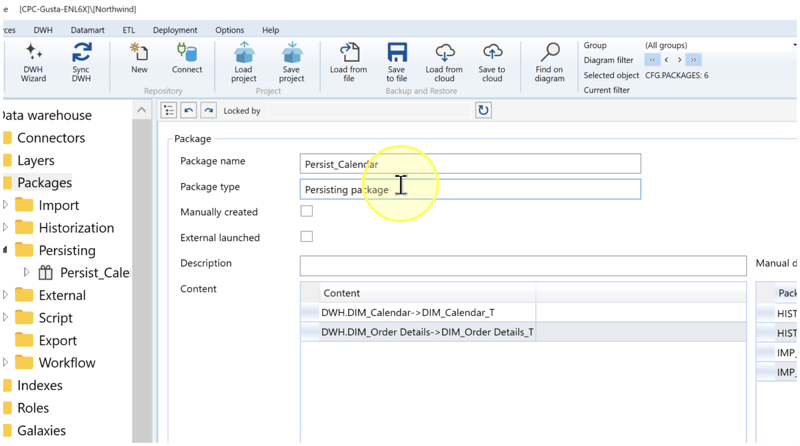
Check the package and its current content
Review the package editor before adding content:
- Package name — Identifies the package you opened. Check that it is the package intended for this operation.
- Package type — Check that it displays Persisting package. This identifies the package category; the processing type of each operation is checked separately in Review the new operation.
- Content — Lists existing operations. Each pictured row shows a Transformation followed by its destination table. Compare these with the operation you intend to add so that you do not create it again.
If the identity or category is wrong, return to Locate the Persisting package and open the correct package. If the intended operation already exists, review it through Review the new operation. Otherwise, continue to add it.
Open Persisting Wizard
Click Add content below the Content list. Persisting Wizard opens to create another persisting operation in the package.
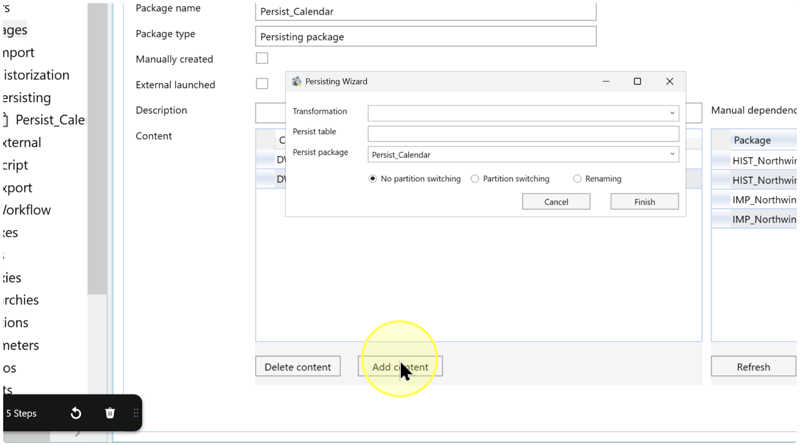
Set the source, destination, and replacement strategy
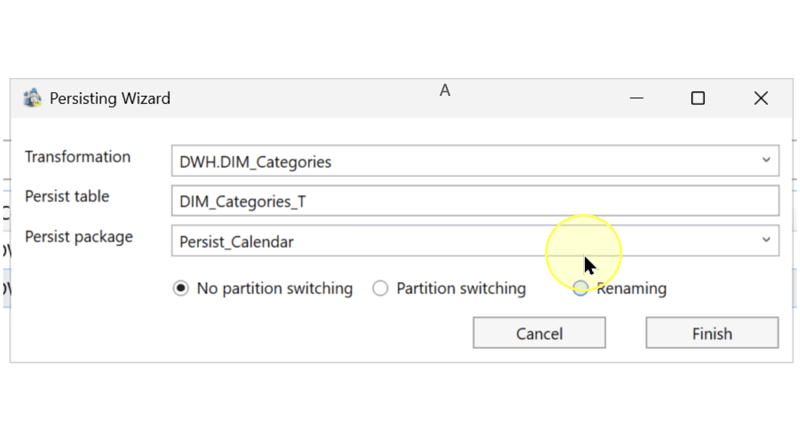
In Persisting Wizard, configure the three fields:
- Transformation — Select the existing Transformation whose output you want to store. A Transformation applies processing logic to input objects and produces a reusable result. Check the schema and object name to identify the correct source.
- Persist table — Enter the destination table name. A Persisting table stores the physical result of the Transformation. Use your project's naming convention and check whether the name identifies an existing destination whose data will be replaced during execution.
- Persist package — Select the existing package checked in Check the package and its current content, or retain it if already selected. This assigns the new operation to that package.
Next, select one of the three radio choices below the fields. Full persisting replaces the complete destination result with the Transformation's view data. Choose how that replacement should be performed:
- No partition switching — Select this for Full persisting that truncates the destination table, removing its existing rows, and then refills it from the view.
- Partition switching — Select this when your destination design supports replacing the result through partition switching. A temporary table is created and loaded first. After loading, it is switched with the persisted table, and the table holding the old data is dropped. Check the column order of the persisted and temporary tables: differences can cause switching errors.
- Renaming — Select this as the alternative when differing column order prevents partition switching. A temporary table is created and loaded first. After loading, the old persisted table is dropped, and the temporary table, including its indexes and constraints, is renamed to become the persisted table.
These choices are alternatives; select only one. All three descriptions concern what happens during Full persisting execution. Confirm that replacing the existing destination result is intended before finishing the definition.
Naming example: the image uses DWH.DIM_Categories as the source, DIM_Categories_T as the destination, and Persist_Calendar as the package. The suffix _T is fixed text, not a placeholder.
Finish the persisting definition
Review Transformation, Persist table, Persist package, and the selected replacement strategy. Click Finish to create the definition.
Continue to Review the new operation to check the result. Clicking Finish alone does not demonstrate that the destination has been populated.
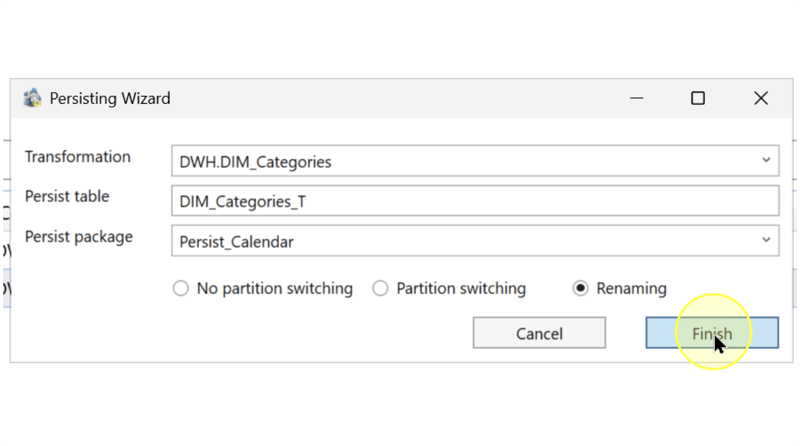
Review the new operation
4.8.1. In the navigation tree, expand Packages and Persisting, then right-click the intended package and select Edit package. In Content, locate the row for your Transformation and destination table. Confirm that it is in the intended package.
4.8.2. Expand the package in the navigation tree, locate that persisting item, right-click it, and select Edit persisting. Check its Package assignment and the Partition switching and Renaming settings against the choice made in Set the source, destination, and replacement strategy.
4.8.3. Review Type in the persisting editor. For the full-replacement behavior described in Set the source, destination, and replacement strategy, check that it is Full. Use these distinctions to identify a mismatch:
- Full — Replaces the complete persisted result, using the configured replacement strategy.
- Merge — Compares the view with the persisted table through a
MERGEstatement and processes changes. - Historical — Uses historical information to detect and process changes. It requires a historized view containing the surrogate key
SATZ_IDand validity fieldsDAT_VON_HISTandDAT_BIS_HIST. - Incremental (insert-only) — Inserts new rows detected using the maximum value of the selected Incremental column. It is intended for data that is never changed or deleted; that column must have a numeric or date/time data type.
- Manual — Uses a persisting SQL routine that you can write or edit yourself. The other types use generated logic.
If the processing type or replacement settings differ from the intended design, resolve the mismatch before treating the configuration as complete. The wizard's radio choice alone does not establish the processing type.
4.8.4. Review Procedure in the persisting editor to check the generated SQL routine and its intended destination effects. This field is read-only unless Type is Manual. Reviewing the definition does not execute it.
Expected Results
5.1. The intended package's Content list contains the operation connecting your selected Transformation to your intended destination table.
5.2. The operation can be reopened through Edit persisting. Its package assignment, processing type, and replacement settings match the intended configuration, as checked in Review the new operation.
5.3. The definition is available for review before execution. Destination data is not a completion check for this configuration task; deployment, data loading, and runtime results require their own verification.
Decisions and variations
6.1. Choose the replacement method. Use the A–C explanations in Set the source, destination, and replacement strategy to compare truncating and refilling, partition switching, and renaming. Different column order between the persisted and temporary tables is a documented reason to consider Renaming.
6.2. Keep processing type separate. The persisting editor's Type determines whether the operation performs Full, Merge, Historical, Incremental, or Manual processing. The wizard's radio choices select a replacement strategy; they do not replace the Type check in Review the new operation.
6.3. Choose another package only when intended. The wizard also accepts another existing package or a new package name in Persist package. For this task, retain the package being edited. To create a definition from a Transformation and choose a package there, see Create a persisting definition.
Troubleshooting
- Object not found — Check the current Data Warehouse (DWH) project and the intended package, Transformation schema, and object name. If the new item is absent from the expected package, check the package selected in Persist package before attempting to add it again.
- Configuration differs after reopening — Reopen the intended item through Edit persisting and compare Package, Type, and the replacement settings with your intended configuration. Resolve the discrepancy before accepting the result; a closed wizard alone is not a verification.
- Runtime result differs — Check whether the persisting routine has actually been executed. If it has, compare the source Transformation, destination, Type, and Procedure with the intended behavior. Correct any configuration mismatch before another run; adding an item to Content does not load data.
- Partition switching fails because column order differs — Compare the column order in the persisted and temporary tables. Renaming is the documented alternative for this situation; review its drop-and-rename behavior in Set the source, destination, and replacement strategy before changing the strategy.
