
Apply, store, and reuse diagram filters
Introduction
Use a diagram filter to focus the AnalyticsCreator architecture view on selected objects and their connected data flow. This how-to explains how to build that view, store it as a named filter for reuse, apply a stored filter, and clear the active filter when you need a broader view.
The result is a diagram view that helps you inspect the objects relevant to your task. Use the objects in your own Data Warehouse (DWH) project.
Applicability
Use this how-to in the AnalyticsCreator desktop dataflow diagram. Diagram filters control which objects are shown in the architecture view. They are separate from data filters in Import, Export, or Transformation definitions.
Creating or applying a diagram filter is a navigation task. It does not execute a data-processing task or establish which database rows that task will read.
Prerequisites
3.1. An open Data Warehouse (DWH) project with a dataflow diagram containing the objects you want to inspect.
3.2. The names and schema or source identities of the objects whose flow you need to follow.
3.3. To reuse a filter without creating one, an existing named entry under Filters in that project.
Steps
Locate the first object
Confirm that the intended Data Warehouse (DWH) project is open. In the dataflow diagram, locate the object whose connected flow you want to inspect. Check its full name, including its schema or source identity, to distinguish it from similarly named objects.
The ribbon’s Group selector restricts the view to an object group, a named collection of objects. Keep the group you intend to inspect. If you need to look beyond that group, select (All groups). If an active diagram filter is hiding the object, clear it using Clear the active diagram filter before continuing. You can use Find an object on the diagram to locate an object already shown in the current view.
Right-click the intended object to open its context menu. If you only need to apply an existing stored filter, go to Apply a stored filter.
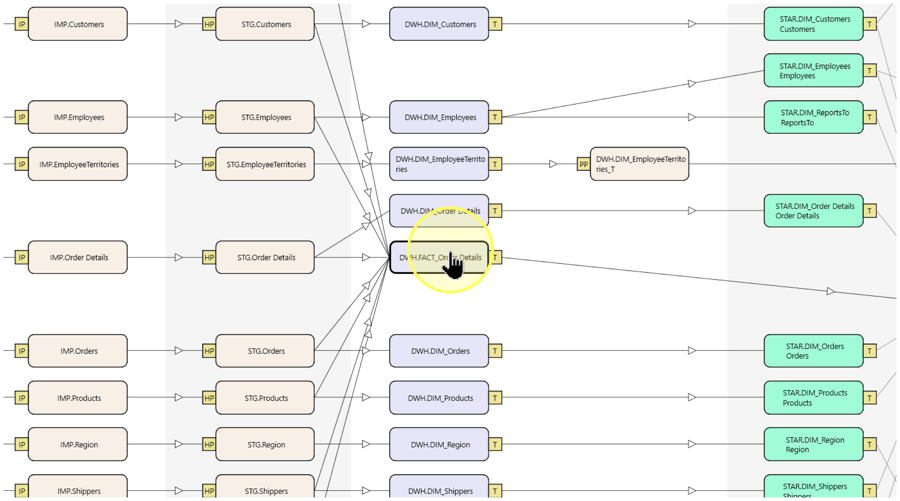
Add the object to the filter
In the object’s context menu, click Add to filter. This adds the object to the current diagram filter so you can inspect it together with its connected objects.
If you want to start a new focus instead of extending an active filter, clear the active filter using Clear the active diagram filter, then locate and add the intended object again.
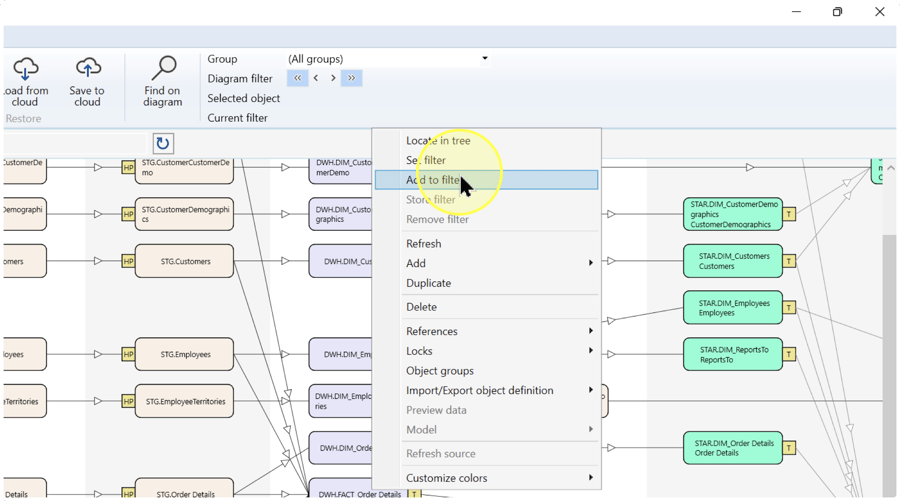
Inspect the filtered flow
Review the diagram after clicking Add to filter. Check that the intended object is present and follow its connecting lines to inspect the related flow. Connected objects can remain visible even when you did not add them individually.
Check Current filter on the ribbon. This is displayed information about the active diagram filter, not a field for entering a filter name. Compare it with the object you added and the flow now visible.
Expected Results: the view is focused on the selected object and connected objects. The example shows inputs feeding DWH.FACT_Order Details and its connected downstream object; your result depends on your own objects and relationships.
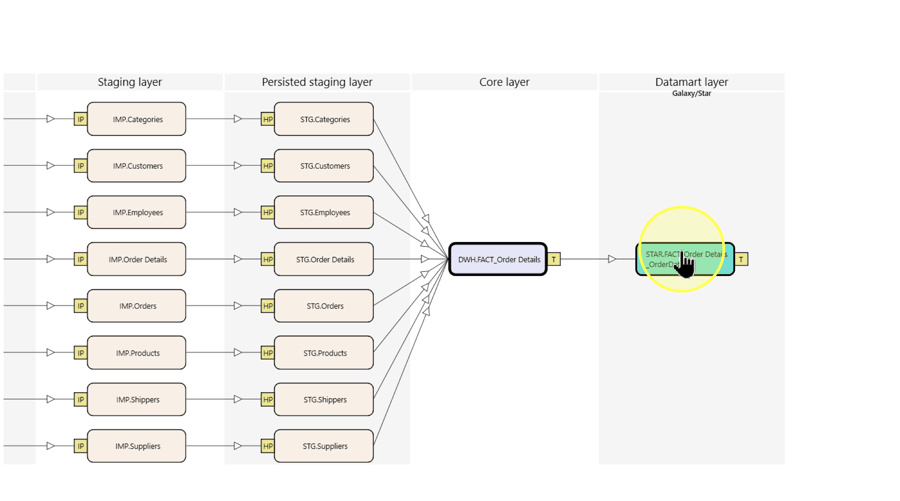
Add another object when the focus needs extending
If another visible object needs to be included directly in the filter, right-click that object and click Add to filter. Review Current filter and the resulting diagram again before adding further objects or storing the filter. If the current focus already meets your needs, leave it unchanged.
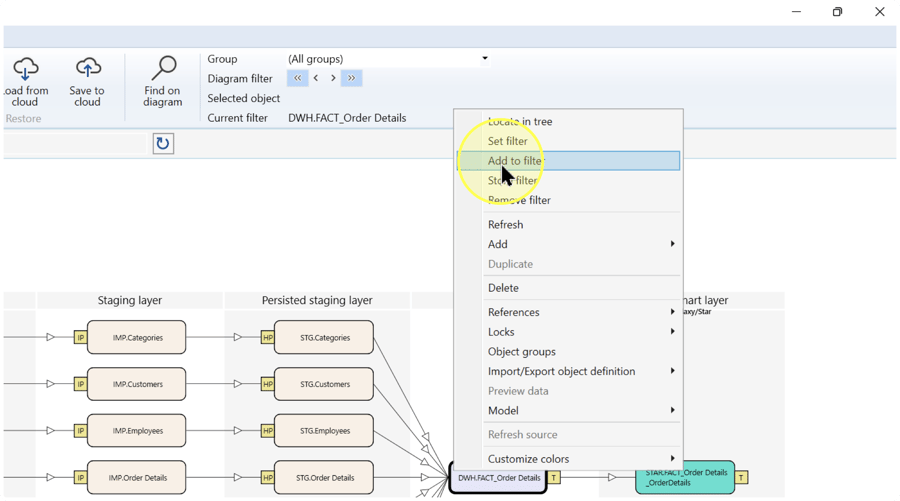
Open the filter-naming dialog
If you want to return to this focus later, first check that the current diagram filter represents the objects you intend to reuse. In the left navigation tree, right-click Filters and click Store current filter. The Enter filter name dialog opens.
If the filter is only for your current inspection, continue working in the view without storing it. Go to Clear the active diagram filter when you want to clear it.
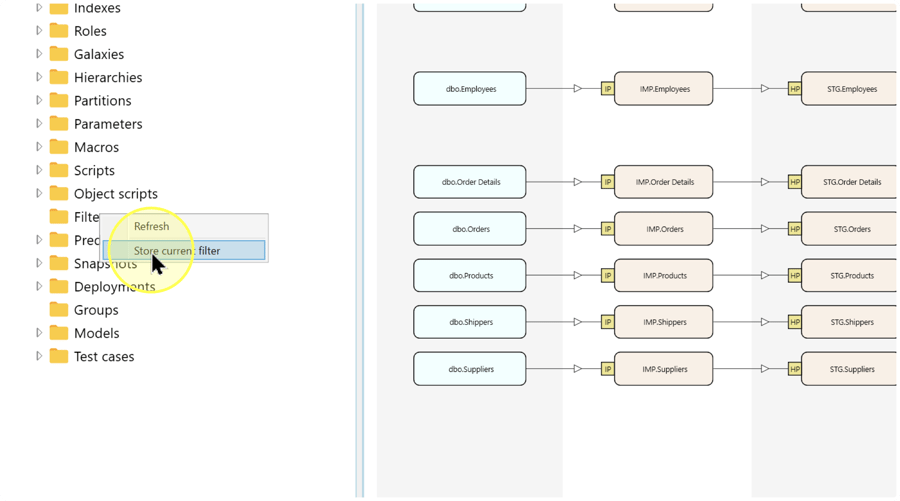
Name and store the filter
In Enter filter name, enter a descriptive name in Filter name. This name identifies the stored entry under Filters; choose wording that helps you recognize its intended focus.
Naming example: Order Details identifies the example flow shown in the screenshots. The name does not select the objects for you.
Click OK to store the current filter. Expand Filters and confirm that an entry with the name you entered is present. Entering a name alone does not complete the storage action.
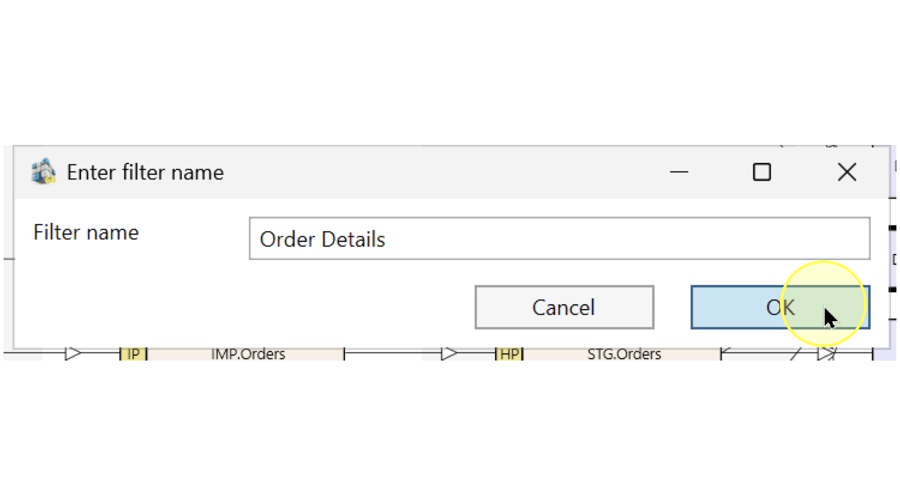
Apply a stored filter
In the left navigation tree, expand Filters. Locate the named filter you want to use, right-click that entry, and click Apply filter.
Inspect the resulting diagram and Current filter on the ribbon. Confirm that the intended objects and connected flow are shown. To test reuse after storing a filter, clear the active filter using Clear the active diagram filter, then apply the named entry again and compare the result with the focus you intended to store.
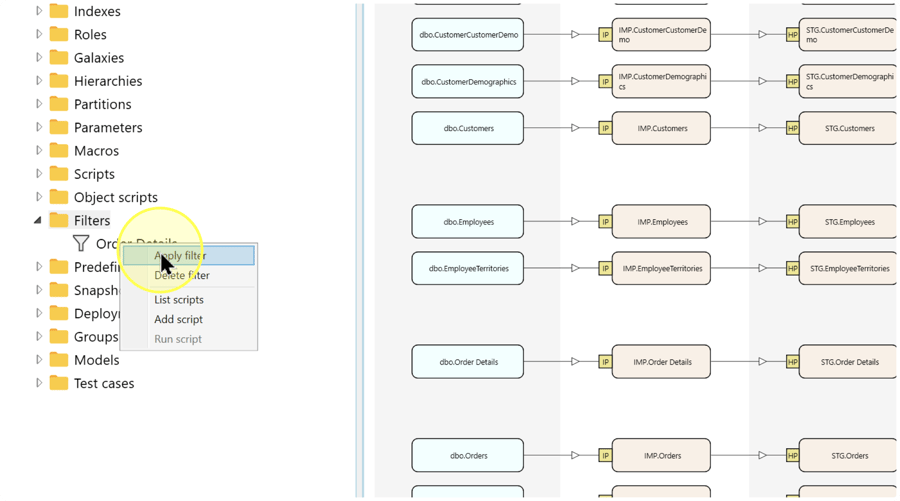
Clear the active diagram filter
When you need a broader view, right-click an object in the filtered diagram and click Remove filter in its context menu. This clears the active diagram filter. Use this diagram command, not Delete filter on a stored entry under Filters.
Review the diagram and the ribbon’s Group selection. Clearing a diagram filter does not remove the group restriction: keep the intended group, or select (All groups) when you need to inspect beyond it.
Expected Results: the diagram is no longer limited by the cleared filter and shows the broader view available within the selected group context.
Expected Results
5.1. After adding objects to the filter, the diagram shows the intended focus and its connected flow. Compare the object identities and connections with your task.
5.2. If you stored the filter, its name appears under Filters. Clear the active filter and apply that named entry again using Apply a stored filter. Confirm that the intended focus returns.
5.3. After clicking Remove filter, the diagram returns to a broader view within the current Group context. Check that objects hidden by the diagram filter are visible again where that group permits them.
These checks verify diagram navigation and filter reuse. They do not verify data loading, execution, deployment, or the scope of a separate wizard.
Decisions and variations
6.1. Use a temporary focus. Follow Locate the first object to build and inspect the filter. Store it only if you need a named entry for reuse, as explained in Open the filter-naming dialog.
6.2. Reuse an existing focus. Apply the required entry under Filters using Apply a stored filter; you do not need to rebuild it object by object.
6.3. Extend or replace the current focus. Use Add to filter to include another visible object. To start from a cleared diagram filter, follow Clear the active diagram filter before adding the new starting object. Review the separate Group selection in either case.
Troubleshooting
- Expected item is missing — Confirm that the intended Data Warehouse (DWH) project is open. For a missing diagram object, check Current filter and Group; clear an unintended diagram filter using Clear the active diagram filter and select the group needed for your inspection. For a missing stored filter, expand Filters and check the name entered in Name and store the filter.
- A change is not retained — Adding an object to the diagram filter is not the same as storing a named filter. Check that you clicked Store current filter, entered Filter name, and clicked OK. Apply that named entry again using Apply a stored filter and compare the result with the focus you intended to store.
If more objects appear than you added directly, inspect their connecting lines: the filtered view includes connected objects. If the view remains restricted after Remove filter, check the separate Group selection before assuming the diagram filter is still active.
