
Introduction
Use DWH Wizard to read connector metadata and create Source definitions. For a source-only task, leave the additional warehouse-object classifications cleared. Review the naming and generation pages before finishing so that the wizard creates only the definitions you intend.
Applicability
Use this workflow when you need to add sources from connector metadata. Clear the generation classifications for source definitions only, or select the additional warehouse objects required by your workflow.
Prerequisites
- Configure a connector that can return the metadata for the new source definitions.
- Identify the schema and table filters needed to locate the intended objects.
- Decide whether you need source definitions only or additional Import, Trans, Hist, Dimension, or Fact objects.
Steps
Load and classify source metadata
Expand Connectors and locate the required connector.
Locate the connector beneath Connectors. 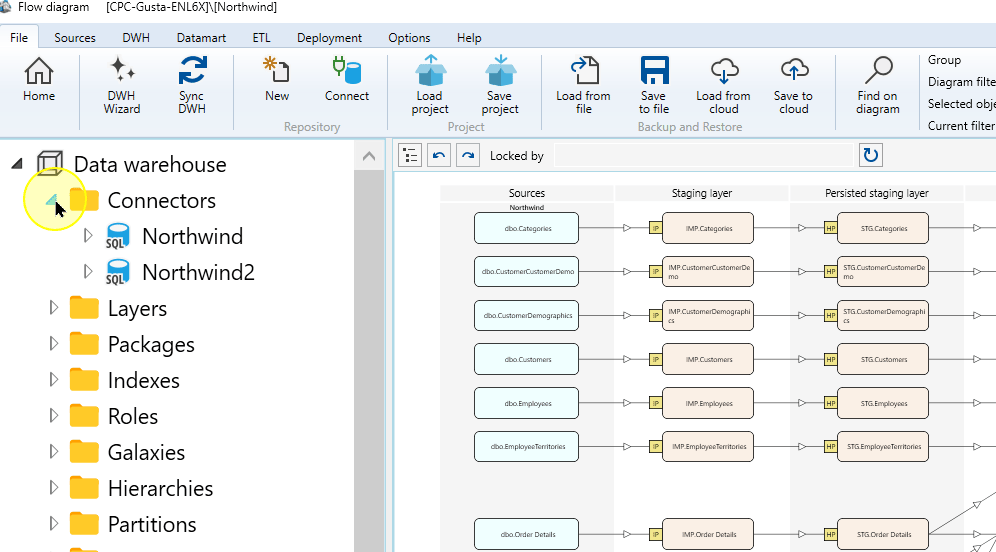
Open that connector’s context menu.
Select the Northwind connector. 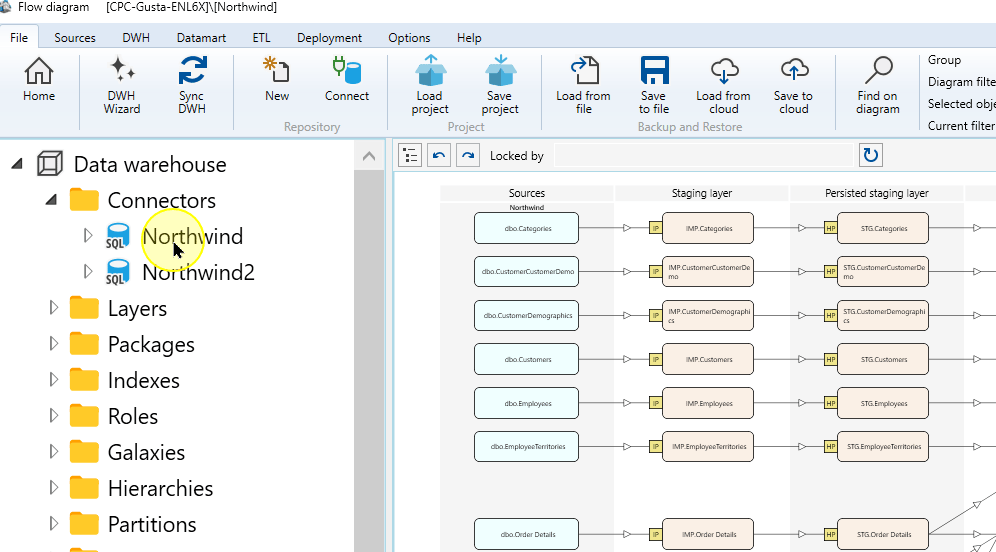
Choose DWH Wizard. Check that the intended connector is displayed.
DWH Wizard in the connector context menu. 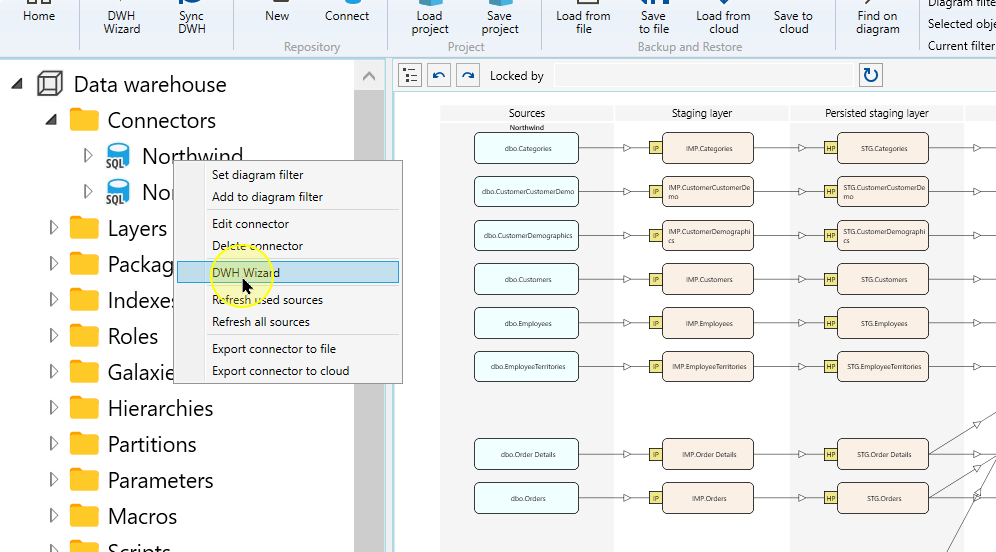
Select Read metadata from connector to read the new source definitions, set the schema and table filters, then choose Apply. Use metadata of existing sources reuses saved definitions instead of reading new metadata from the connector.
Setting Explanation Read metadata from connector Reads the definitions from the external source through the selected Connector. Use metadata of existing sources Uses Source definitions already stored for that Connector. Use this route when working from those saved definitions. Apply the source filters in the DWH Wizard. 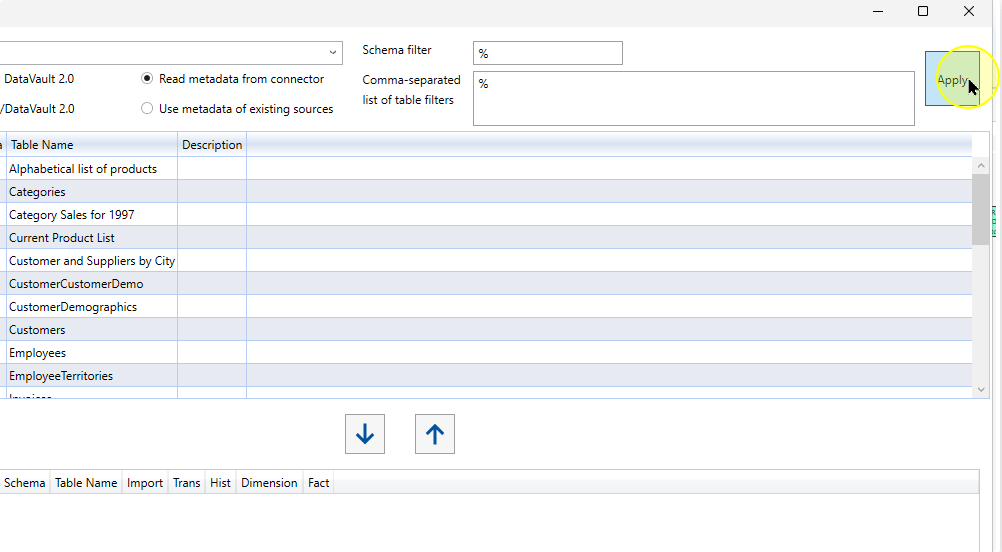
Select the required rows in the source-object list.
Select the source objects to configure. 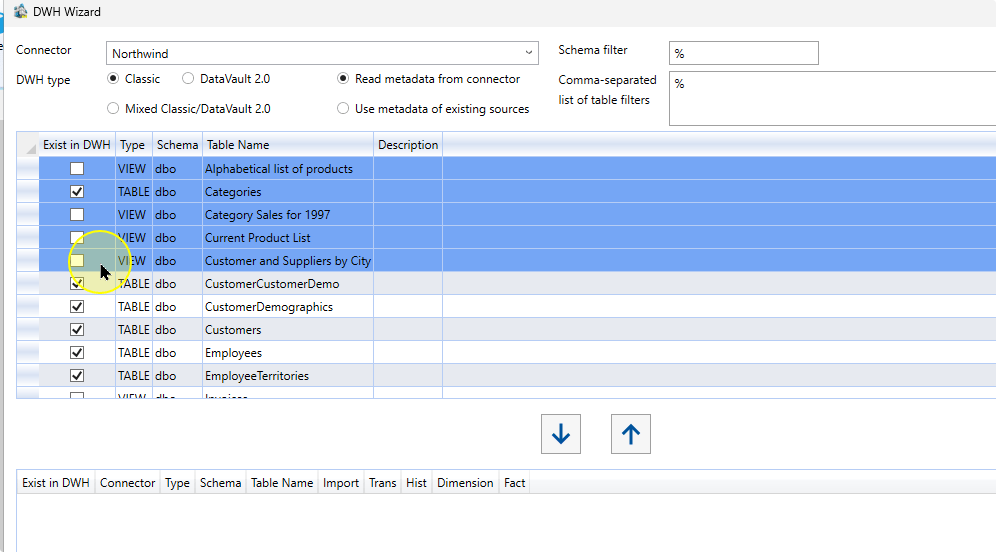
Choose the down arrow to move the rows into the configuration list.
Move the selected objects into the configuration list. 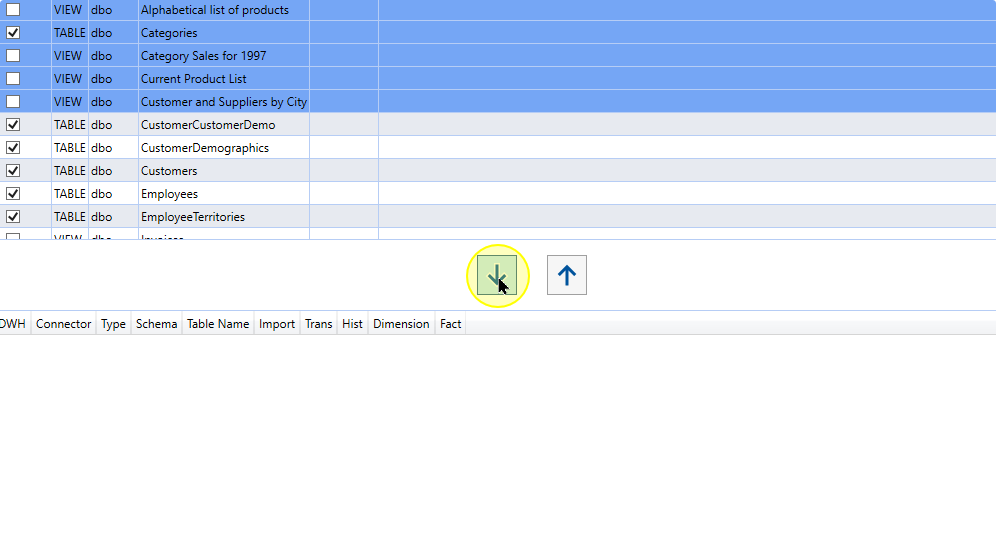
To create source definitions only, clear Import and ensure that Trans, Hist, Dimension, and Fact are also cleared for each selected object. Select additional classifications only when your workflow requires those warehouse objects. The pictured configuration has additional classifications enabled.
Setting Explanation Import Requests the import definition for the Source. Trans Creates a Transformation after Import. Hist Requests Historization for the Source. Dimension Creates a Dimension for descriptive analytical data. Fact Creates a Fact Transformation. Classification options for the selected objects. 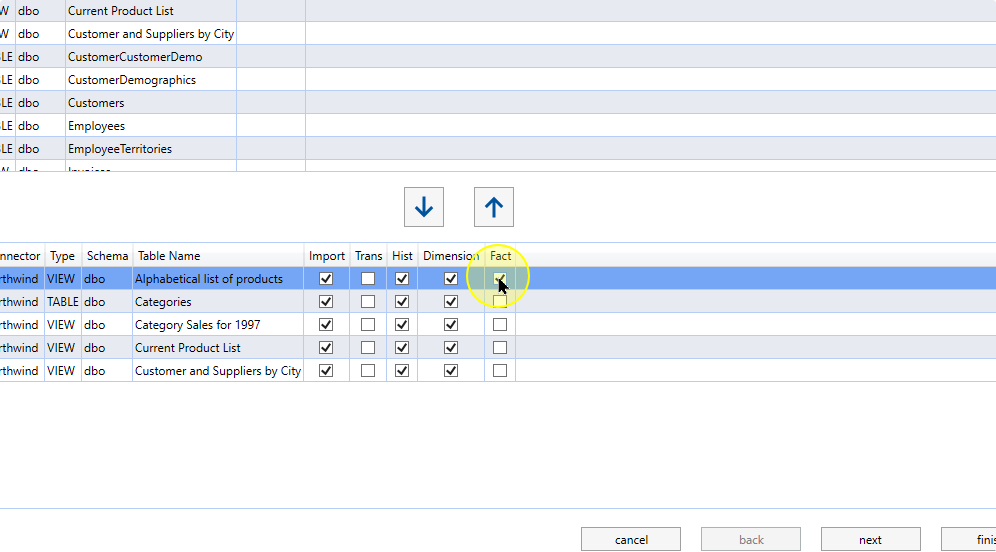
Review the remaining wizard pages
Choose next after reviewing the classifications.
The next control after object classification. 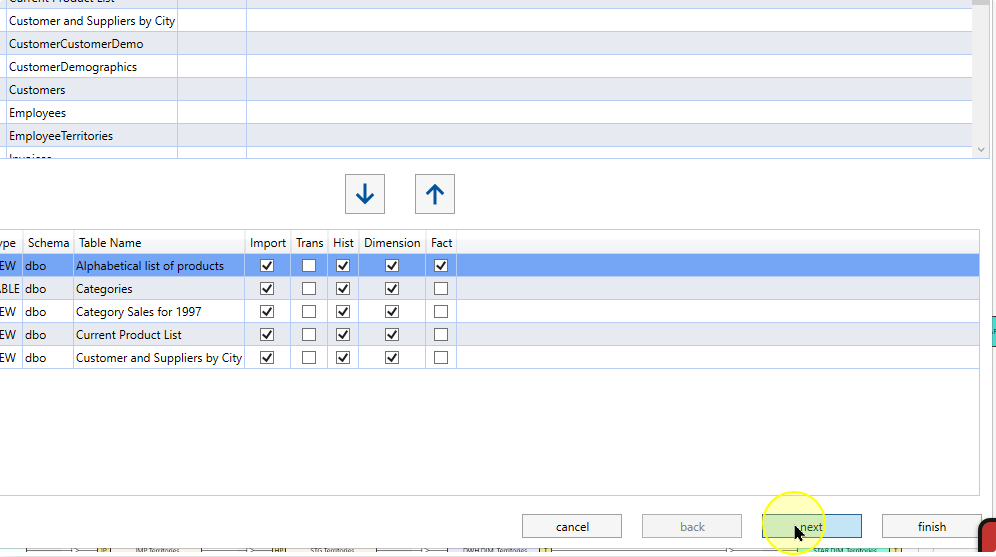
Review the naming fields for the object types selected on the previous page. Table names controls generated table names;
{SRC_NAME}represents the source object name. Package, Transformation, Dimension and Fact naming fields apply to those requested objects. Preserve the source-only classification when no additional objects are intended.Additional DWH naming settings. 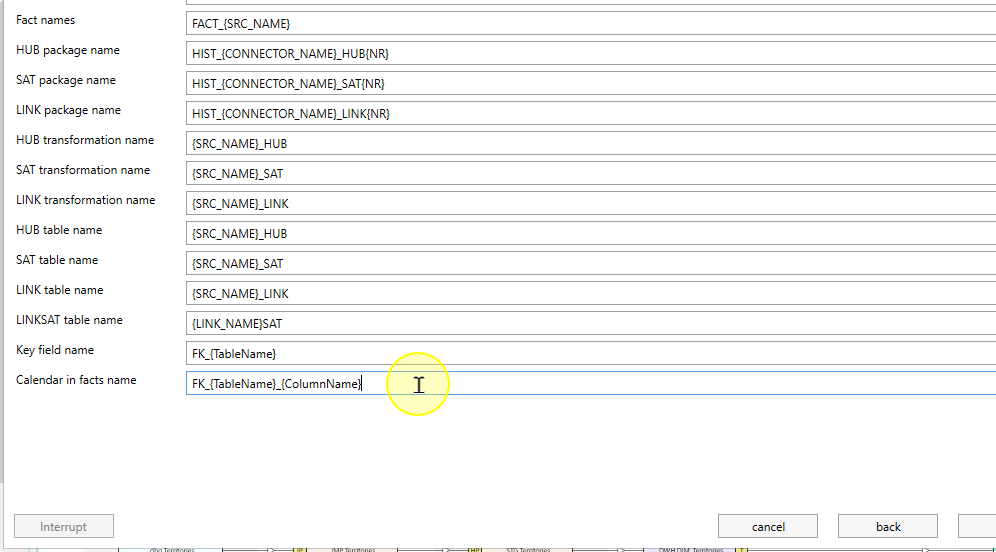
Choose next after reviewing the naming settings.
Continue from the DWH naming settings. 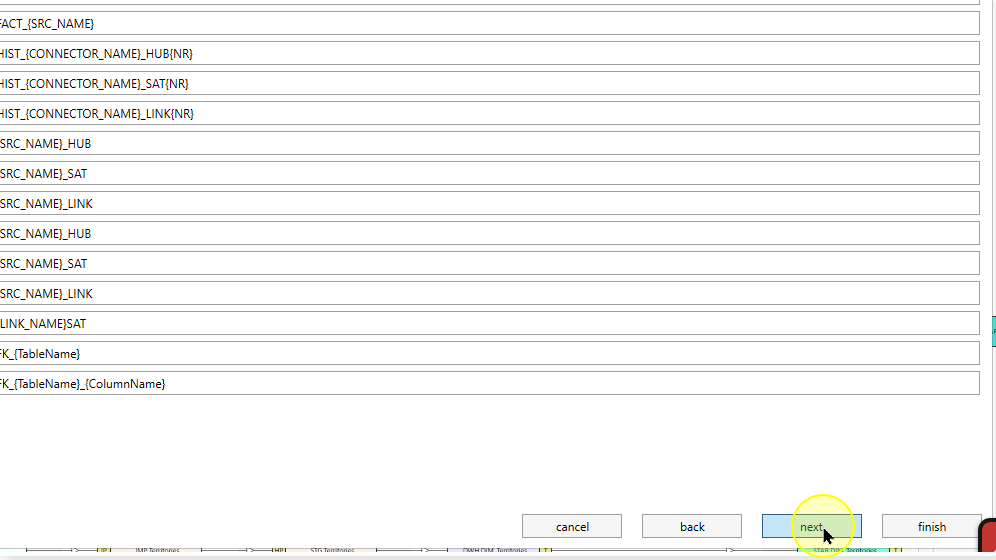
Review the final generation options for the selected definitions. Field names appearance controls whether generated field names retain their case or use upper/lower case. Retrieve relations requests source relationships where available. Review applicable predefined transformations and target schemas.
Leave Create Snapshot dimension and Create Calendar dimension cleared when those additional objects are not required. Choose finish, then inspect the new definitions under the Connector’s Sources node.
Finish on the later DWH options page. 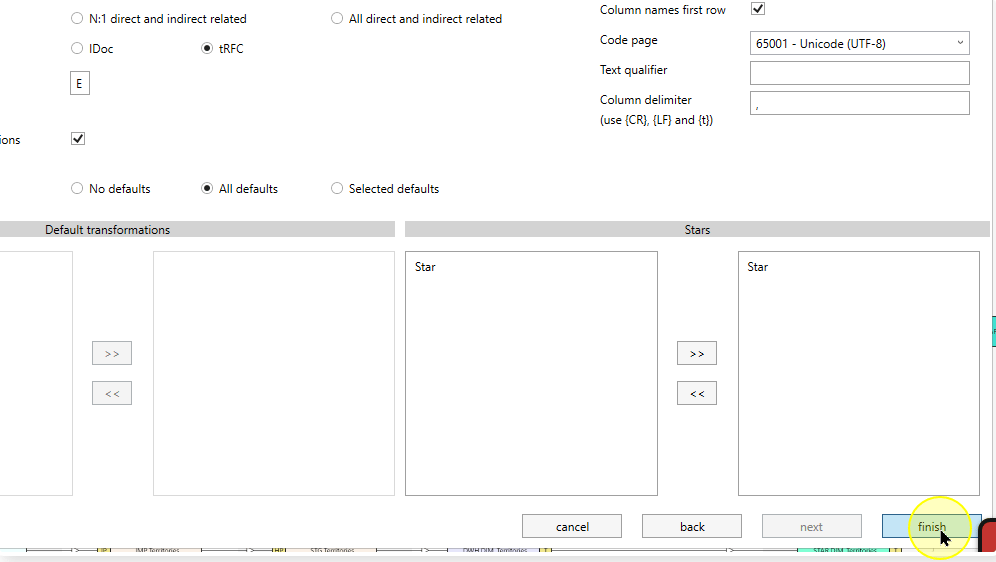
Expected Results
- Open the intended entries under the Connector’s Sources node and check their names and columns.
- For a source-only run, confirm no unintended warehouse objects were requested. If additional classifications were selected, inspect their generated definitions and package settings.
- Wizard completion does not itself load data.
Decisions and variations
- Apply refreshes the available metadata; finish completes source creation.
- The generation classifications request additional warehouse objects. Use the corresponding how-to when those objects are required.
Troubleshooting
- Source missing: check Connector, metadata mode and schema/table filters; use Apply to inspect returned objects.
- Unexpected generated objects: compare classifications and final options with the source-only requirement before further work.
