
Add objects to an object group
Introduction
Add existing objects to an object group so you can focus the dataflow diagram on a named set of related objects in your Data Warehouse (DWH) project. Choose the objects to include directly, decide whether related objects should be included through dependency inheritance, and save the group contents.
The result is a saved membership list that you can reopen and check against the objects and dependency scope you intended.
Applicability
Use this how-to in AnalyticsCreator desktop to maintain the contents of an existing object group. To create the group first, see Create and manage object groups. User groups organize shared access and are a separate feature.
Prerequisites
3.1. An open Data Warehouse (DWH) project containing the object group you need to update.
3.2. Existing objects to include in the group, with their names and schema or source identities known.
Steps
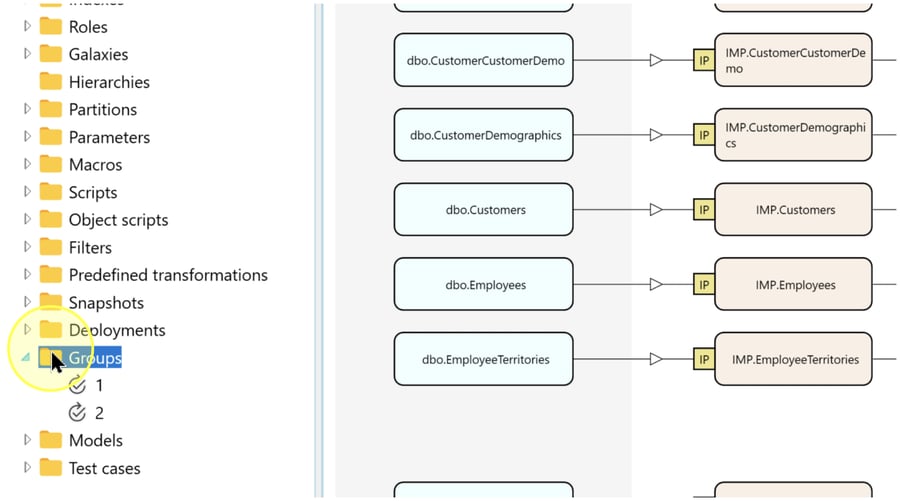
Expand Groups
Confirm that the intended Data Warehouse (DWH) project is open. In the left navigation tree, expand Groups and locate the group whose contents you want to update.
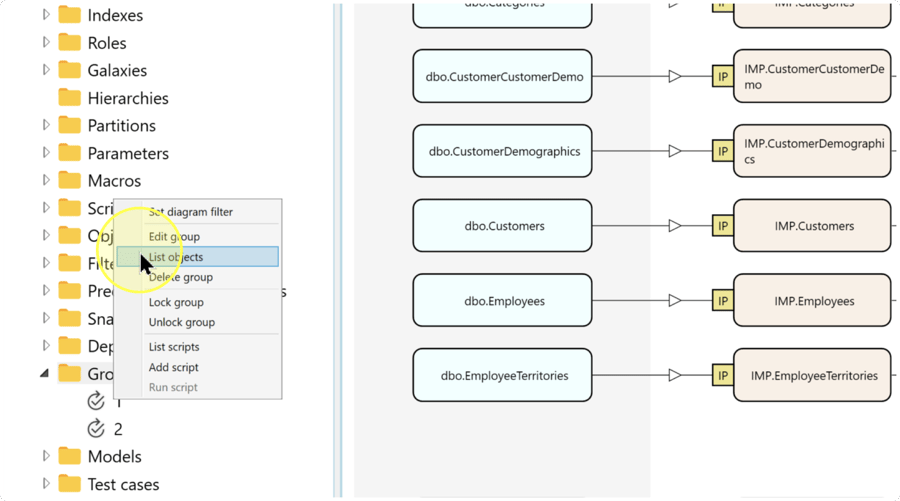
Open the group’s object list
Right-click the intended group beneath Groups, then click List objects in its context menu. The object list for that group opens.
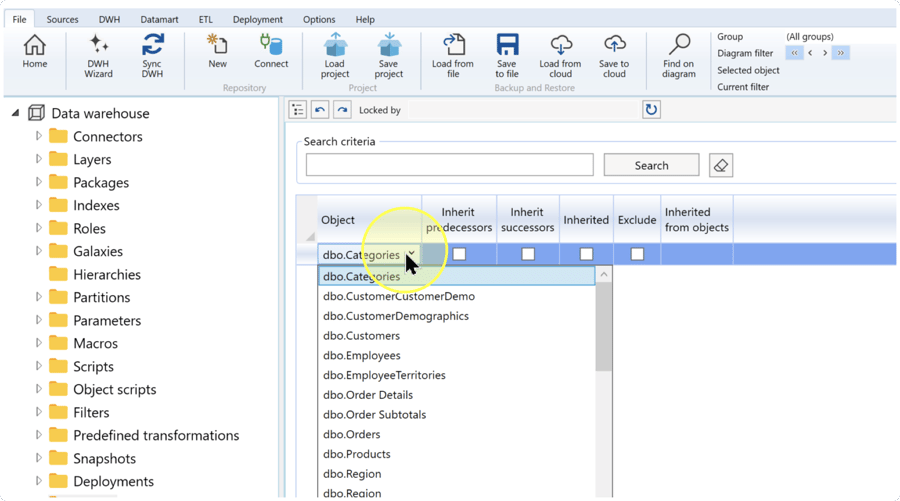
Select the objects to add
The Object group content list maintains which existing repository objects belong to the selected group. Each row identifies an object and its membership settings; selecting an object here adds it to the group’s list.
In an empty row, open the dropdown in the Object column and select the existing object you need. Check its full name, including its schema or source identity, to distinguish it from similarly named objects. Repeat in an empty row for each additional object you want to include directly.
Example: the screenshot selects dbo.Categories. Here, dbo identifies the schema and Categories identifies the object. Select the objects required by your own task.
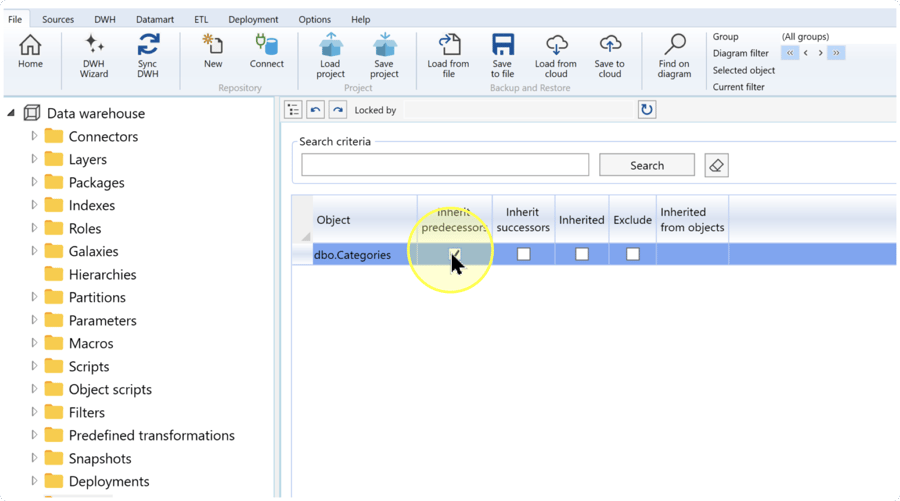
Choose dependency inheritance and exclusions
For each object you added, decide whether the group should also include related objects. Predecessors are the inputs on which the object depends; successors are downstream objects that depend on it. Membership acquired through these relationships is called inherited membership.
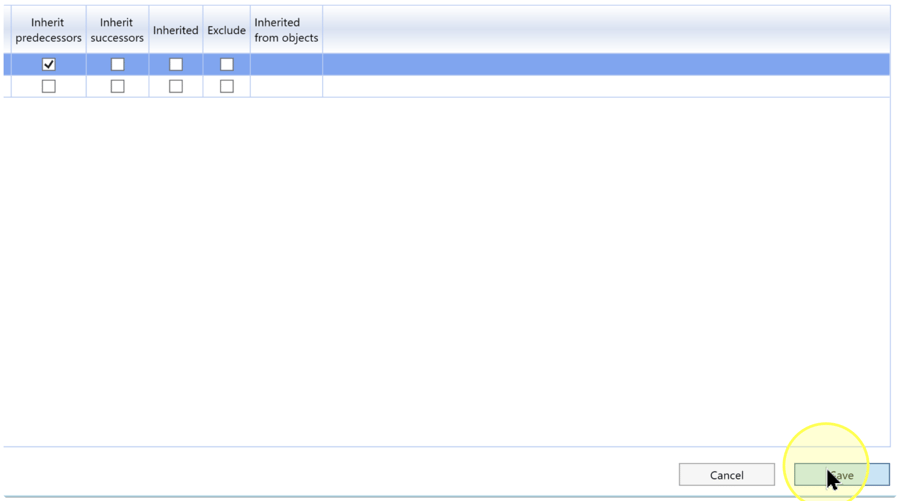
Select Inherit predecessors when the group should include the object’s inputs. Select Inherit successors when it should include downstream dependents. If neither direction is required for that object, leave both checkboxes clear, or clear a selected checkbox for a direction you do not want to include.
Use the following settings and status columns to review membership:
- Inherit predecessors — Includes objects on which the selected object depends.
- Inherit successors — Includes objects that depend on the selected object.
- Inherited — A read-only status column indicating that membership comes from another object’s dependency settings.
- Exclude — Select this checkbox for an inherited object that should not participate in the group. Leave it clear for an inherited object you want to include.
- Inherited from objects — A read-only column identifying the object from which membership was inherited. Use it to trace why an object belongs to the group.
Review any inherited rows shown in the list and their exclusions. An object may inherit membership from another object even when its own inheritance checkboxes are clear. After saving, reopen the list as described in Expected Results to check the saved membership.
Save the group contents
Review the selected objects, inheritance settings, and exclusions against the group’s intended scope. Click Save at the bottom of the object list to save its contents.
Continue with Expected Results to verify that the intended membership and settings were retained.
Expected Results
The group contains the intended objects, together with the inherited membership and exclusions specified by its saved settings.
5.1. Under Groups, right-click the same group and click List objects again. Confirm that the objects you added are present and that their inheritance settings match your choices.
5.2. Check Inherited and Inherited from objects for membership supplied through dependencies. Confirm that Exclude is selected only for inherited objects you intend to exclude. If a setting needs correction, follow Choose dependency inheritance and exclusions, click Save, and reopen the list to check again.
5.3. Select the group in the toolbar’s Group selector and inspect its view in the dataflow diagram. Check the displayed objects against the membership you intended. Use your own group’s scope as the success criterion.
Decisions and variations
6.1. Include only directly selected objects. Leave both inheritance checkboxes clear for each directly selected object if the group should contain only those objects. Review existing rows too, because their inheritance settings can bring additional objects into the group.
6.2. Include related objects. Use Inherit predecessors for inputs and Inherit successors for downstream dependents. Make the choice for each object as described in Choose dependency inheritance and exclusions.
6.3. Exclude an inherited object. Use Exclude on the inherited row when that object should not participate. Check Inherited from objects to understand the relationship before changing membership.
Troubleshooting
- Expected item is missing — Confirm that the intended Data Warehouse (DWH) project is open and that you opened List objects for the correct group. If an expected member is missing, check whether Search criteria is restricting the list; remove unintended criteria and click Search. Then check the object selection, inheritance settings, and Exclude state using Select the objects to add and Choose dependency inheritance and exclusions.
- A change is not retained — Reopen the same group’s List objects and compare its settings with your intended choices. Check that you clicked Save at the bottom of that list. If saving displayed a message, address the issue it identifies before correcting and saving the settings again.
If unexpected objects appear, check their Inherited and Inherited from objects columns. Review the originating object’s inheritance settings and use Exclude where an inherited object should not participate.
