
Introduction
Create a Union transformation to combine compatible inputs from tables or transformations. AnalyticsCreator builds a UNION SELECT view from the transformation definition. Add the intended inputs, then review their column alignment and the generated statement.
Applicability
Use this procedure when multiple inputs share a compatible output structure and should be appended.
Prerequisites
- Have the input tables or transformations and confirm that their column counts and data types are compatible.
Steps
Define the union transformation
Open ETL.
The ETL ribbon provides access to the transformation creation tools. 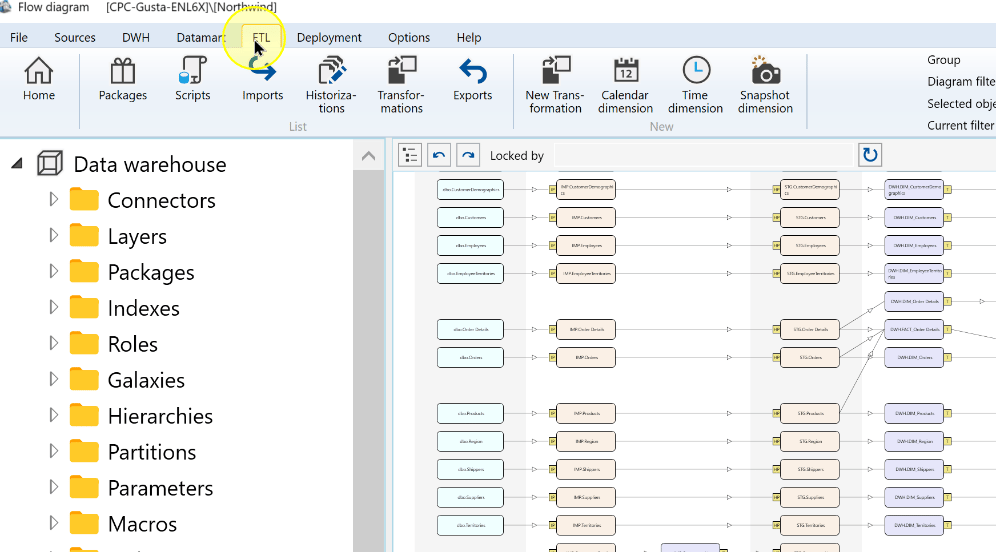
Choose New Transformation.
The New Transformation command on the ETL ribbon. 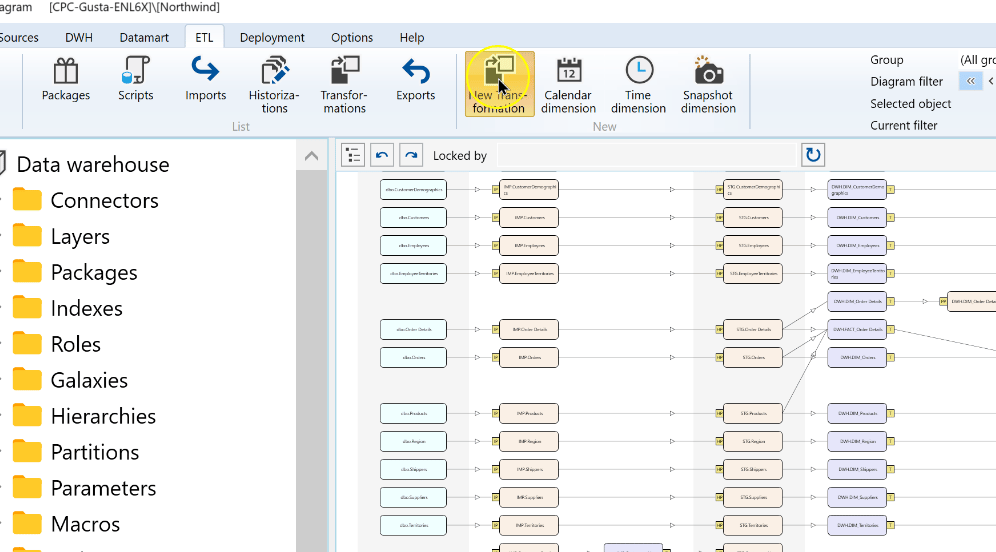
In Transformation Wizard, select Union in Type.
Union selected as the Transformation Wizard type. 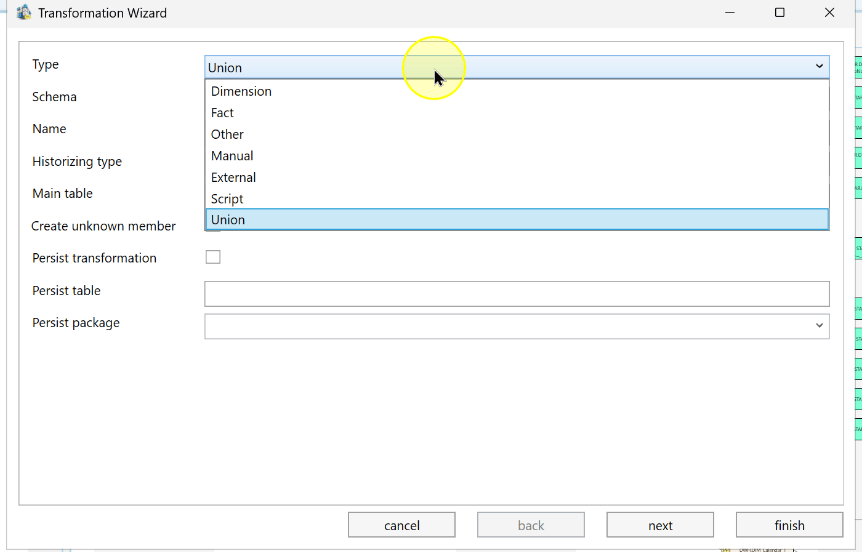
Select the intended Schema.
The schema selector in the Transformation Wizard. 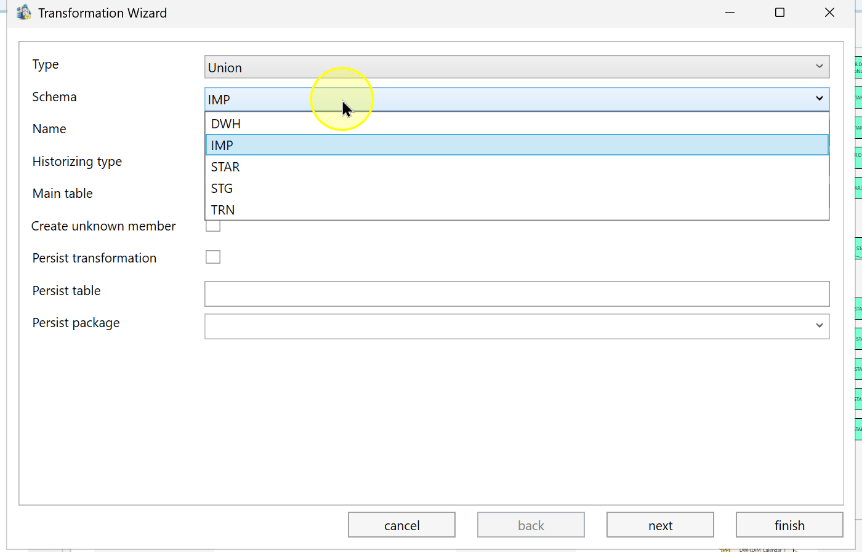
Enter the transformation Name.
The example transformation name Union_Customers. 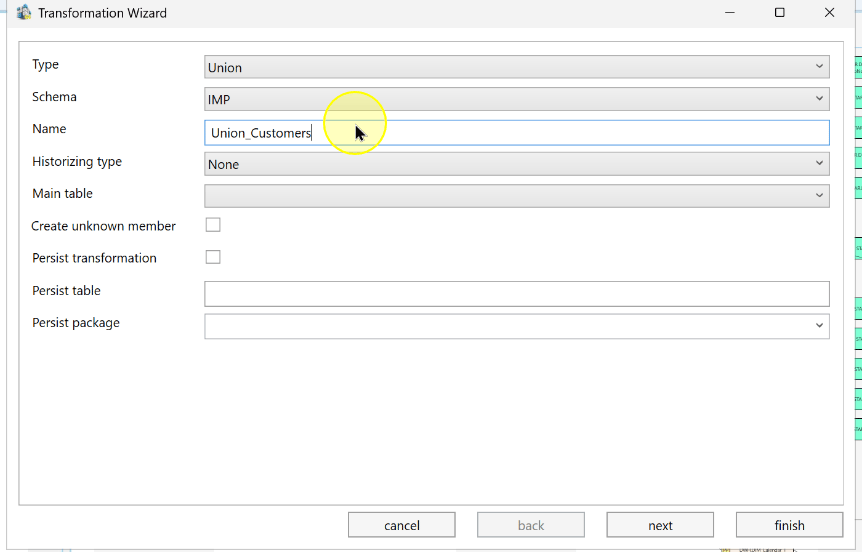
Select the first input in Main table. Confirm input column counts and data types are compatible before combining inputs.
The main-table selector for the union transformation. 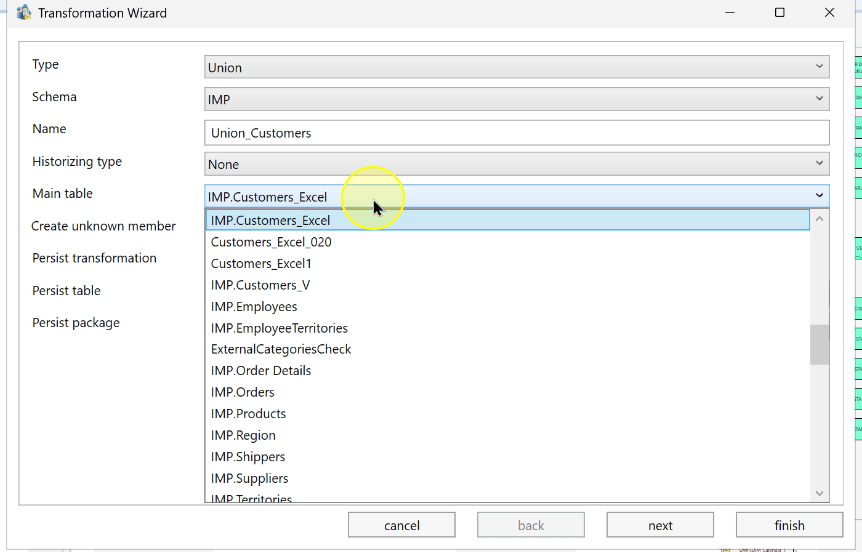
Choose next to open Add dependent tables.
The selected main table before continuing to dependent-table selection. 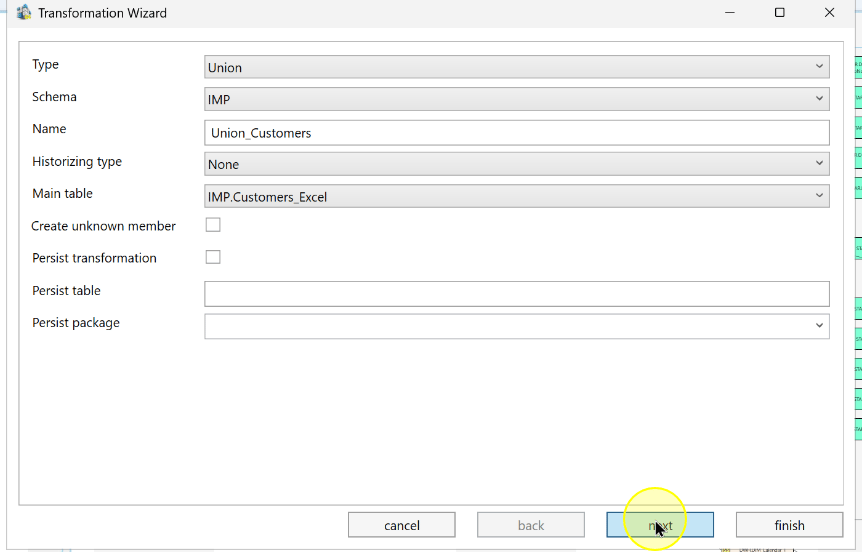
Add inputs and finish
Use the dependent-table selector to choose a compatible input.
The dependent-table selector in the Transformation Wizard. 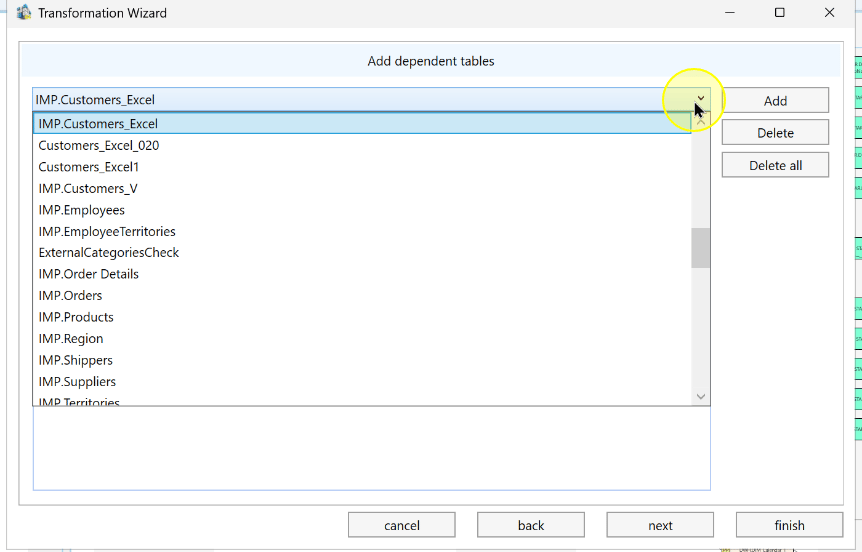
Choose Add to place the selected input in the table list. Repeat the selection and Add action for each additional input, checking the list before continuing.
The Add control beside the selected dependent table. 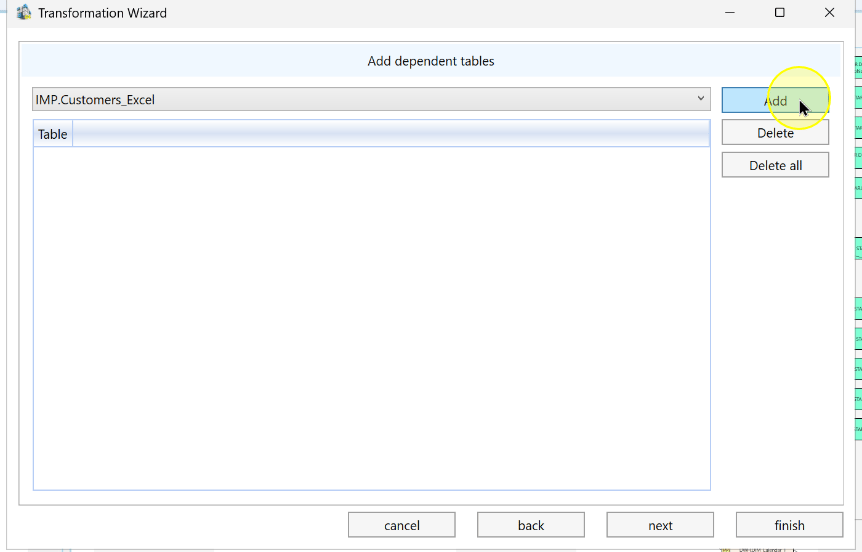
The dependent-table selection area and Add control. 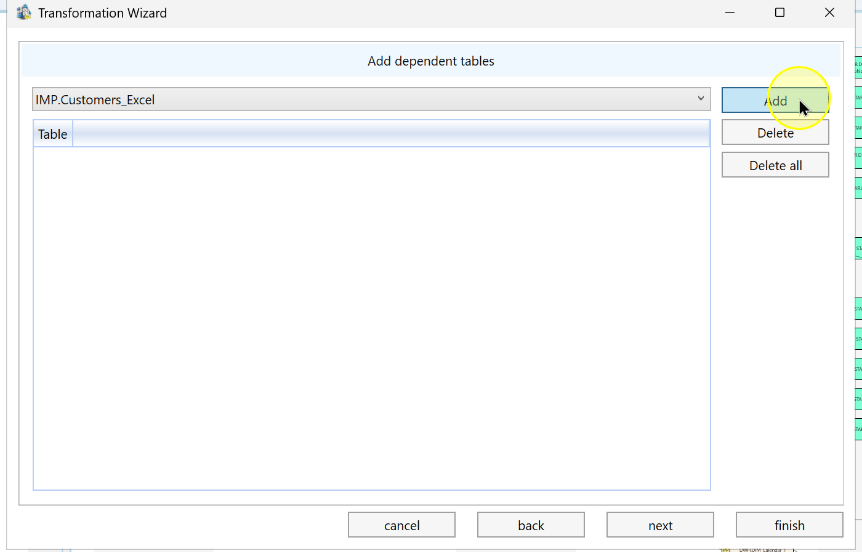
Review the resulting table list for all intended inputs, without adding unintended repeats, then choose next.
Two input tables listed before continuing through the wizard. 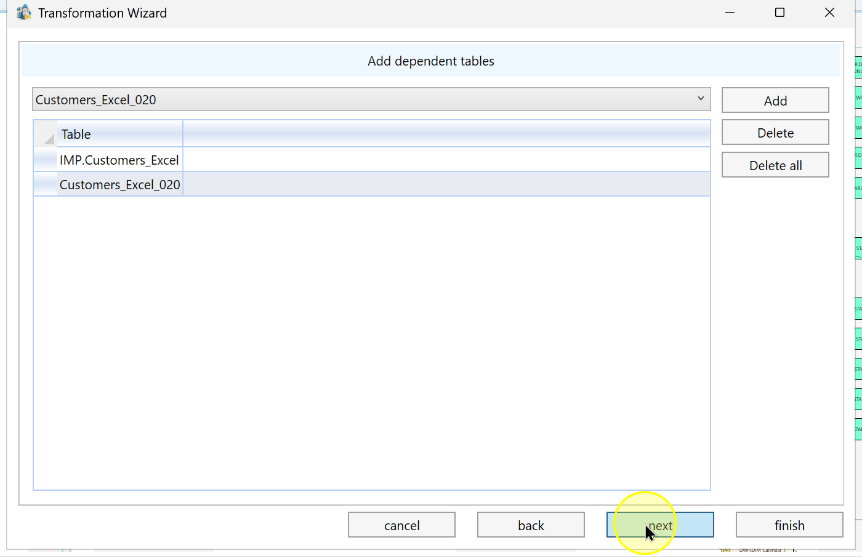
Review and confirm the Stars and Default transformations selections against the configuration intended for this Union, then choose finish.
Open the completed transformation and review its Definition, Tables and Columns. Confirm that each intended input is listed once.
Open VIEW and compare the generated
SELECTbranches joined byUNION:- Each input contributes the same number of columns.
- Corresponding output positions represent the same intended data.
- The data types at corresponding positions are compatible.
Correct incompatible definitions before relying on the generated view. Creating the definition does not establish that downstream processing has run successfully.
The finish control on the final Transformation Wizard page. 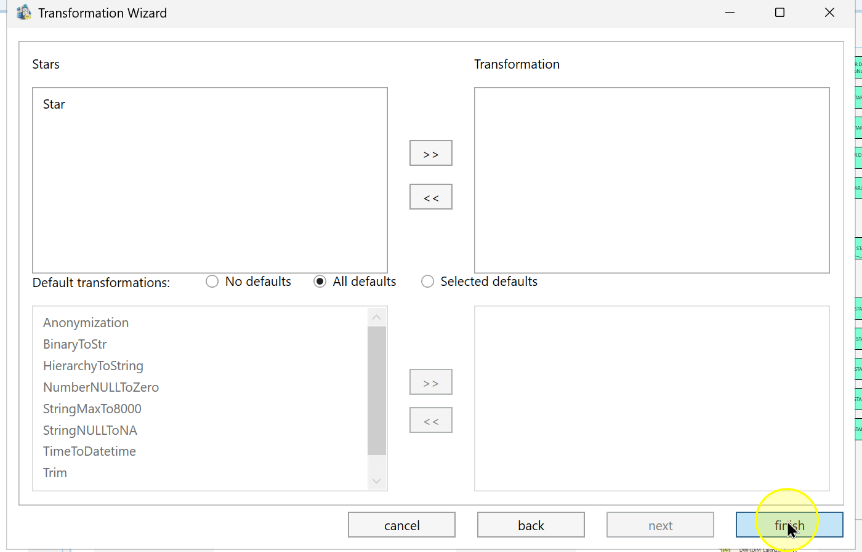
Locate the definition controls for review
Use the overview below to locate Definition, the Columns grid, and the Tables grid when reviewing a transformation. It depicts a regular transformation, so it is a control-location overview rather than the result of this union example.
Transformation editor overview showing Definition, Columns, and Tables; a regular transformation is displayed. 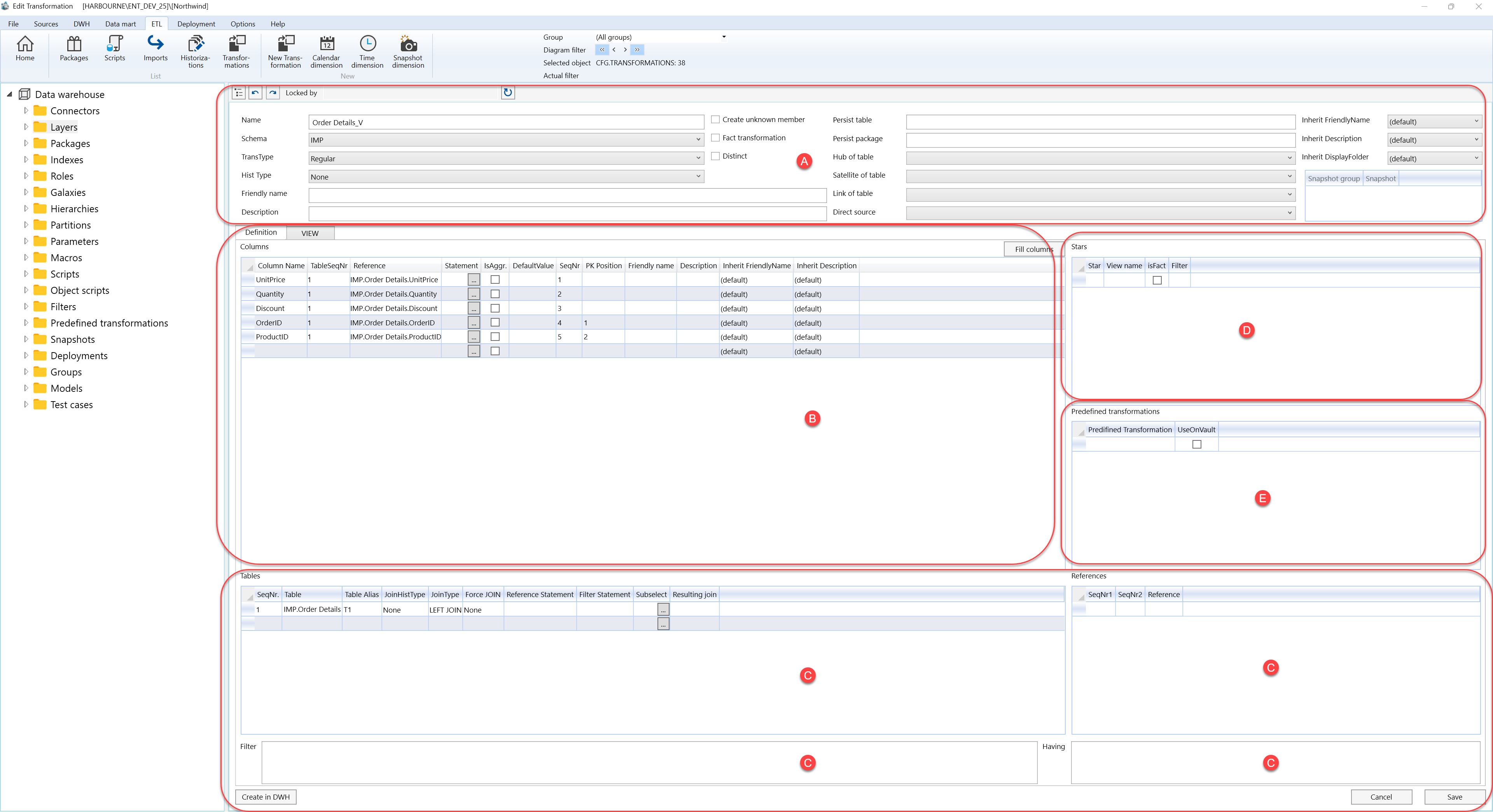
Expected Results
- The Union definition contains the intended inputs without accidental duplicates.
- In the generated VIEW statement, compare each
SELECTbranch for the same column count, meaningful positional alignment and compatible types. Resolve mismatches before using the view.
Decisions and variations
- Use a Union when rows from compatible inputs belong in one transformation. Review inputs by column position as well as by name.
Troubleshooting
- Incompatible inputs: compare column counts, output positions and data types for every input. Correct definitions before relying on the generated view.
- Duplicate input: review the dependent-table list; add each intended input once.
