
Add a source reference
Introduction
Use a source reference to define how two source objects are related before they are imported or transformed. This how-to explains how to select the sources, describe their matching relationship, configure the join and inheritance, and save the definition in your Data Warehouse (DWH) project.
The intended outcome is a saved relationship that you can reopen and compare with your source keys and business requirements.
Applicability
This task applies to existing source metadata under configured Connectors in the AnalyticsCreator desktop interface. It creates a source-reference definition; import execution, deployment, and data loading are separate tasks.
The captures show the Sources ribbon and Source Reference Details page. Their product version is not identified.
Prerequisites
3.1. An open Data Warehouse (DWH) project in which you can create the reference.
3.2. Both source objects and their column metadata already available under the relevant Connectors.
3.3. A known relationship: the source order, matching key columns or expressions, key uniqueness, and intended treatment of unmatched rows.
3.4. The required inheritance behavior. If the relationship needs a custom expression, a validated expression and its source aliases for the AnalyticsCreator version in use.
Steps
Open the Sources ribbon
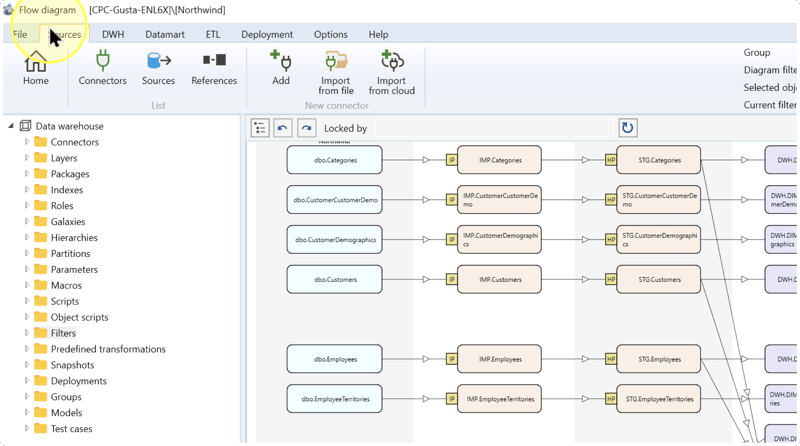
In the intended Data Warehouse (DWH) project, click the Sources tab at the top of the window. The ribbon contains the References button used in the next step.
Open Source references
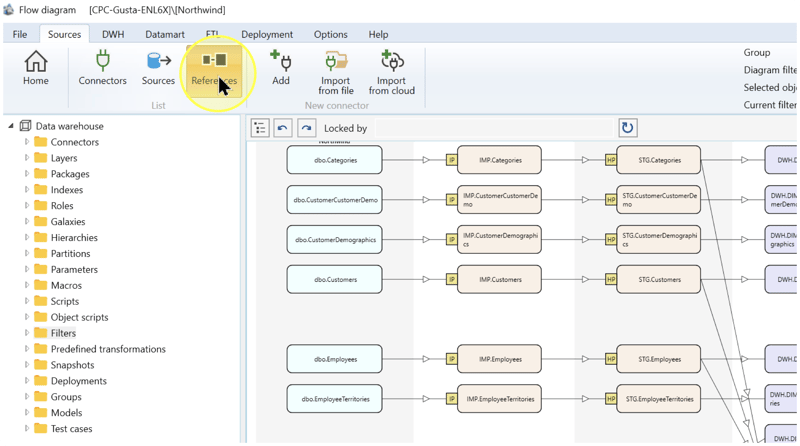
Click References in the List group of the Sources ribbon. This opens Source references, the list of relationships between source objects.
Start a new source reference
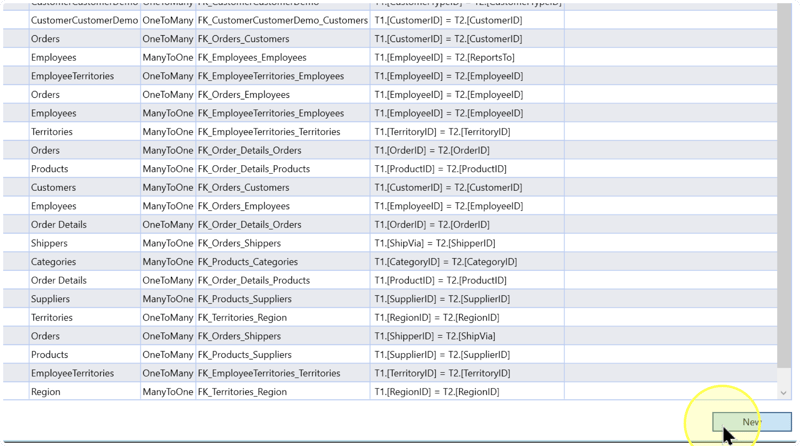
On the Source references list, click New at the bottom of the page. The new definition opens for editing.
Set the relationship cardinality
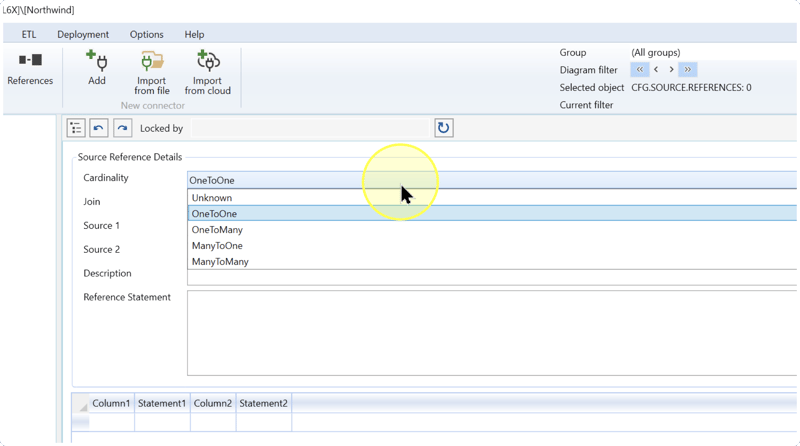
In Source Reference Details, select Cardinality based on the matching keys in the two sources. Cardinality describes how many rows on one side can match a row on the other; selecting a value does not remove duplicate keys.
Source 1 and Source 2 identify the first and second sides of the relationship. Use the order you intend to assign in Select both source objects when choosing the cardinality.
- OneToOne — Each side has at most one matching row under the relationship key. Select it when the key is unique on both sides.
- OneToMany — One row in Source 1 can match multiple rows in Source 2. Select it when Source 1 is the unique side.
- ManyToOne — Multiple rows in Source 1 can match one row in Source 2. Select it when Source 2 is the unique side.
- ManyToMany — Multiple rows on both sides can match. Check that the resulting combinations and any later aggregation are intended; this selection alone does not establish a correct analytical design.
- Unknown — The cardinality is unspecified. This value does not confirm key uniqueness; establish the relationship before relying on it.
Example: if each customer in Source 1 can have several orders in Source 2, and each order belongs to one customer, select OneToMany. If the source order is reversed, select ManyToOne. Confirm this relationship in your data before applying the example.
Select the join behavior
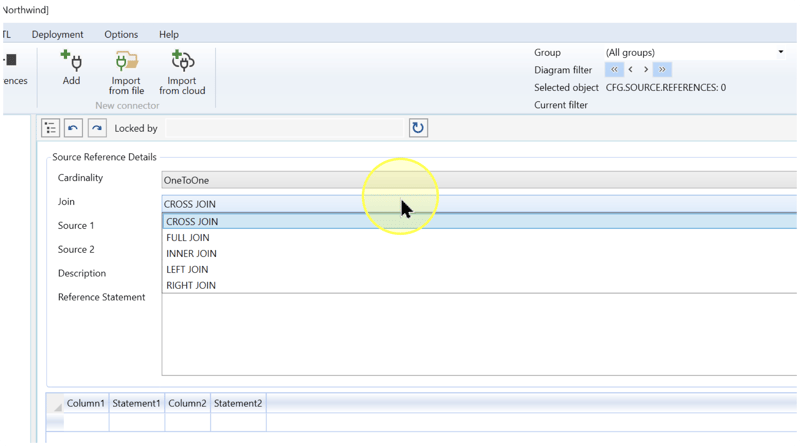
In Join, select how the relationship should handle matching and unmatched rows. A join describes how rows from the two sources are combined; a matching condition identifies which rows belong together.
- INNER JOIN — Retains matching combinations from both sources. Select it when unmatched rows should be excluded.
- LEFT JOIN — Retains Source 1 rows and matching Source 2 data. Select it when Source 1 rows must remain even without a match.
- RIGHT JOIN — Retains Source 2 rows and matching Source 1 data. Select it when Source 2 rows must remain even without a match.
- FULL JOIN — Retains rows from both sources, including unmatched rows. Select it when unmatched rows from either side must remain.
- CROSS JOIN — Combines every row from one source with every row from the other. Select it only for an intended all-combinations relationship; it does not perform a key-based match.
For a relationship that matches keys, choose a join that uses the intended matching condition. Recheck the join if you reverse Source 1 and Source 2 in the next step.
Select both source objects
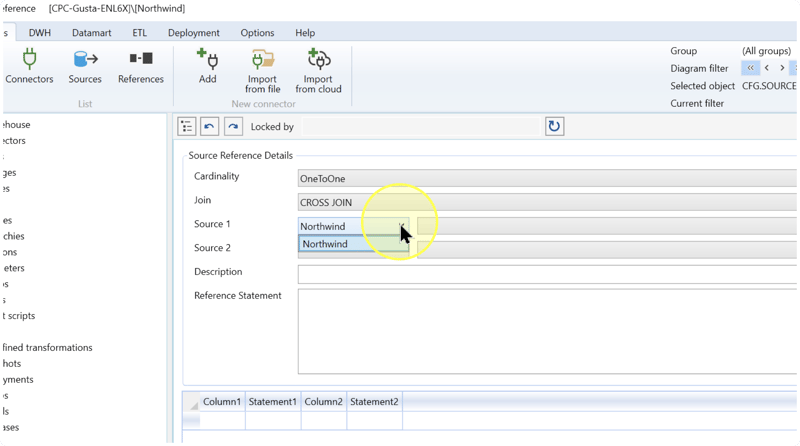
4.6.1. In Source 1, select the Connector in the left-hand list, then select the source object in the adjacent field. A Connector identifies the configured source-system connection.
4.6.2. In Source 2, select its Connector and source object. Check each object's schema and name against the intended relationship; the schema identifies the object's namespace.
4.6.3. Confirm that the source order agrees with Cardinality and Join. If it does not, correct those selections before entering the matching condition.
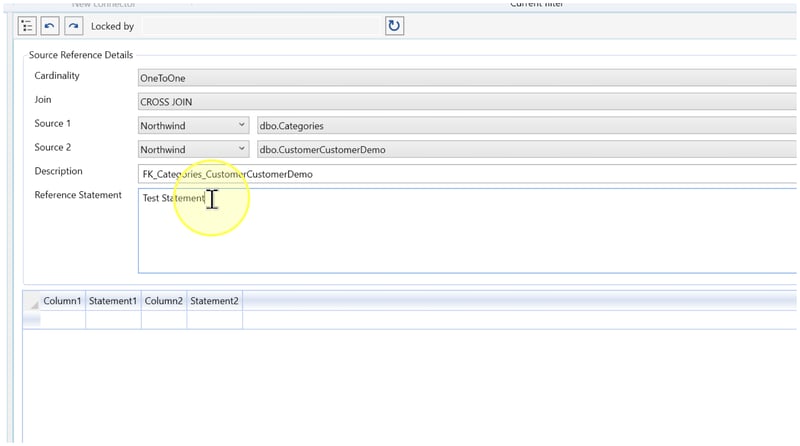
Screenshot example: the captures use the Northwind Connector and later show dbo.Categories and dbo.CustomerCustomerDemo. These names do not establish a valid relationship for your task.
Describe the relationship and configure its expression
Enter a meaningful Description that identifies the relationship. Then determine how to express the matching condition:
- Column mapping — For a relationship fully described by paired source columns, configure the pairs in Map the source columns and review inheritance. Leave Reference Statement blank when the column mapping is the complete definition.
- Reference Statement — For a relationship requiring a custom expression, enter the complete relationship expression prepared for the selected sources. Check every column identifier and source-side reference. The pictured
Test Statementis demonstration text, not a usable matching condition. - Alias — Identifies a source side within an expression. When the expression uses aliases, enter the corresponding Alias values for the two sides and use those exact identifiers in the expression.
For a custom expression, use a configuration validated for your AnalyticsCreator version, including whether it uses column mappings as well. Do not assume that a Reference Statement replaces or supplements the grid automatically.
Map the source columns and review inheritance
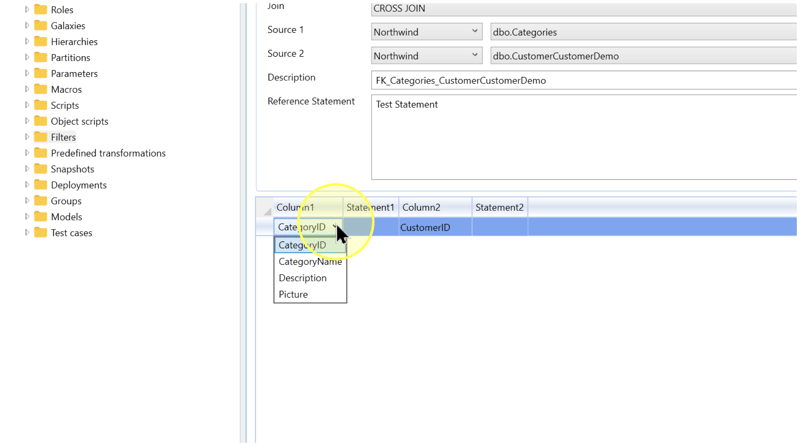
In the grid beneath Source Reference Details, configure the matching pairs required by your relationship:
4.8.1. For a direct column pair, select the Source 1 column in Column1 and the corresponding Source 2 column in Column2 on the same row. Match columns by their business meaning and compatible values, not only by similar names.
4.8.2. For a composite key, include every participating pair in its own grid row. A composite key uses several columns together to identify a match. Review the complete set; a join selection cannot compensate for a missing key pair.
4.8.3. When a side requires an expression, use the corresponding Statement1 or Statement2 cell for that side's validated expression. These cells describe individual sides; Reference Statement describes the relationship expression. For direct column pairs, leave the statement cells blank.
4.8.4. Review Inheritance for the reference. Inheritance controls how reference metadata is carried to dependent objects. When the setting is available, select the behavior required for this relationship:
- Default — Uses the default inheritance behavior. Select it when the relationship should follow the project's configured behavior.
- Not inherit — Blocks inheritance for the reference. Select it when this relationship should not be inherited.
- Force inherit — Forces inheritance for the reference. Select it when the design calls for an explicit inheritance override.
If the current inheritance selection already matches the required behavior, leave it unchanged. The project parameter References Inheritance sets the general inheritance option; creating this reference does not require changing that project parameter.
Review and save the source reference
Compare both source objects, Cardinality, Join, Description, and the complete matching condition with your intended relationship. Check aliases and inheritance wherever used. Remove demonstration text and correct incomplete mappings before saving.
Click Save at the bottom of the page. Then verify the saved definition using Expected Results.
Expected Results
The source reference is saved and can be found again in the project. Verify the definition before using it in subsequent processing:
5.1. Return to Sources → References, locate the relationship by its sources and description, and reopen it.
5.2. Compare the saved sources, cardinality, join, and complete matching condition with your design. Check that each column belongs to the intended source and that any aliases and inheritance selections are correct.
5.3. Check key uniqueness and representative matching and unmatched source rows against the intended relationship before relying on it in a Transformation. A Transformation applies processing logic to input objects to produce a reusable result.
Saving confirms the stored definition. It does not demonstrate that a join has executed, dependent objects have been generated, or business data has been loaded.
Decisions and variations
6.1 Source order. Reversing the sources changes the meaning of OneToMany, ManyToOne, LEFT JOIN, and RIGHT JOIN. Recheck Set the relationship cardinality and Select the join behavior after any change to the source order.
6.2 Matching condition. Use direct column pairs when they fully express the relationship. Include all pairs for a composite key. When an expression is required, follow Describe the relationship and configure its expression and the side-specific guidance in Map the source columns and review inheritance.
6.3 Inheritance. Use the choices in Map the source columns and review inheritance to follow, block, or force inheritance. After later changes to an existing relationship, review dependent Transformations before accepting their behavior; do not assume that they automatically use a revised relationship.
Troubleshooting
- Required object is missing — Check the Data Warehouse (DWH) project and the Connector selected for that source. Confirm that the required object's metadata is available and identify it by its schema and name.
- Save is unavailable or fails — Read any validation message and correct the fields it identifies. Check that the source selections and matching condition are complete. If Locked by identifies another user, coordinate with that user before continuing the edit.
- Saved definition differs from the intended result — Reopen the reference as described in Expected Results and compare the source order, join, cardinality, and matching condition. Correct the definition and save it again. Verify later generated objects and runtime behavior separately.
