
Introduction
Version AnalyticsCreator project files in Git so that you can review changes, record a revision and exchange it with collaborators. Save the project as a folder, commit the intended files, then synchronize or load that folder when required.
Applicability
Use Save project and Load project for the project-folder workflow. Run Git commands outside AnalyticsCreator. The separate Save to file and Load from file commands are backup-file workflows.
Prerequisites
- Git installed and configured, and a known repository folder for the project files. Use the existing working tree when the project is already versioned.
- For synchronization, the intended remote and branch tracking configured outside AnalyticsCreator, with access to that remote.
- The intended AnalyticsCreator project available to save, or an identified project folder to load. Know which credentials, secrets and unrelated local settings must be excluded from Git.
Steps
Save and inspect the project files
Choose File → Save project. In Save AC project to folder, select the project folder inside the intended Git working tree and click Select Folder. This exports the project configuration as files that Git can track. Use Save project for this folder workflow; Save to file is a separate backup command.
The Save project command on the File ribbon. 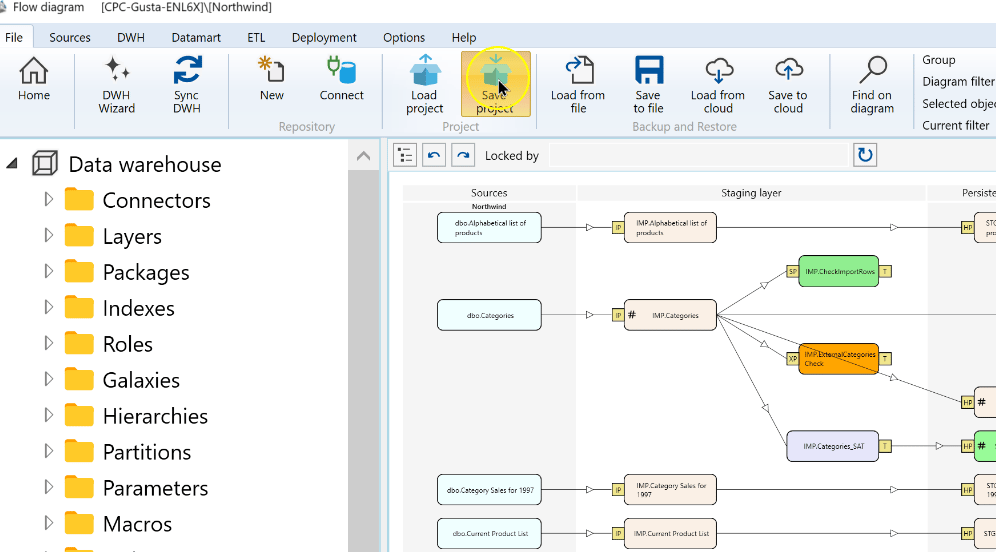
In File Explorer, locate the exported project folder and inspect its files. Confirm that the working tree contains the project changes you intend to version.
The exported project folder in Windows File Explorer. 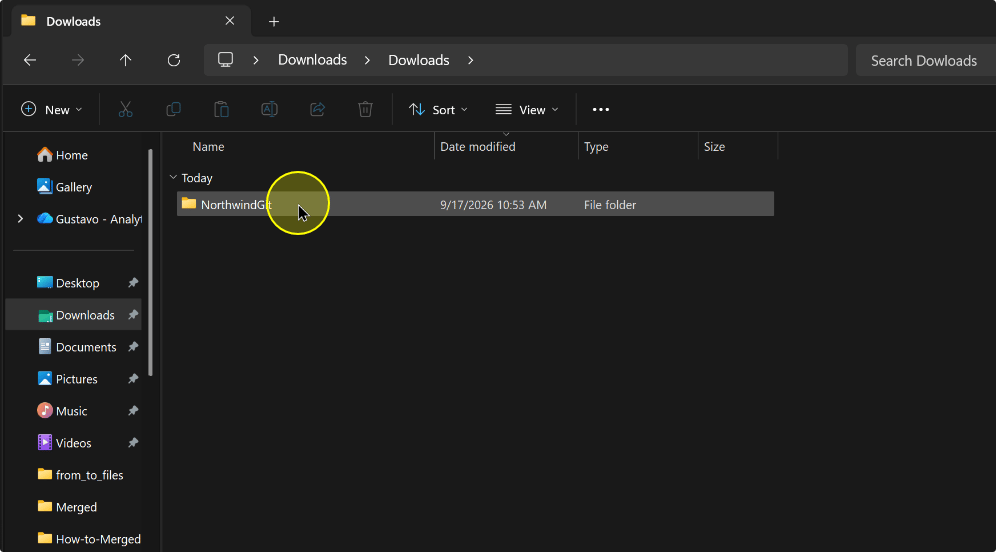
Open a terminal at the intended working-tree folder using Open in Terminal. Verify its current directory before running commands. Use your repository location; the Downloads location shown is an example.
Open in Terminal in the File Explorer context menu. 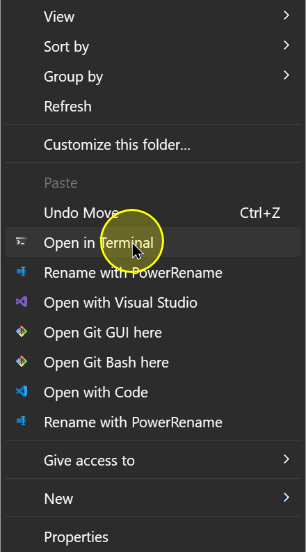
Create a local commit
For a new repository only, run the following command from the intended repository folder. Skip this step for an existing repository.
git initThe git init command entered in PowerShell. 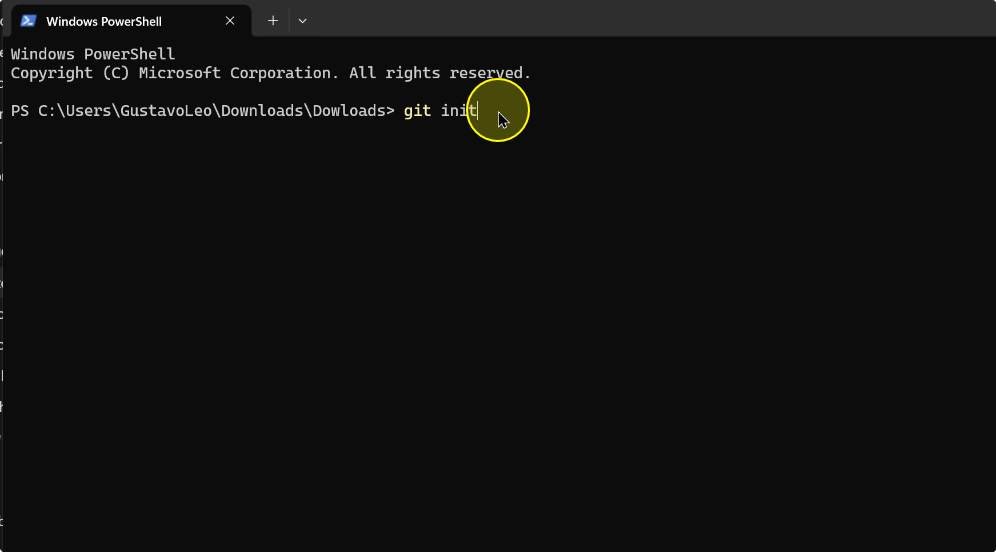
Review the files and stage the intended project changes with
git add. The following command stages the changes under the current folder; use it only after confirming that every included file belongs in the commit. Exclude credentials, secrets and unrelated files.git add .The initialized Git repository with git add entered at the prompt. 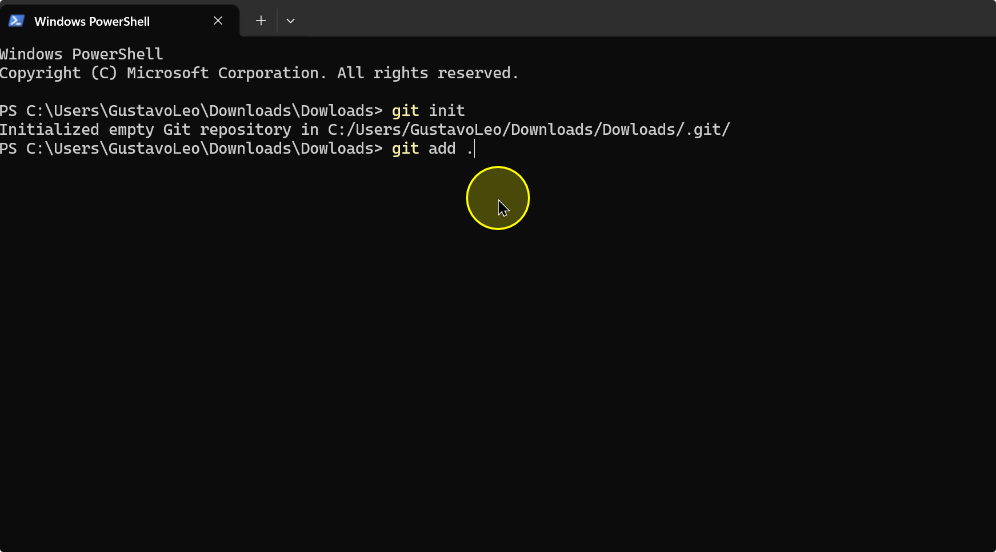
Review the staged diff, then create the commit. Use a message that describes your changes; the example command is:
git commit -m "Initial AnalyticsCreator project export"Confirm that the commit succeeds before continuing.
The git commit command entered after staging the project files. 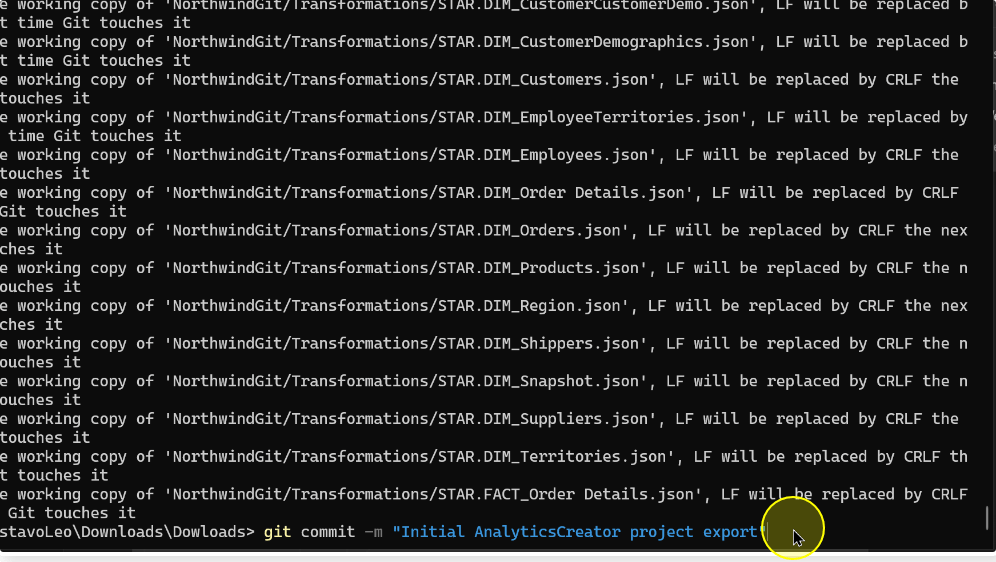
Synchronize the reviewed project
Pull the intended remote changes into the working tree. Resolve any reported conflicts outside AnalyticsCreator before continuing; check the result of the Git operation.
Push the reviewed commit to the configured remote and confirm that the operation succeeds.
Load the synchronized project folder
To reuse the project, pull the repository and resolve any conflicts. Preserve current AnalyticsCreator work in a separate saved folder before loading another copy. Choose File → Load project. In Select AC project folder, select the project folder created by Save project inside the synchronized working tree, then choose Select Folder.
Expected: After loading, the window title identifies the intended project. Locate representative objects in the navigation tree and open their definitions to confirm the expected names and settings.
Expected Results
- The intended project files are included in a successful local commit. Review that commit's changes and message.
- After synchronization, confirm the intended Git operation completed without unresolved conflicts.
- After loading, the AnalyticsCreator window title identifies the intended project. Locate representative objects and compare their names and settings with the saved configuration.
Decisions and variations
- New or existing repository: run
git initonly for a new repository. An existing working tree already has its Git history. - Commit scope: review changes before commit and push. Exclude credentials, encrypted-string plaintext, generated secrets and unrelated local settings.
- Load without a new export: use an existing synchronized project folder when that is the copy required. Preserve current AnalyticsCreator work separately before loading it.
Troubleshooting
- The terminal is in the wrong folder: identify the intended working tree and open the terminal there before running Git commands.
- Git reports conflicts or a failed commit/push: resolve the reported issue outside AnalyticsCreator and confirm the operation succeeds before treating the project as synchronized.
- The loaded project is unexpected: compare the selected folder and window title. Choose the folder created by Save project, not its parent or an individual exported file.
