
Introduction
Load connector metadata into source definitions, then use those saved definitions in DWH Wizard. Check for existing Sources first so that the creation branch is used only for missing definitions. This procedure ends with the intended Sources selected and classified in the wizard.
Applicability
Use this procedure when the Meta-Connector workflow needs existing connector metadata loaded into AnalyticsCreator as source definitions and then made available to a downstream workflow such as the DWH Wizard.
Prerequisites
- Configure the connector that can return the required metadata.
- Confirm that you can identify the required schema, table, or supported query.
- Confirm that you have permission to create and use source definitions.
- Decide whether the metadata will be read directly from the connector or selected from source definitions that already exist.
Steps
Check the existing source definitions
Expand Connectors.
Connectors expanded in the navigation tree. 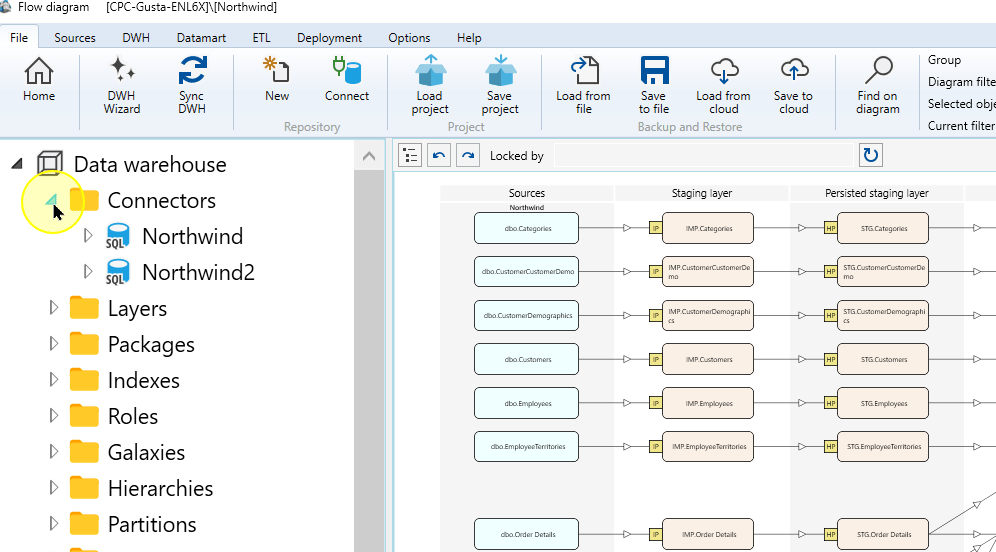
Expand the connector whose metadata you want to use.
Northwind expanded to show its Sources folder. 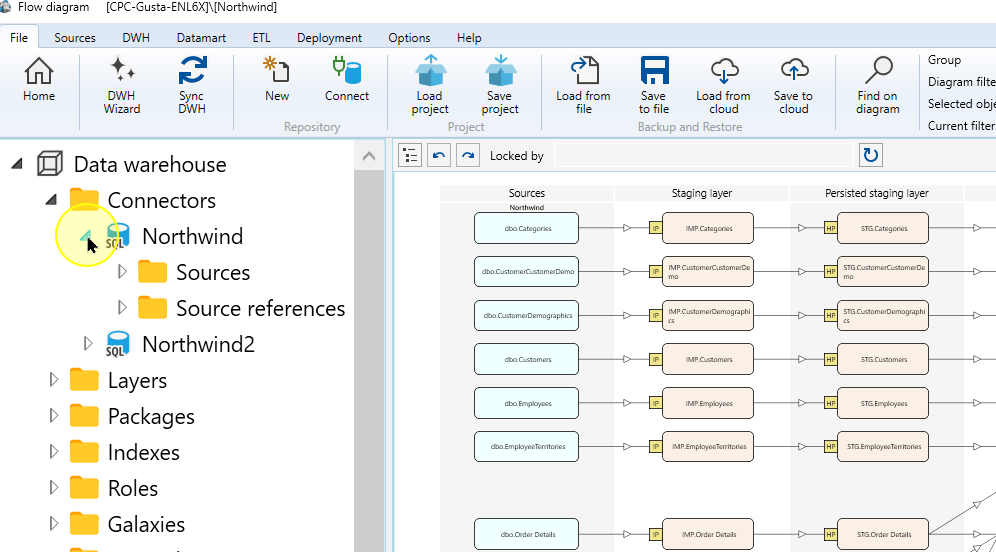
Expand Sources and check whether the required definitions exist. If they already exist, continue with “Use the definitions in DWH Wizard” below.
Existing source definitions beneath Northwind Sources. 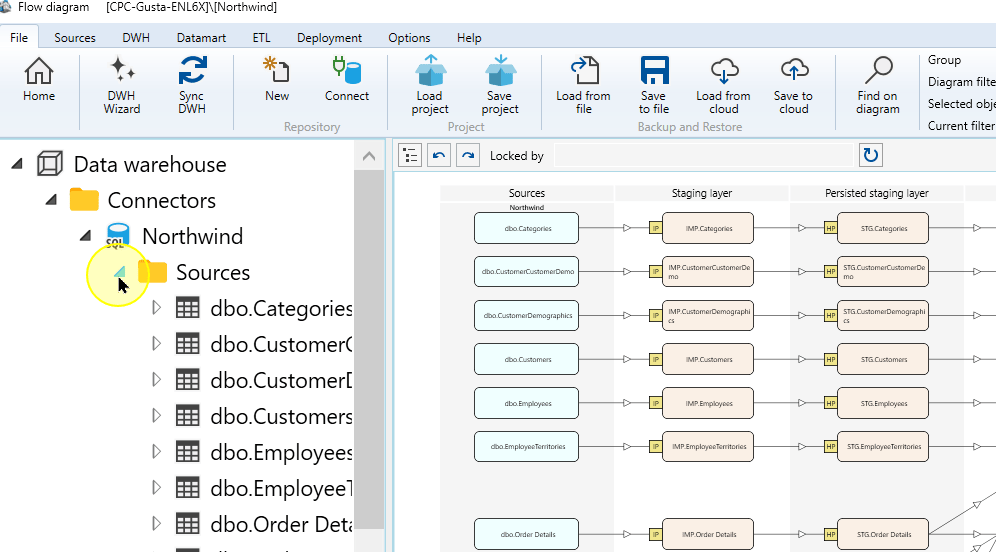
If required: create missing definitions
From the connector’s Sources context menu, choose Read source from connector.
When creating missing definitions, confirm the correct Connector in Source Wizard.
Select Table, or select Query when the connector exposes that choice and the Meta-Connector workflow requires a query.
For Query, enter Query schema, Query name, and query text supported by the connector. Choose Test query, review the response, and correct any reported errors. Then continue to Finish below. For Table, continue with the filters and source-object list.
For table metadata, use Filter schema and Filter table when the available objects must be limited.
Choose Apply to refresh the source-object list.
Expected: The list refreshes and displays the objects that match the current connector and filter settings.
For Table, select the required source objects. Choose Finish to store the selected table definitions or the configured query source.
Expected: The created source definitions appear under the connector’s Sources area.
Use the definitions in DWH Wizard
Open the connector’s context menu.
Northwind as the entry point for the DWH Wizard. 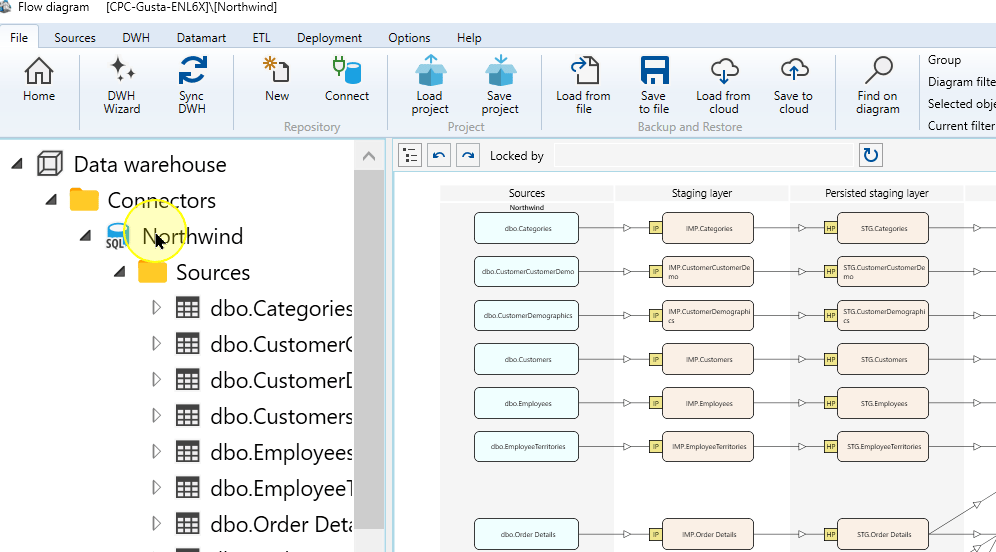
Choose DWH Wizard.
DWH Wizard in the connector context menu. 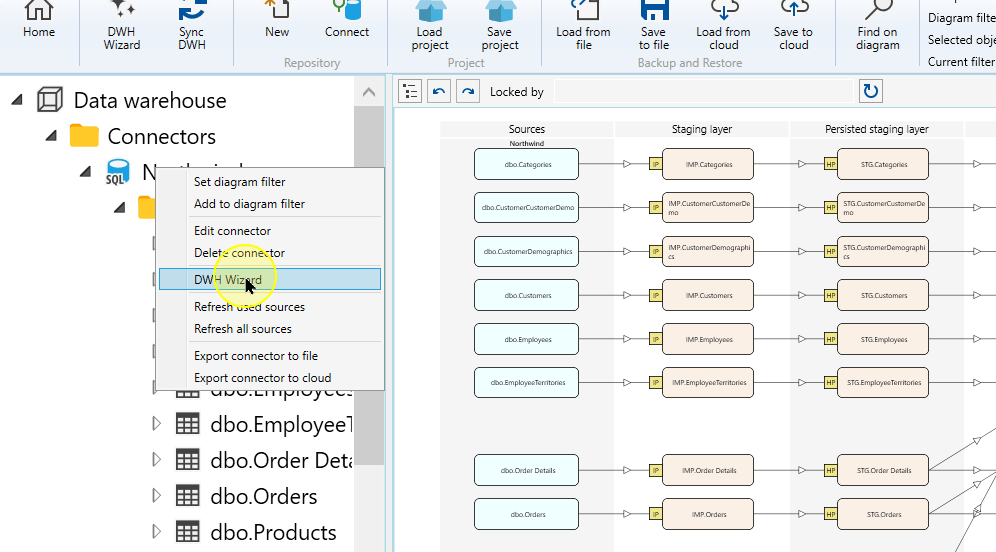
Select Use metadata of existing sources.
Setting Explanation Read metadata from connector Reads the definitions from the external source through the selected Connector. Use metadata of existing sources Uses Source definitions already stored for that Connector. Use this route when working from those saved definitions. Use metadata of existing sources in the DWH Wizard. 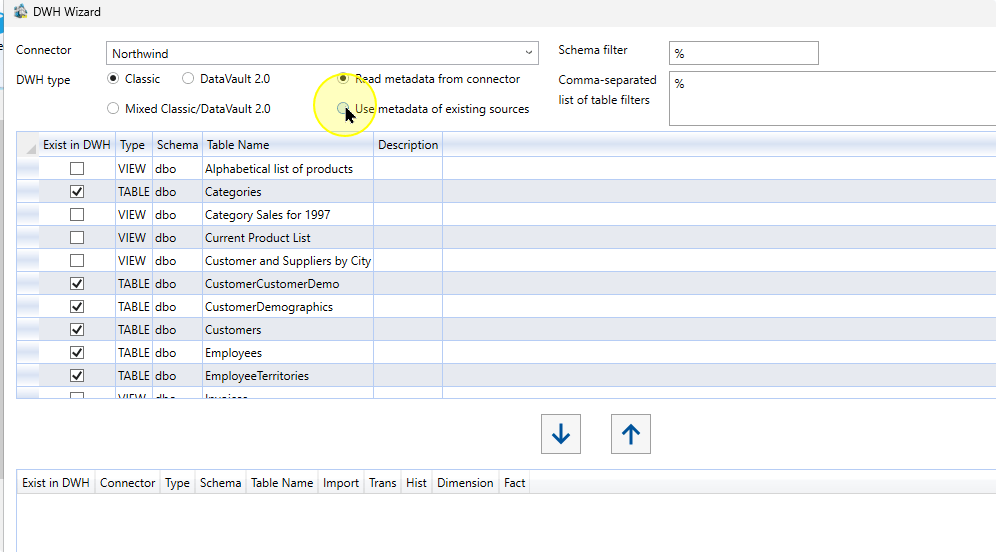
Set the required schema and table filters, then choose Apply to refresh the list.
Apply the metadata filters in the DWH Wizard. 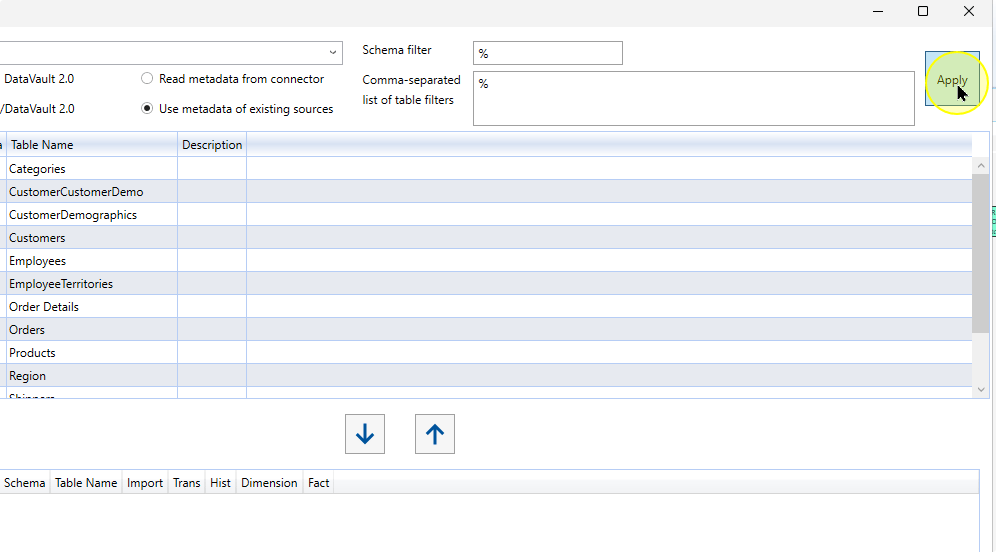
Select the rows required for the intended workflow.
Compare the Connector, Type, Schema and Table Name of the selected rows with the Sources you intend to use.
Source rows selected for object configuration. 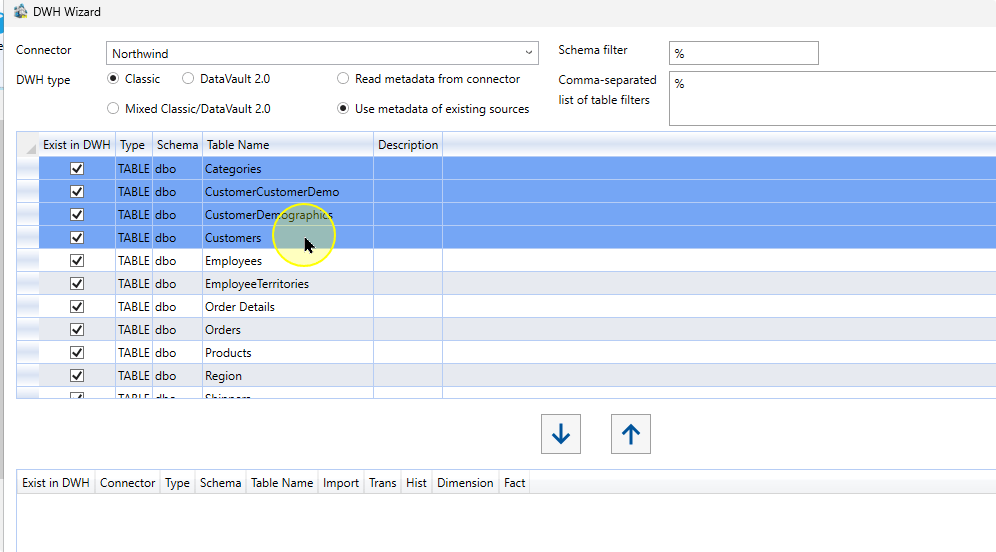
Choose the down arrow to move the selected rows into the lower configuration list.
Move the selected source rows into the configuration list. 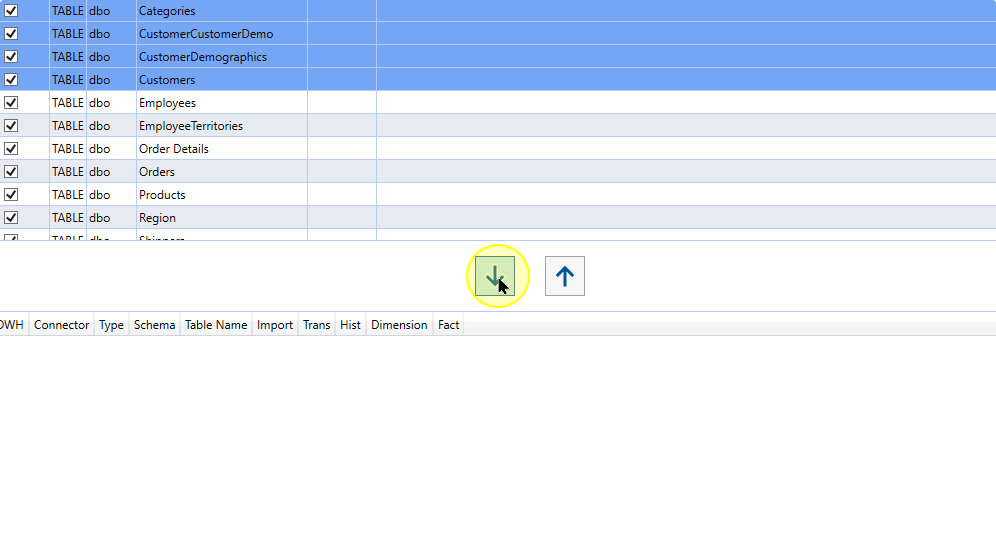
In the lower list, review each Source and select the classifications required for the intended workflow. These choices request different definitions; they do not run those definitions.
Setting Explanation Import Requests the import definition for the Source. Trans Creates a Transformation after Import. Hist Requests Historization for the Source. Dimension Creates a Dimension for descriptive analytical data. Fact Creates a Fact Transformation. Expected: Each selected object displays the classification choices you selected for it.
Expected Results
- The intended Source definitions exist under the selected Connector.
- DWH Wizard’s lower configuration list contains the intended Sources with the selected classifications. Compare Connector, schema and name with the original selection.
- This prepares metadata selection; it does not execute an import, transformation or historization package.
Decisions and variations
- The source-creation interface and availability of Table/Query depend on the Connector type. Some connectors open Define source instead of Source Wizard.
- Use existing Source definitions when they already describe the required inputs; create missing definitions with Read source from connector.
Troubleshooting
- Metadata absent: check that its Source definition exists under the selected Connector and that filters include it. Create missing definitions before choosing Use metadata of existing sources again.
- Wrong rows below: compare Connector, schema and name with the intended selection before continuing.
