
Call a Macro from another Macro
Introduction
Use a nested Macro call to reuse a saved calculation inside another Macro. The Macro you edit is the outer Macro; the saved Macro it calls is the inner Macro. The call supplies arguments that replace the inner Macro's positional placeholders, so you can reuse its expression without copying it.
This how-to takes you through opening the outer Macro, inserting a complete call, saving the definition, and reopening it to check the saved statement.
Applicability
Use this workflow in the AnalyticsCreator desktop interface when two existing Macros use compatible expression syntax and the inner calculation belongs within the outer statement. The arithmetic example uses T-SQL and numeric inputs. Choose the Macros required by your own Data Warehouse (DWH) project.
Prerequisites
3.1. An open Data Warehouse (DWH) project that you can edit.
3.2. An existing inner Macro with a known saved name, language, statement, and required inputs, including their order and compatible data types.
3.3. An existing outer Macro whose calculation you intend to change, with inputs and an expression language compatible with the inner Macro. If either definition still needs to be created, first follow Create a reusable Macro.
Arithmetic example: to follow the example in Insert a complete nested expression, the inner Macro must be named AddPair, use T-SQL, and contain :1 + :2. The outer Macro must also use T-SQL and be intended to add three numeric inputs.
Steps
Open the DWH ribbon
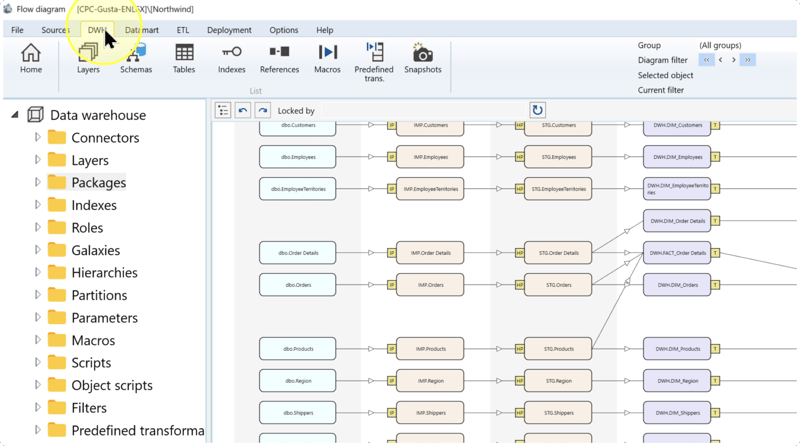
Click DWH on the toolbar to open the Data Warehouse (DWH) ribbon.
Open the Macros list
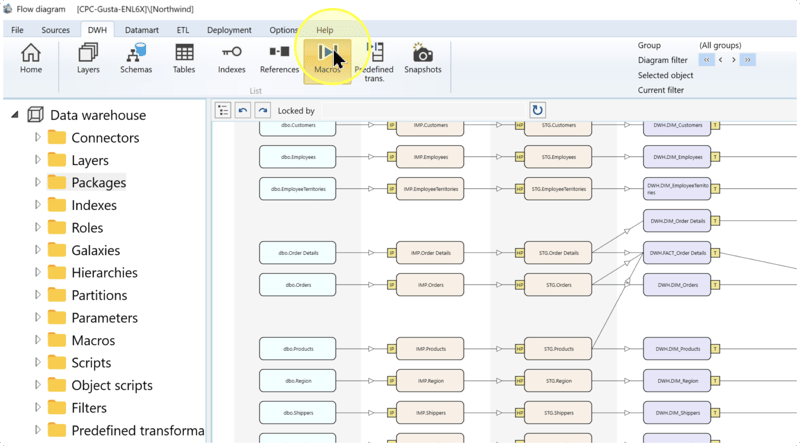
Click Macros on the DWH ribbon. The Macros list opens.
Find and open the outer Macro
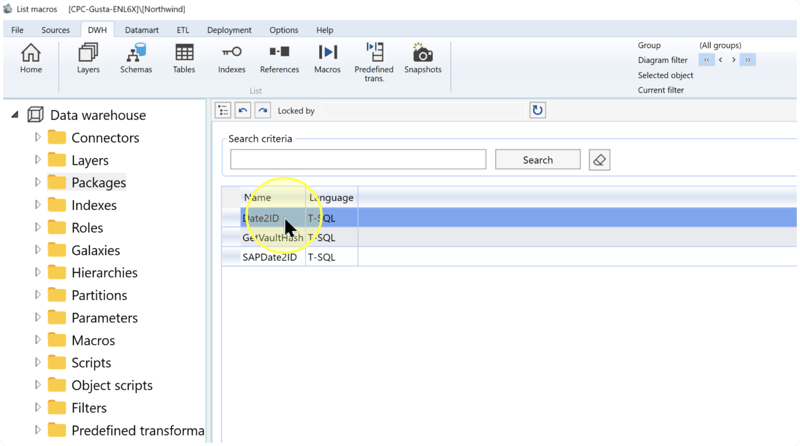
In the Macros list, identify the outer Macro by its Name and Language columns, then double-click its row. If you need to narrow the list, enter its name in Search criteria and click Search.
Open the Macro whose statement should reuse the inner calculation.
Insert a complete nested expression
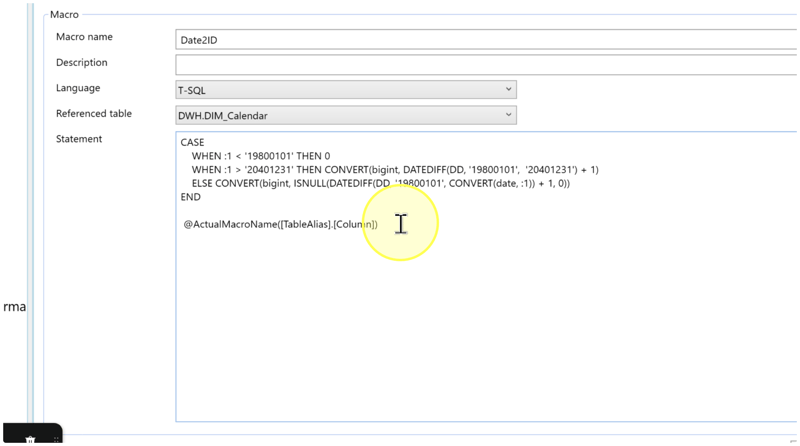
In the Macro editor, confirm that Macro name identifies the intended outer Macro. Check Language, the expression language of its definition, against the inner Macro and the expression that will use it. For the arithmetic example, both Macros use T-SQL. Keep the existing Referenced table selection, which identifies the table used as a reference for this definition.
In Statement, the field containing the outer Macro's reusable expression, enter the inner call at the point where its calculation is needed. Use @MacroName(argument1, argument2), replacing MacroName with the saved inner Macro's name and supplying its required arguments in order. Keep a complete expression around the call. If other expressions already call the outer Macro, preserve the input order and types they rely on.
- Macro call — The
@sign introduces a call to a saved Macro. Separate several arguments with commas inside the parentheses.MacroName,argument1, andargument2illustrate the syntax; replace them with your actual name and input expressions. - Positional placeholders —
:1represents the first argument supplied to a Macro,:2the second, and:3the third. In an outer statement, these placeholders refer to the outer Macro's inputs. Pass them to the inner call in the order required by the inner definition. - Missing arguments — A positional placeholder without a supplied argument is replaced by
NULL. Supply every input needed for the calculation; an omitted argument does not become zero.
Arithmetic example: when the existing inner Macro AddPair contains :1 + :2, enter this complete statement in an outer Macro intended to add three numeric inputs:
@AddPair(:1, :2) + :3The inner call adds the outer Macro's first and second inputs. The outer expression then adds its third input. For an outer Macro named AddThree, the example call @AddThree(2, 3, 4) expands to 2 + 3 + 4, whose arithmetic result is 9.
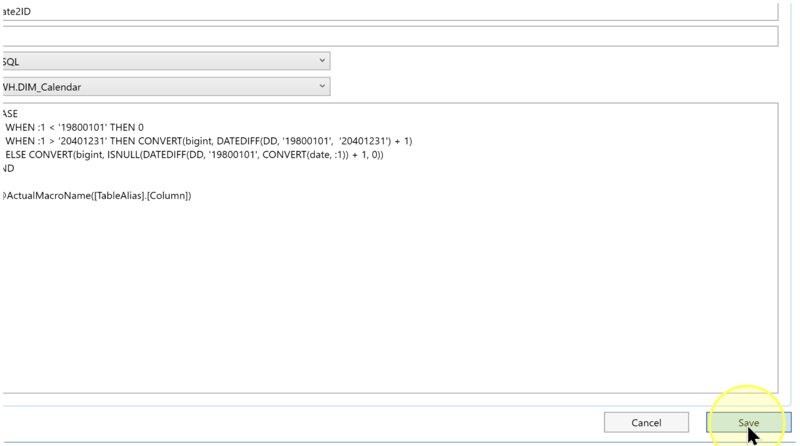
Screenshot difference: the capture shows @ActualMacroName([TableAlias].[Column]) on a separate line after an existing CASE expression. This illustrates the call text and editing location, not a complete statement to copy. Use a real Macro name and valid arguments, and integrate the call into your intended expression. The text example above shows a complete nested expression.
Review and save the outer Macro
Review the definition before saving:
4.5.1. Confirm that the name after @ matches the saved inner Macro and that both statements use compatible expression syntax.
4.5.2. Compare each argument's position and data type with the corresponding placeholder in the inner statement. Check that the outer statement still uses the inputs required for its intended calculation.
4.5.3. Check that the nested call forms part of a complete expression, with the required commas, parentheses, and operators. Remove illustrative call text that does not belong to the calculation.
Click Save. If a save error is reported, correct the reported problem and save again before checking the definition.
Reopen and check the saved definition
Click DWH, then Macros, and double-click the same outer Macro in the list. Confirm its Macro name, Language, Referenced table, and complete Statement. Check that the saved nested call contains the intended inner Macro name and arguments.
If you need to recheck the inner definition, expand Macros in the navigation tree, right-click the inner Macro, and click Edit macro. Compare its placeholders with the saved outer call. If the outer call needs correction, reopen the outer Macro, correct its Statement, click Save, and repeat the check.
Use Expected Results to confirm the saved outcome. Saving the definition does not execute the calculation. To use the Macro in a Transformation statement, continue with Create a Macro and use it in a Transformation statement.
Expected Results
5.1 Saved outer definition. Reopening the intended outer Macro shows the complete nested expression and the intended language and reference-table selection.
5.2 Matching inner call. The name after @ identifies the existing inner Macro, and each supplied argument matches the position and input type required by its statement.
5.3 Example calculation. For an inner AddPair statement of :1 + :2 and an outer statement of @AddPair(:1, :2) + :3, inputs 2, 3, and 4 give the arithmetic result 9. This is the expected calculation when the expression is used; saving alone verifies neither execution nor database output.
Decisions and variations
6.1 Pass inputs in the required order. The inner and outer placeholder positions need not be identical. For example, @InnerMacro(:2, :1) passes the outer Macro's second input into the inner Macro's first position, and its first input into the second position. Use this order only when it matches the inner calculation, as explained in Insert a complete nested expression.
6.2 Use the expression language required by the calculation. The numeric example uses T-SQL. For another calculation, use inner and outer statements that are valid in the language of the expression that will use them, as checked in Insert a complete nested expression.
6.3 Reuse an existing definition. Call the saved inner Macro when its existing calculation is the one you need. Changing a shared inner statement can change the expressions that call it. This workflow covers calling a separate existing Macro.
Troubleshooting
- Object not found — Confirm the current Data Warehouse (DWH) project and the saved Macro name. In the Macros list, correct an unintended value in Search criteria and click Search. Compare the inner name with the name after
@in the outer statement, then correct the call if they differ. - Configuration differs after reopening — Confirm that you reopened the same outer Macro. Review its Statement and any save error, reapply the intended correction, and click Save. Repeat Reopen and check the saved definition; a closed editor alone does not confirm the saved definition.
- Runtime result differs — Compare the inputs supplied to the outer Macro with the arguments it passes to the inner Macro. Check their order, compatible types, missing arguments that become
NULL, and the complete expression around the nested call. Correct the definition or call, save it, and repeat the calculation check in the expression that uses the Macro. The workflow in Create a Macro and use it in a Transformation statement covers using a Macro in a Transformation statement.
