
Configure and save a deployment package definition
Introduction
Terms used in this guide: SQL Server Integration Services (SSIS). Schema names and code identifiers that contain these letters retain their project-specific names.
A deployment definition records the database, package, model, and output settings for a deployment workflow. Use this page to create a named definition, choose its output directory, and review its options in the AnalyticsCreator Deployment editor.
Completed state: a saved deployment definition with settings matching the intended target. This procedure ends at Save; generating files and executing a deployment are separate actions.
Applicability
Use this workflow when the target architecture and deployment options have already been decided. It covers creation and review of the saved configuration. It does not establish a full deployment execution sequence or all technology-specific option meanings.
These steps use the AnalyticsCreator desktop interface. If your controls differ, confirm the workflow for your installed version before proceeding.
Prerequisites
- An editable Data Warehouse project and a meaningful new deployment name.
- The intended output directory and permission to use it.
- A reviewed deployment plan specifying database targets, object groups, required packages/model types, compatibility, authentication, variables, and permitted target changes.
Steps
Open the Deployment ribbon
Click Deployment on the toolbar.
Open the Deployment ribbon. 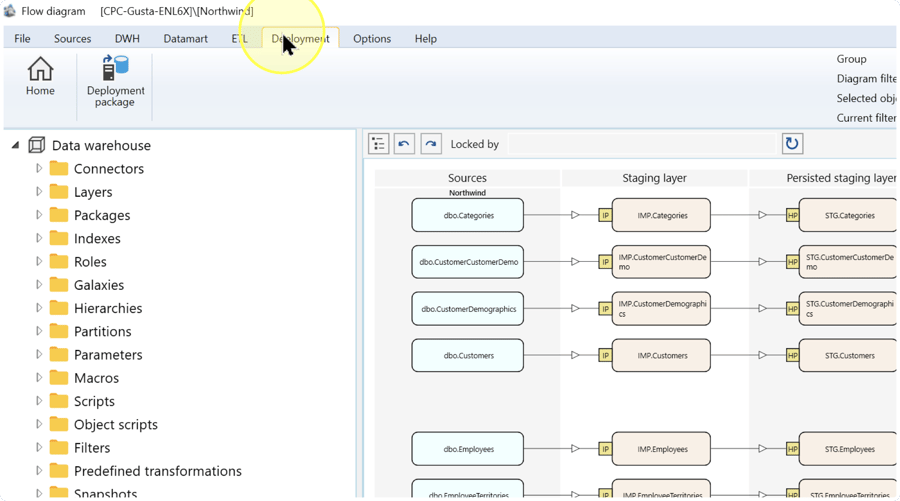
Open deployment definitions
Click Deployment package. The deployments list opens.
Open deployment definitions. 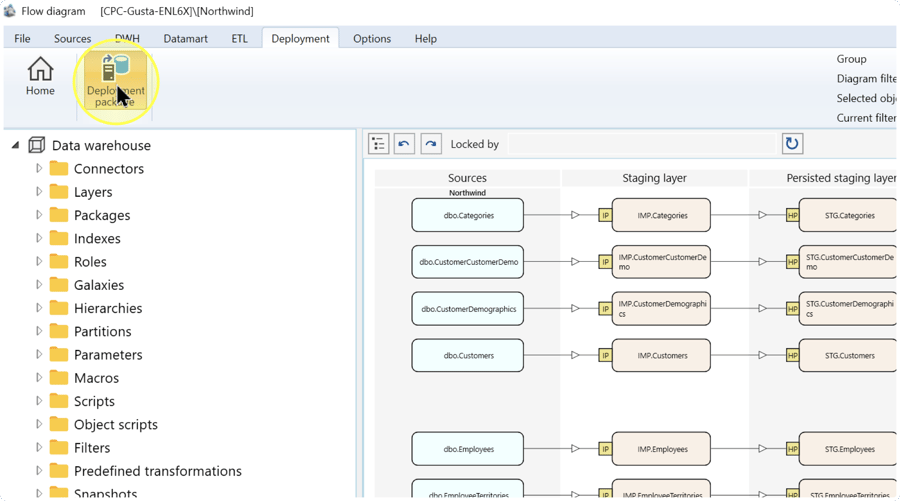
Start a new definition
Click New in the list.
Start a new definition. 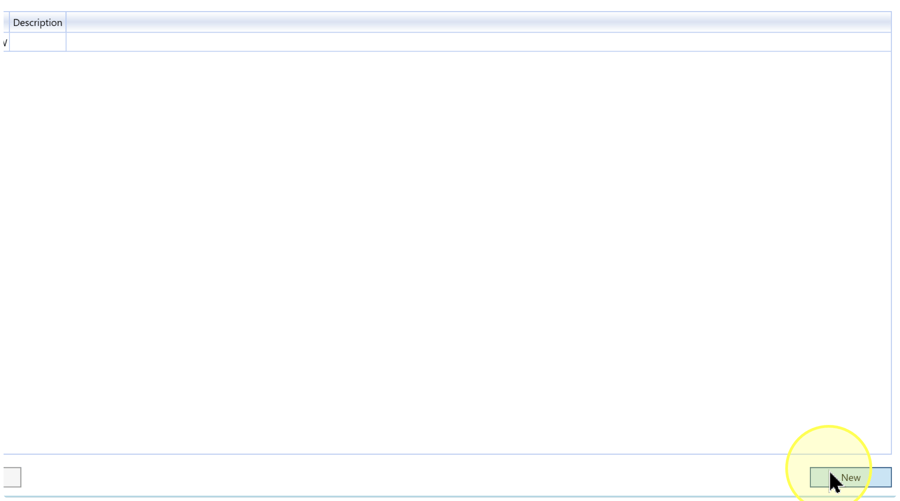
Name the deployment
Enter a meaningful Name that identifies the intended configuration. Do not use a source table’s name unless that is the project’s naming convention.
Name the deployment. 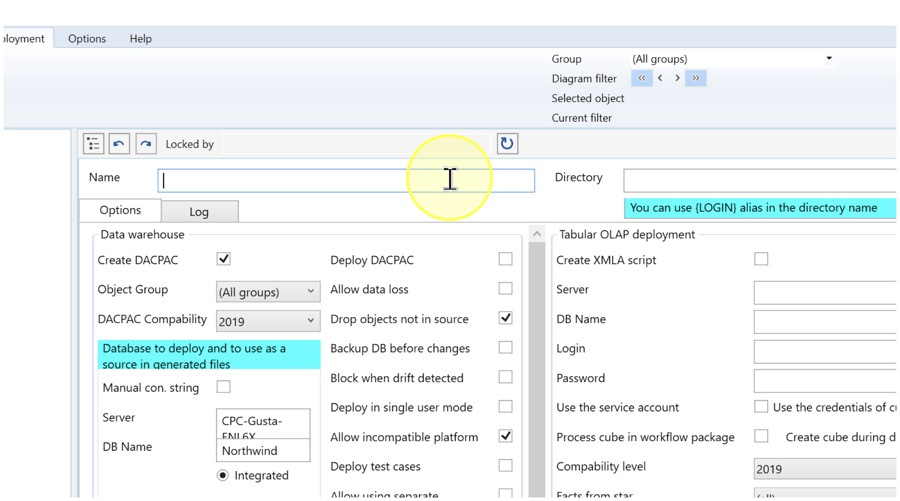
Choose the output directory
In Directory, enter the intended directory or use its browse button. Verify the location against the deployment plan. The interface notes that
{LOGIN}may be used as an alias in the directory name; it is optional.Choose the output directory. 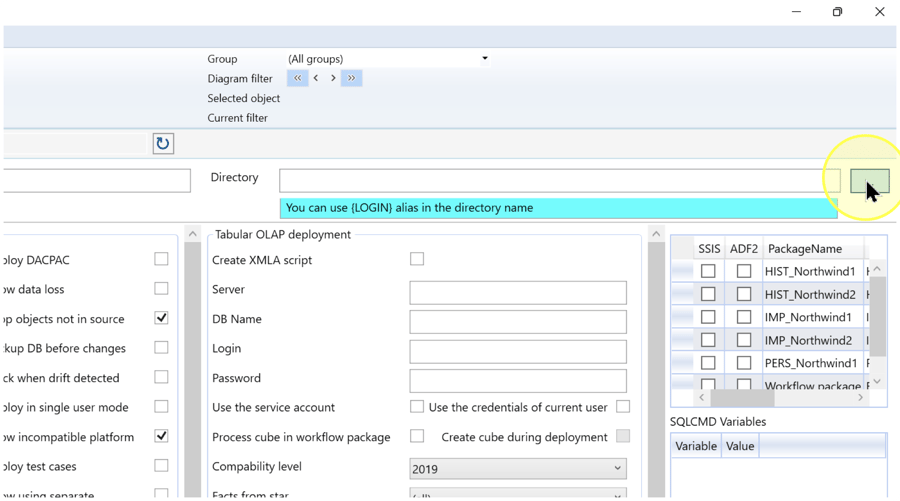
Review database and artifact options
Open Options. Work through the database section before moving to package and model settings:
- Create DACPAC / Deploy DACPAC — These are separate controls for a database deployment artifact and its deployment. Select the operations in the approved deployment plan; a saved definition is not evidence that either operation ran.
- Object Group — Selects the object grouping for the database portion.
- DACPAC Compatibility — Choose the compatibility required by the target platform.
- Server / DB Name / authentication — These identify the database and connection context used by the selected deployment operations. Confirm the target before saving.
- Allow data loss / Drop objects not in source — These options permit consequential changes during deployment. Enable only if those changes are part of the reviewed deployment plan.
- Backup DB before changes / Block when drift detected — Review these controls against the project’s backup and change-control requirements. Their availability does not prove that a backup has occurred.
Preparing an artifact for review and deploying that artifact are different intentions. Select Create DACPAC and Deploy DACPAC only according to the approved intention. The screenshot’s selected settings do not establish a safe baseline.
Review database and artifact options. 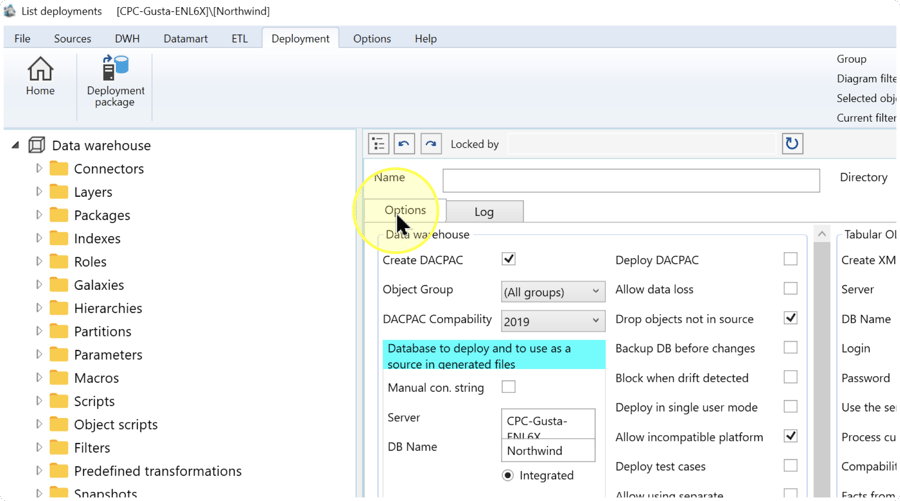
Review packages, models, and variables
Scroll through the remaining Options areas and apply the plan for each relevant component:
- SSIS / ADF2 / PackageName — Select the required package rows and their intended output technology. SSIS means SQL Server Integration Services.
- Tabular OLAP deployment / Multidimensional OLAP deployment — Separate areas for the intended analytical model type. Configure only the applicable model, server, database, authentication, and creation options.
- Create XMLA script — A model-script creation option. Do not infer model deployment from saving this selection.
- SQLCMD Variables — A Variable/Value grid for the deployment’s configured variables. Use the names and values expected by the project.
For the database/model connection fields, use the intended Server, DB Name, and authentication controls. Review package rows individually. Leave unrelated model/package operations unselected when the plan does not include them.
Save the reviewed definition
Check the Name, Directory, target connection information, included components, and target-change options. Click Save. This saves the definition; a successful deployment is not established by this action.
Save the reviewed definition. 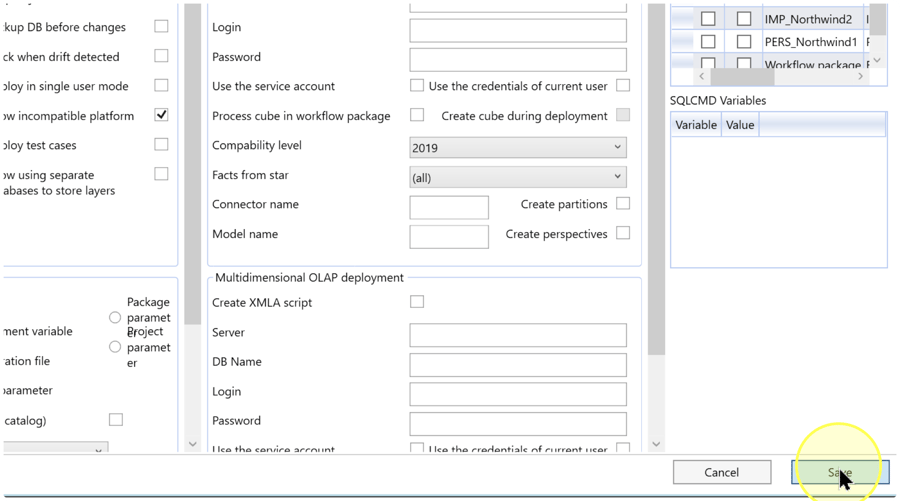
Verify the result
- Return to Deployment → Deployment package, locate the name you saved, and open it.
- Confirm Name, Directory, Options selections, package rows, analytical-model targets, and SQLCMD Variable/Value entries against the intended plan.
- Distinguish a saved definition from generated files and an executed deployment. Before accepting an actual deployment, use the approved execution workflow and inspect its output and log; those actions are not shown by these captures.
Decisions and variations
Choose the components required by the target design. Database artifacts, SQL Server Integration Services (SSIS) packages, and analytical models have separate controls. When an option’s effect is unclear, resolve it before enabling it.
Troubleshooting
- Saved definition not found — Check the project and search the deployment list for the exact saved Name.
- Directory is wrong — Reopen the definition and check the Directory and any {LOGIN} alias against the intended generated-file location.
- Expected files are absent — Save is the final action in this procedure; it is not proof that generation ran. Check the approved generation workflow rather than repeatedly saving.
- Deployment option is unclear — Confirm the technology-specific behavior before enabling it.
