
Configure measures for an analytical table
Introduction
Measures define aggregations or explicit expressions for analytical reporting. Use this how-to to configure a measure's name, input column, calculation, visibility, and display settings, then save and review the definition for an analytical table in your Data Warehouse (DWH) project.
Choose the calculation according to the business meaning of the values. The intended outcome is a saved measure definition that matches your reporting requirement. Generating and processing an analytical model, and checking its reported values, are separate tasks.
Applicability
Measures apply to objects in the Data Mart Layer (DM) and can define calculations for tabular and multidimensional OLAP models. This workflow covers adding or editing measures on an existing analytical table.
The steps use the AnalyticsCreator desktop interface shown below. A specific product version is not identified.
Prerequisites
3.1. An open Data Warehouse (DWH) project containing the intended Data Mart Layer (DM) table and the columns needed for the calculation.
3.2. A business definition for each required measure: what it calculates, which values it uses, and how readers should identify and interpret it.
3.3. The target analytical model type. If the calculation needs an explicit expression, have a DAX expression for a tabular model or an MDX expression for a multidimensional model, using the intended model's objects.
Steps
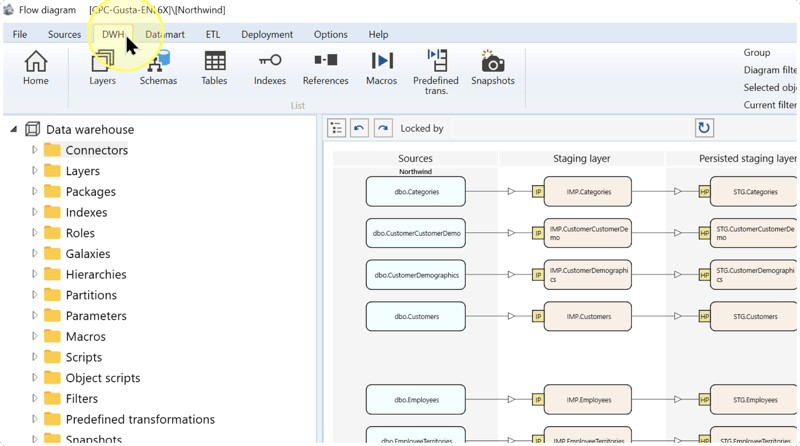
Select the DWH toolbar tab
Confirm that the intended Data Warehouse (DWH) project is open. On the toolbar, click DWH.
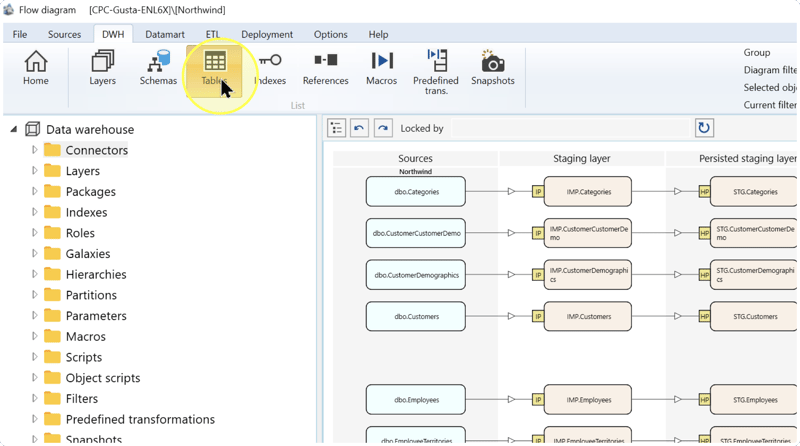
Open the Tables list
On the DWH toolbar, click Tables to open the table list.
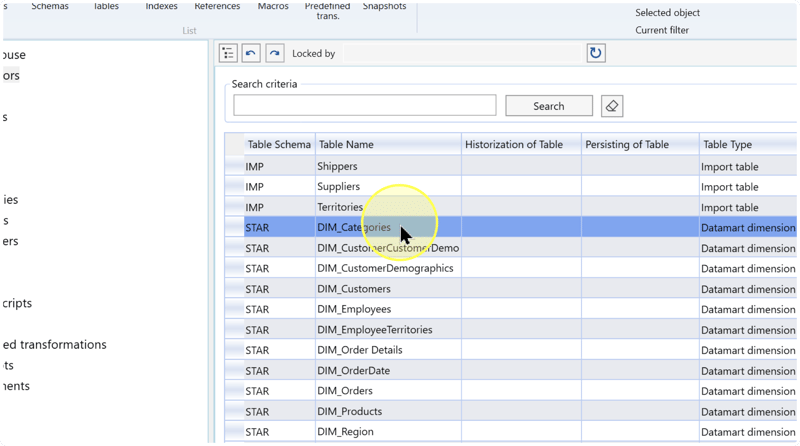
Find and open the analytical table
In the table list, identify the required object by the Table Schema, Table Name, and Table Type columns. Confirm that it is the intended Data Mart Layer (DM) table, then double-click its row to open the table definition.
If you need to narrow the list, enter the table name in Search criteria and click Search. Check the schema and type of the returned row before opening it.
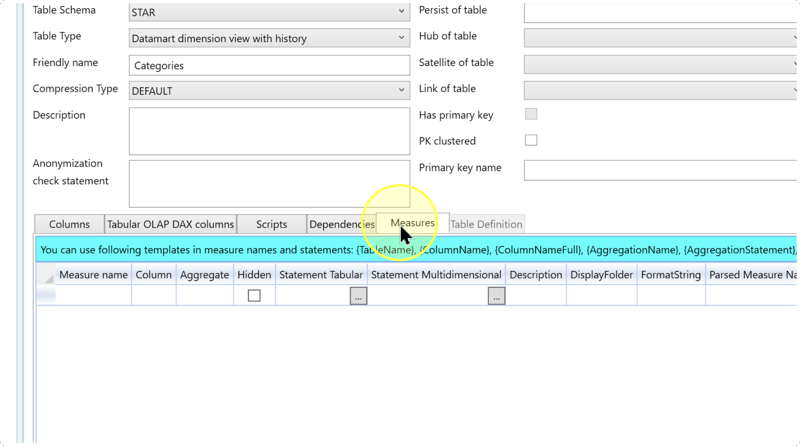
Open the Measures tab
In the table definition, click Measures to display the measure grid.
Configure the measure row
In the Measures grid, select the existing row you need to change, or enter a new measure in the empty row. Each row defines a measure. Use the horizontal scrollbar to reach settings and parsed results to the right.
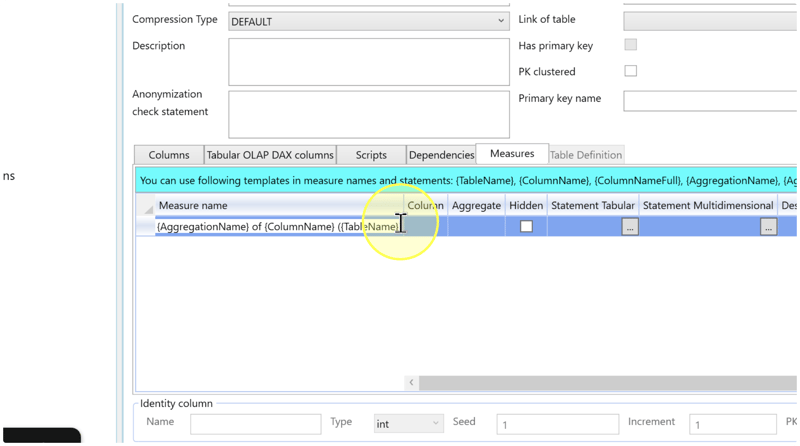
- Measure name — Enter a readable name that identifies the calculation. If your naming convention uses placeholders, enter a name template and review its parsed result. A placeholder is a token in braces that is replaced during template parsing; literal text in the name stays fixed.
- Column / Aggregate — Select the table column containing the values to use. For a simple aggregation, select an Aggregate function that matches the business calculation and leave the statement for that model empty. For example, select Average when the requirement is a mean of the selected values. If the calculation needs an explicit expression, use the relevant statement setting described next; that expression takes precedence over Aggregate for its model.
- Statement Tabular — For a tabular model requiring a custom calculation, enter the complete DAX measure expression in this setting. DAX is the expression language used here for tabular calculations. A supplied statement overrides Aggregate for the tabular model. Statements can use Macros and the supported placeholders. A Macro is a reusable parameterized statement; use one only when its language and calculation suit this expression. If the selected aggregate already expresses the calculation, leave this setting empty.
- Statement Multidimensional — For a multidimensional model requiring a custom calculation, enter the complete MDX measure expression in this setting. MDX is the expression language used here for multidimensional calculations. A supplied statement overrides Aggregate for the multidimensional model. Statements can use Macros and the supported placeholders. If the selected aggregate already expresses the calculation, leave this setting empty.
- Hidden — Select this checkbox when the measure should be hidden in the generated analytical model; clear it when the measure should be visible to report authors.
- Description / DisplayFolder / FormatString — Enter a Description to explain the business calculation. If the measure needs a display folder, enter its name in DisplayFolder. If the measure requires a particular presentation, enter a FormatString supported by the target model, such as the format required for an amount or percentage. These settings describe, organize, and format the measure; the calculation is defined by the aggregate or statement.
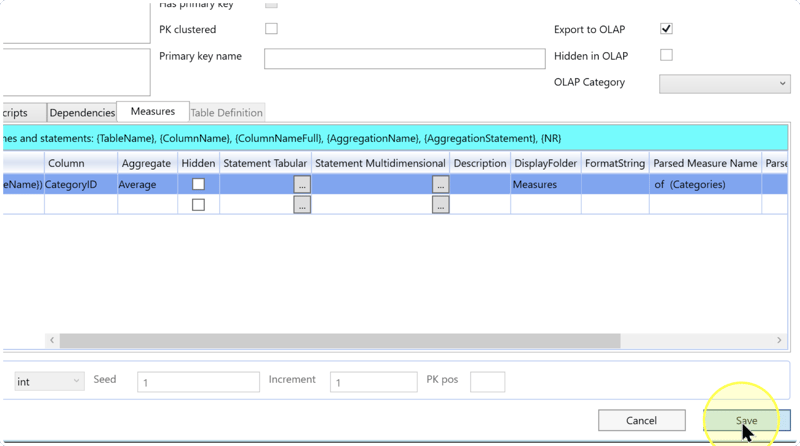
- Parsed fields — Review Parsed Measure Name and the parsed statement columns for the model types you use. These columns display names and expressions after template parsing; they are results to inspect, not settings to edit. Check that the name identifies the calculation and that any parsed statement refers to the intended objects.
- Supported placeholders — Measure names and statements support
{TableName},{ColumnName},{ColumnNameFull},{AggregationName},{AggregationStatement}, and{NR}. Preserve the spelling, case, and braces. If a parsed result is incomplete or unsuitable, revise the template or use a literal name and a fully written expression.
Naming example: {AggregationName} of {ColumnName} ({TableName}) combines placeholders with the fixed word of, spaces, and parentheses. Use this pattern only when its parsed name expresses your intended calculation clearly.
Calculation example: the next capture uses Average with CategoryID. Averaging an identifier does not by itself provide a useful business measure. Use Average only when the selected values and reporting requirement call for a mean.
Review and save the measure definitions
4.6.1. Review each required row's name, input column, calculation, visibility, folder, and format. For each target model, check whether its statement overrides Aggregate. If you use placeholders, inspect the parsed name and statements as described in Configure the measure row.
4.6.2. If further calculations are required, configure another row using Configure the measure row. Add measures for the reporting requirements; a measure is not required for every table column.
4.6.3. Click Save to save the table definition, including its measures. Then follow Expected Results, to verify the saved settings.
Expected Results
The table definition contains the required measure rows with the names, calculations, and display settings you intended to save.
5.1. Open the same table again through DWH → Tables, then click Measures. Confirm that the saved rows are present.
5.2. Compare each row with the business definition: verify the name, selected column, aggregate or model-specific statement, Hidden selection, Description, DisplayFolder, and FormatString. When templates are used, check the parsed name and statements for missing or unintended substitutions.
5.3. Treat this as verification of the saved definition. After the analytical model is separately generated and processed, compare its reported measure values against a small known set of input values and check the display format. Saving alone does not demonstrate that the model has been generated, processed, or validated.
Decisions and variations
6.1 Aggregate or statement. Use Aggregate for a supported simple aggregation. Use Statement Tabular for a custom DAX calculation or Statement Multidimensional for a custom MDX calculation. Each supplied statement overrides the aggregate for its own model; review both statements if both model types are used.
6.2 Literal name or template. Enter a literal name for a fixed label. Use placeholders when your naming convention requires substitution, and verify the parsed result. The supported placeholder list and naming example are in Configure the measure row.
6.3 Measure or calculated column. Use Measures for an analytical measure. A row-level calculated column is a different definition. For a tabular model's calculated column, see Define a Tabular OLAP DAX calculated column.
Troubleshooting
- Required object is missing — Confirm the Data Warehouse (DWH) project and the table's schema and name. If search criteria exclude the object, remove those criteria and click Search again. Confirm that the intended object belongs to the Data Mart Layer (DM).
- Save is unavailable or fails — Check any message displayed by AnalyticsCreator and review the edited row against Configure the measure row. Correct the issue identified by the message before saving again. If the cause remains unclear, retain the message and table details for support; do not assume that the changes were saved.
- Saved definition differs from the intended result — Reopen the table's Measures tab and compare the settings with the business definition. If changing Aggregate does not match the intended calculation, check for a statement that overrides it. For an incomplete parsed name or statement, check placeholder spelling and the values selected in the row. Correct the definition, save again, and repeat the checks in Expected Results.
