
Introduction
Create a Hub from a source table using Vault Wizard: new hub. Set the transformation and Hub identities, review historization and the package, then inspect the generated Hub against the stable business key it should represent.
Applicability
Start from the source table's context menu on the flow diagram and choose Add > Data vault hub.
Prerequisites
- The source table and the stable business key the Hub will represent.
- The intended transformation schema/name and Hub schema/name.
- The historization choice and required package selection for the intended workflow.
Steps
Open the new-hub wizard
On the flow diagram, open the context menu for the source table. The example uses IMP.Categories.
Open the context menu for the source table. 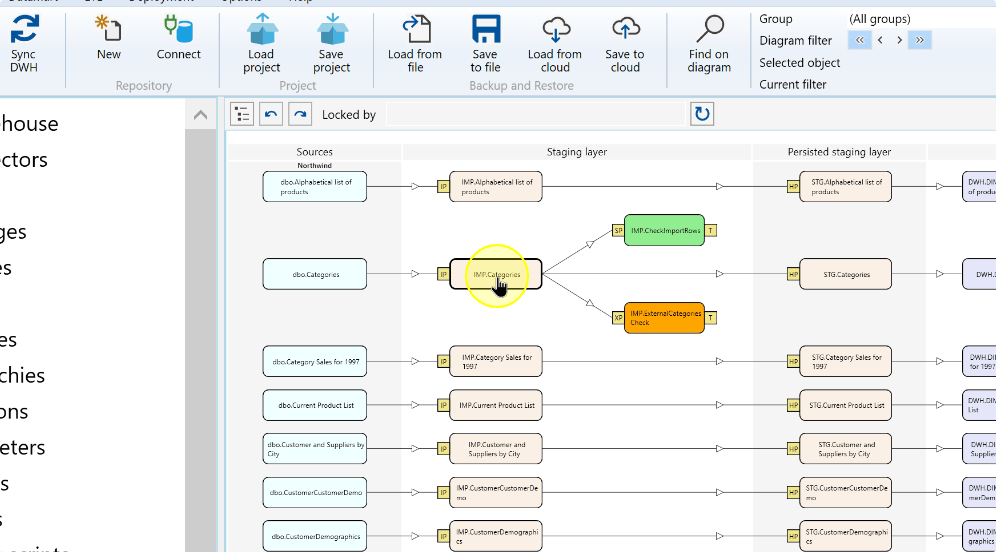
Open Add to display the creation commands.
Open the Add submenu. 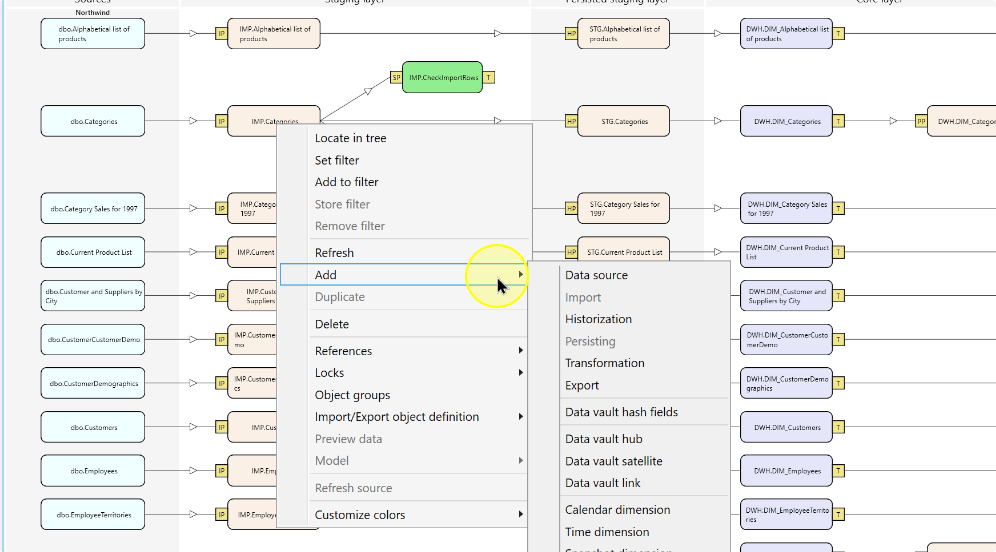
Choose Data vault hub to open Vault Wizard: new hub.
Choose Data vault hub. 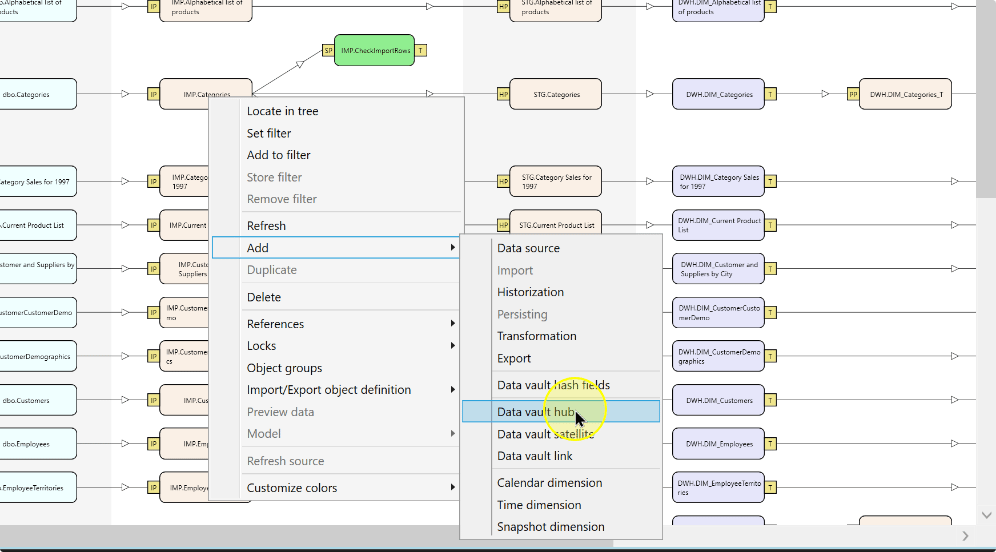
Set source and transformation identity
On Main, confirm Source table. The example starts from IMP.Categories; check that it is the intended input for the Hub.
Confirm the source table in the new-hub wizard. 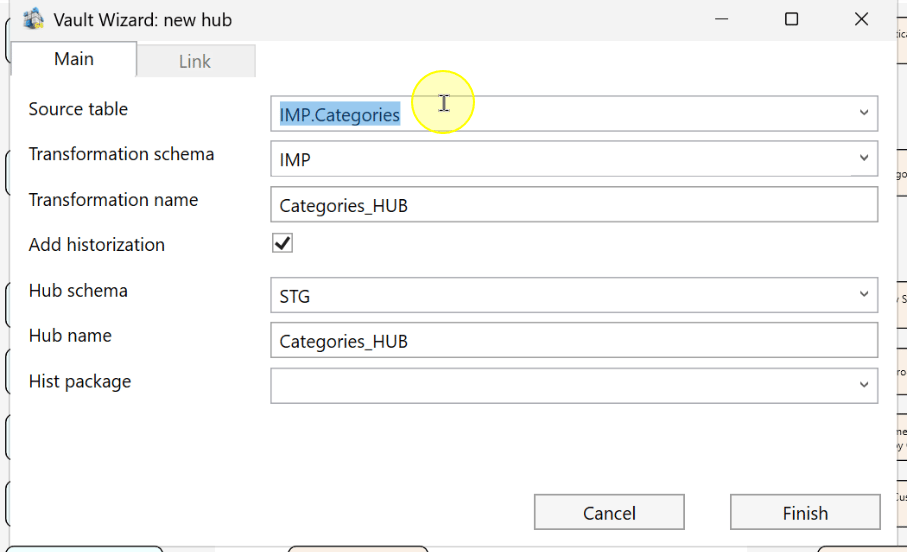
Select Transformation schema, which identifies the schema for the transformation definition. This example changes the value to DWH.
Set the transformation schema. 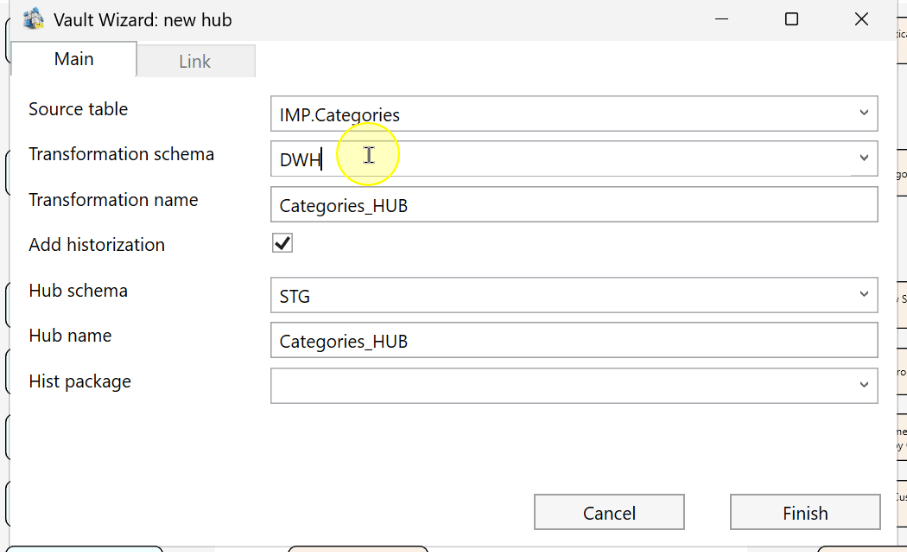
Enter or review Transformation name. The example uses Categories_HUB; check the schema and name together.
Set the transformation name. 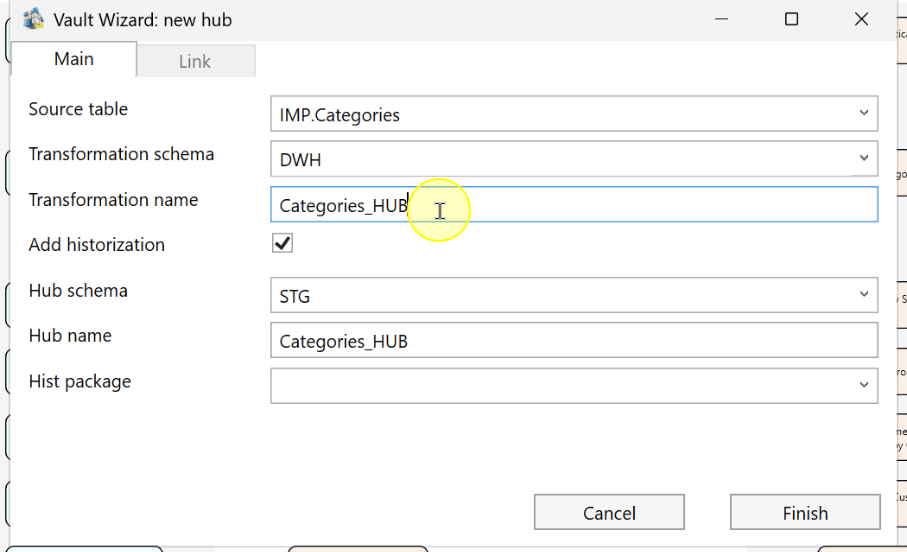
Set Hub identity and historization
Set Hub schema and Hub name for the Hub definition. The example uses STG and Categories_HUB. Review Add historization, then select the required Hist package; the example uses Categories. Enable historization only when it belongs in the intended workflow.
Review the hub schema, hub name, historization, and package. 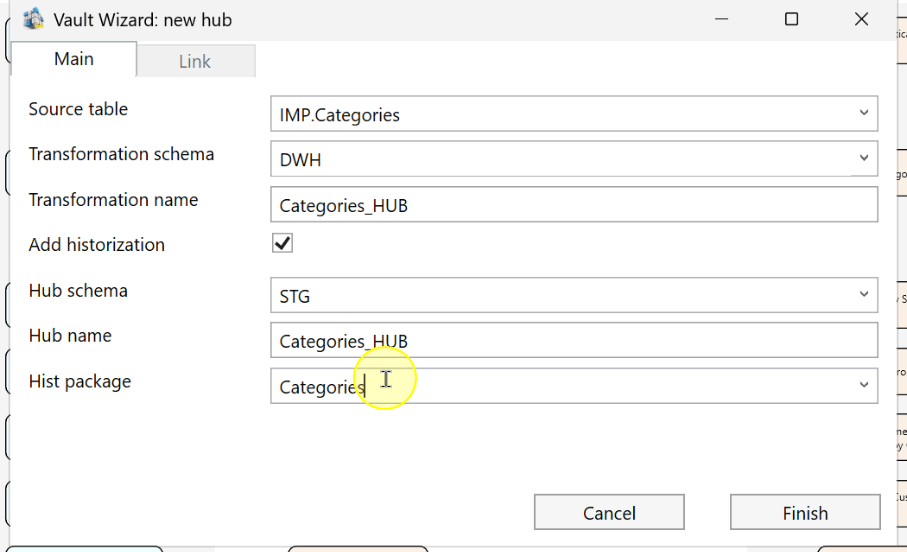
Use the annotated overview to locate the source, transformation, historization, Hub and package fields for the final check. Its values illustrate a separate configuration: the transformation schema is IMP and the package is blank. Keep the values chosen for your own workflow.
Annotated new-hub wizard showing the source, transformation, historization, hub, and package controls. 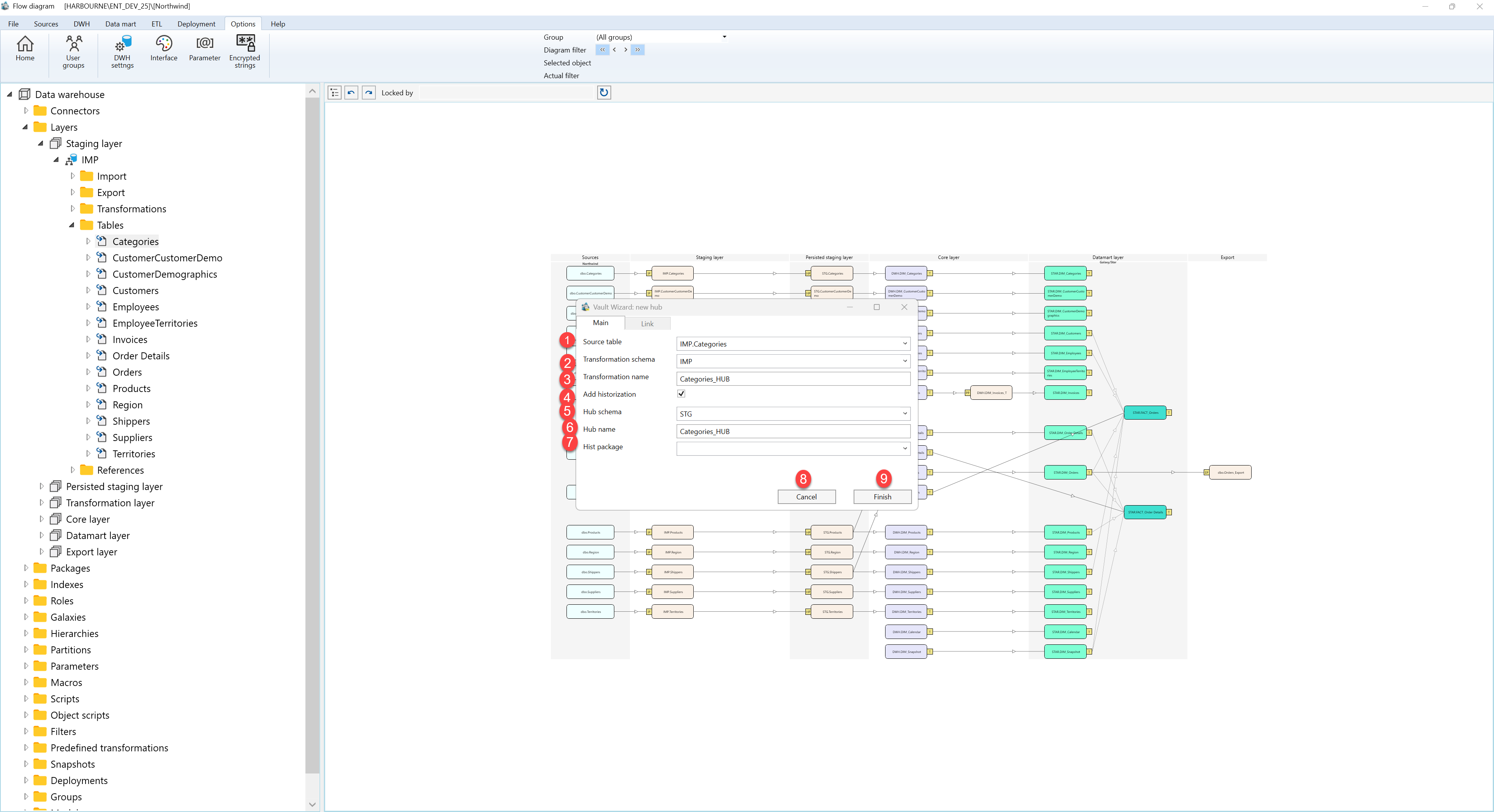
Click Finish, then inspect the generated Hub using the checks in Expected Results.
Finish the new-hub wizard. 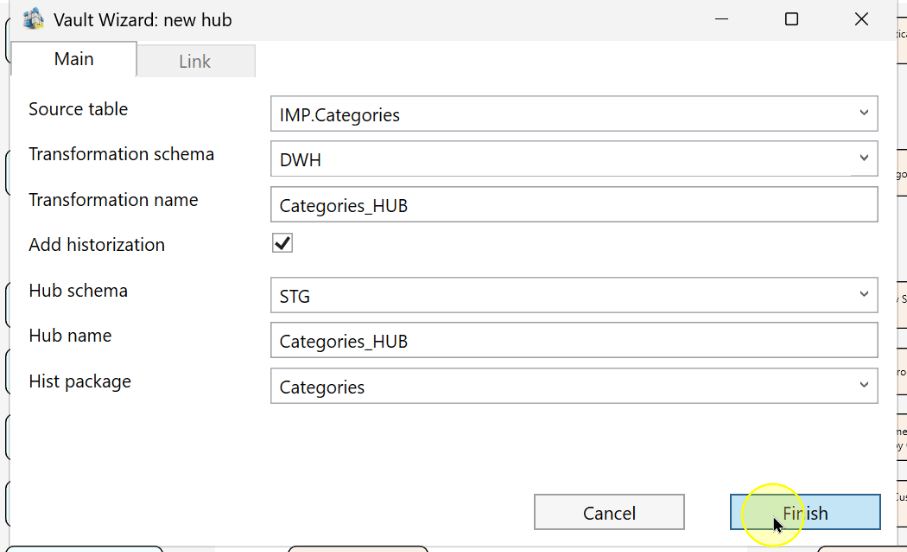
Expected Results
- Locate the generated Hub and compare its source, transformation identity, Hub schema and Hub name with the values entered.
- Check the business key and Hub identifier against the intended model before package execution.
- Wizard completion creates the configuration; verify execution and loaded data separately.
Decisions and variations
- Transformation and Hub identities are separate field pairs. Their names can be the same while their schemas differ.
- Click Cancel to leave the wizard without continuing the current edit.
Troubleshooting
If the wizard values do not match the intended Hub, check Source table, both schema/name pairs, Add historization and Hist package before clicking Finish. If the created Hub is not the one expected, locate it by the schema and name entered and compare its definition with those values.
