
Add or refresh hash keys
Introduction
Use the Hash keys wizard to add or refresh primary and referenced hash keys in your Data Warehouse (DWH) project. You can also request that existing Transformation references be replaced with hash references.
This how-to explains how to open the wizard, select the required operations, finish, and check the resulting key and reference definitions. Use the configuration required by your project.
Applicability
These steps apply to the Add/refresh hash keys command in the AnalyticsCreator desktop diagram context menu. The dialog is titled Add or refresh hash keys in all tables. Treat this as an operation across the project's tables; do not rely on the visible diagram or its filters to restrict the scope.
The workflow covers key and reference definitions in the project. Database deployment and data processing require their own verification.
Prerequisites
3.1. An open Data Warehouse (DWH) project that you can edit, with the primary keys and table relationships needed for the intended hash keys already defined and checked.
3.2. A saved copy of the project from before the change, and an identified set of tables and Transformations to review. See Save and load a Data Warehouse (DWH) project folder if you need to preserve a copy first.
3.3. The project's intended hash-key names and calculation design, and a decision about which key roles need maintenance and whether Transformation references should change. These provide the comparison for the checks after finishing.
Steps
Open the diagram context menu
Confirm that the intended Data Warehouse (DWH) project is open. In its diagram, right-click an empty area outside the object boxes to open the diagram context menu.
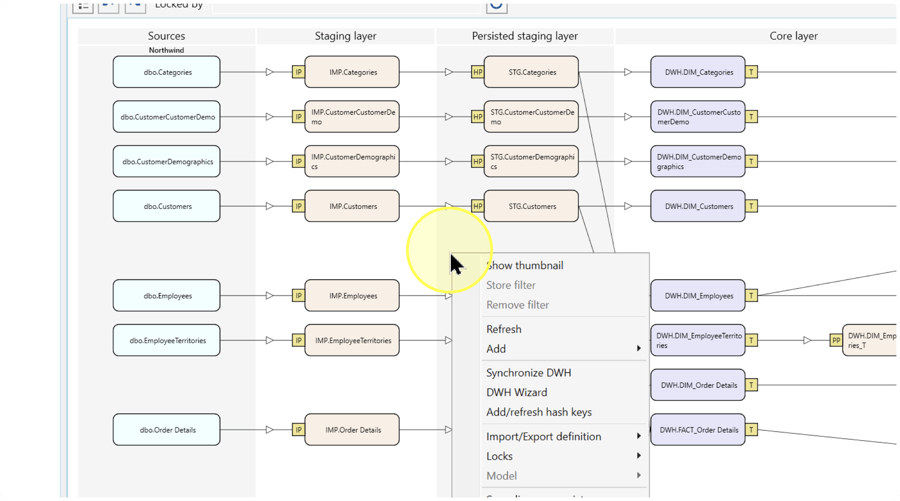
Open the Hash keys wizard
In the diagram context menu, select Add/refresh hash keys to open the wizard.
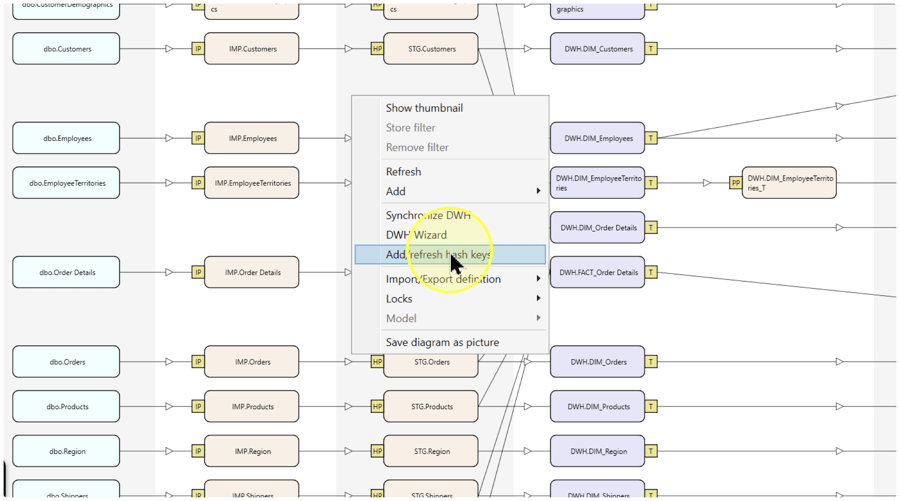
Select the key maintenance operations
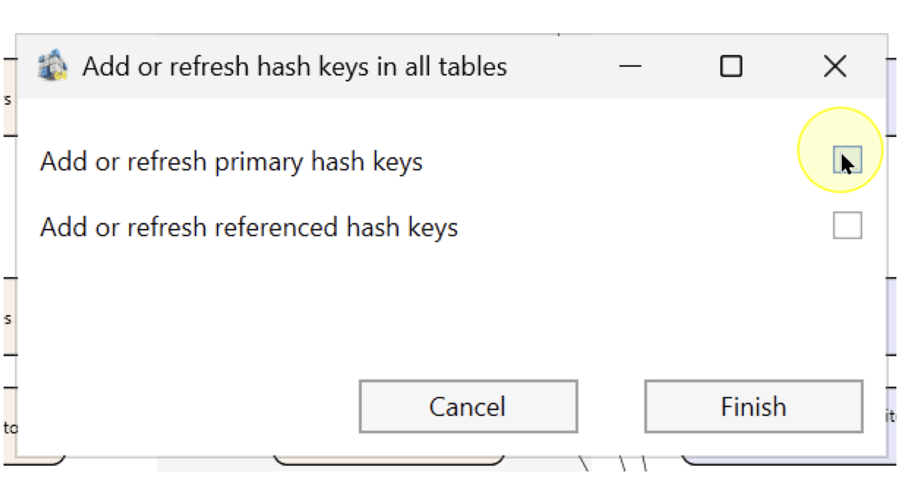
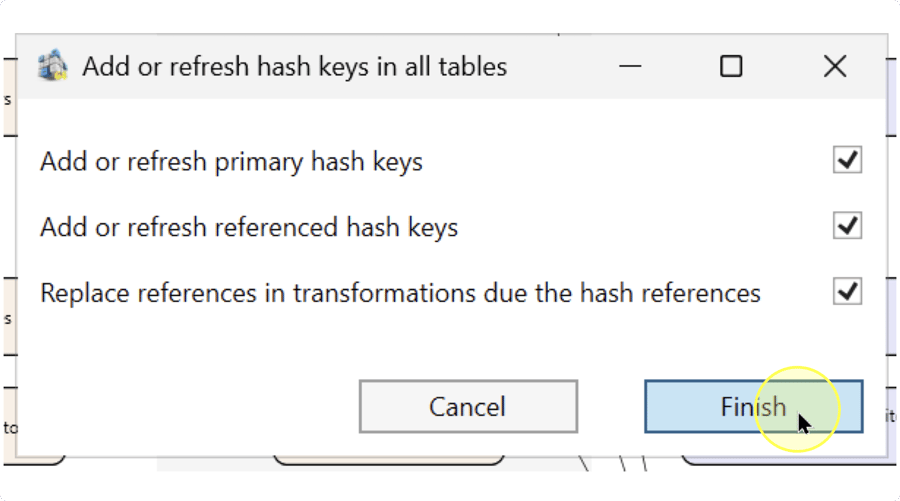
In Add or refresh hash keys in all tables, review the two key-maintenance checkboxes. A hash key is a calculated value derived from key columns. Primary hash keys represent a table's own primary-key values; referenced hash keys represent the corresponding key values used to relate that table to another table.
Select each checkbox for the maintenance required by your project. Select both when both roles need maintenance. Clear a checkbox when you do not want to request that operation.
- Add or refresh primary hash keys — Adds or refreshes hash keys for the primary-key role. Select this when you need to create or update hash keys based on the tables' primary keys.
- Add or refresh referenced hash keys — Adds or refreshes the corresponding hash keys used by references. Select this when you need to create or update the hash keys that link related tables; check that the underlying relationships identify the intended tables and key columns.
Check the all-tables scope before continuing. If you intended to limit the operation to a single visible or selected table, click Cancel and confirm a workflow that supports that scope.
Decide whether to replace Transformation references
A Transformation combines input objects and applies processing logic to produce a result for downstream use. References define relationships between objects and can be used to join inputs in a Transformation.
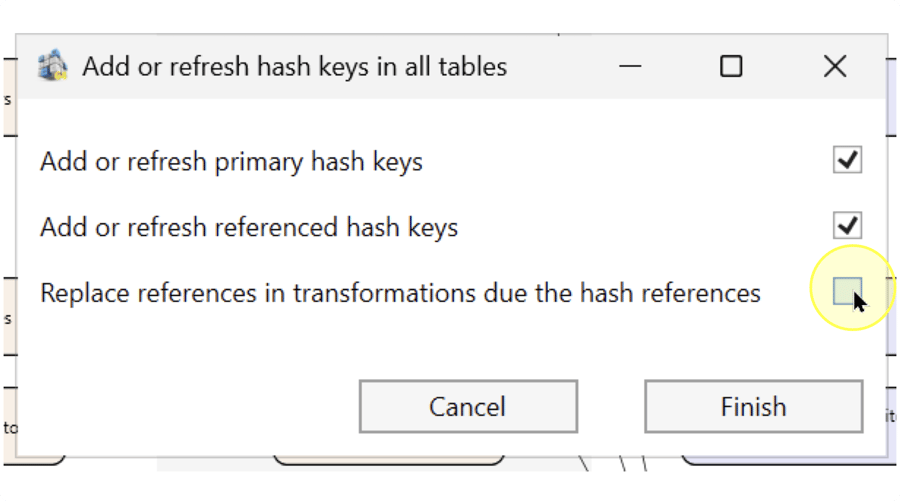
If existing Transformations should use hash references for those relationships, select Replace references in transformations due the hash references when the setting is available. If you only need key maintenance and want to keep the existing Transformation references, leave this checkbox clear or clear it if selected.
If replacement is required but the setting is not available, click Cancel and confirm its availability for your configuration before proceeding.
Review the selections and finish
Review the key-maintenance checkboxes and, when present, the Transformation-reference checkbox against your intended changes. Confirm that the all-tables scope is acceptable and that you have the pre-change project copy for comparison.
Click Finish to apply the selected wizard operations. If the scope or choices are incorrect, correct the choices before finishing, or click Cancel to leave without applying them.
After the operation finishes, check the definitions as described in Check the keys and references. If AnalyticsCreator reports a problem, read the message and inspect the current definitions before deciding whether to run the operation again.
Check the keys and references
4.6.1. Select the DWH toolbar tab and click Tables. Identify an affected table by Table Schema, Table Name, and Table Type, then double-click its row to open the definition. Repeat the checks for the tables involved in your intended changes.
4.6.2. Inspect the hash-key columns and their calculations. Where they are represented as calculated columns, select Calculated columns and compare each Column name and Statement with the intended key inputs and calculation design. A calculated column derives its value from an expression; the name alone does not verify the calculation.
4.6.3. For referenced hash keys, inspect the corresponding Referenced column and References information. Check that the intended related table and key column are used, and compare the definitions with the pre-change project copy.
4.6.4. If you requested Transformation-reference replacement, open each affected Transformation from the diagram by double-clicking it. Inspect its input relationships and join expressions to confirm that they use the intended hash references. If you did not request replacement, compare the existing references with the pre-change copy to check that they remain as intended.
Use Expected Results to assess the outcome. Checking these definitions does not establish that a database has been updated or that data has been processed.
Expected Results
5.1. For each requested key-maintenance operation, the intended primary or referenced hash-key definitions are present or refreshed in the affected tables. Their names, input columns, and calculation expressions match the project's design.
5.2. References connect the intended tables through the expected key columns. If Transformation-reference replacement was selected, the affected Transformations use the intended hash references. Otherwise, their references remain consistent with the configuration you intended to retain.
5.3. The comparison in Check the keys and references supports accepting the project definitions. Validate generated database changes, key values, and join behavior separately before relying on them in data processing. A closed wizard alone does not verify these outcomes.
Decisions and variations
6.1. Choose primary-key maintenance, referenced-key maintenance, or both according to which definitions need to be created or refreshed. The role of each choice is explained in Select the key maintenance operations.
6.2. Decide separately whether existing Transformation references should change. Follow Decide whether to replace Transformation references when hash references are required for those relationships; keeping that setting clear supports a key-maintenance task without requesting reference replacement.
6.3. Plan the operation for all tables, even if the diagram displays only part of the project. Review the scope before clicking Finish.
Troubleshooting
- Required object is missing — Confirm the Data Warehouse (DWH) project and identify the table by its schema, name, and type in DWH → Tables. If the list is filtered, remove unintended text from Search criteria and click Search. Check the existing key and relationship definitions before requesting key maintenance for that table.
- The required wizard operation is unavailable or reports a problem — If Transformation-reference replacement is required but its checkbox is absent, follow Decide whether to replace Transformation references. For a reported problem after Finish, record the message and compare the current definitions with the pre-change copy. Resolve the reported issue before deciding whether to repeat the operation; do not assume that no definitions changed.
- The resulting definition differs from the intended result — Repeat the checks in Check the keys and references, including key inputs, reference targets, and the requested replacement choice. If a required maintenance operation was omitted, review the all-tables scope before reopening the wizard and requesting it. If the intended operation was selected but the result is still incorrect, resolve the difference before applying database changes.
