
Configure an ODBC Connector
Introduction
Configure an ODBC Connector to connect AnalyticsCreator to your source system through an ODBC driver. A Connector stores the connection definition in your Data Warehouse (DWH) project. This how-to explains how to name the Connector, enter its connection settings, test the connection, save the definition, and check the saved settings.
The intended outcome is a saved Connector for your source system with a successful connection test. Reading source metadata and loading data are separate tasks.
Applicability
Use this workflow to create a new ODBC Connector when the source system and its ODBC driver are already configured. The illustrated connection string uses a configured data-source entry, identified by DSN, with an account name and password. If your driver uses a different connection string or authentication method, have that configuration available before starting.
This workflow covers the AnalyticsCreator desktop interface. Driver installation, external account creation, and Azure source configuration are outside its scope.
Prerequisites
3.1. An open Data Warehouse (DWH) project that you can edit, and a name that identifies the new Connector's intended source.
3.2. An ODBC driver available in the environment where AnalyticsCreator will test the connection. For the illustrated template, a configured data-source entry must already exist; entering its name in AnalyticsCreator does not create it.
3.3. The connection values for your source, including the configured data-source entry, credentials accepted by that source, and any required driver-specific settings. For a different authentication method, have the complete connection string required by that driver.
3.4. Your project's requirement for storing the connection string in CFG.SSIS_Configurations. If the project uses protected passwords, have the configured encrypted-string alias available.
Steps
Open the Connector editor
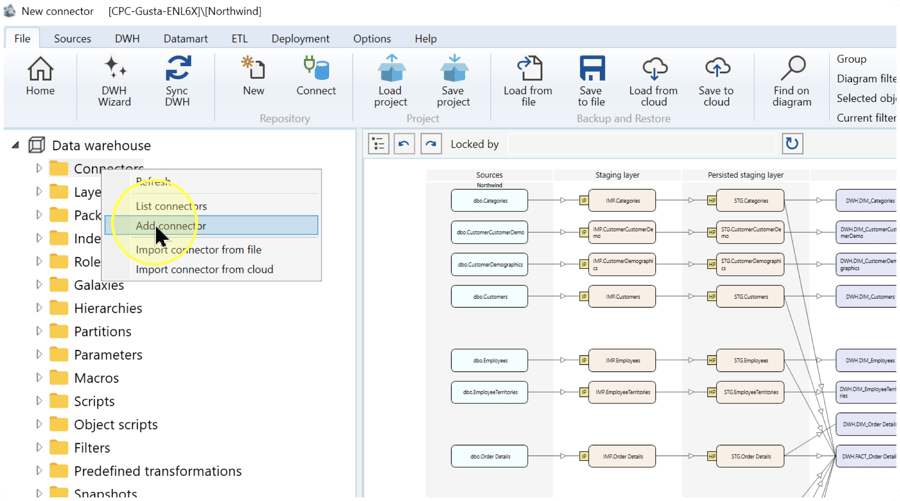
In the left navigation tree of the intended Data Warehouse (DWH) project, right-click Connectors and select Add connector.
Expected Results: the editor opens for a new Connector.
Name the Connector and select ODBC
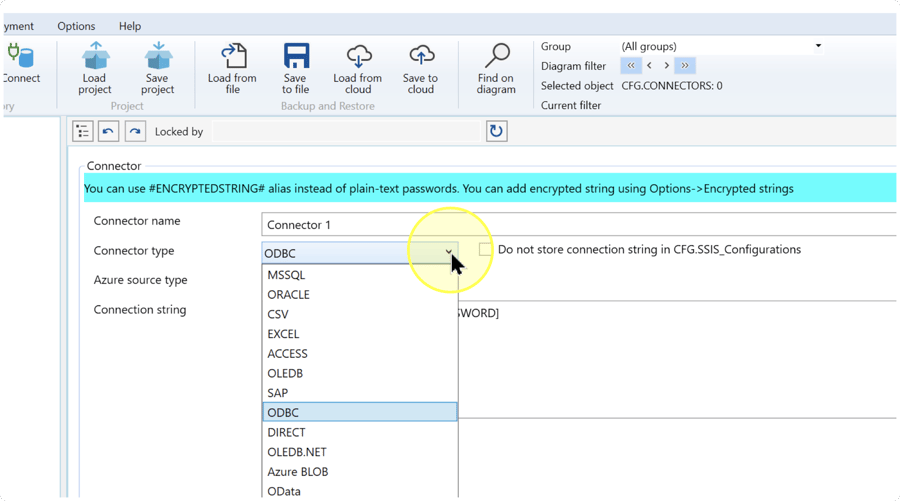
In Connector name, enter a name that identifies your source. In Connector type, select ODBC. This type connects through an ODBC driver; select it before completing the connection string.
The Connection string field contains the source and authentication settings used for the connection. The editor also shows a storage checkbox, Azure source type, and a banner about protected passwords. Complete the connection string in Enter the connection string and review the remaining settings in Review storage and source settings.
Enter the connection string
If you are using the DSN, account-name, and password configuration, click Template to obtain a starting string, then replace its placeholders in Connection string. The Template button is to the right of the field. If you already have a complete connection string for your driver and authentication method, enter that string instead.
The illustrated template is:
DSN=[DSN];UID=[USER];PWD=[PASSWORD]For this template, the keys before each equals sign identify the settings; the square-bracketed placeholders mark values you must replace. Keep the required connection-string syntax.
- DSN — Replace
[DSN]with the name of the existing ODBC data-source entry configured for your source. That entry identifies the driver and its source configuration. - UID — Replace
[USER]with the account name required by the source when using this credential-based template. - PWD — Replace
[PASSWORD]with the password for that account. If your project uses protected passwords, use its configured encrypted-string alias in this position. The editor banner illustrates the alias form#ENCRYPTEDSTRING#. Encrypted strings maintains protected values used in connection settings and is available through Options → Encrypted strings; use the alias for your existing entry. - Driver options — Enter any additional settings required by your configured ODBC driver as part of the connection string. Use that driver's specified keys and values. If no additional settings are required, retain the completed string. For another authentication method, use the corresponding driver configuration rather than adding account-name or password fields solely because the template contains them.
Connection-string example: if your configured data-source entry is named FinanceSource, replace DSN=[DSN] with DSN=FinanceSource. This selects the existing entry; it does not create it. Complete the remaining values for your own source.
Expected Results: the connection string contains your source settings with no unresolved template placeholders. The connection is tested in Test the connection.
![ODBC Connection string field containing DSN=[DSN];UID=[USER];PWD=[PASSWORD], with the encrypted-string banner above it.](https://www.analyticscreator.com/hs-fs/hubfs/images/how-to/011-connectors-odbc%20-%202026-08-31_18-36-42/011-connectors-odbc%20-%202026-08-31_18-36-42_Step003.webp?width=900&name=011-connectors-odbc%20-%202026-08-31_18-36-42_Step003.webp)
Review storage and source settings
Review these settings in the same Connector editor before testing:
- Do not store connection string in CFG.SSIS_Configurations — Select this checkbox when your project requires the connection string to be excluded from that configuration table. Clear it when the project requires storage there. This setting concerns the named table; do not treat it as a guarantee that the connection string is absent from every saved location.
- Azure source type — This setting is not required for an ODBC Connector and can remain blank. If your project's Azure configuration specifies a classification, select that prescribed value. The field is separate from Connector type; keep ODBC selected for this task.
Expected Results: the storage choice and any prescribed source classification match your project requirements.
Test the connection
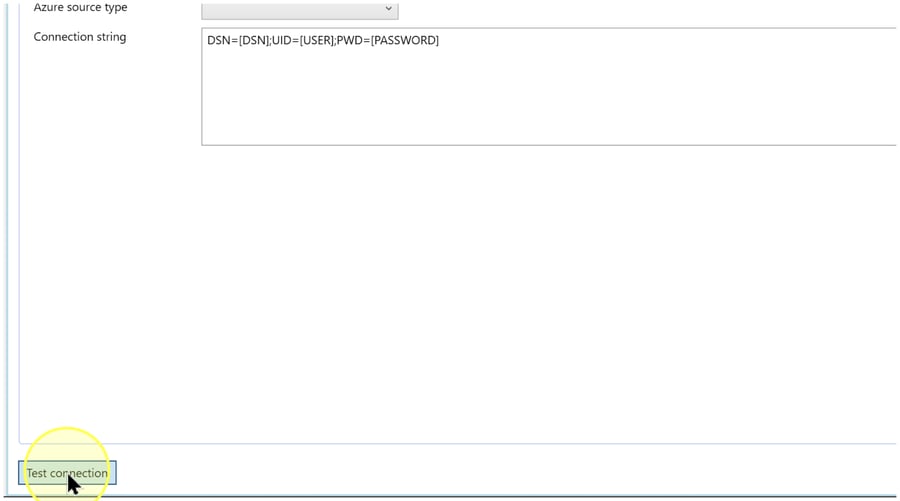
Click Test connection at the bottom left of the Connector editor and read the reported result. If the test fails, use the error details to check the configured data-source entry, driver settings, and credentials, then correct the connection string or source configuration and test again. See section Troubleshooting for these checks.
Expected Results: the test reports a successful connection for the settings you entered. Continue to Save after that result. If you change connection values after a successful test, test them again before saving.
Save the Connector
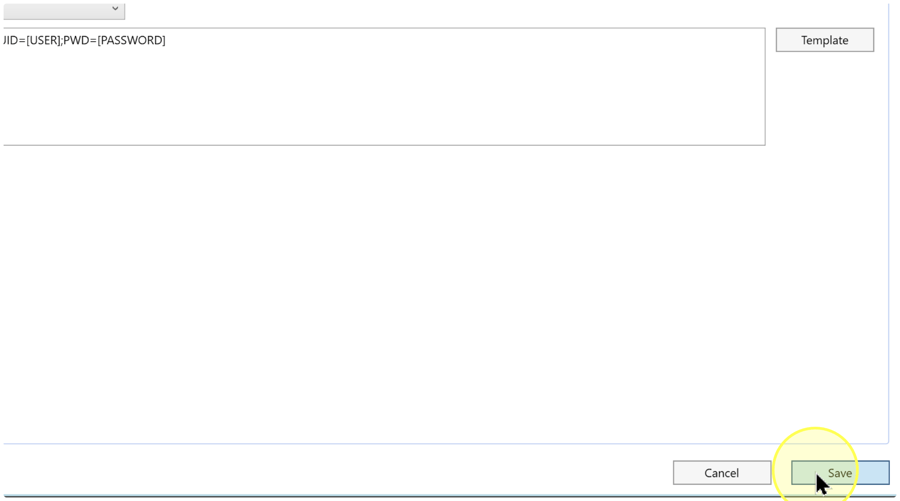
Review Connector name, confirm that Connector type is ODBC, and check the tested connection string and remaining settings. Click Save at the bottom right of the editor.
Expected Results: the Connector definition is saved and appears under Connectors in the navigation tree. Save stores the definition; it does not read Source metadata or load source data. A Source is an input object supplied by a Connector.
Reopen and check the saved Connector
4.7.1. Expand Connectors and locate the name you saved. If you need the list view to find it, right-click Connectors and select List connectors.
4.7.2. In the navigation tree, right-click the saved Connector and select Edit connector. Check its name, ODBC type, connection string, storage choice, and any prescribed source classification against your intended configuration.
4.7.3. Click Test connection and check that the saved settings give a successful result. If you make corrections, repeat the test and Save actions in Test the connection and Save the Connector, then reopen and check the definition again.
Expected Results
5.1. The intended Connector is present under Connectors in the correct Data Warehouse (DWH) project.
5.2. Reopening the definition shows the intended Connector name, ODBC type, connection string, and project-specific settings.
5.3. Test connection reports success with those saved settings. This confirms the tested connection; it does not establish that Source metadata has been imported or that data has been loaded. Follow Reopen and check the saved Connector to perform these checks.
Decisions and variations
6.1. Template or existing string. Use the illustrated DSN, UID, and PWD template when it matches your driver's configured authentication method. Use an existing driver-specific string when that method requires different settings. Enter the connection string explains both paths.
6.2. Password representation. When the project uses protected passwords, substitute the configured encrypted-string alias for the password as described in Enter the connection string.
6.3. Project settings. The configuration-table storage choice depends on the project. Azure source type is not required for an ODBC Connector and can remain blank. Review these settings at Review storage and source settings.
6.4. Metadata work after saving. Use Read metadata from a Connector with DWH Wizard to read structure from the external source. If Source definitions already exist in the project, Use existing Source metadata with DWH Wizard covers their reuse. Metadata describes objects such as tables and columns, rather than their business data. A Connector can also be used for metadata-only design without a live connection; that use does not meet this page's successful-test outcome.
Troubleshooting
- Provider or driver error — Read the reported error. Check that the ODBC driver required by your connection configuration is available in the connecting environment and that the data-source entry names the intended source. Confirm missing or incorrect driver settings with the source administrator, correct them, and repeat Test connection.
- Connection or authentication failure — Check for unresolved
[DSN],[USER], or[PASSWORD]placeholders. Confirm that the data-source entry identifies the intended endpoint and that the credentials are accepted by that source. If using an encrypted-string alias, confirm that it identifies the configured entry. For a driver that connects to a file, check that the configured path is accessible from the connecting environment. Correct the settings identified by the error and test again. - Saved item not found — Confirm the Data Warehouse (DWH) project and the name entered in Connector name. Right-click Connectors and select List connectors to look for that name. If it is absent, return to the Connector editor and check that Save completed before creating another definition.
