
Configure an Excel Connector
Introduction
An Excel Connector stores the settings AnalyticsCreator uses to connect to a Microsoft Excel workbook. Use this how-to to name the Connector, configure the workbook connection, test it, and save the definition in your Data Warehouse (DWH) project.
The intended outcome is a saved Connector with the required workbook path and connection settings, and a successful connection test. Reading Source metadata and loading data are subsequent tasks.
Use the workbook and configuration required for your own project.
Applicability
Use this workflow to create a new Connector of type EXCEL in the AnalyticsCreator desktop interface. The connection-string example uses Microsoft.ACE.OLEDB.12.0 with an .xlsx workbook. Other workbook formats or provider versions require compatible connection settings.
This workflow covers workbook connection setup. It does not install a provider, select individual worksheets for import, or configure package execution.
Prerequisites
3.1. An open Data Warehouse (DWH) project that you can edit, and a name that identifies the new Connector.
3.2. An existing Excel workbook and its full file path, accessible to the account running AnalyticsCreator. Know the workbook format and whether the first row of the intended data contains column names.
3.3. An installed Excel data provider compatible with the workbook and the AnalyticsCreator environment. The provider is the software component that reads the workbook; entering its name in a connection string does not install it.
3.4. The project's requirements for storing connection strings in CFG.SSIS_Configurations. If the Connector participates in an Azure configuration, have the required Azure source type value available.
Steps
Open the Connector editor
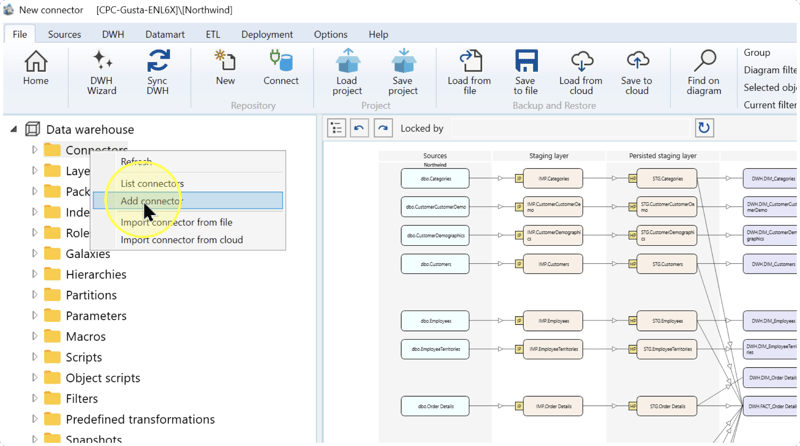
In the navigation tree, right-click Connectors and select Add connector. The editor for a new Connector opens.
Name the Connector and select EXCEL
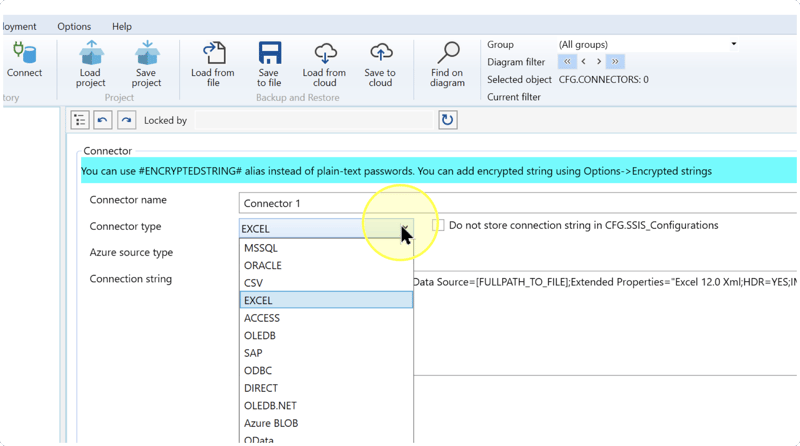
In Connector name, enter a name that identifies your workbook connection. In Connector type, select EXCEL. Confirm this selection before editing Connection string, which contains the provider and workbook settings.
Naming example: SalesWorkbook could identify a connection to a sales workbook.
Enter the workbook connection settings
If you need a starting connection string, click Template. If you already have a connection string verified for this workbook and environment, enter it in Connection string. Review the following settings before testing:
- Data Source — Replace
[FULLPATH_TO_FILE]with the workbook's full path, including its filename and extension. For example,C:\Data\Sales.xlsxidentifies a file on the connecting computer. Use your own accessible path. - Provider — Identifies the installed component used to read the workbook. The template uses
Microsoft.ACE.OLEDB.12.0. Retain it if that provider is available and compatible with your environment; otherwise use the provider name and connection syntax verified for your installation. - Extended Properties — Contains the workbook-format and reading settings inside quotation marks. These are settings within the connection string, not separate fields in this editor.
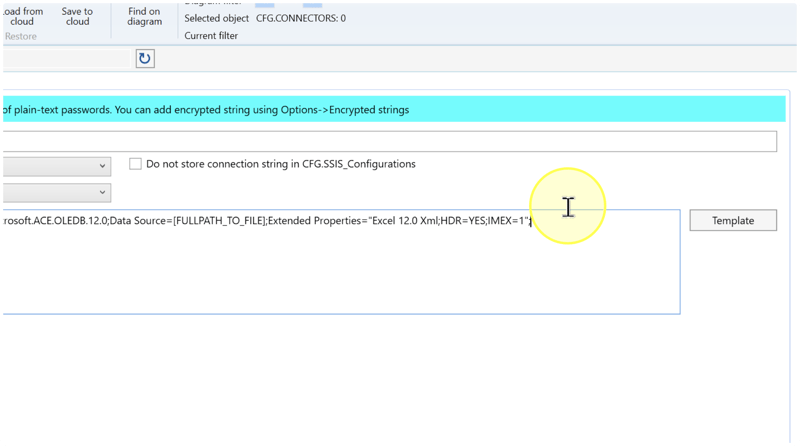
Workbook format: the pictured
Excel 12.0 Xmlvalue is used for an.xlsxconnection. For another file format, use the matching provider settings; changing the filename extension alone does not convert the workbook.Header handling: use
HDR=YESwhen the first row of the intended data contains column names. UseHDR=NOwhen that row contains data. Make this decision from the workbook contents.Mixed data types:
IMEX=1requests import mode to read mixed values as text. Retain it when that behavior is required, particularly for columns containing both numbers and text. Provider sampling and configuration can still affect the values returned; a successful connection test does not validate every cell. - Worksheet or range — This editor configures the workbook connection and has no separate worksheet or range selector. After saving, use the metadata-reading workflow in Read metadata from a Connector with DWH Wizard to select the required exposed Source. A Source is an input object supplied by a Connector; metadata describes its structure, such as columns and data types.
Template example: replace [FULLPATH_TO_FILE] and check the provider, file format, and header setting before using the following string. Enter it as one line, preserving the semicolons and quotation marks.
Provider=Microsoft.ACE.OLEDB.12.0;
Before testing: check that the string contains your actual file path and no unreplaced template placeholder. Do not enter a worksheet name in place of the workbook path.
Review the project-specific connection settings
In the same editor, review the settings that apply to your connection:
- Azure source type — Identifies an Azure source classification. If your project requires one for this Connector, select the value specified by that configuration. Otherwise leave this setting unchanged; it does not replace the workbook path.
- Do not store connection string in CFG.SSIS_Configurations — Select this checkbox when the connection string must be excluded from that configuration table. Clear it when the project requires the string to be stored there. This setting concerns that table, not whether Save saves the Connector definition.
- Encrypted strings — The banner describes using an alias in place of a plain-text password, with the form
#ENCRYPTEDSTRING#. If your verified connection configuration uses a protected value, enter its configured alias; those values are maintained through Options → Encrypted strings. The Excel template in Enter the workbook connection settings contains no password setting, so it requires no password alias.
Test the workbook connection
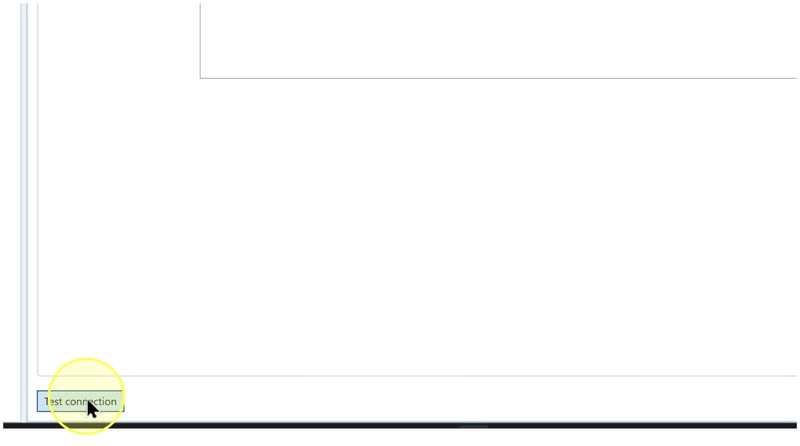
Click Test connection at the bottom left of the editor and read the reported result. Continue only after the test reports success for your configured workbook.
If it fails, use the reported error to check the file path, access, provider, or connection-string syntax. Correct the relevant setting and click Test connection again. See Troubleshooting.
Save the Connector
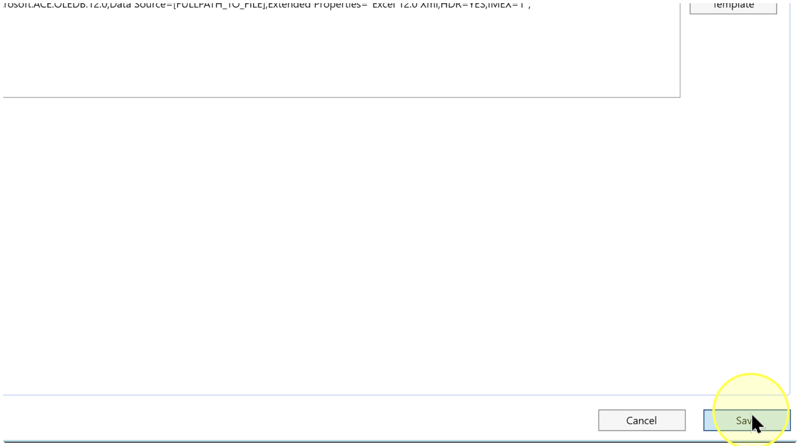
Review Connector name, Connector type, and Connection string. If you change the connection settings after testing, repeat Test the workbook connection. Then click Save at the bottom right of the editor.
Expected Results: the Connector definition is saved and appears under Connectors in the navigation tree.
Reopen and verify the saved Connector
4.7.1. Expand Connectors and locate the name you saved. If you need to find it in a list, right-click Connectors and select List connectors.
4.7.2. In the navigation tree, right-click your saved Connector and select Edit connector. Check its name, EXCEL type, workbook path, provider settings, and configuration-storage checkbox against the choices you made.
4.7.3. Click Test connection and check that the saved configuration reports success. If a correction is needed, update the setting, test again, and click Save.
Expected Results
5.1. The Connector is visible under Connectors in the intended Data Warehouse (DWH) project with the name you entered.
5.2. Reopening it shows the intended EXCEL type, workbook path, provider settings, and connection-storage selection.
5.3. Test connection reports success for the saved settings. This verifies the connection in the current environment. It does not establish worksheet selection, correct interpretation of every value, loaded rows, or later package execution.
Decisions and variations
6.1 Header row and file format. Set HDR=YES or HDR=NO from the intended data's first row, and match the format setting to the workbook. Review these decisions in Enter the workbook connection settings before testing.
6.2 Project configuration. Use the project's Azure classification and connection-storage requirements as explained in Review the project-specific connection settings.
6.3 Next task. Use Read metadata from a Connector with DWH Wizard to read metadata from the configured workbook connection. If the Source definitions already exist in the Data Warehouse (DWH) project and you intend to reuse them, use Use existing Source metadata with DWH Wizard. Reusing stored metadata is a separate workflow and does not demonstrate a live workbook connection.
Troubleshooting
- Provider or driver error — Compare
Providerwith the provider installed in the connecting environment. Have the environment administrator confirm compatibility or supply the verified provider configuration, then repeat Test the workbook connection. Editing the provider name alone does not install or repair it. - Connection or access failure — Read the reported error. Check that
Data Sourceidentifies the intended existing workbook and is accessible to the connecting account. Check the filename, extension, quotation marks, semicolons, and absence of[FULLPATH_TO_FILE]. Correct the identified issue and test again. - Saved item not found — Confirm the current Data Warehouse (DWH) project and the name you entered. Right-click Connectors, select List connectors, and look for that name. If saving reported an error, resolve it in the editor and click Save again before checking the list.
