
Configure a CSV Connector
Introduction
Use the CSV Connector to configure how AnalyticsCreator interprets delimited text files. This how-to covers creating and naming the Connector, matching its settings to a known file layout, and saving and checking the definition in your Data Warehouse (DWH) project.
The intended outcome is a saved CSV Connector with the required header, delimiter, encoding, locale, and format settings. Selecting a source file, reading its metadata, and loading its rows are separate tasks.
Applicability
Follow these steps when you need a new CSV Connector for a delimited text file whose layout and encoding are known. You need a validated Format value and encoding configuration for that file layout before saving.
These steps apply to the AnalyticsCreator desktop interface with Add connector and CSV in Connector type. If your interface differs, use the instructions for your installed version.
Prerequisites
3.1. An open Data Warehouse (DWH) project that you can edit, and a name for the new Connector.
3.2. A representative source file and its known layout: column and row separators, any text-quoting character, column-name row, and leading rows to skip.
3.3. The file's text encoding and applicable locale, with a validated combination of Unicode and Code page settings and a confirmed Format value.
Steps
Open the Connectors context menu
In the left navigation tree of the intended Data Warehouse (DWH) project, right-click Connectors.
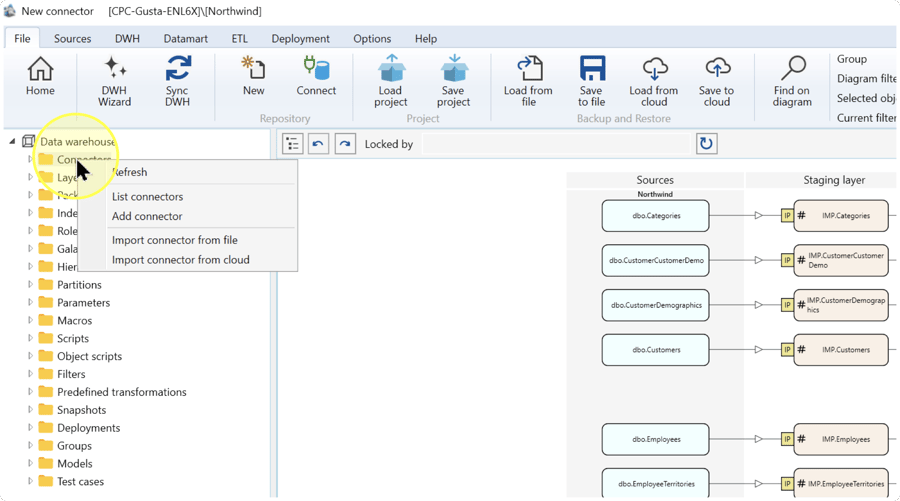
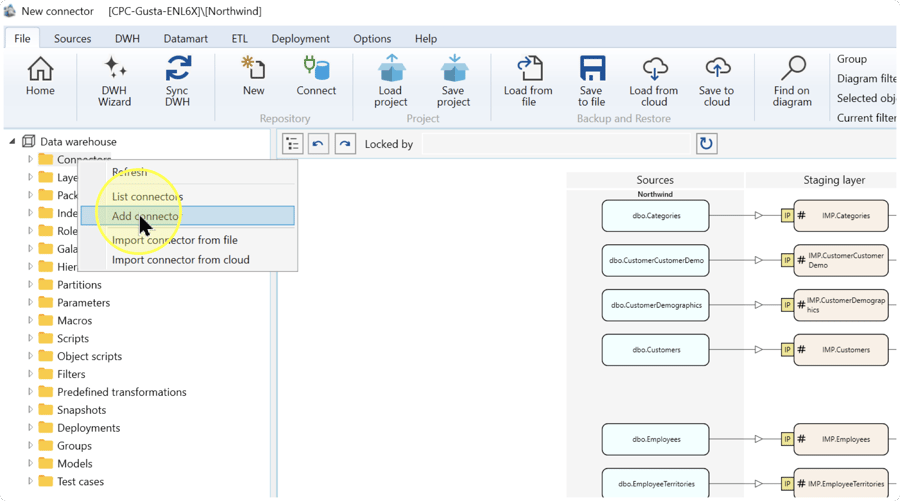
Add a Connector
Select Add connector from the context menu to open the new Connector page.
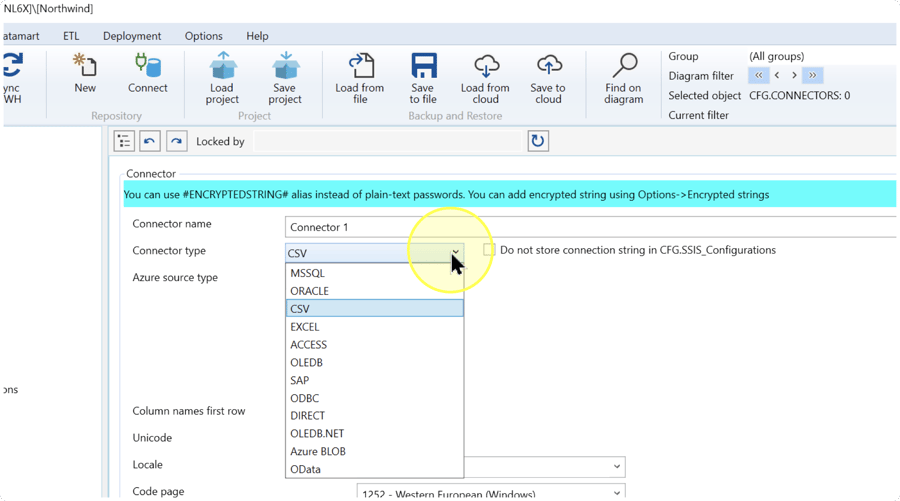
Name the Connector and select CSV
On the new Connector page, enter a name that identifies your file connection in Connector name. A Connector stores the definition used to connect to a source system. Select CSV in Connector type to configure a connection to delimited text files.
Check that CSV is selected and the text-file settings are displayed. Enter the name required by your project.
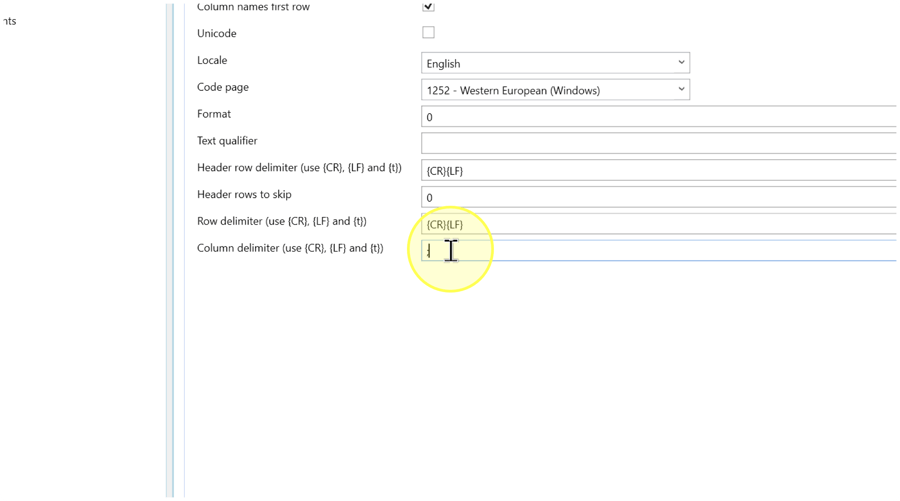
Match the settings to the source file
On the same Connector page, use the text-file settings below Connector type. A delimiter separates fields or rows; text encoding determines how stored bytes are read as characters. Match each setting to the representative file and its validated configuration.
- Column names first row — Select this checkbox when the first row contains column names. Clear it when the first row contains data. Check the actual file so a data row is not treated as column names.
- Unicode / Code page — Set Unicode and select Code page according to the validated configuration for the file's encoding.
- Locale — Select the locale that matches the regional conventions used in the source file's values. Use the file's agreed specification to identify it.
- Text qualifier — If fields are enclosed in a quoting character, enter that character. For example, enter
"for fields enclosed in double quotes. If the file has no text qualifier, leave this setting blank. - Header row delimiter / Header rows to skip — In Header row delimiter (use {CR}, {LF} and {t}), enter the separator used for the file's header rows. In Header rows to skip, enter the number of leading rows to ignore; use
0when no leading rows should be skipped. If the layout combines skipped rows with a column-name row, use a validated configuration for that layout. The literal tokens{CR},{LF}, and{t}represent carriage return (CR), line feed (LF), and tab. For a header ending in carriage return (CR) followed by line feed (LF), enter{CR}{LF}. - Row delimiter — In Row delimiter (use {CR}, {LF} and {t}), enter the separator between data rows. For example, use
{CR}{LF}for carriage return (CR) followed by line feed (LF), or{LF}for line feed (LF) alone. Check the file's actual line endings before choosing. - Column delimiter — In Column delimiter (use {CR}, {LF} and {t}), enter the separator between fields: for example,
;for semicolon-separated fields,,for comma-separated fields, or{t}for tab-separated fields. A.csvfilename alone does not identify the separator. - Format — Enter the numeric value from the validated configuration for this file layout. If a value is already displayed, keep it only if it matches that configuration.
File-layout example: for a file whose first row contains column names and whose fields are separated by semicolons, select Column names first row and enter ; in Column delimiter (use {CR}, {LF} and {t}). These two choices do not determine the file's encoding, line endings, locale, or Format value.
Review and save the Connector
Compare the Connector name, CSV type, and all settings from Match the settings to the source file with the intended file configuration. Resolve any unconfirmed Format or encoding setting before saving. Click Save at the bottom of the Connector page to save the definition.
Reopen and check the saved Connector
Expand Connectors in the navigation tree and open the Connector with the name you entered in Name the Connector and select CSV. Check its saved definition against Expected Results.
Saving the Connector definition does not read the source file or load its data. A later read of the actual Source must verify the parsed rows. A Source is an input object supplied by a Connector and represented in the dataflow diagram.
Expected Results
5.1. The saved Connector is available under Connectors with the intended name and CSV selected in Connector type.
5.2. After reopening it, the header, text qualifier, delimiter, encoding, locale, and Format settings match the intended file configuration.
5.3. The result of this task is a saved Connector definition. Verification of column splitting, header interpretation, and special characters requires a subsequent read of the actual Source; successful saving alone does not establish that data has been read correctly.
Decisions and variations
Base your choices on the file contents and source specification. A .csv file can use a separator other than a comma, and the filename does not establish its encoding or whether it has a column-name row.
Use the relevant choices in Match the settings to the source file: A for a column-name row or data in the first row; B and C for encoding and locale; D for quoted or unquoted fields; E and F for header and row handling; G for field separators; and H for the validated Format value.
Troubleshooting
If a later read of the Source shows one of the following symptoms, compare the saved Connector settings with the actual file before changing them.
- Fields split incorrectly — Check Column delimiter (use {CR}, {LF} and {t}) and Text qualifier. Correct any mismatch with the actual field separator or quoting character, save the change, and check the next Source read.
- Header appears as data — Check Column names first row and Header rows to skip against the file layout. Correct the settings using the validated header configuration and verify that the next Source read handles the intended column-name row correctly.
- Characters are wrong — Confirm the source file's encoding, then compare it with the Unicode and Code page configuration. Correct a confirmed mismatch and check the affected characters in the next Source read.
- Format value is unknown — Before saving, obtain a supported Format value for the file configuration. Do not infer its meaning from the pictured
0.
