
Introduction
Change a parameter's Custom value and verify that the setting is saved. Identify the parameter and its intended value before editing, because a parameter can affect generation or execution workflows that use it.
Applicability
Use the Parameters navigation tree and Edit parameter command for an existing AnalyticsCreator parameter.
Prerequisites
- The exact parameter name, its valid value and the scope of the change.
- The downstream objects or workflows that use the parameter, so that their behavior can be checked after the edit.
Steps
Change the parameter value
Expand Parameters in the navigation tree.
Expand Parameters in the data warehouse tree. 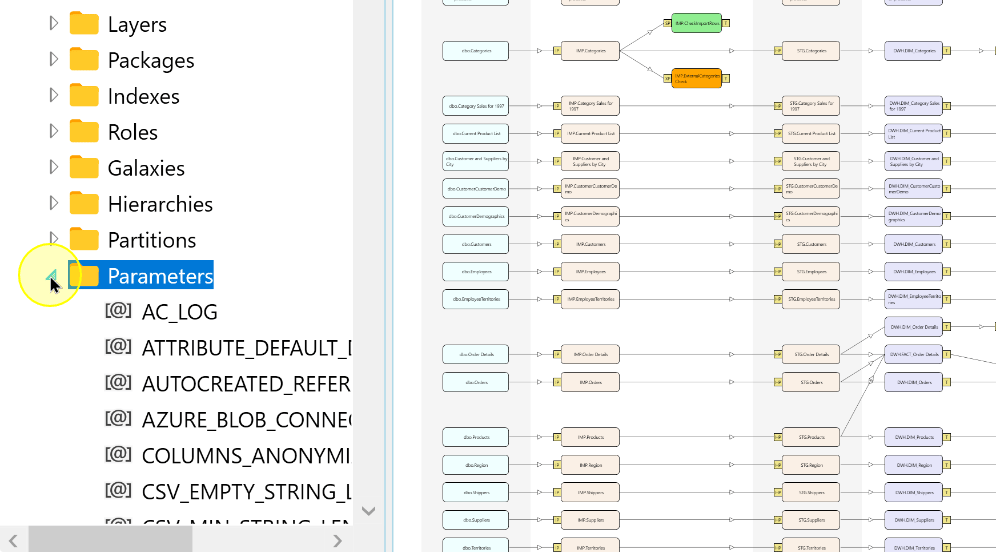
Locate the exact parameter and open its context menu. The example selects the default calendar macro parameter.
Locate the parameter to change; DEFAULT_CALENDAR_MACRO is shown here. 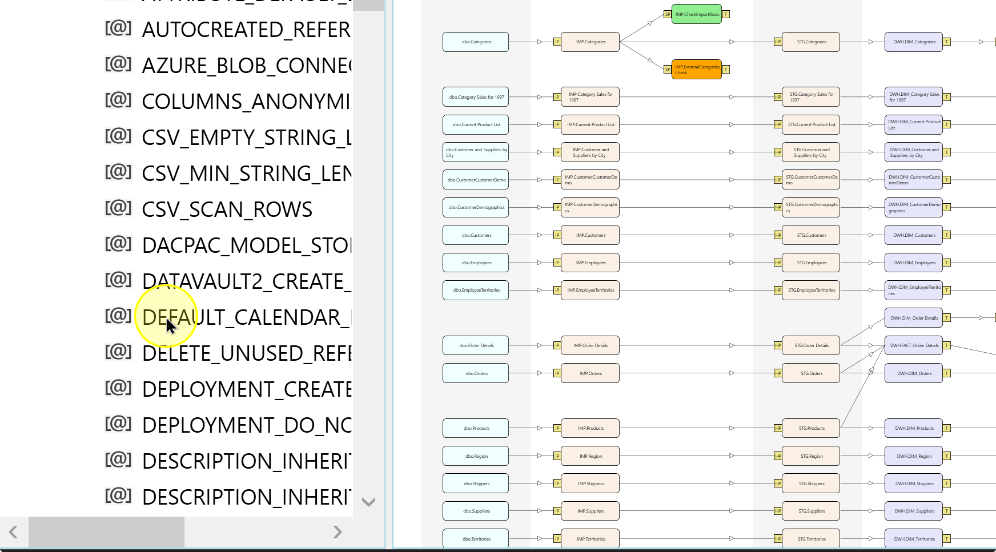
Choose Edit parameter. Confirm the parameter name and read its Description before editing.
Choose Edit parameter from the parameter context menu. 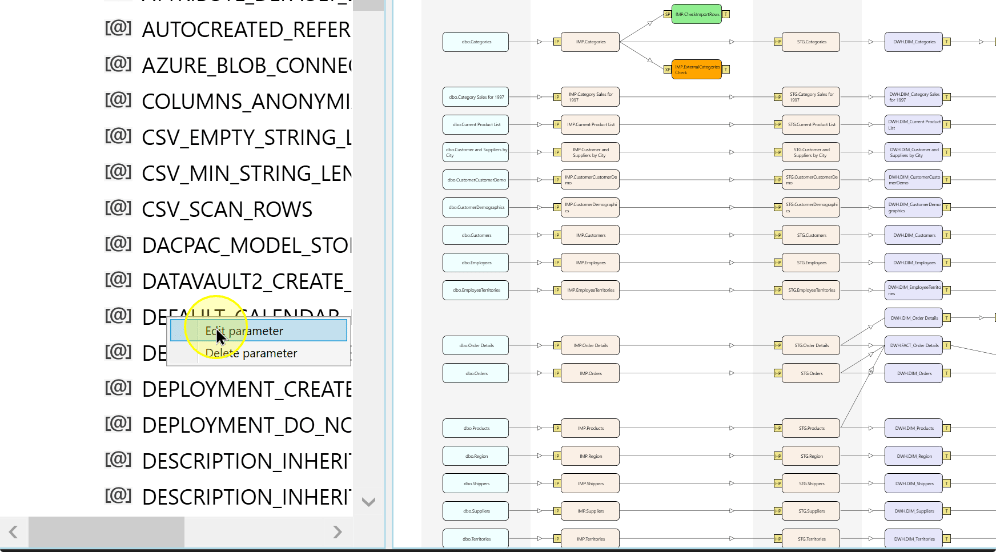
Record the previous value. Compare the parameter's Description and Default value with the intended change, then enter the new value in Custom value. The example enters Date2ID as the name of the default calendar macro.
Enter the custom value in the selected parameter row. 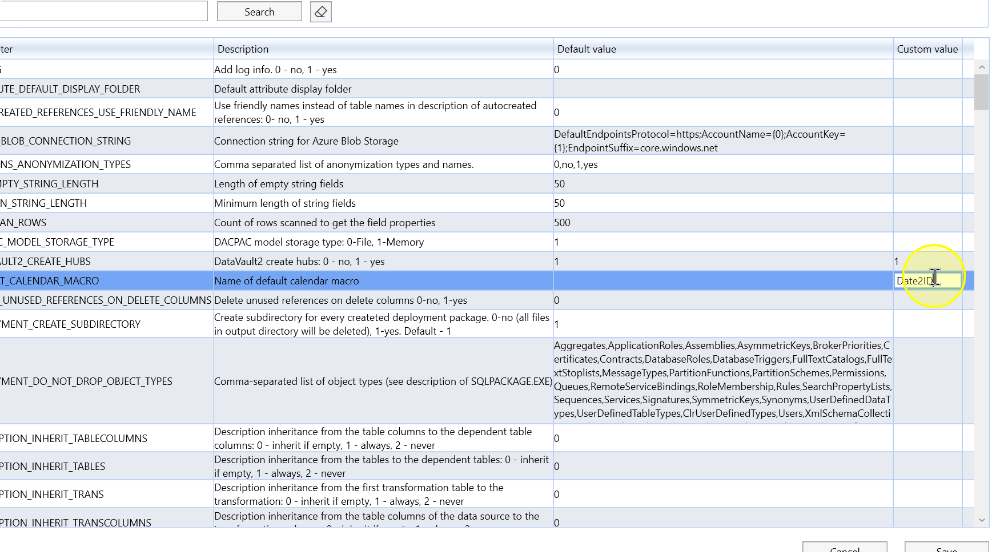
Click Save, then reopen the same parameter and confirm that the intended Custom value is retained.
Save the custom parameter value. 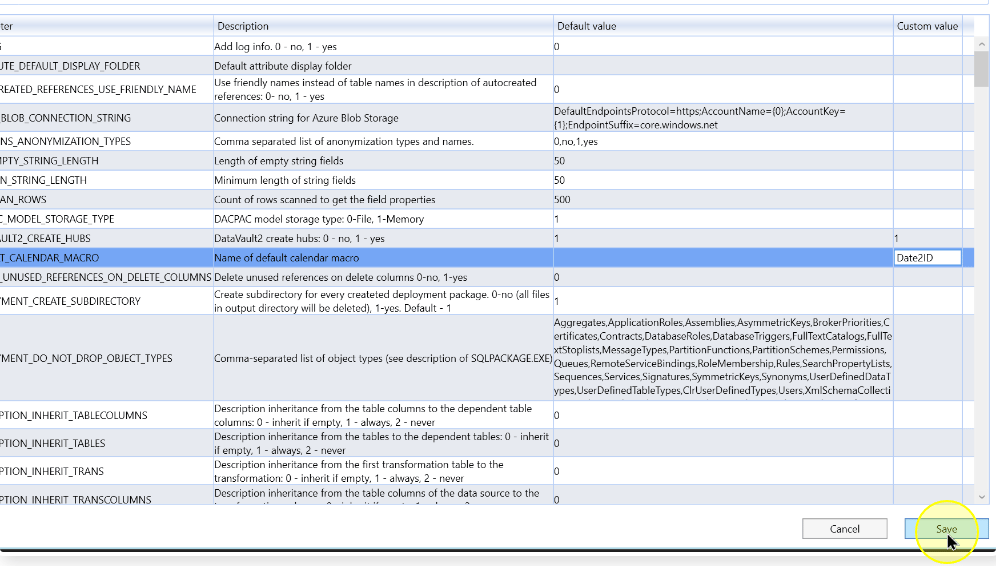
Expected Results
Reopen the same parameter through Edit parameter and compare its Custom value with the value entered. For the example, confirm that the default calendar macro parameter retains Date2ID. Check the affected downstream workflow separately before relying on the change.
Decisions and variations
Review each parameter's Description and displayed Default value before entering a Custom value. Different parameters control different behavior; a saved value alone does not confirm that all generated objects or later processing are correct.
Troubleshooting
- The wrong parameter was opened: compare its name and Description with the intended setting before changing the value.
- The custom value is not retained: check that it was entered in Custom value, click Save and reopen the same parameter to compare it.
- A downstream result is unexpected: compare the saved value with the previous value you recorded and review the objects that use the parameter.
